RSL helps you compare an offered load with the trip costs you enter. The current Web app is a local estimate tool. It does not decide whether a load is legal, compatible with your vehicle, profitable in every circumstance, or guaranteed to pay. The examples below use synthetic values.
RSL ayuda a comparar el pago ofrecido por una carga con los costos de viaje que usted ingresa. La aplicación Web actual es una herramienta de cálculo local. No decide si una carga es legal, compatible con el vehículo, rentable en todas las circunstancias ni si el pago está garantizado. Los ejemplos usan datos ficticios.
Save the truck profileGuarde el perfil del camión
Open RSL Preview and choose Check a Load. Until a truck profile is saved, RSL shows Add your truck first, with a note explaining why: RSL keeps your truck ratings so vehicle checks can use them later, and your fuel economy and maintenance reserve are saved there too, so Check a Load does not ask for them on every load. Select Go to truck profile. The profile has three steps.
First copy GVWR, front GAWR, and rear GAWR from the vehicle label or registration. Then enter the fuel tank capacity; GCWR and ready-to-drive weight are optional. The third step, Fuel economy and reserve, asks for your fuel economy loaded and empty (MPG) and your maintenance reserve per mile. Set them once: Check a Load uses them on every load and does not ask for them. The reserve is optional here: if you drive under an agreement, leave it blank and your agreement's rate is used. Select Save truck profile and look for the saved message.
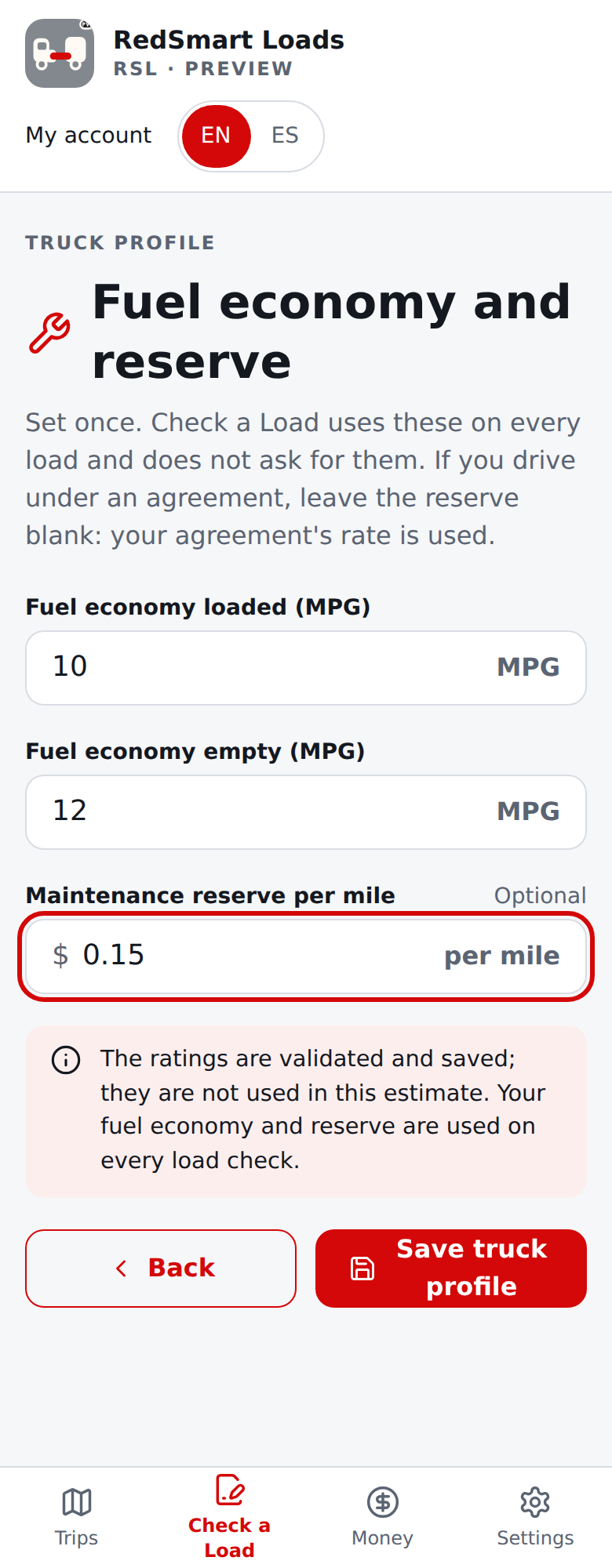
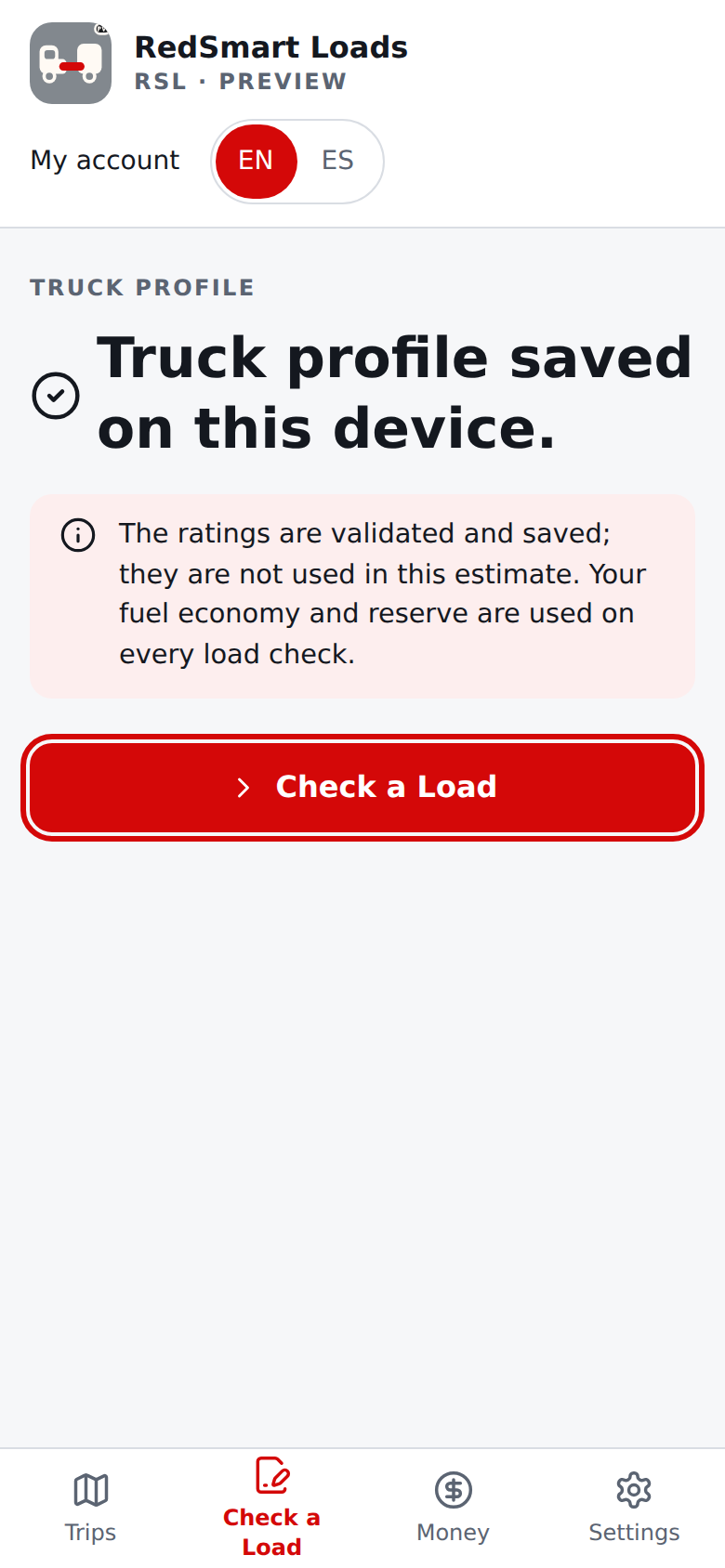
The profile is stored in this browser on this device. In v0.50.0 the ratings gate Check a Load but do not change the economics result or verify that the truck can carry or tow a load; the fuel economy and the maintenance reserve on the profile (or your agreement's reserve) are used in every load check, and they sync and back up with the profile.
Abra RSL Preview y seleccione Revisar una carga. Mientras no haya un perfil guardado, RSL muestra Primero agregue su camión, con una nota que explica por qué: RSL conserva las especificaciones de su camión para que las revisiones del vehículo las usen más adelante, y aquí también se guardan su rendimiento de combustible y su reserva de mantenimiento, para que Revisar una carga no los pida en cada carga.
Elija Ir al perfil del camión. El perfil tiene tres pasos. Primero copie GVWR, GAWR del eje delantero y GAWR del eje trasero de la etiqueta del vehículo o del registro. Luego ingrese la capacidad del tanque; GCWR y peso del camión listo para conducir son opcionales. El tercer paso, Rendimiento y reserva, pide su rendimiento de combustible con carga y vacío (MPG) y su reserva de mantenimiento por milla. Se definen una vez: Revisar una carga los usa en cada carga y no los pregunta. La reserva es opcional aquí: si maneja con un acuerdo, déjela en blanco y se usa la tarifa de su acuerdo. Seleccione Guardar perfil del camión y confirme el mensaje de guardado.
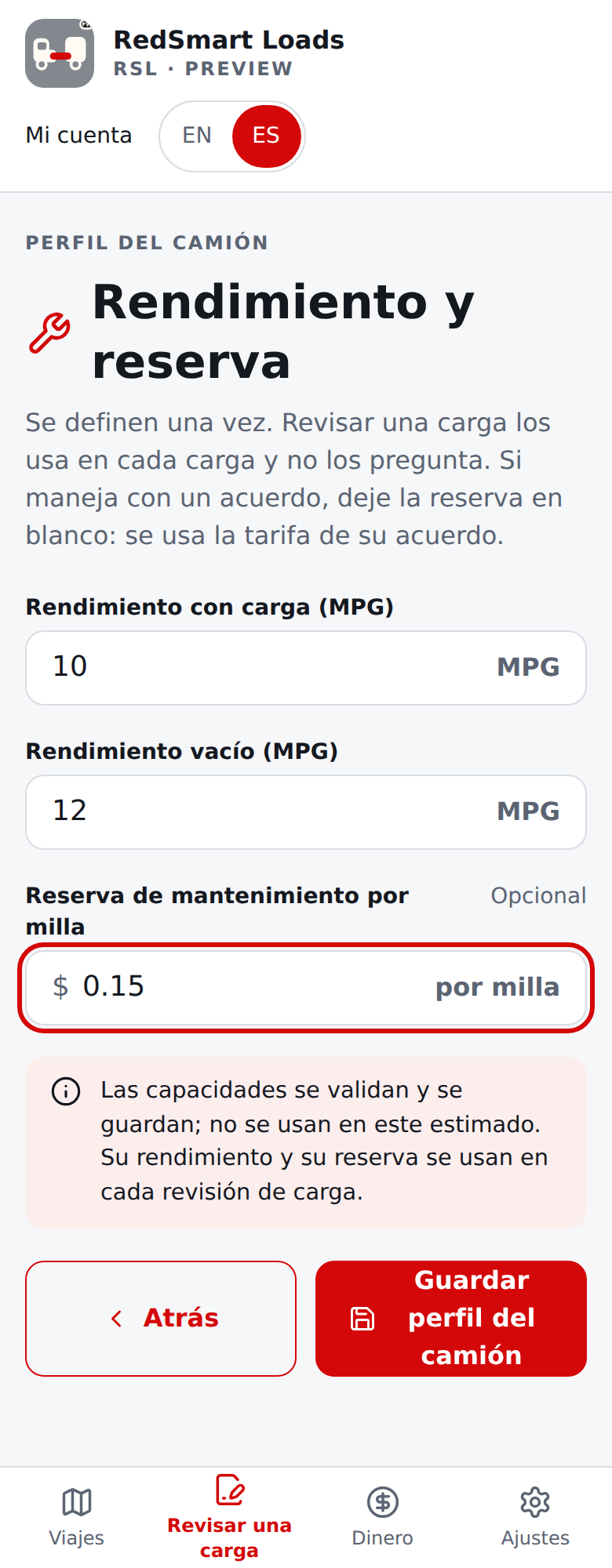
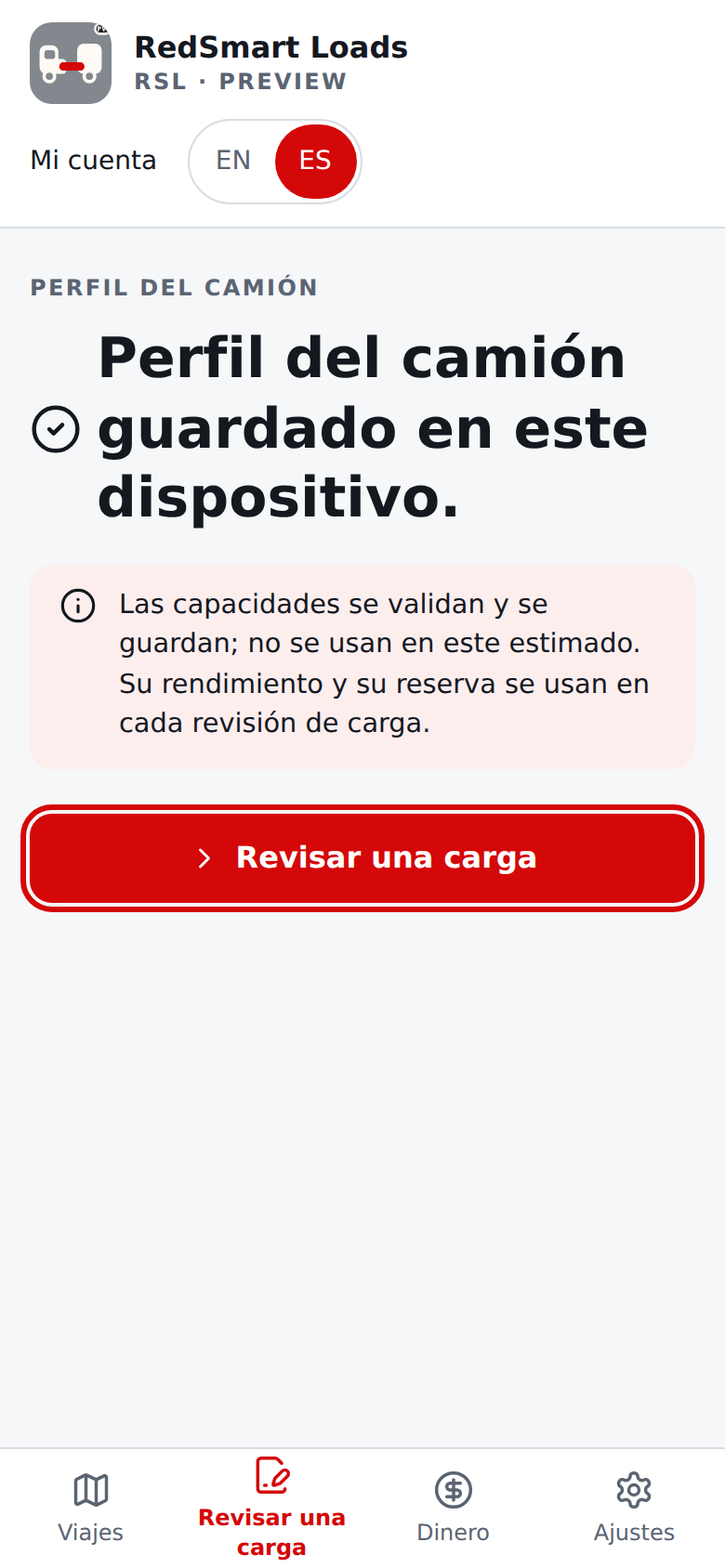
El perfil se guarda en este navegador y dispositivo. En v0.50.0 las capacidades permiten usar Revisar una carga, pero no cambian el resultado económico ni verifican que el camión pueda transportar o remolcar la carga; el rendimiento de combustible y la reserva de mantenimiento del perfil (o la reserva de su acuerdo) sí se usan en cada revisión de carga, y se sincronizan y se copian con el perfil.
Answer the six questionsResponda las seis preguntas
Return to Check a Load.
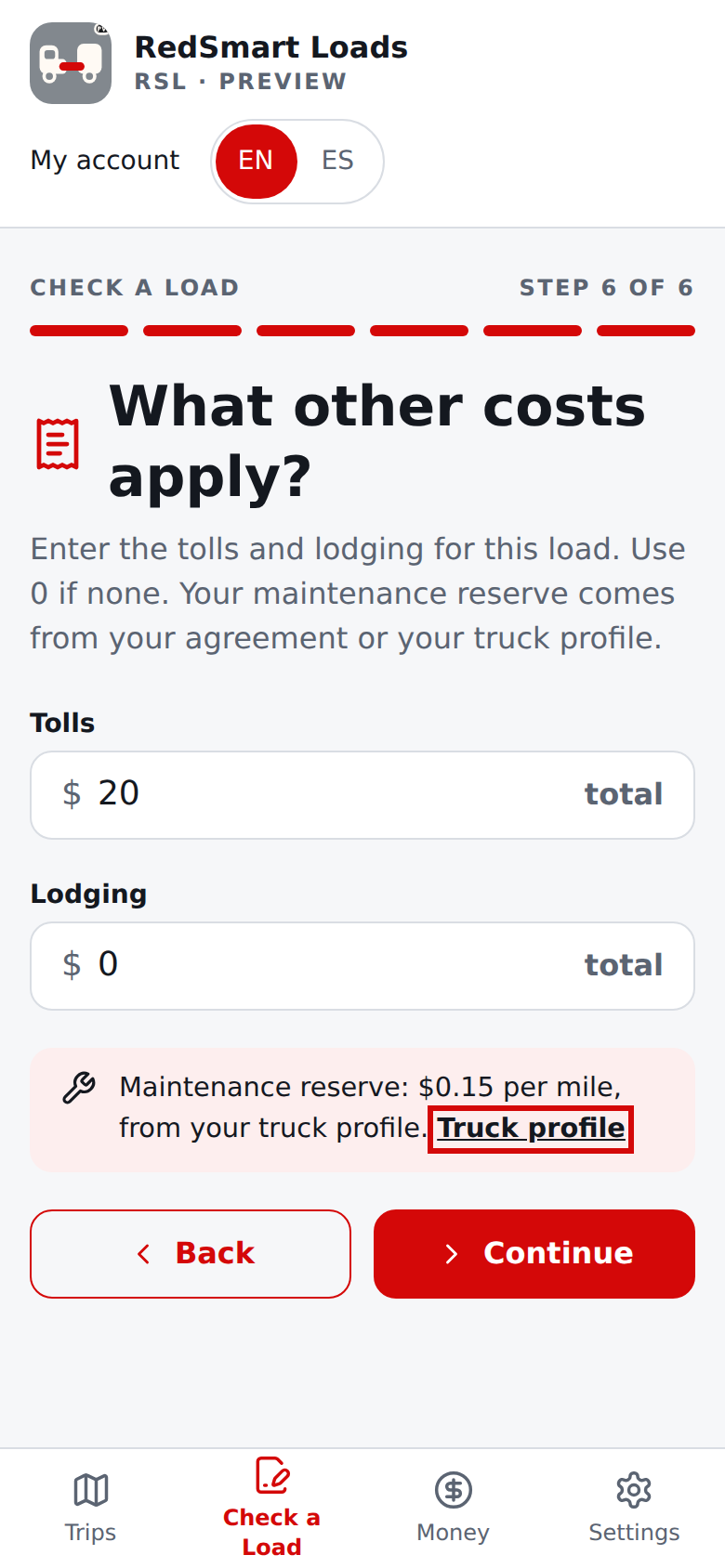
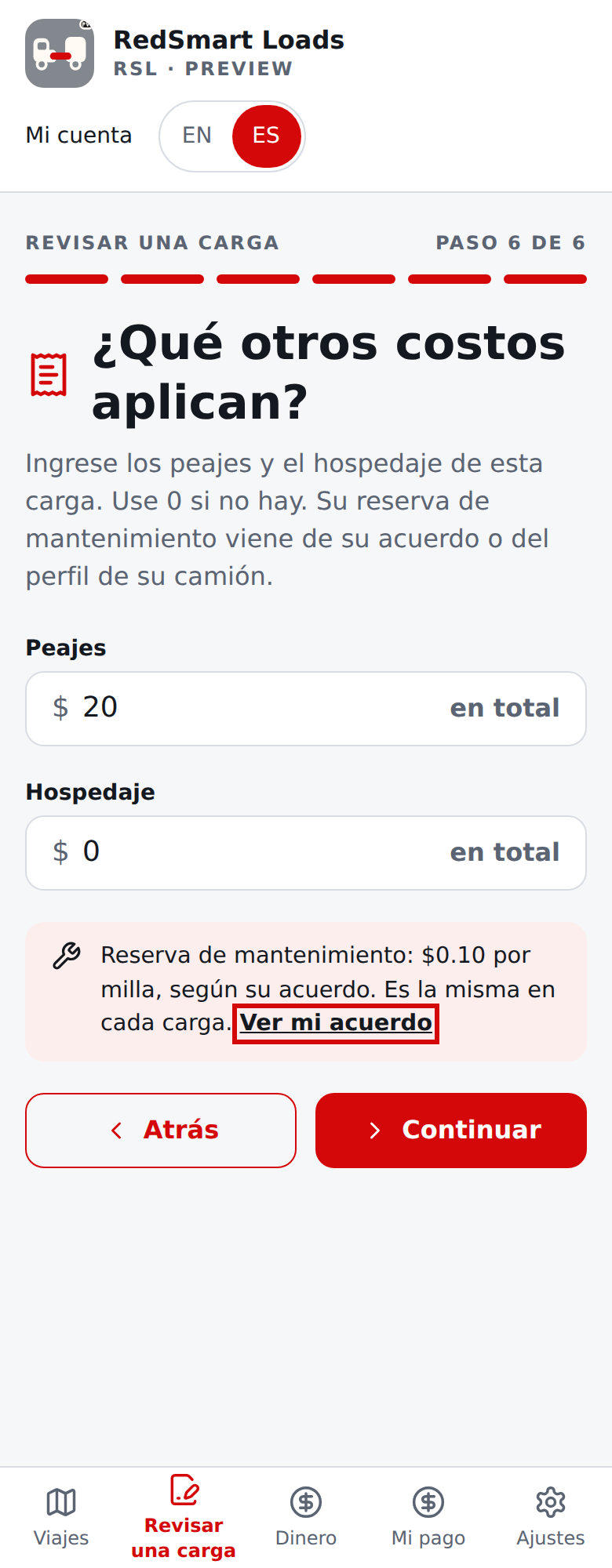
RSL asks one question at a time and shows your progress ("Step 1 of 6"): the offered pay; the trailer rating (actual load weight is optional and stays unknown if blank); where the load is (optional: a load reference, the pickup and delivery, where the truck is now, and where you will return to); the loaded, pickup, and return miles; the fuel price; and tolls and lodging. The fuel economy (loaded and empty) comes from your truck profile and the maintenance reserve per mile from your agreement (if you drive for an owner and an agreement applies today) or from your truck profile, so those are not asked: the fuel and costs questions show them as a short note with a link to the truck profile (or to your agreement). Only the fuel price, the tolls and the lodging change from load to load.
Every question has its own symbol beside its title (pay, ratings, places, miles, fuel, costs), and so do the expense categories: the chosen category's symbol appears beside the category choice, on each recorded expense, and beside each category total on Money.
Every number field shows what it is measured in beside the value: dollar amounts carry $ and say whether they are a total (offered pay, tolls, lodging) or per mile (maintenance reserve) or /gal (fuel price), and distances, weights, volume and fuel economy show mi, lb, gal and MPG; type only the number.
Enter zero explicitly where zero is allowed (empty miles, tolls, lodging, reserve); loaded miles and the ratings must be above zero. Leave an optional field, such as actual load weight, blank if you do not know it — do not type 0. Continue checks your answers right away, including the allowed range, and stays on the question with a message until the values are valid; Back keeps what you entered.
Distances and costs stay yours to confirm. Where the route service has been turned on, Fill miles from route estimates the three miles from the places you entered (see below); RSL never quotes a rate.
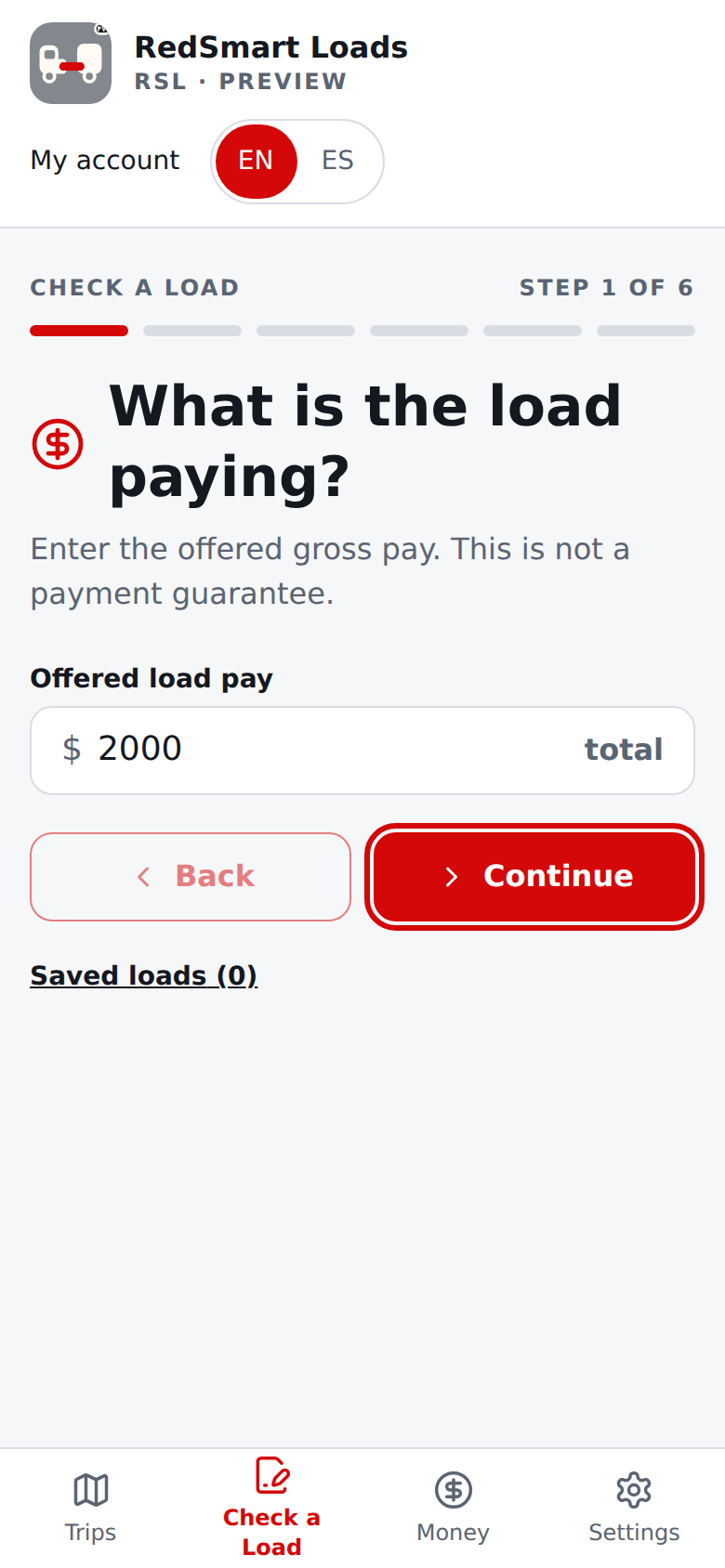
After the last question, Review your numbers lists every entry. Choose Edit values to change something or Calculate. If you change a value and it becomes invalid, RSL returns you to the question that owns it and explains the problem.
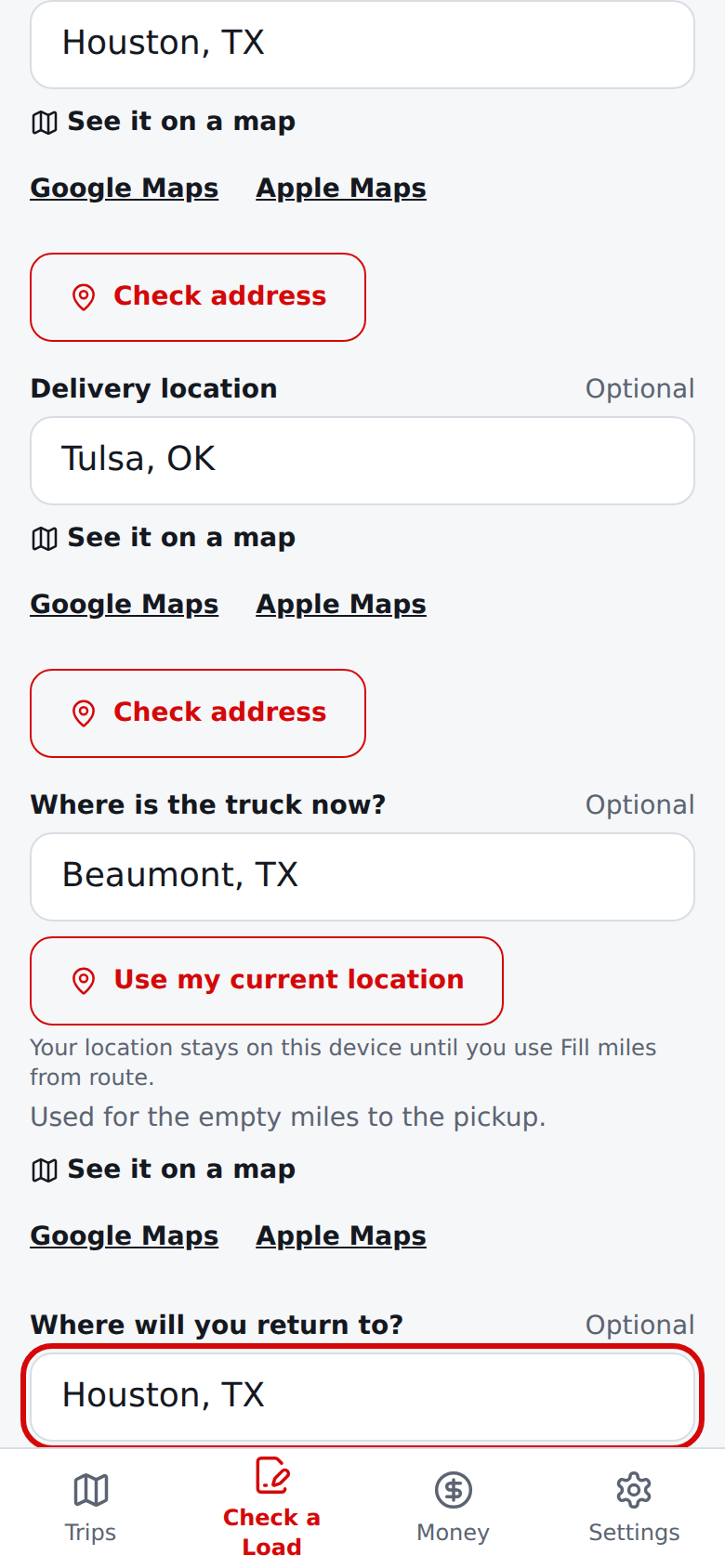
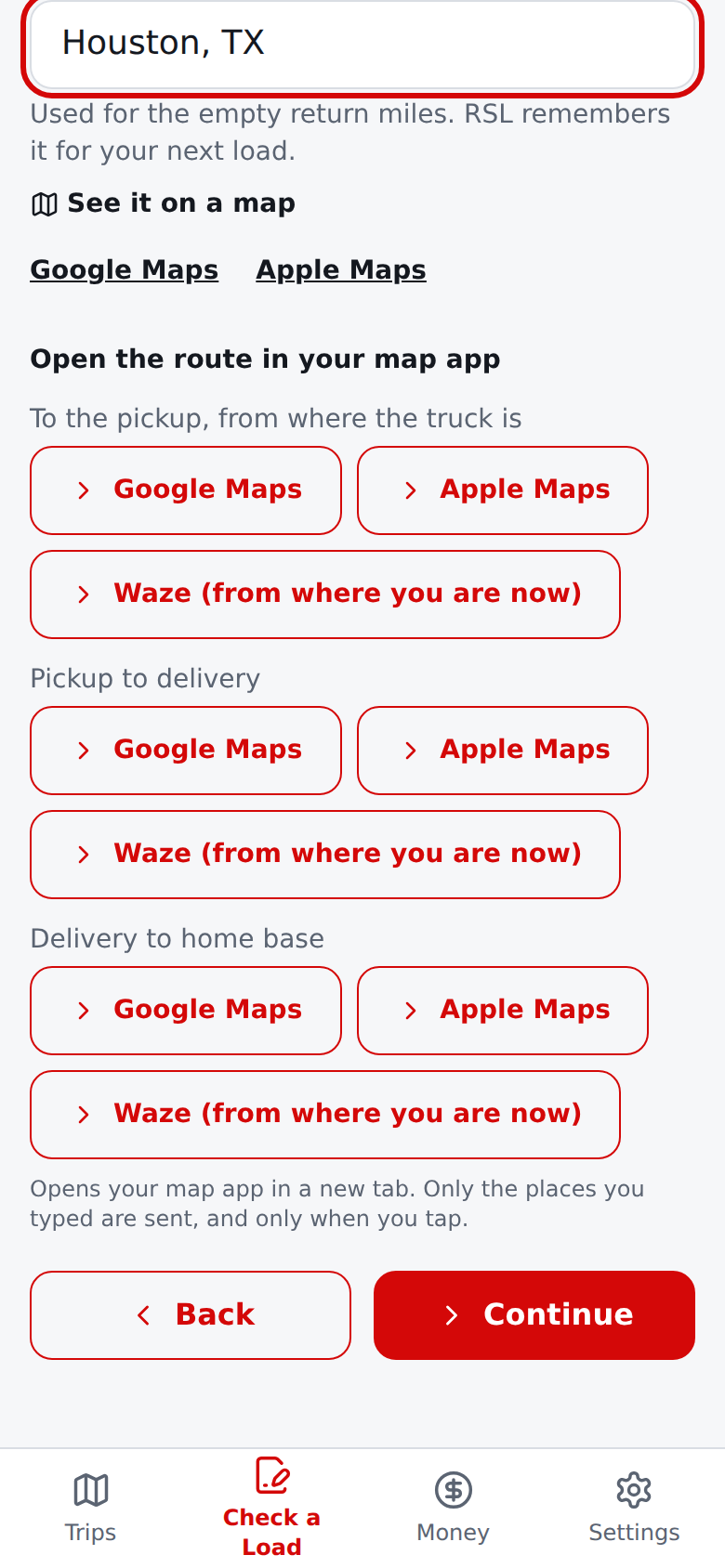
Where is this load, and miles from the route. The places question asks for a load reference, the pickup, the delivery, where the truck is now (for the empty miles to the pickup), and where you will return to (for the empty return miles; RSL remembers it for your next load). All of it is optional and kept exactly as typed.
Beside Where is the truck now? there is a Use my current location button: tapping it asks your phone or browser for permission and fills the field with your coordinates (for example 25.96012, -80.25301), which you can edit or replace.
Nothing is asked of your device until you tap, your location stays on this device, and it is sent to Google only if you then use Fill miles from route, and coordinates, even half-edited ones, are never sent for place suggestions. If permission is denied or no location is found, you are told and can type the place.
Each place has See it on a map links (Google Maps, Apple Maps) so you can look at the area before deciding, for example for crowded places, high elevations, or areas you avoid, and a set of route links for each leg of the load, each in Google Maps, Apple Maps, or Waze: to the pickup (from where the truck is, or from your phone's current location when that is blank), pickup to delivery, and delivery to home base.
A leg appears once its places are typed (a place needs at least three characters to be used, so a very short entry hides its leg rather than opening from the wrong start). These are ordinary links: nothing is sent to RSL, and the places are sent to the map app only when you tap one; "from where you are now" uses your phone's own location inside the map app, which RSL never sees.
Waze accepts only a destination, so on a leg that starts at a typed place the Waze link is labelled Waze (from where you are now): it navigates to that leg's destination from wherever your phone is, not from the typed start.
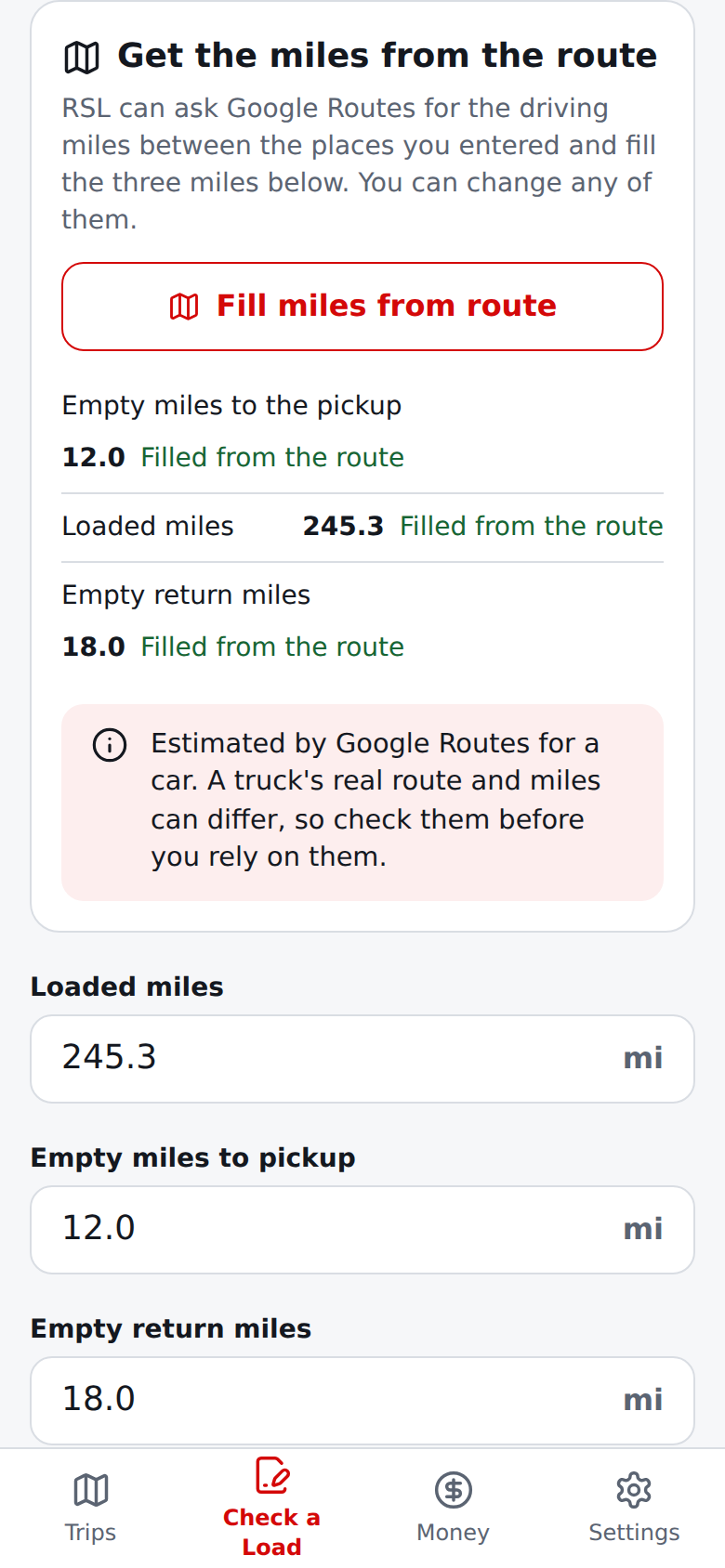
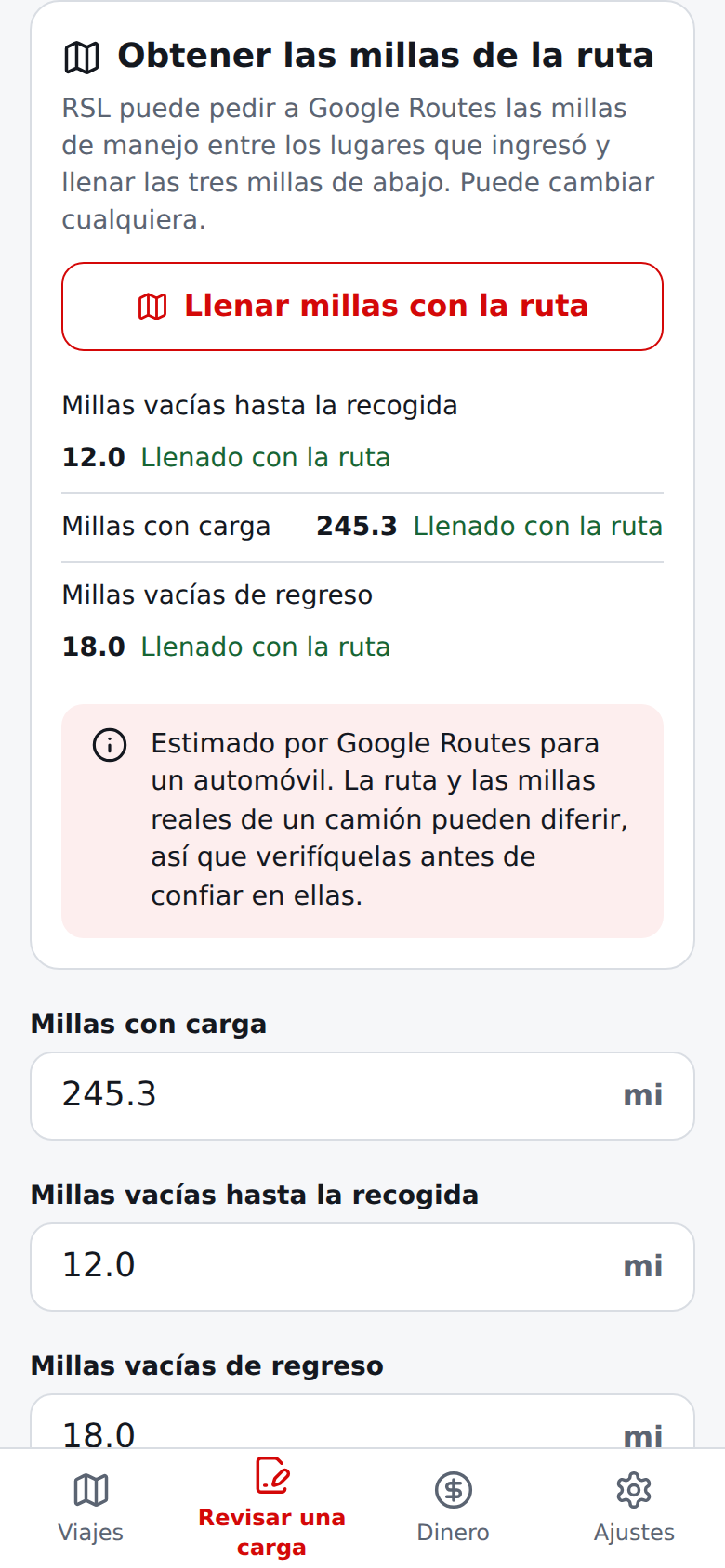
On the miles question, where the route service is enabled and you entered addresses, the route estimate comes first and the miles you can type yourself sit below it. Fill miles from route asks Google Routes for the driving miles between the places you entered and fills the empty miles fields (empty to pickup, loaded, empty return).
A field that already has a value is never replaced, even if you type it while the route is still being fetched: the route's number is shown next to it with Use. The miles are an estimate for a car route, not a truck route, so a truck's real route and miles can differ: check them before you rely on them. Only the places and the button tap are sent, and only when you tap.
The same answer carries the free-flow drive time, which the queue form can use when you ask (section 5). If there is no route, or the service is unavailable, you are told and can type the miles yourself.
Regrese a Revisar una carga.
RSL hace una pregunta a la vez y muestra su avance («Paso 1 de 6»): el pago ofrecido; la capacidad del remolque (el peso real de la carga es opcional y queda desconocido si se deja en blanco); dónde está la carga (opcional: una referencia, la recogida y la entrega, dónde está el camión ahora y a dónde regresará); las millas con carga, hasta la recogida y de regreso; el precio del combustible; y los peajes y el hospedaje. El rendimiento (con y sin carga) viene del perfil de su camión y la reserva de mantenimiento por milla viene de su acuerdo (si maneja para un dueño y hoy aplica un acuerdo) o del perfil de su camión, así que no se preguntan: las preguntas de combustible y de costos los muestran como una nota corta con un enlace al perfil del camión (o a su acuerdo). Solo el precio del combustible, los peajes y el hospedaje cambian de una carga a otra.
Cada pregunta tiene su propio símbolo junto al título (pago, capacidades, lugares, millas, combustible, costos), y las categorías de gasto también: el símbolo de la categoría elegida aparece junto a la elección, en cada gasto registrado y junto a cada total por categoría en Dinero.
Cada campo numérico muestra junto al valor en qué se mide: los importes en dólares llevan $ e indican si son un total (pago ofrecido, peajes, hospedaje), por milla (reserva de mantenimiento) o /gal (precio del combustible), y las distancias, pesos, volumen y rendimiento muestran mi, lb, gal y MPG; escriba solo el número.
Escriba cero expresamente donde se permite (millas vacías, peajes, hospedaje, reserva); las millas con carga y las capacidades deben ser mayores que cero. Deje en blanco un campo opcional, como el peso real de la carga, si no lo conoce; no escriba 0.
Continuar revisa sus respuestas de inmediato, incluido el rango permitido, y se queda en la pregunta con un mensaje hasta que los valores sean válidos; Atrás conserva lo ingresado. Las distancias y los costos siguen siendo suyos para confirmar.
Donde el servicio de rutas está activado, Llenar millas con la ruta estima las tres millas a partir de los lugares que ingresó (vea abajo); RSL nunca cotiza una tarifa.
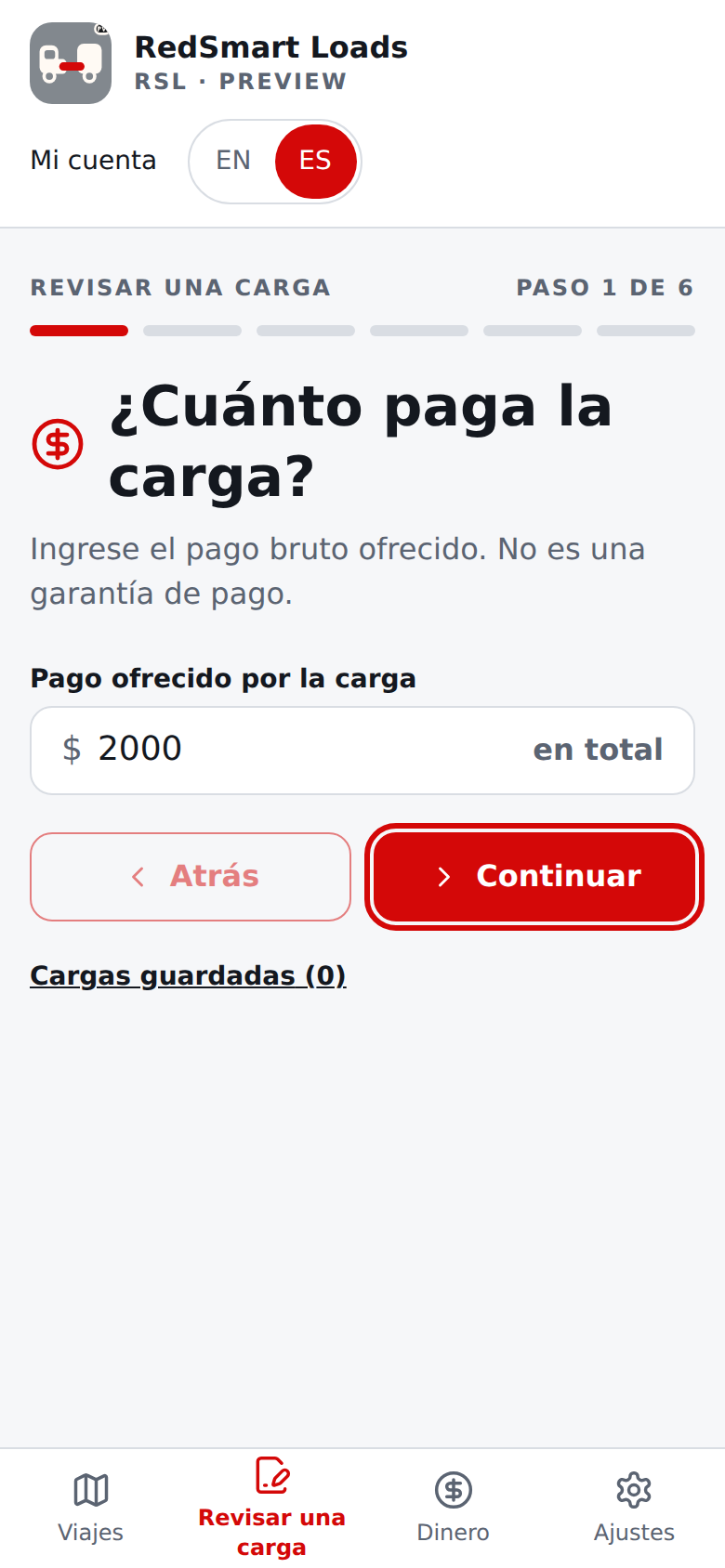
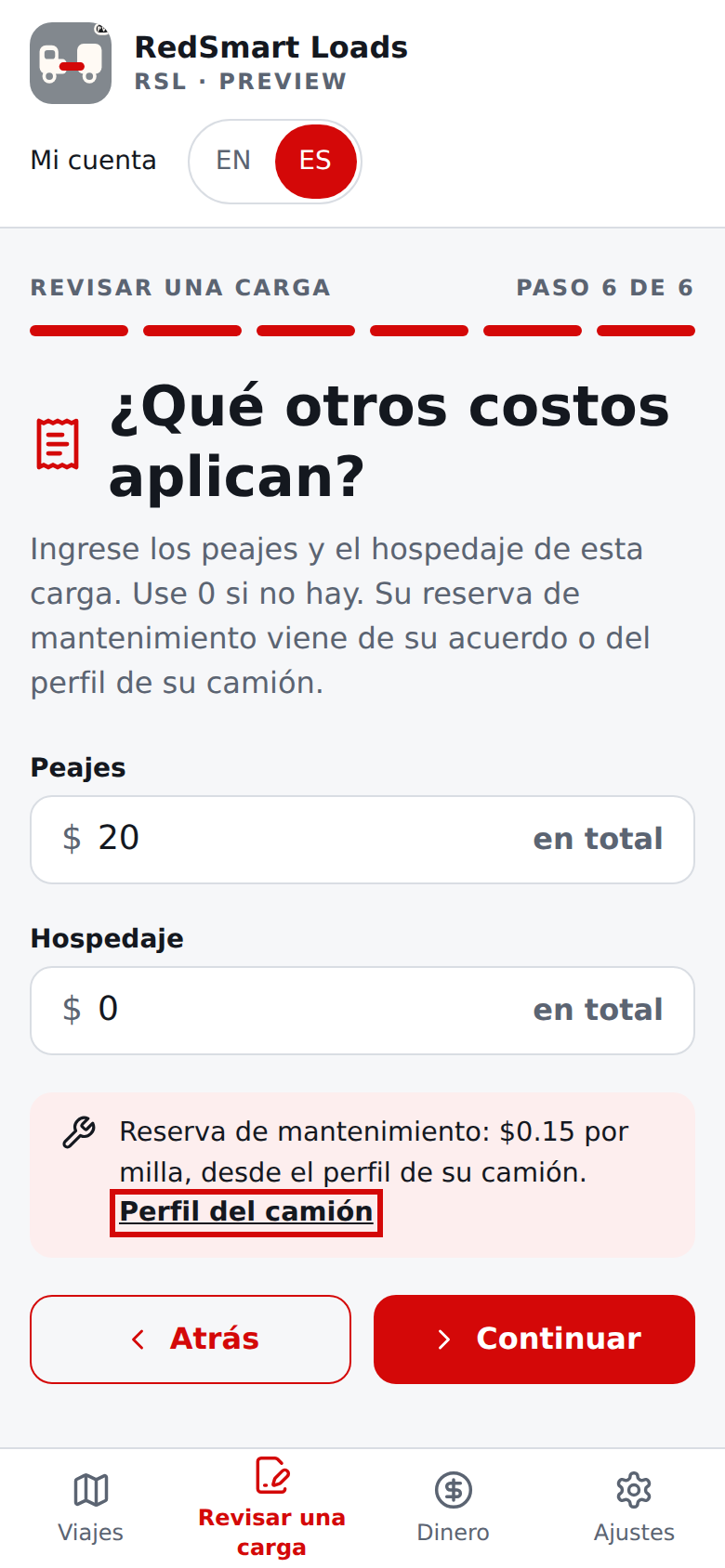
Después de la última pregunta, Revise sus números muestra todos los datos. Elija Editar valores para cambiar algo o Calcular. Si cambia un valor y deja de ser válido, RSL lo devuelve a la pregunta correspondiente y explica el problema.
Dónde está la carga y millas de la ruta. La pregunta de lugares pide una referencia de la carga, la recogida, la entrega, dónde está el camión ahora (para las millas vacías hasta la recogida) y a dónde regresará (para las millas vacías de regreso; RSL lo recuerda para su próxima carga). Todo es opcional y se conserva exactamente como lo escribió.
Junto a ¿Dónde está el camión ahora? hay un botón Usar mi ubicación actual: al tocarlo, su teléfono o navegador le pide permiso y llena el campo con sus coordenadas (por ejemplo 25.96012, -80.25301), que puede editar o reemplazar.
No se le pide nada al dispositivo hasta que toca, su ubicación se queda en este dispositivo y solo se envía a Google si después usa Llenar millas con la ruta, y las coordenadas, incluso a medio editar, nunca se envían para sugerir lugares. Si se niega el permiso o no se encuentra la ubicación, se le avisa y puede escribir el lugar.
Cada lugar tiene enlaces Ver en un mapa (Google Maps, Apple Maps) para que mire la zona antes de decidir, por ejemplo lugares congestionados, altitudes elevadas o zonas que evita, y un conjunto de enlaces de ruta para cada tramo de la carga, cada uno en Google Maps, Apple Maps o Waze: hasta la recogida (desde donde está el camión, o desde la ubicación actual de su teléfono si eso está en blanco), de la recogida a la entrega y de la entrega a la base.
Un tramo aparece cuando sus lugares están escritos (un lugar necesita al menos tres caracteres para usarse, así que una entrada muy corta oculta su tramo en lugar de abrirse desde un inicio equivocado).
Son enlaces normales: no se envía nada a RSL, y los lugares se envían a la app de mapas solo cuando toca uno; «desde donde está ahora» usa la ubicación propia de su teléfono dentro de la app de mapas, que RSL nunca ve.
Waze solo acepta un destino, así que en un tramo que parte de un lugar escrito el enlace de Waze dice Waze (desde donde está ahora): navega hasta el destino de ese tramo desde donde esté su teléfono, no desde el inicio escrito.
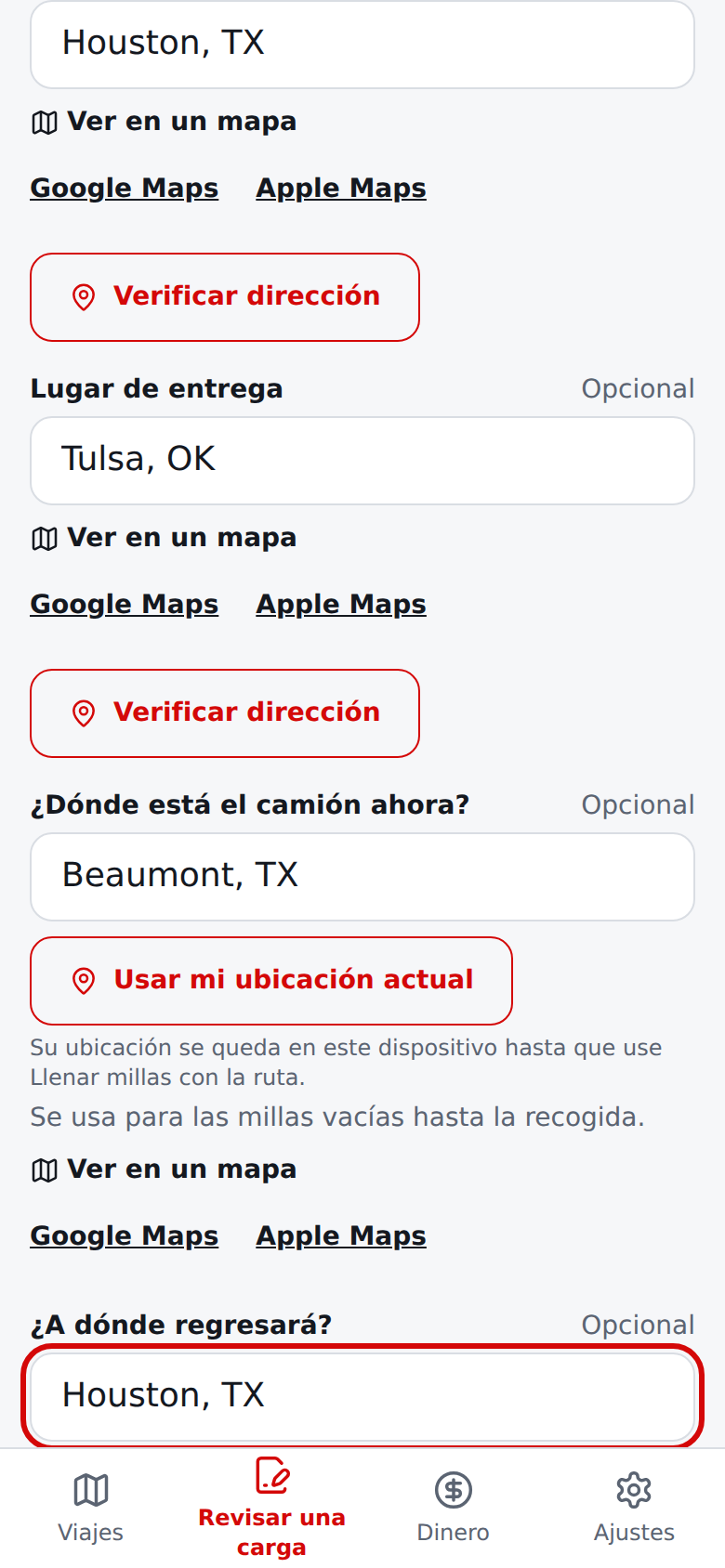
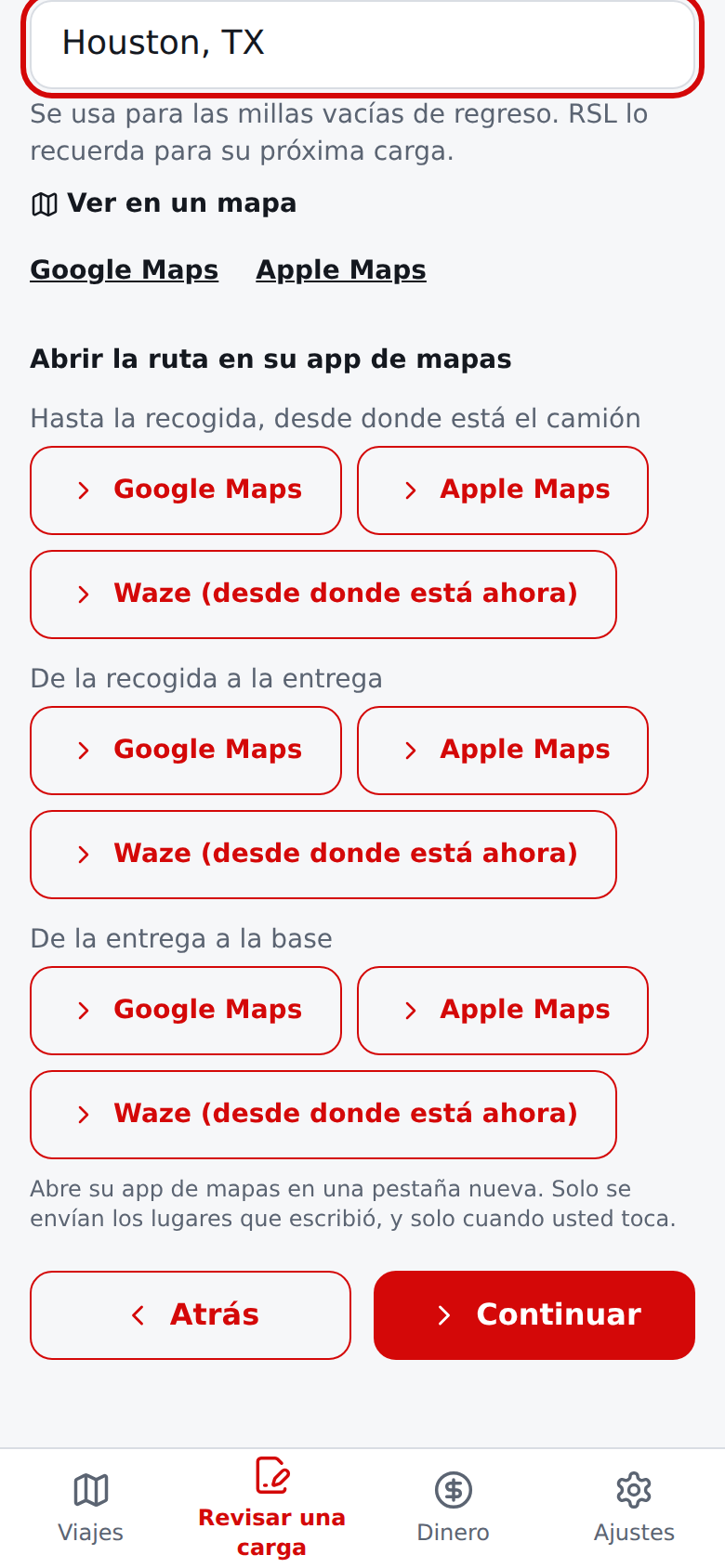
En la pregunta de millas, donde el servicio de rutas está activado y usted escribió direcciones, la estimación de la ruta va primero y las millas que usted puede escribir quedan debajo. Llenar millas con la ruta pide a Google Routes las millas de manejo entre los lugares que ingresó y llena las millas vacías (vacías hasta la recogida, con carga y vacías de regreso).
Un campo que ya tiene un valor nunca se reemplaza, ni siquiera si lo escribe mientras la ruta aún se está obteniendo: el número de la ruta aparece junto con Usar. Las millas son un estimado para una ruta de automóvil, no de camión, así que la ruta y las millas reales de un camión pueden diferir: verifíquelas antes de confiar en ellas. Solo se envían los lugares y el toque del botón, y solo cuando usted toca.
La misma respuesta trae el tiempo de manejo sin tráfico, que el formulario de la cola puede usar cuando usted lo pide (sección 5). Si no hay ruta o el servicio no está disponible, se le avisa y puede escribir las millas usted.
Read the estimateLea la estimación
The estimate opens at the top of the page. It leads with estimated profit, pay per loaded mile, and break-even per loaded mile, and marks each figure as You entered or Calculated. Select See calculation details to expand every calculated and entered row and the formula version.
Select Edit inputs to return to the first question with your values kept, or Check another load to start a new load: the pay, weights, miles, tolls, and lodging are cleared so you enter them again, while your truck profile (with its fuel economy and reserve per mile) and the fuel price are kept. Start a trip clears them the same way.
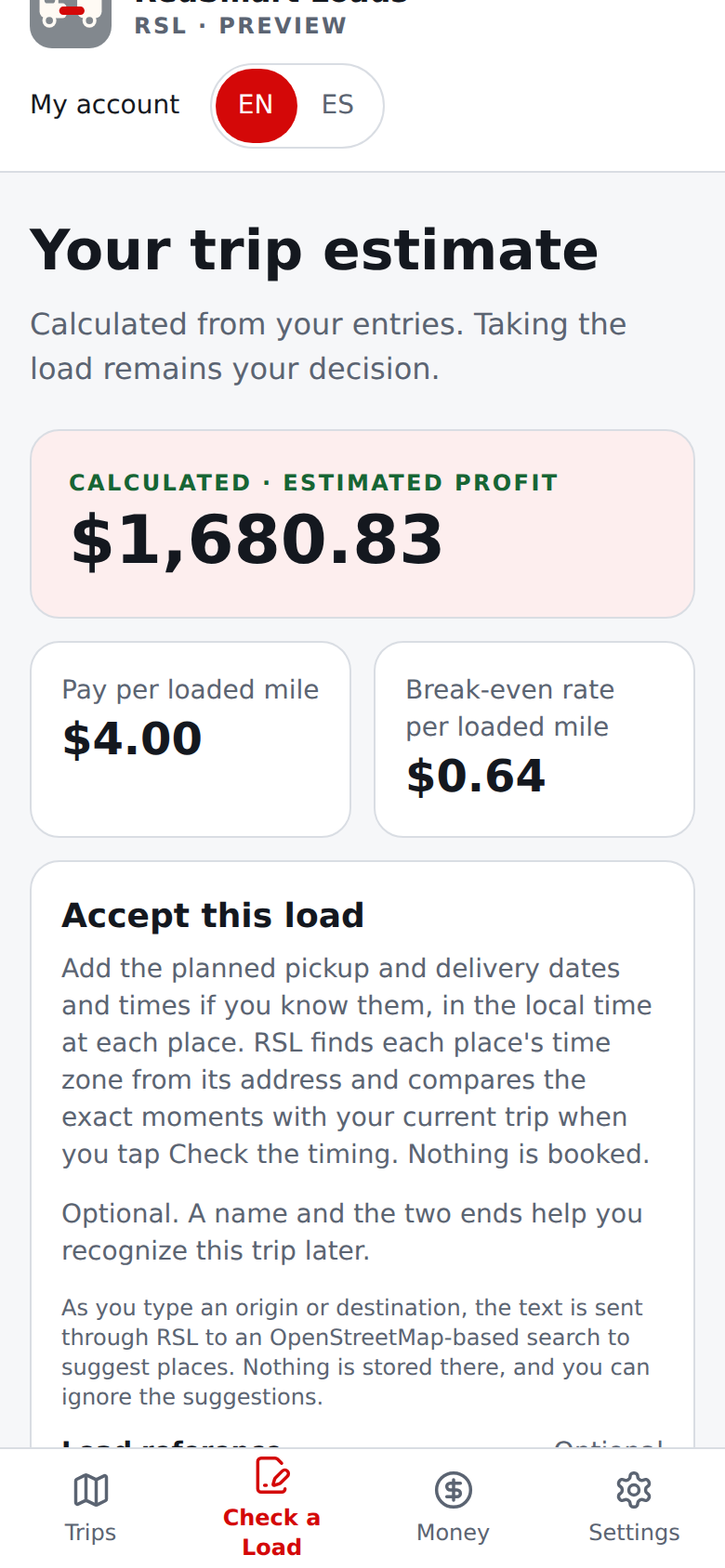
RSL shows numbers only; it does not tell you whether to take the load. The sample $1,680.83 is an illustration, not a recommendation. Check unentered costs and your own business conditions before making a decision.
La estimación se abre en la parte superior de la página. Comienza con la ganancia estimada, el pago por milla con carga y la tarifa de equilibrio por milla con carga, y marca cada cifra como Lo ingresaste tú o Calculado. Seleccione Ver detalles del cálculo para ampliar todas las filas calculadas e ingresadas y la versión de la fórmula.
Seleccione Editar datos para volver a la primera pregunta con sus valores conservados, o Revisar otra carga para empezar una carga nueva: se borran el pago, los pesos, las millas, los peajes y el hospedaje para que los ingrese de nuevo, y se conservan el perfil del camión (con su rendimiento y su reserva por milla) y el precio del combustible. Iniciar un viaje los borra igual.
RSL solo muestra números; no le dice si debe tomar la carga. Los $1,680.83 del ejemplo son ilustrativos, no una recomendación. Revise los costos no ingresados y sus condiciones comerciales antes de decidir.
Start a trip and record expensesInicie un viaje y registre gastos
On the estimate, the Accept this load card sits right under the key figures.
Before you start, you can add an optional Load reference, Pickup location, and Delivery location; they are stored as you type them (pasted line breaks and hidden text-direction characters become spaces); place suggestions and an optional address check are described under Places and directions below and appear on the trip, in Next, and on Trips.
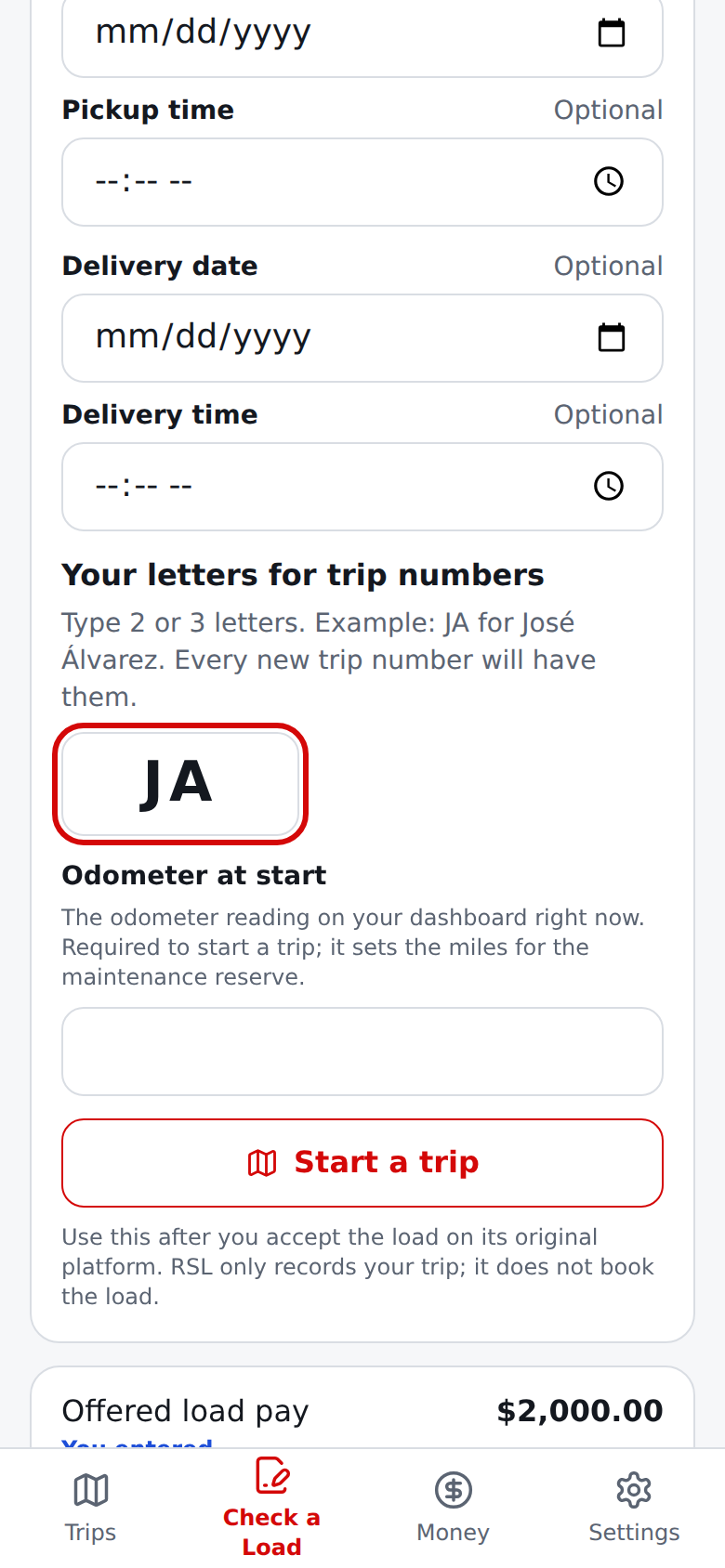
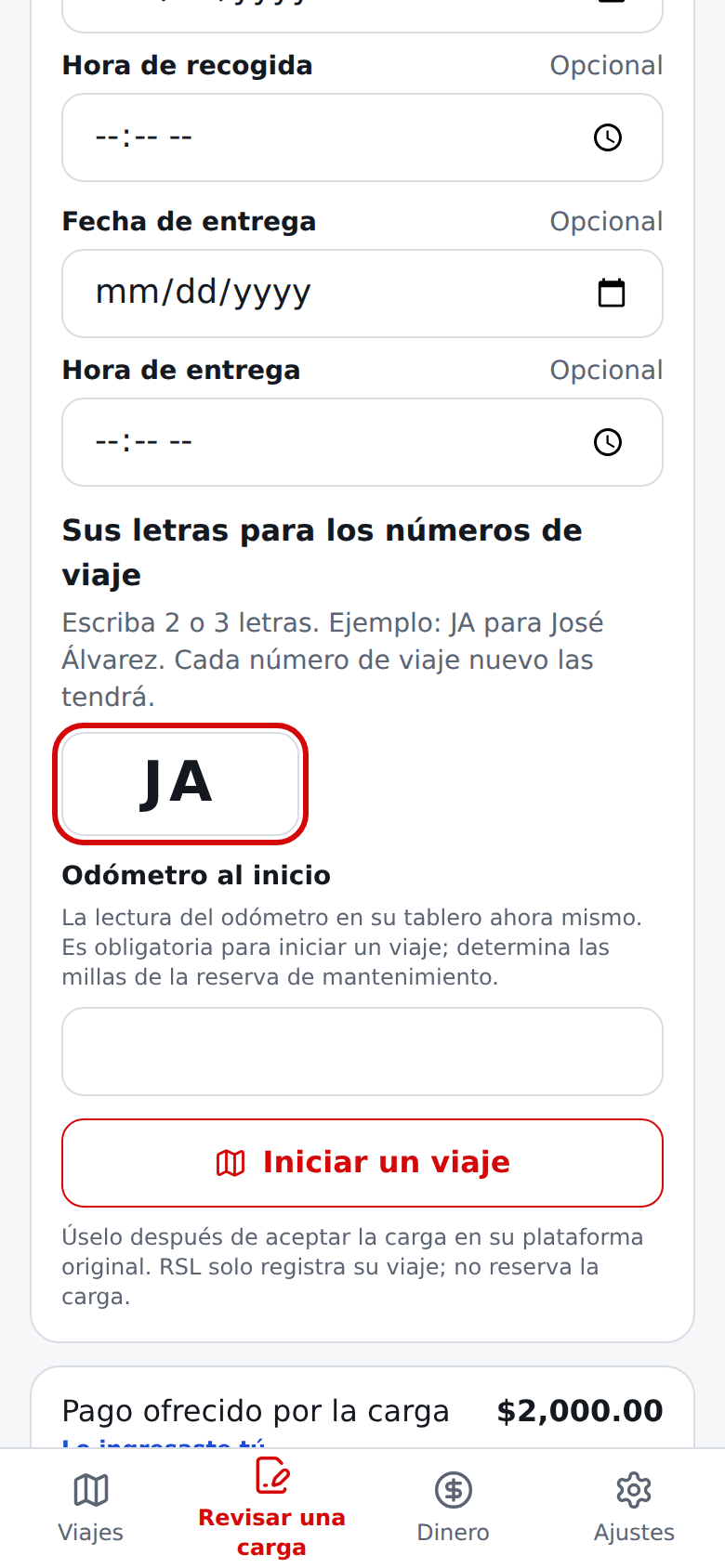
After you accept a load on its original platform, type the Odometer at start (the reading on your dashboard now; RSL will not start the trip without it) and select Start a trip. A queued load asks for the same reading when you start it. RSL does not book the load; it only records your trip, with a frozen copy of the estimate you saw. You can have one active trip at a time.
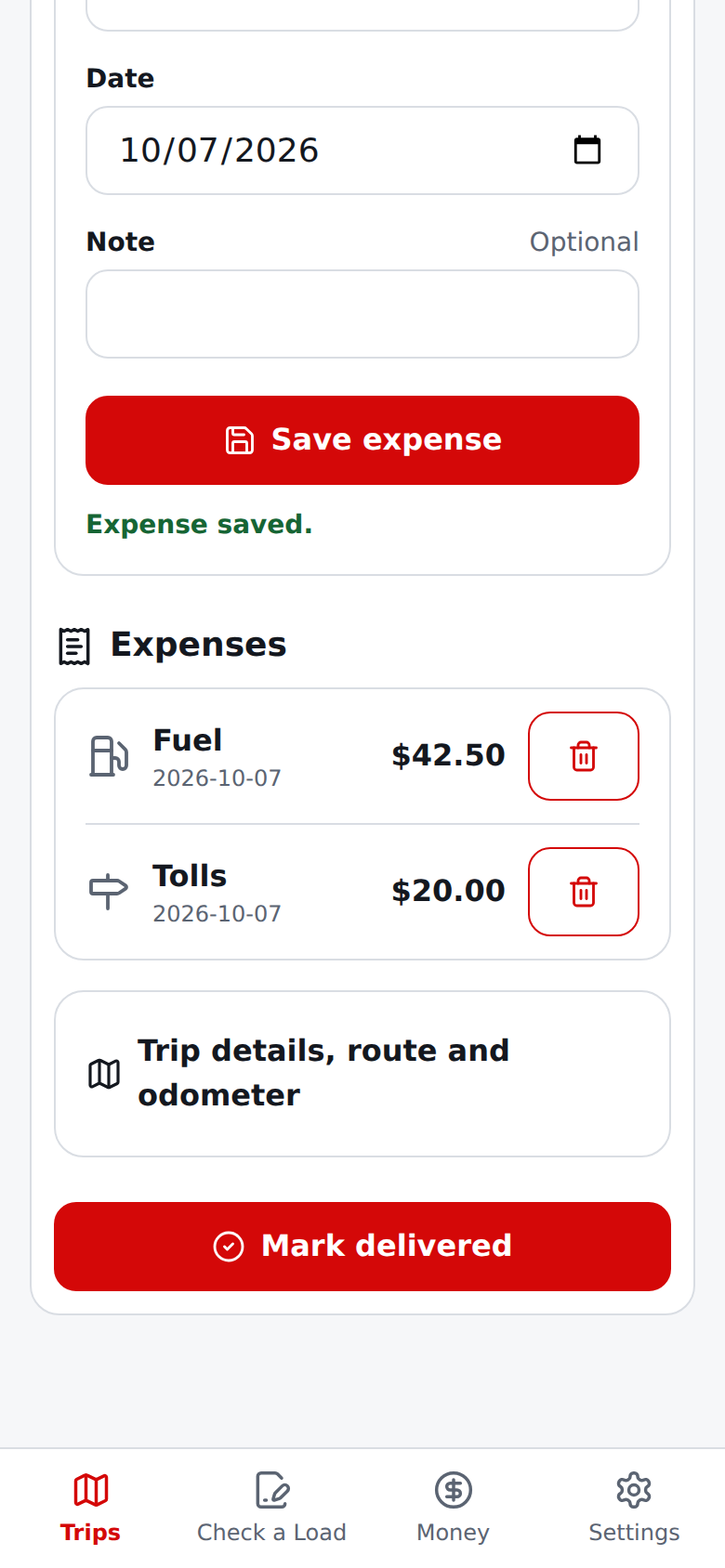
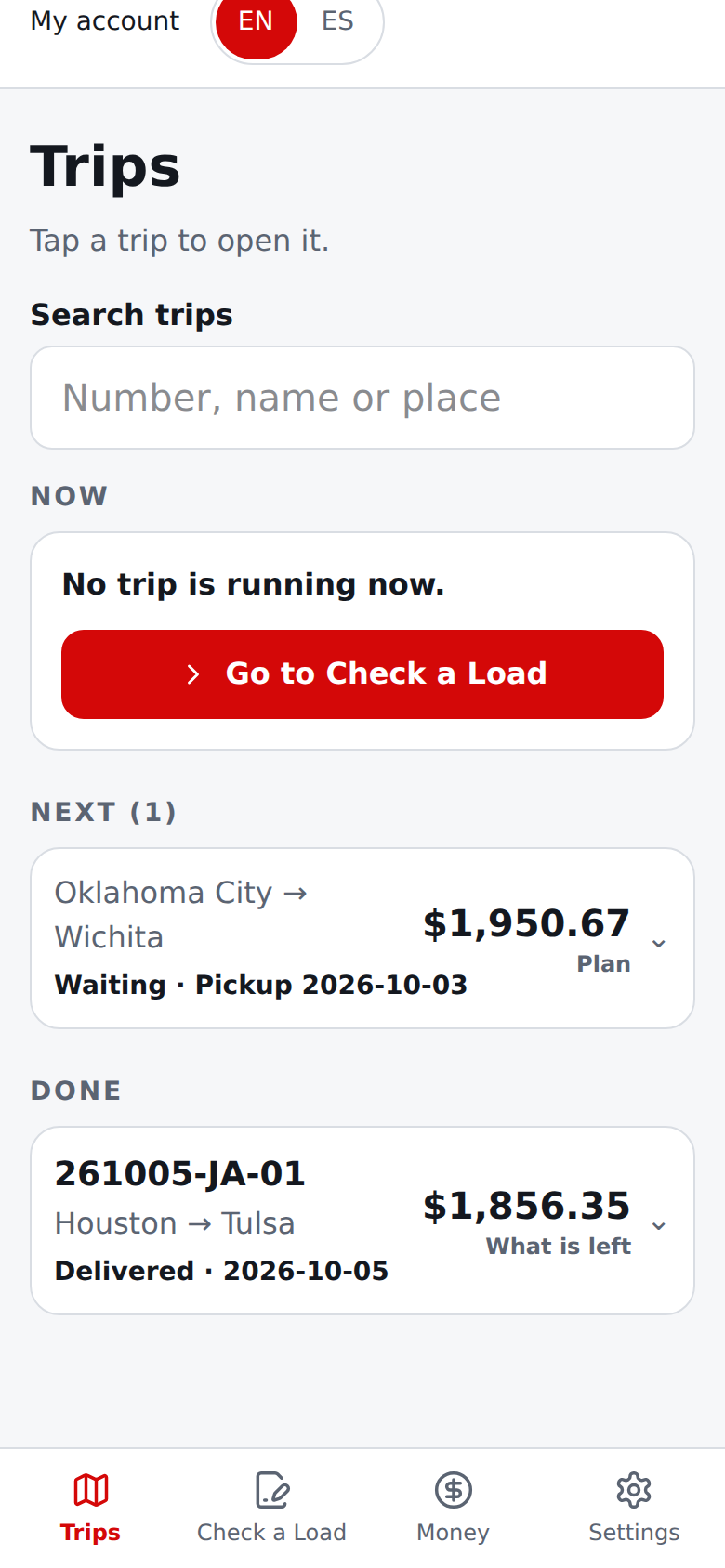
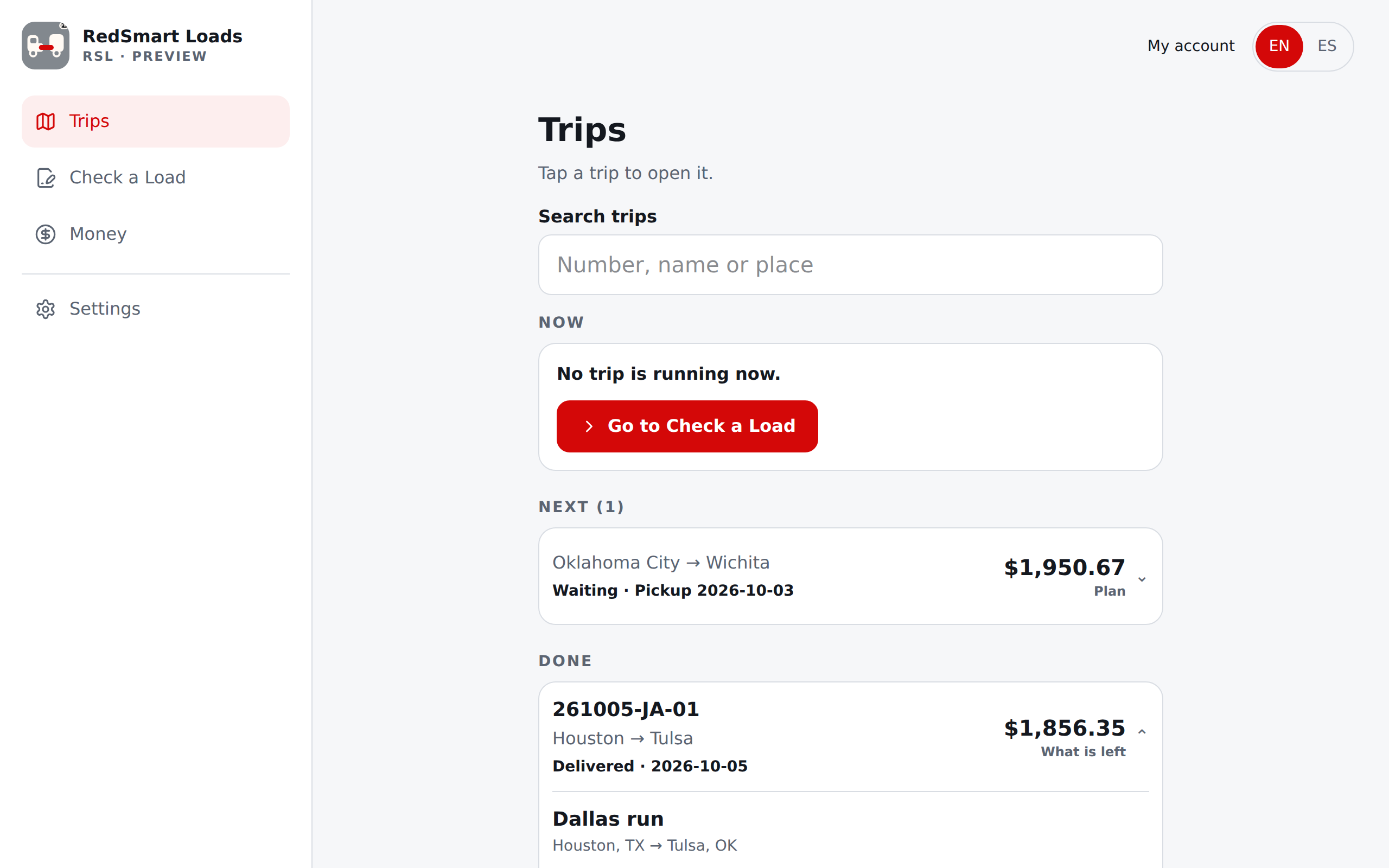
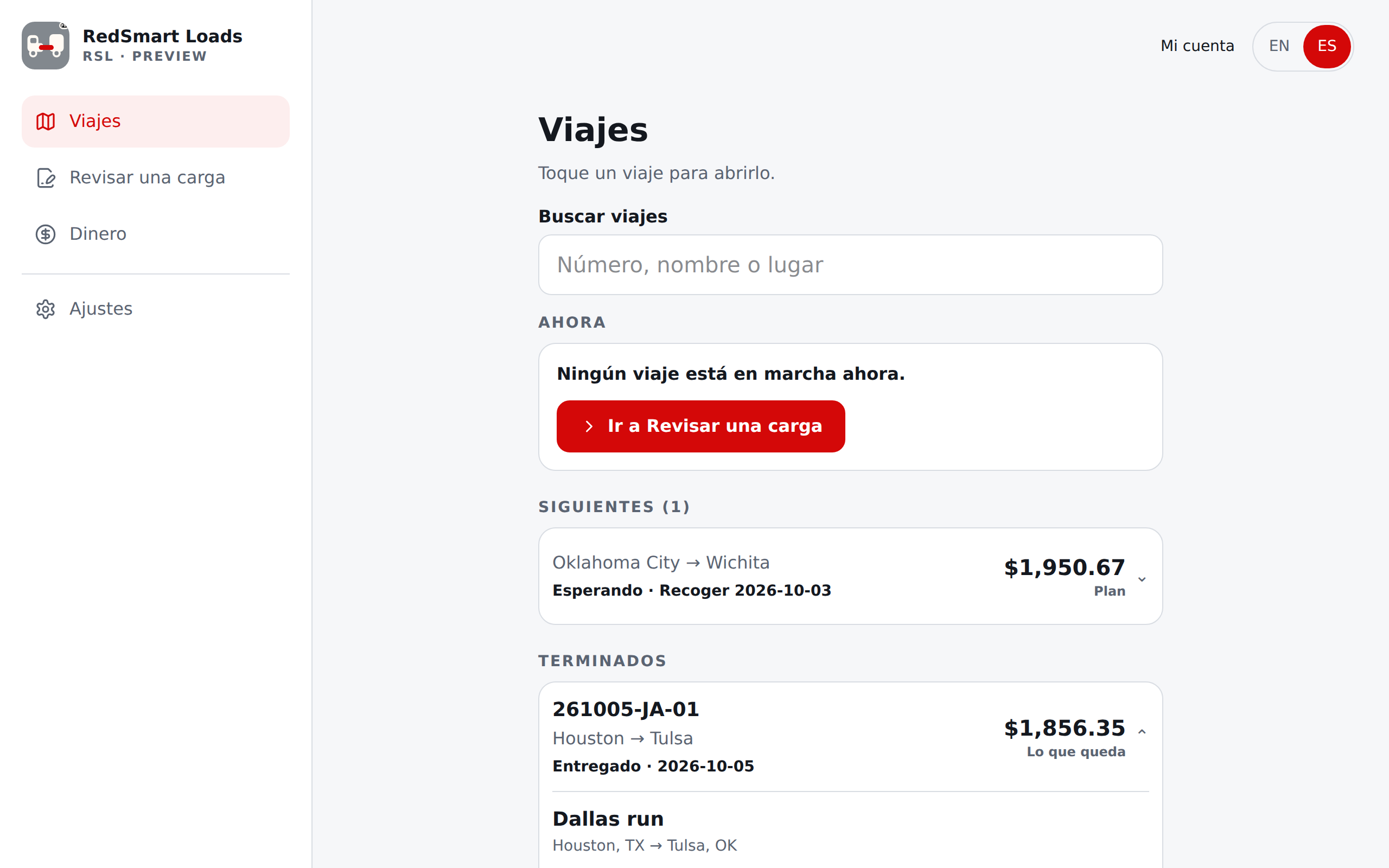
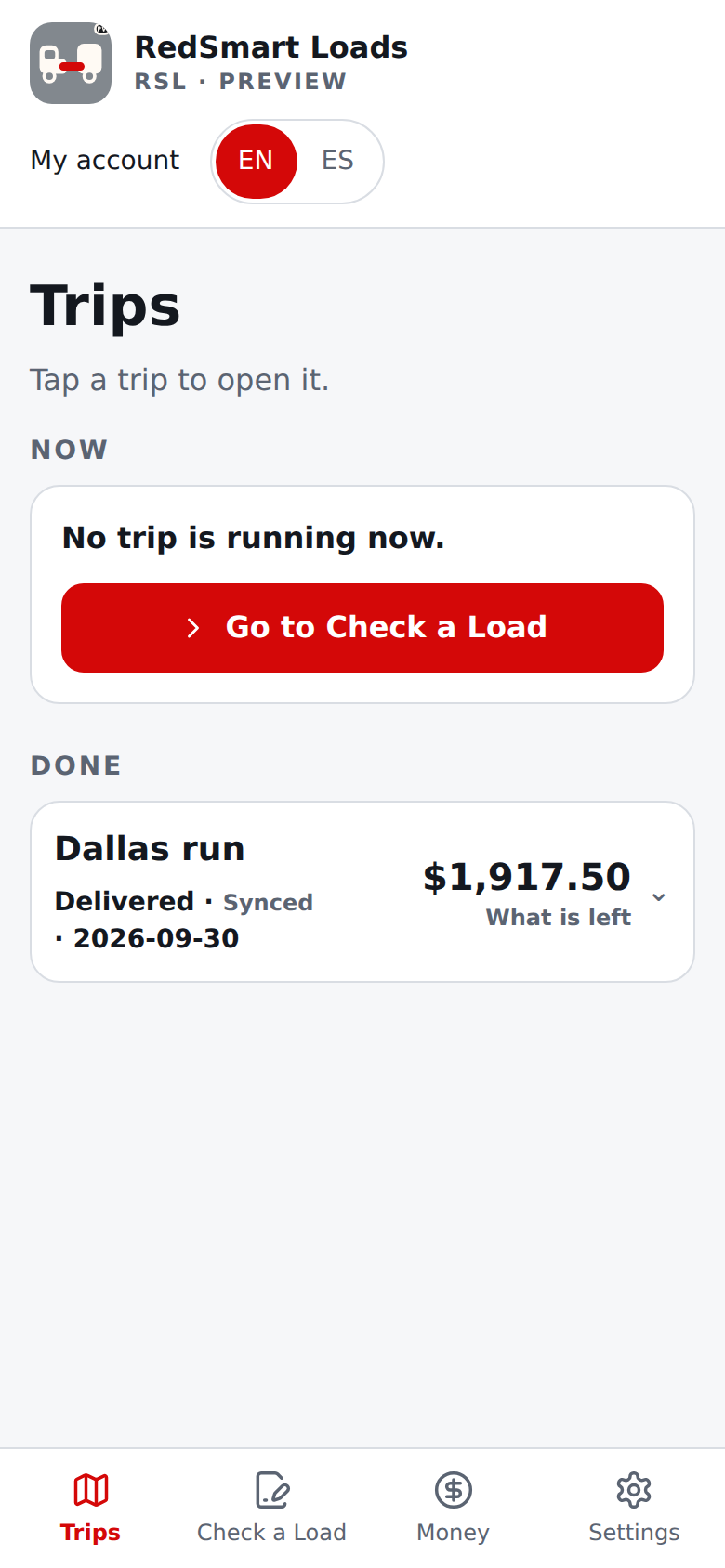
Trips keeps every trip in one place. The bar has four entries: Trips, Check a Load, Money and Settings. Trips has three groups: Now (the trip you are driving), Next (loads waiting, up to 10) and Done (delivered trips).
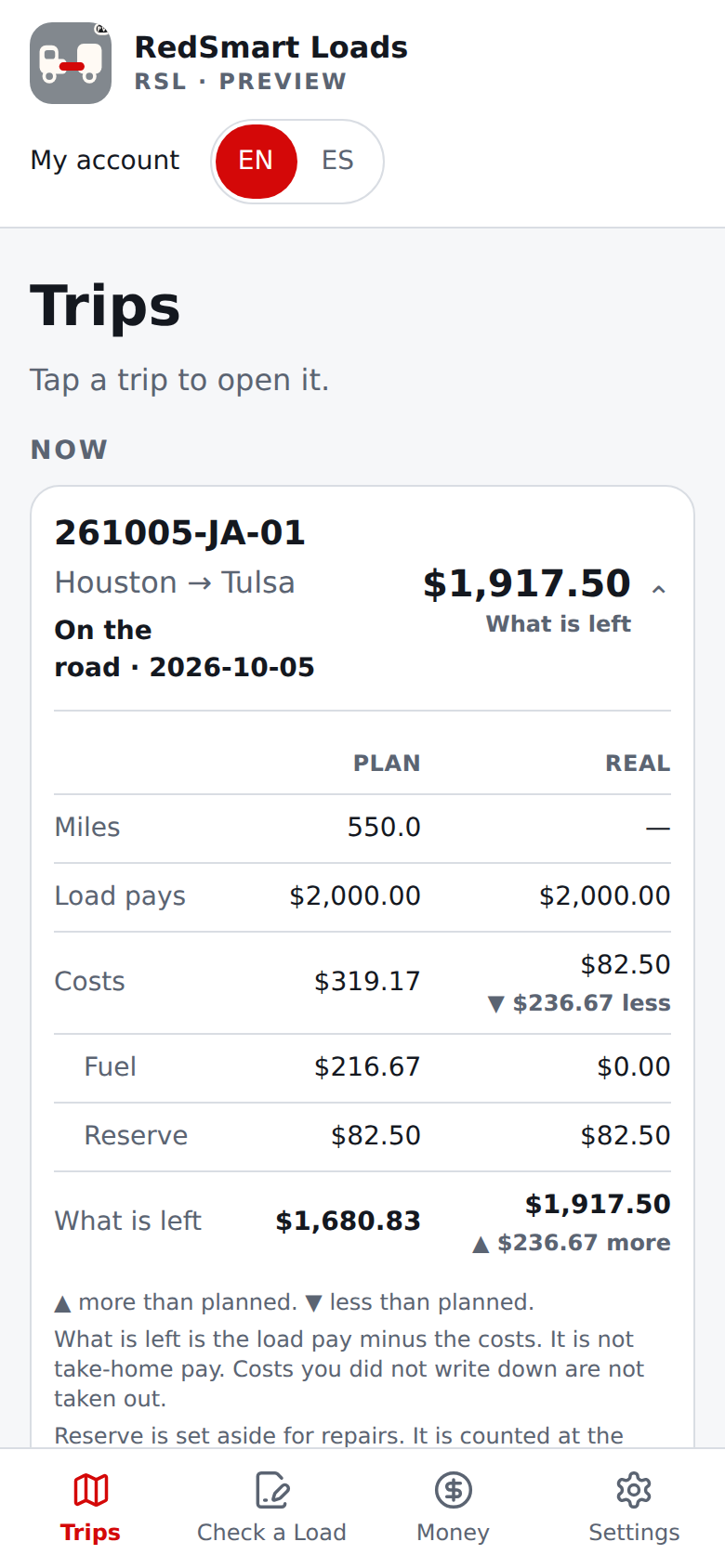
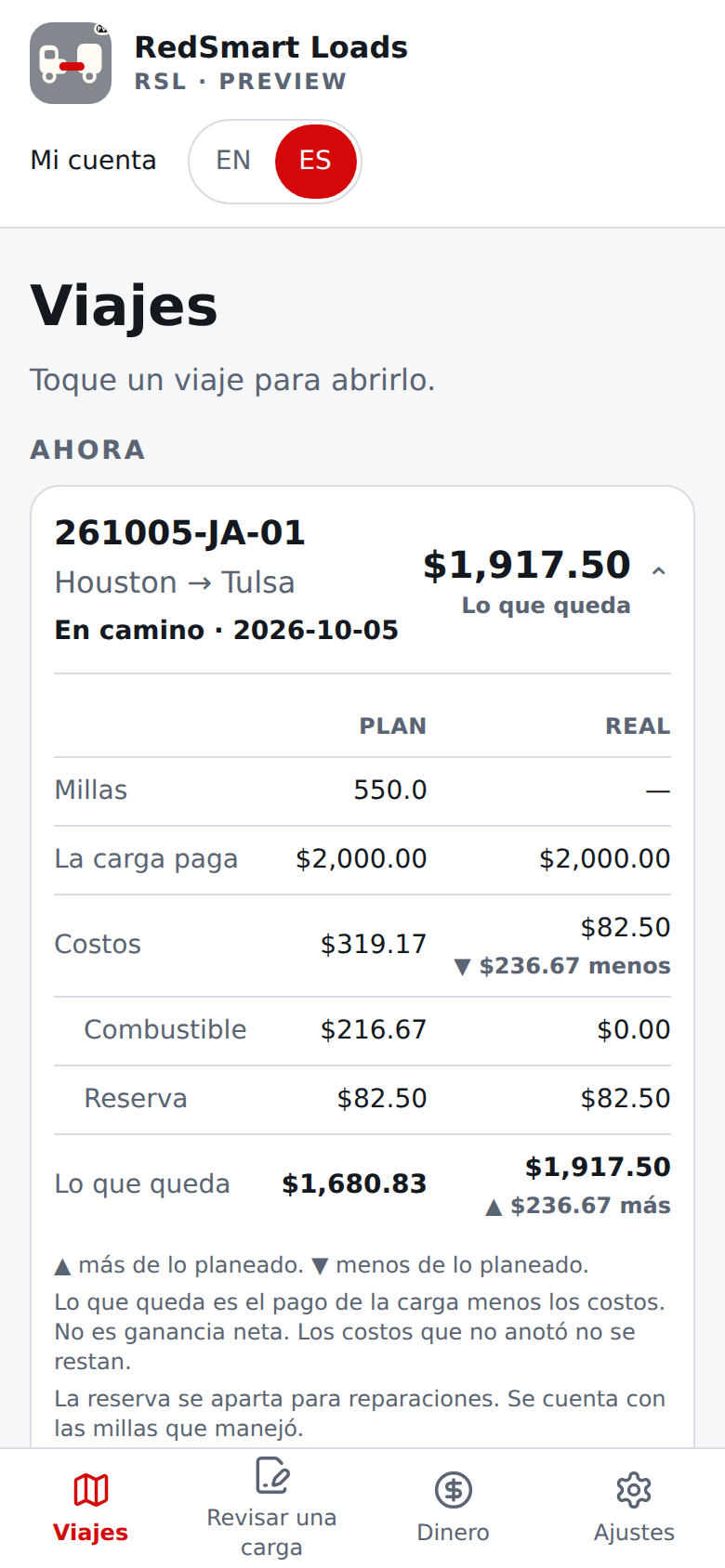
Each trip is one big line with its trip number (or its name, or from and to), the cities from → to, its status in words (On the road, Waiting, Delivered), the sync label when sync is on, and one money number with its name beside it: What is left for a trip on the road or delivered, and the planned result (Plan) for a load in Next. Tap a line to open the trip right there; tap it again to fold it.
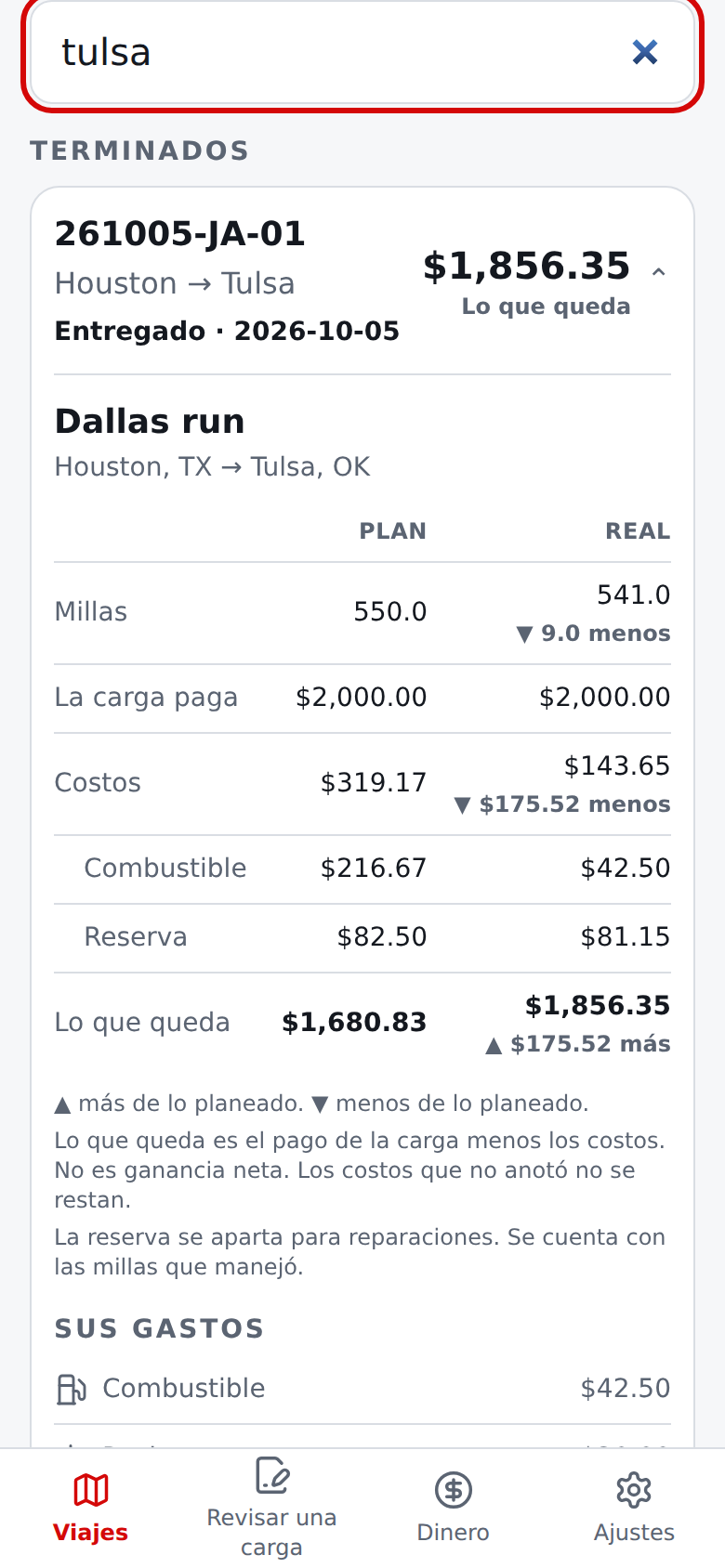
The trip on the road starts open (with none, the first load in Next does). Above the groups, Search trips (shown once you have two or more trips) finds a trip as you type: a trip number (the dashes are optional), part of the load reference, or a pickup or delivery place. Capitals and accents do not matter. When nothing matches, it says No trips found.
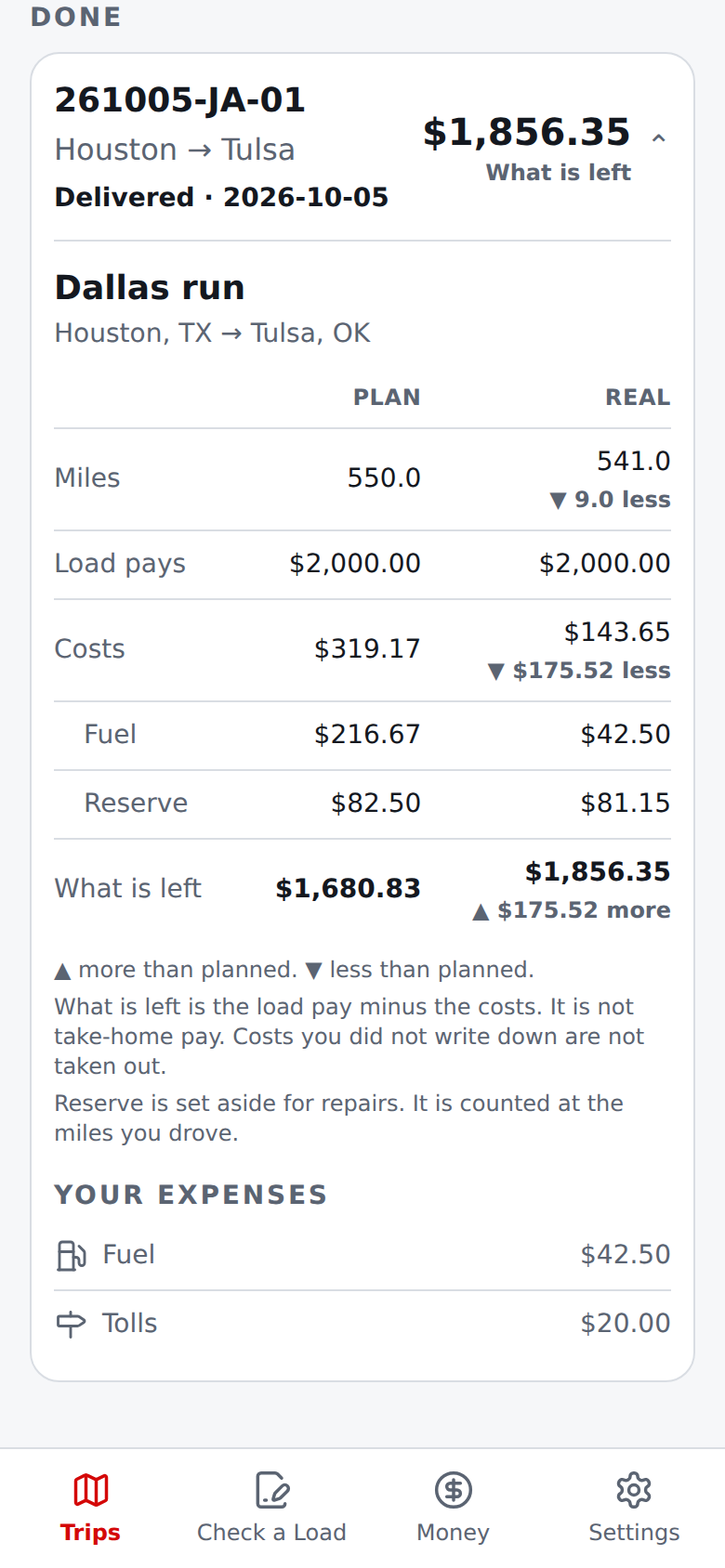
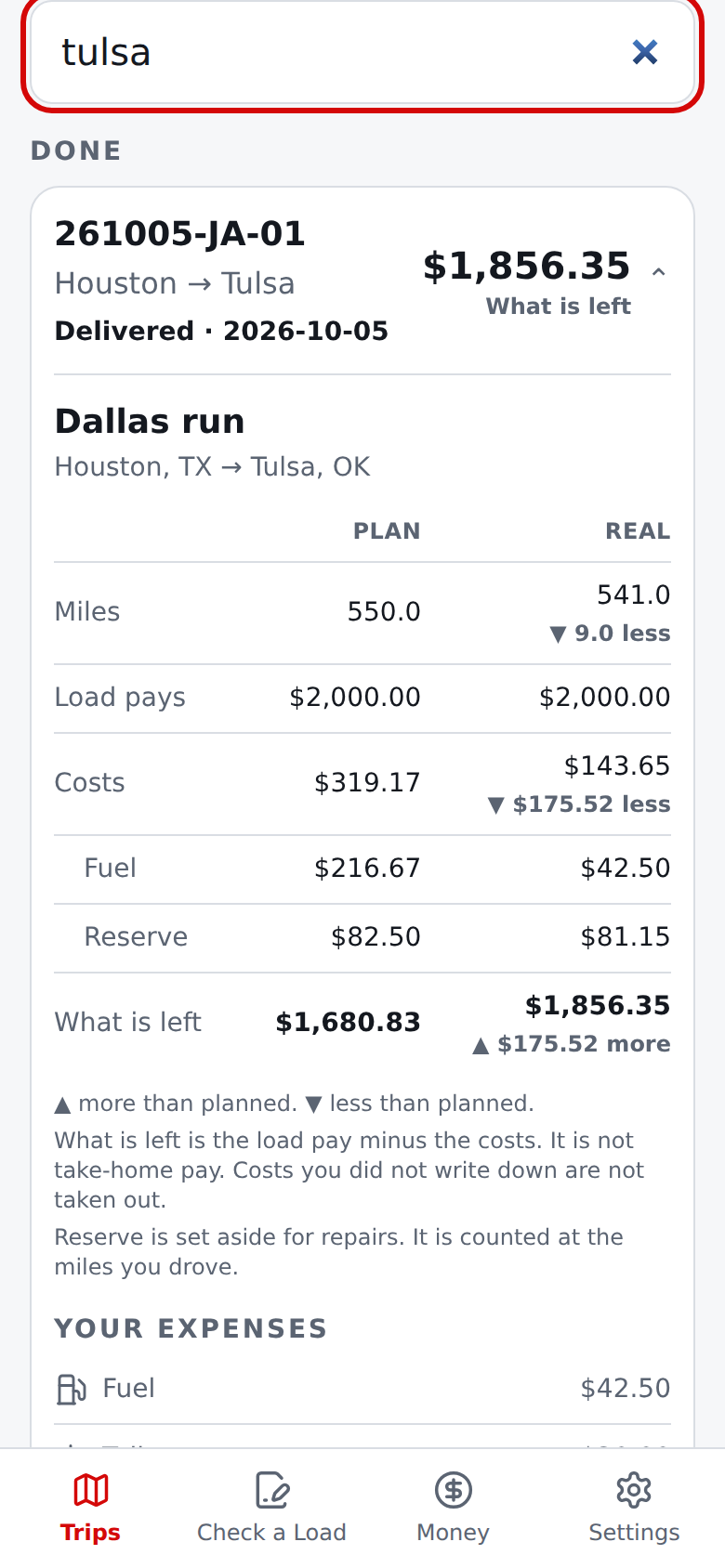
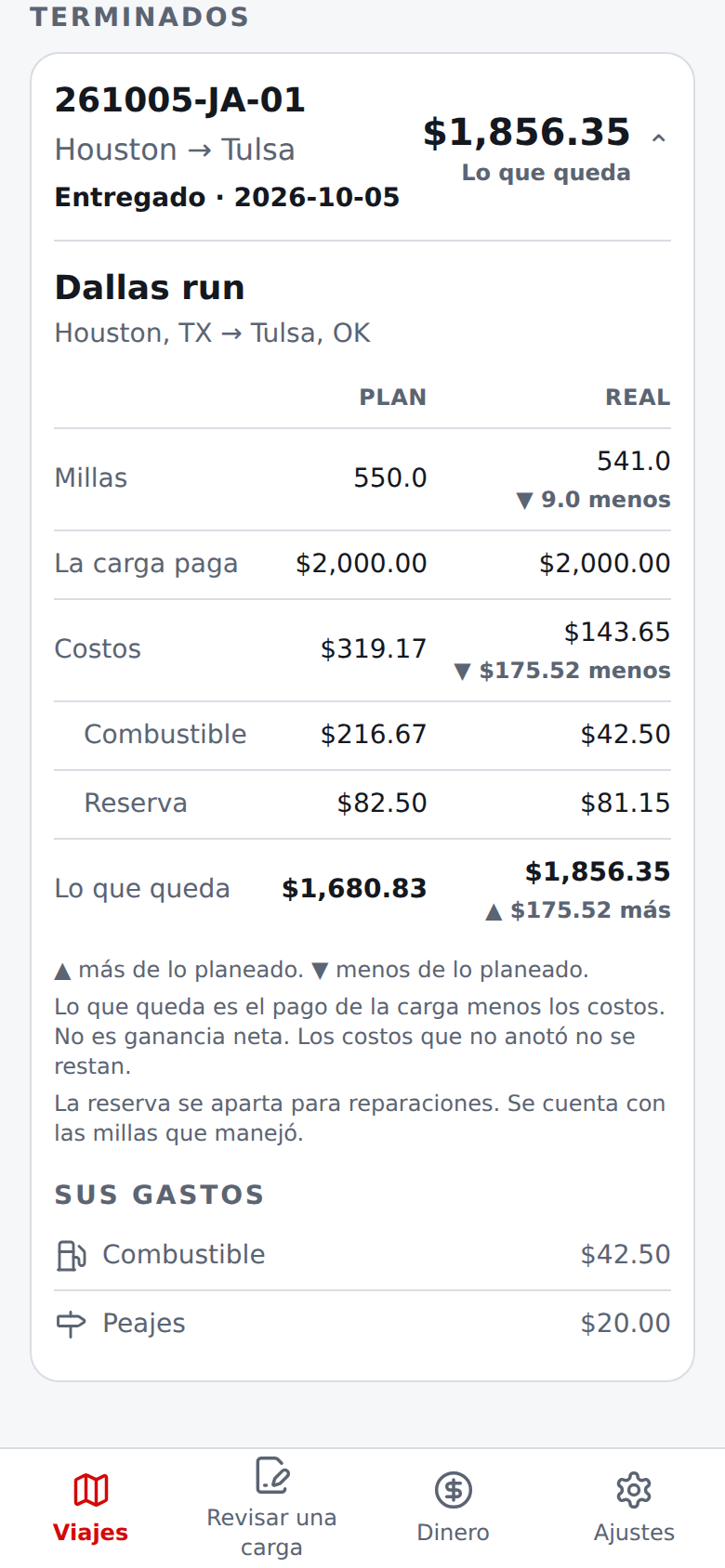
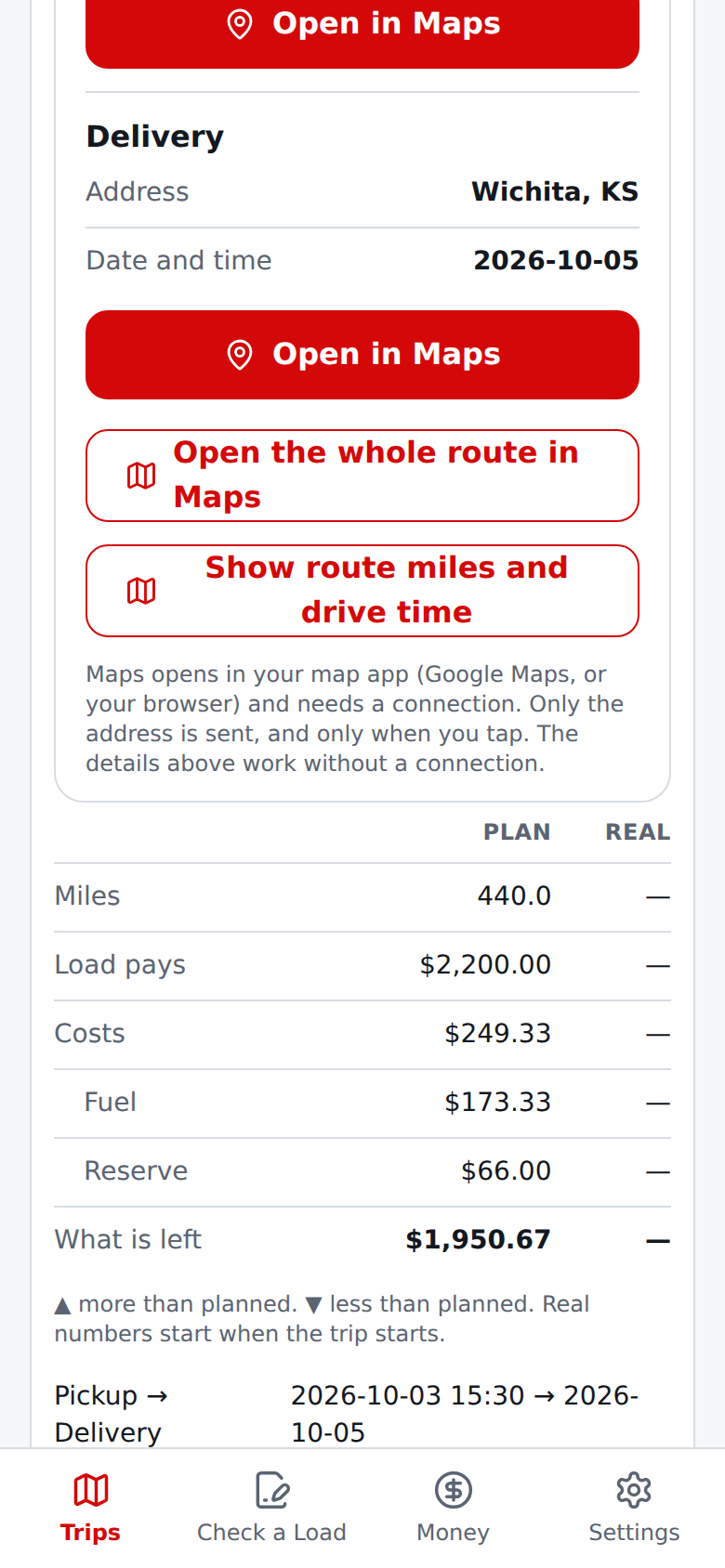
An opened trip shows Plan and Real side by side. Plan is the estimate frozen when you accepted the load (it never changes): the miles, what the load pays, the costs (with fuel and the reserve when the estimate has them) and what is left. Real is what happened: the odometer miles, the costs counted so far (the expenses you entered plus the maintenance reserve for the miles driven) and what is left.
Each difference is written with an arrow and a word, never by colour alone: "▲ 30.0 more" or "▼ $17.83 less". A load in Next has no real numbers yet. For a driver on a team, Plan shows only the load pay and the planned miles, and Real the miles, the expenses you entered and what is left; the truck's own costs are not shown.
For the trip on the road, below the table you see who the trip is (the reference, or from and to, and the date), the expenses to log, each with its own symbol (fuel, food, tolls, lodging, parking, other), and the list of what you recorded.
Everything else is folded into one section you can open when you need it: Trip details, route and odometer (the reference and the two ends, the route links for each leg, and the odometer readings). You can edit the reference and the two ends at any time while the trip is active. Your text is always kept exactly as you typed it. Stop details in the same section take what you need at each stop, for the pickup and for the delivery: a street address, a contact name and phone, the appointment time or window, and dock or gate notes. They then show in the Stops and driving instructions section described in item 11.
Trip numbers. Every new trip gets a number like 261003-JA-01: the day the trip started (year, month, day, read in your phone's own time zone), your letters, and a count of that day's trips with the same letters (01, 02, and so on; 100 after 99). The number is final the moment the trip starts and never changes.
The first time you start a trip, RSL asks once for Your letters for trip numbers: type 2 or 3 letters (for example JA for José Álvarez). RSL turns them into capitals and removes accents (an é becomes E); numbers and other characters are not accepted, and no trip starts until the letters are right. Only the letters are kept, on this device and in your backup file: RSL does not ask for or keep your name.
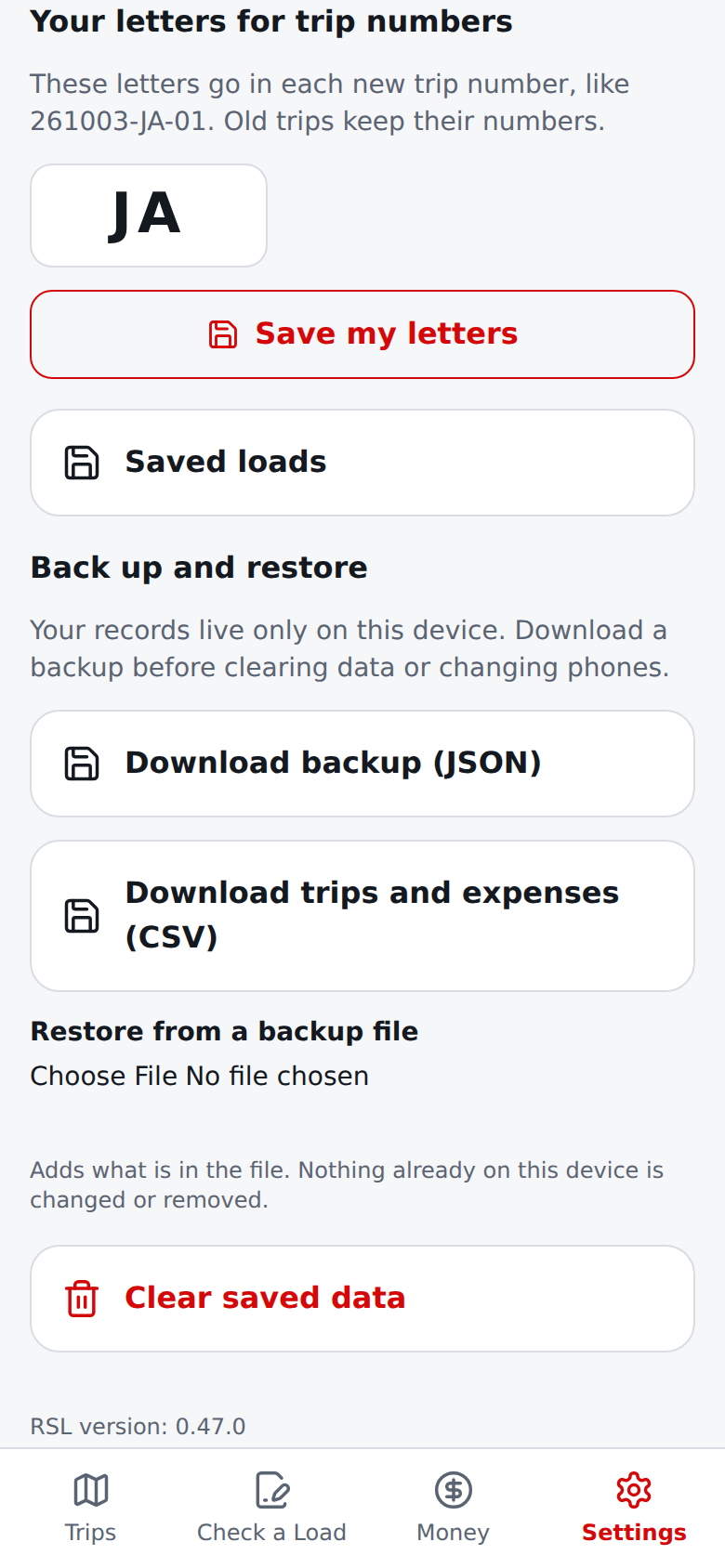
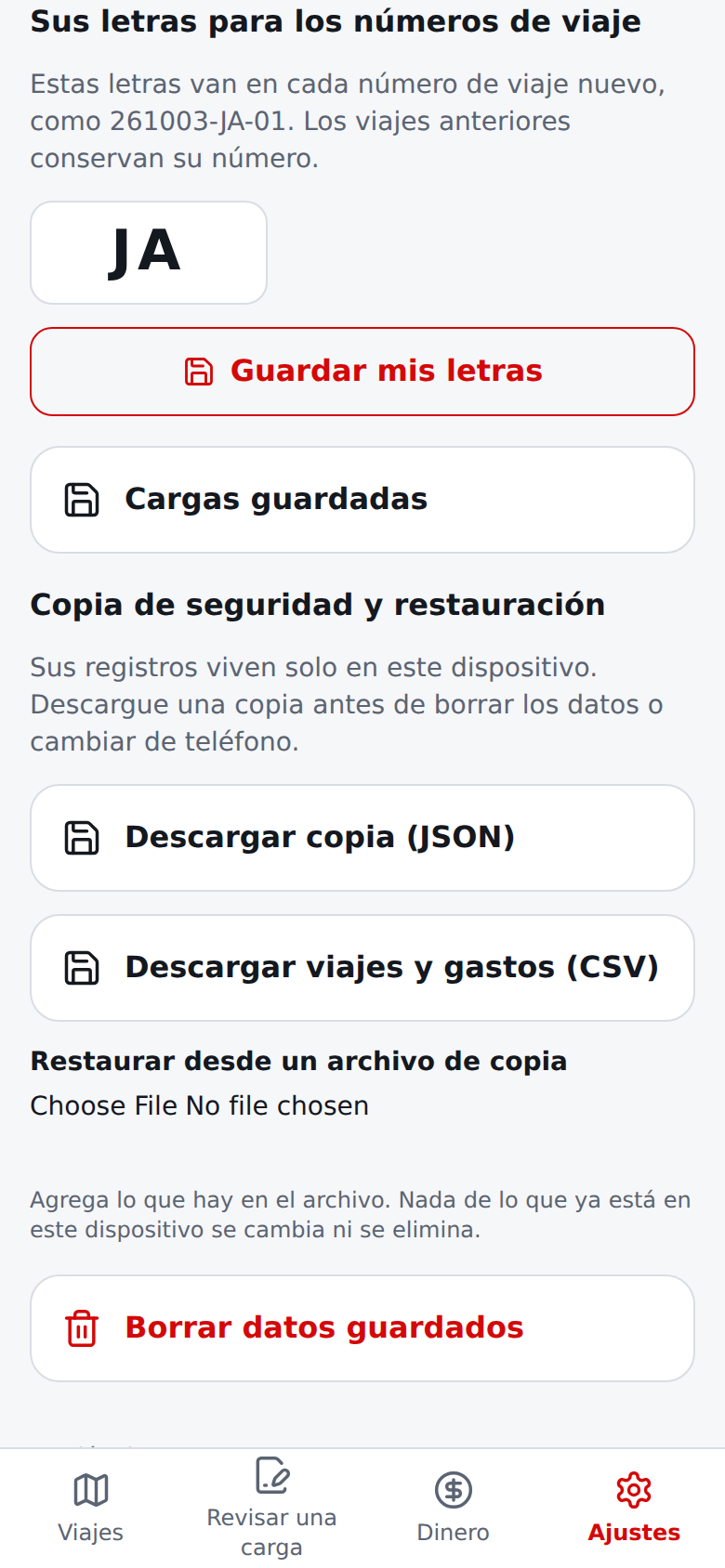
Change them any time in Settings → Your data on this device → Your letters for trip numbers; new trips use the new letters, and trips that already have a number keep it. A load in Next has no number yet (the card says the number is given when you start it); it gets one, with the date of that day, when you select Start this trip.
Trips from before this release have no number and are not renumbered; they still show their reference or route. The number is shown on each trip's line in Trips, in the review before you mark a trip delivered, and in the trip lists.
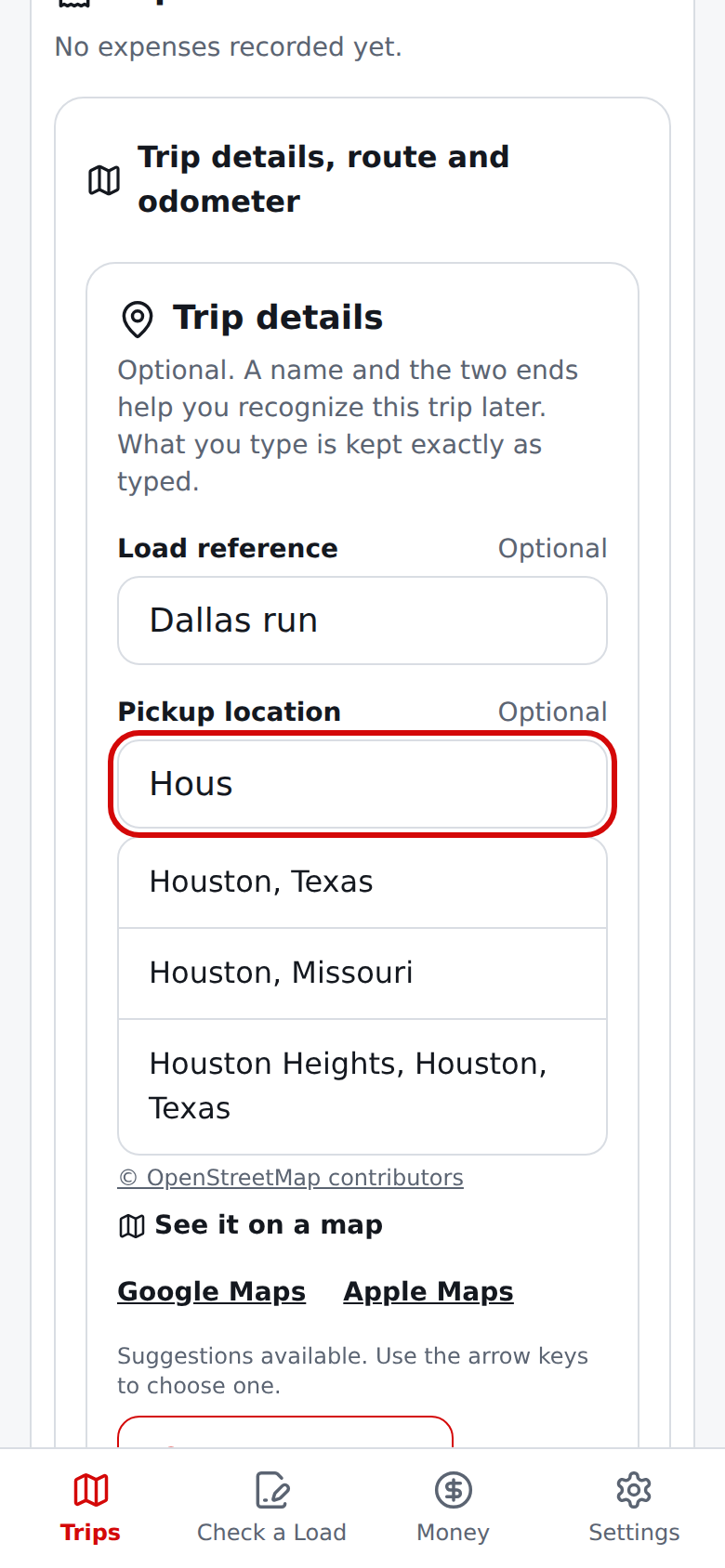
Places and directions. As you type a pickup or delivery location (three or more characters), RSL offers matching places (with the © OpenStreetMap contributors credit; where the search is switched off you simply see no suggestions); pick one with a tap or the arrow keys and Enter, or ignore the list and keep your own text.
To make the suggestions, the text you typed is sent through RSL to an OpenStreetMap-based search; nothing is stored there.
Check address (in Trip details) sends the text to Google's address validation service (or, if that is unavailable, the US Census address list) and tells you one of three things: Address confirmed (complete and recognized down to the house or building), Found, but some parts could not be confirmed (for example a missing unit number or ZIP code, with the closest match shown), or that the address could not be confirmed (a street with no confirmed house number counts as not confirmed, so a street-only line never stands in for the number you typed).
A match or closest match is offered with Use this and never replaces your text on its own (if you keep typing while a check is running, its answer is discarded); place names and businesses often do not validate as addresses, and coverage outside the US is limited. If you check addresses very often within a minute, the remaining checks use the US Census list instead of Google.
An address check can take up to about 12 seconds because the address services are sometimes slow. If either service is unavailable (or you have made a lot of lookups in a minute), you are told and can keep typing; wait a moment and try again.
On Preview the message also shows a short reason code in parentheses, such as timeout, status_503, redirect_301 or network: followed by a short error name, which helps whoever maintains the app find the cause; the live app shows the plain message without a code, and the server never sends error details to it.
When a trip has a pickup location, Open the route in your map app shows Google Maps, Apple Maps, and Waze links for two legs: to the pickup, from where you are now (the map app starts from your phone's current location), and, once there is a delivery location, pickup to delivery. They open your map app in a new tab with the places you typed; nothing is sent until you tap one.
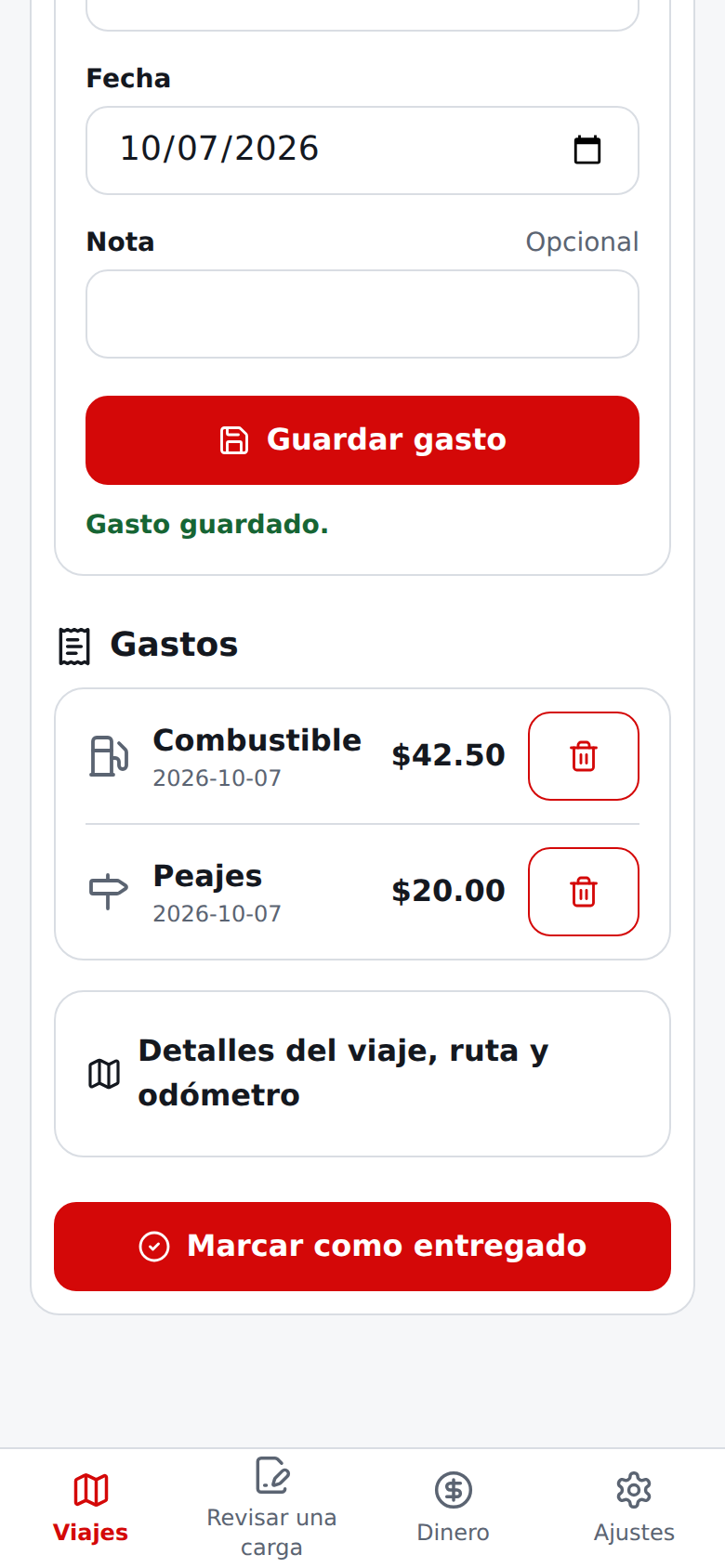
In the trip on the road, under Now, choose a category (fuel, food, tolls, lodging, parking, or other), enter the exact amount, confirm the date, add an optional note, and select Save expense. Use the trash button to remove one; an Undo button appears right away and brings the expense back with the same category, amount, date and note.
Plan beside Real shows the load pay, the estimate from when you started, the costs you recorded, and What is left: the load pay minus the costs counted. It is not take-home pay; costs you did not record are not deducted. When the trip is done, select Mark delivered.
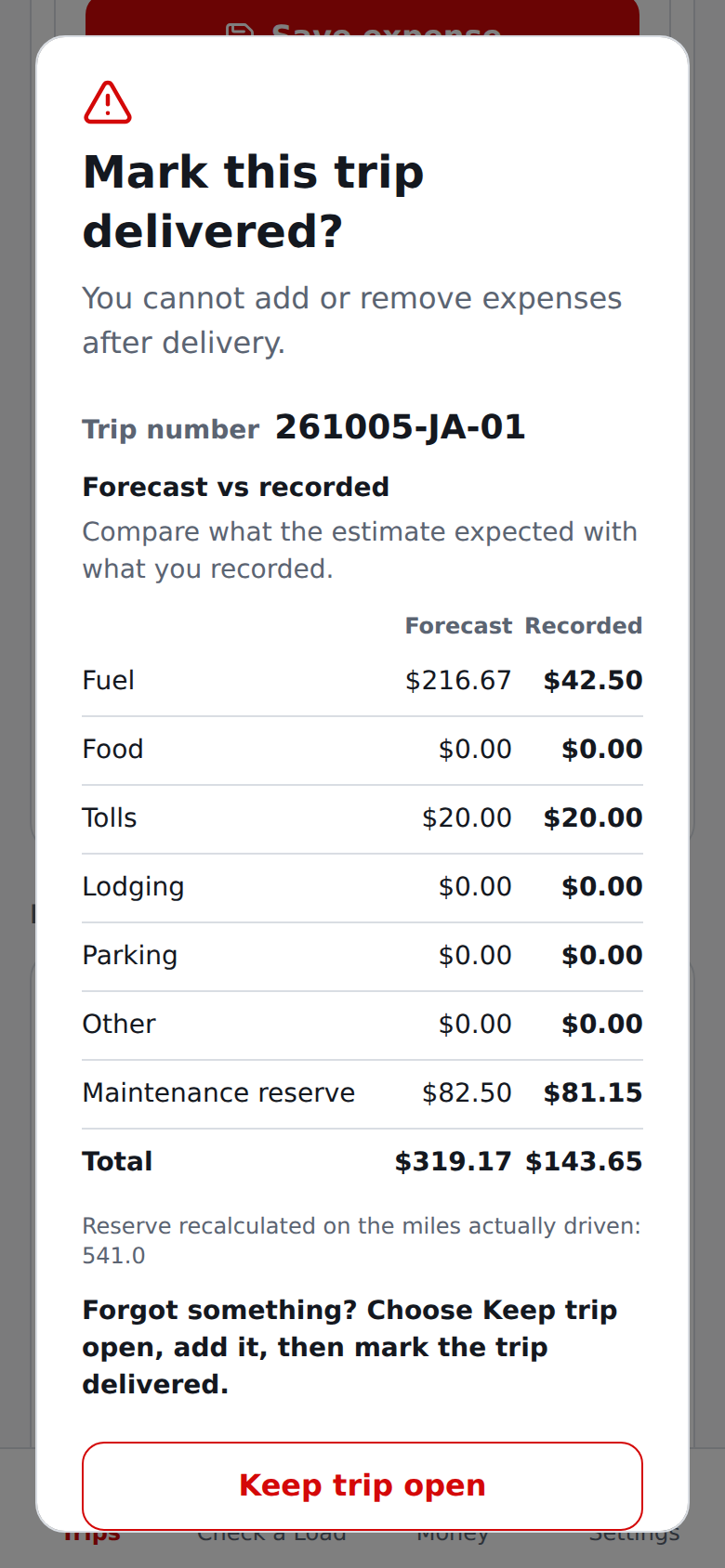
If the drop-off odometer is not saved yet, RSL first asks for it (and for the start reading on a trip started before it was required); nothing is shown or closed until it is saved. Then RSL shows Forecast vs recorded for each cost (fuel, food, tolls, lodging, parking, other) so you can spot anything you forgot: choose Keep trip open, add it, then mark the trip delivered.
Maintenance is never entered: it is calculated as your per-mile maintenance reserve times the miles between the two odometer readings, and the review's Total row counts it next to the expenses you recorded (an older trip that already has a maintenance expense recorded counts that amount instead, never both; the calculated reserve then shows as —).
Readings you save from that prompt also appear in the Odometer card. A delivered trip moves to Done and cannot be changed; open it to see Plan beside Real and what you entered, by kind.
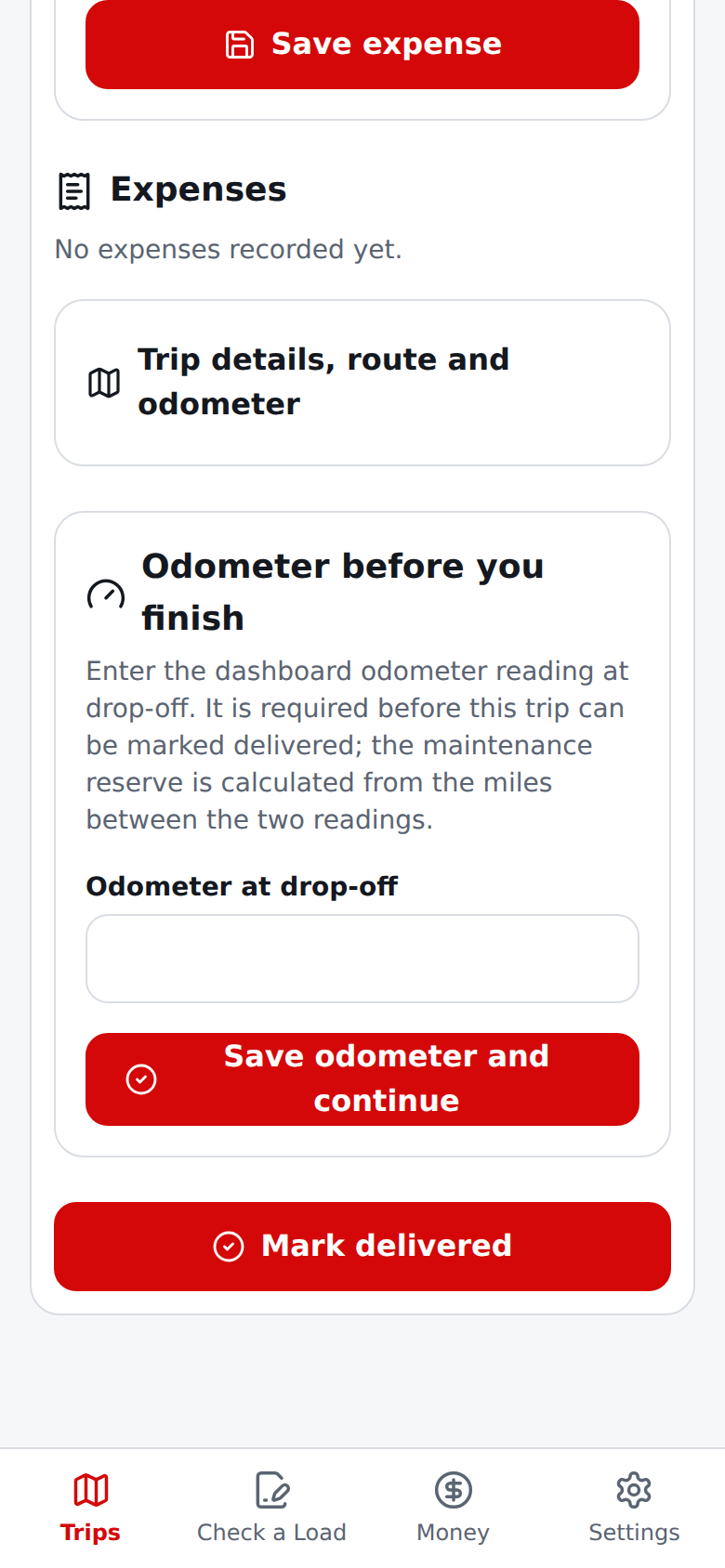
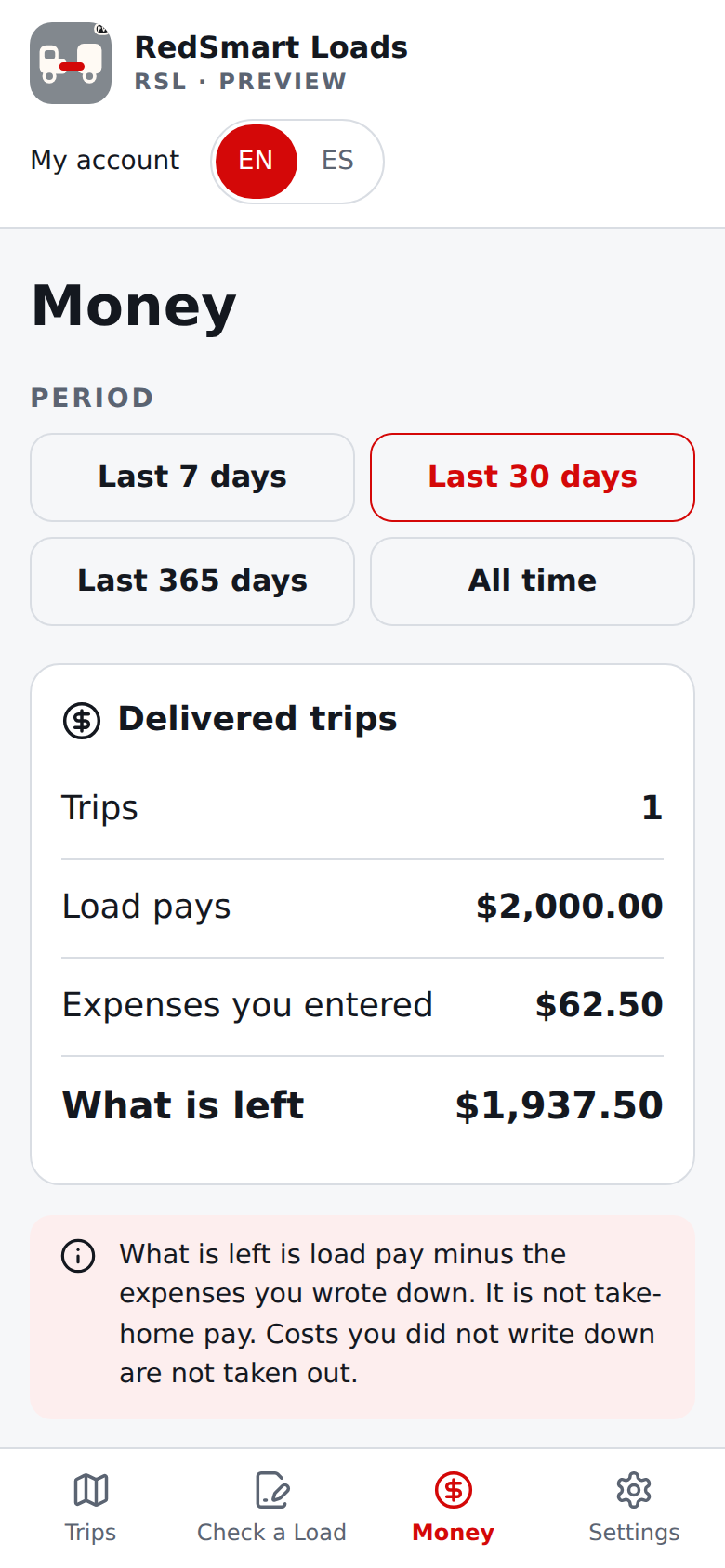
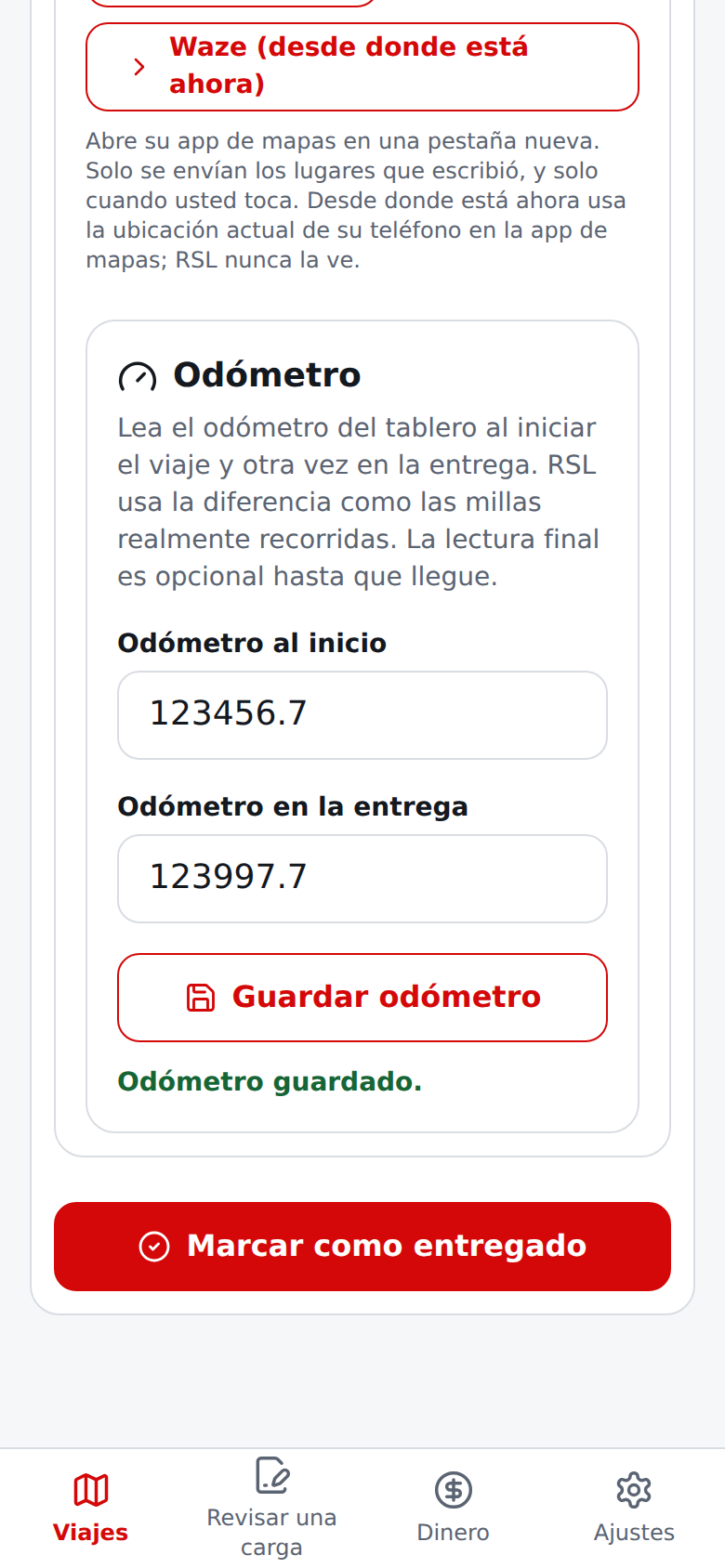
In the same trip, Odometer records the dashboard reading when the trip starts and again at drop-off. Enter miles with at most one decimal (for example 123456.7). Both readings are required: the start to begin the trip and the end before the trip can be marked delivered. The end reading cannot be lower than the start.
RSL shows the difference as the Real miles in Plan beside Real, next to the planned total miles.
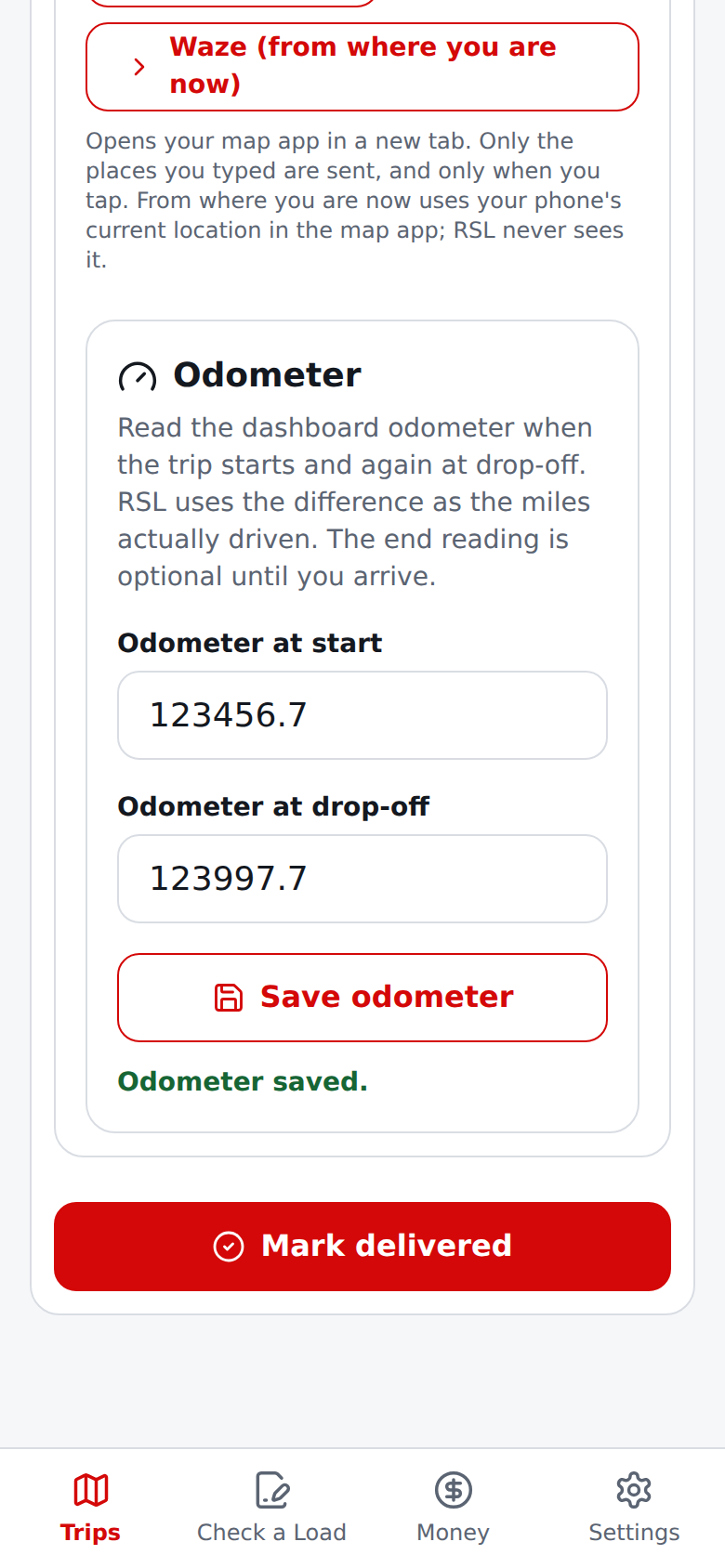
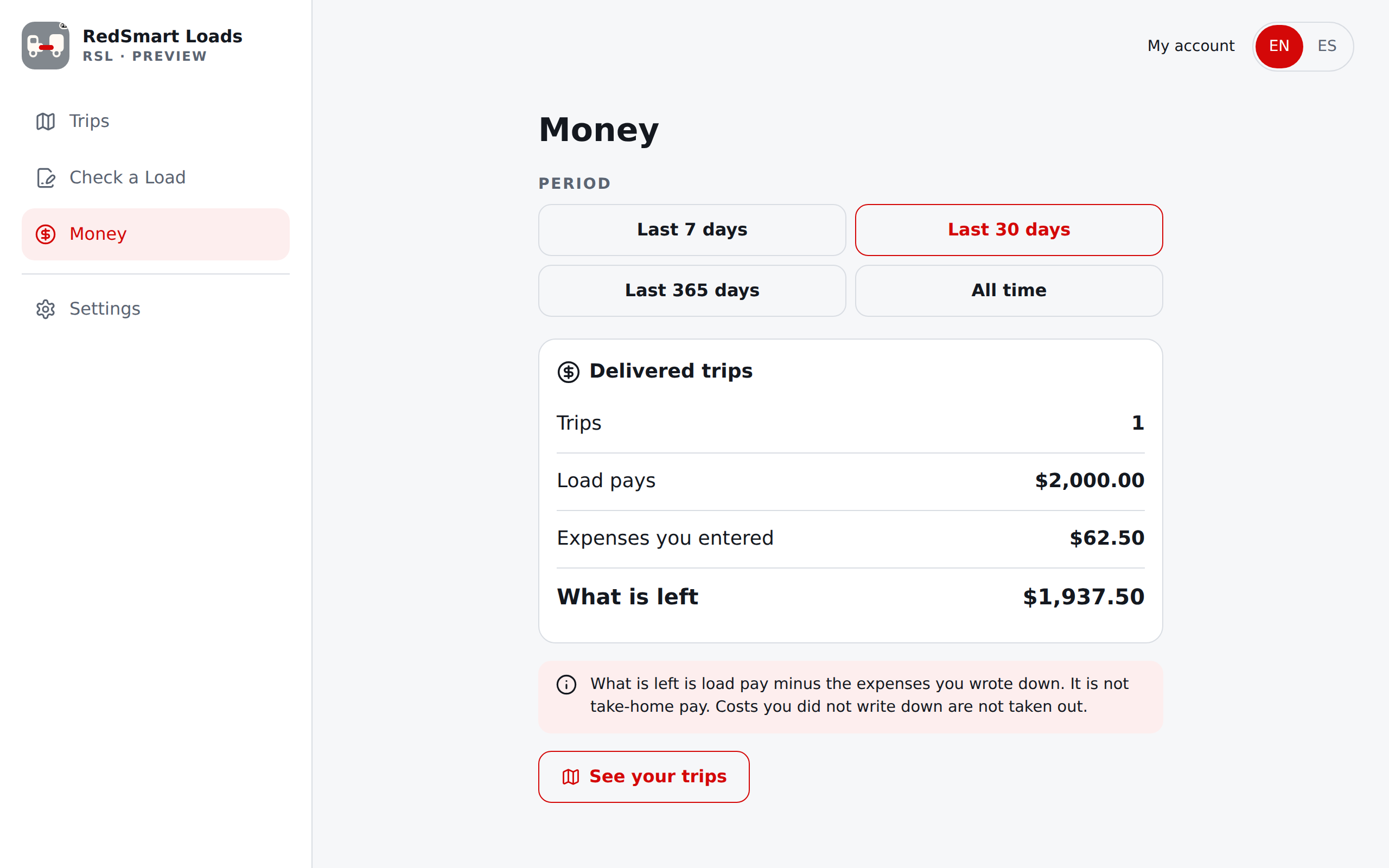
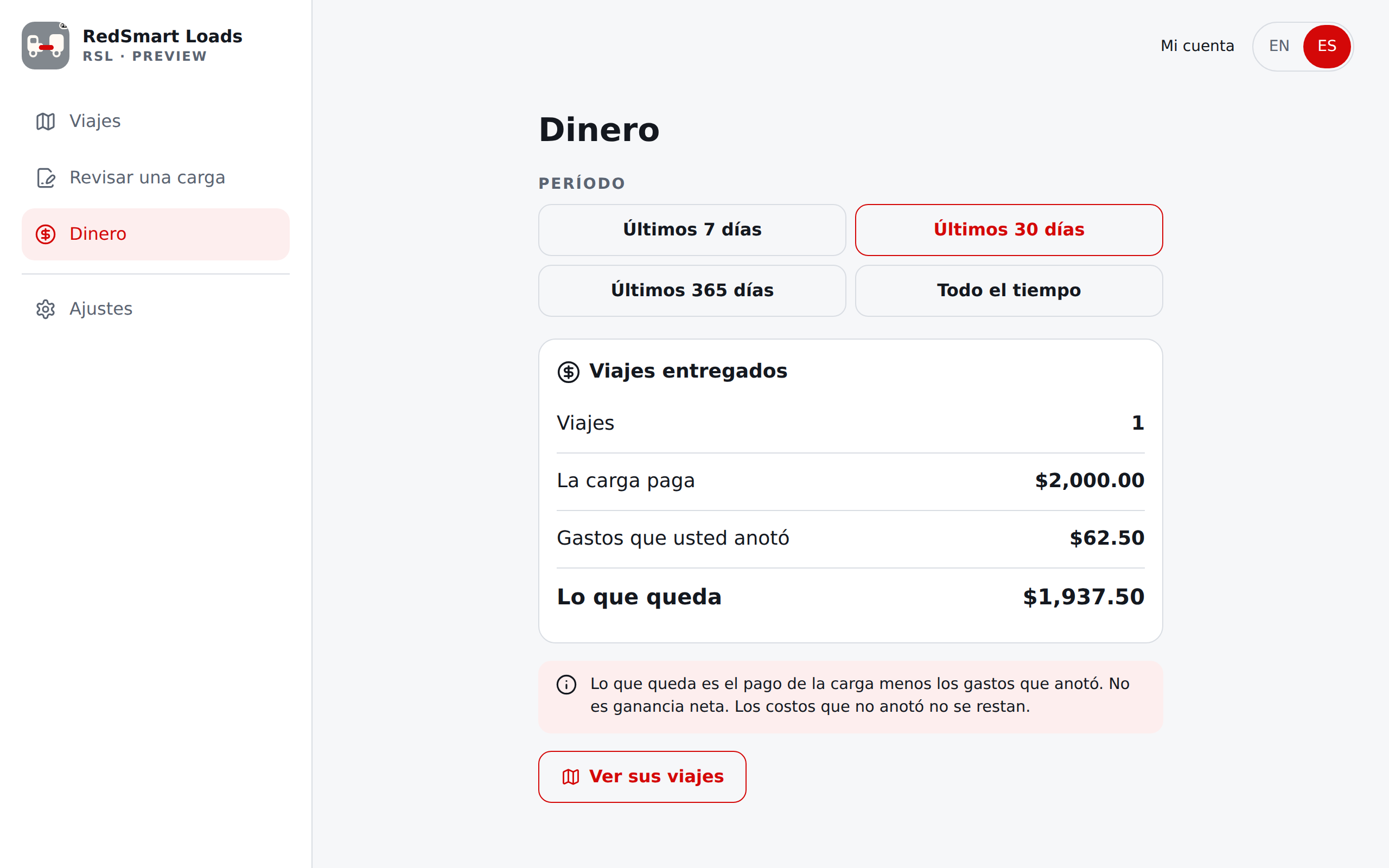
Money keeps the totals over time and no longer lists every trip (they are on Trips). Choose Last 7 days, Last 30 days, Last 365 days or All time to see, for the delivered trips of that period, how many there were, what the loads paid, the expenses you entered and What is left: the load pay minus the expenses you entered. It is not take-home pay.
A driver on a team is told the reserve is on My pay. Everything stays on this device, unless sync is on (see section 9, step 5), in which case your trips are also kept on your account.
On a wide screen the sidebar replaces the bar, and Trips, Money and Settings keep one centred column, the same simple screen as on a phone.
En la estimación, la tarjeta Aceptar esta carga está justo debajo de las cifras principales.
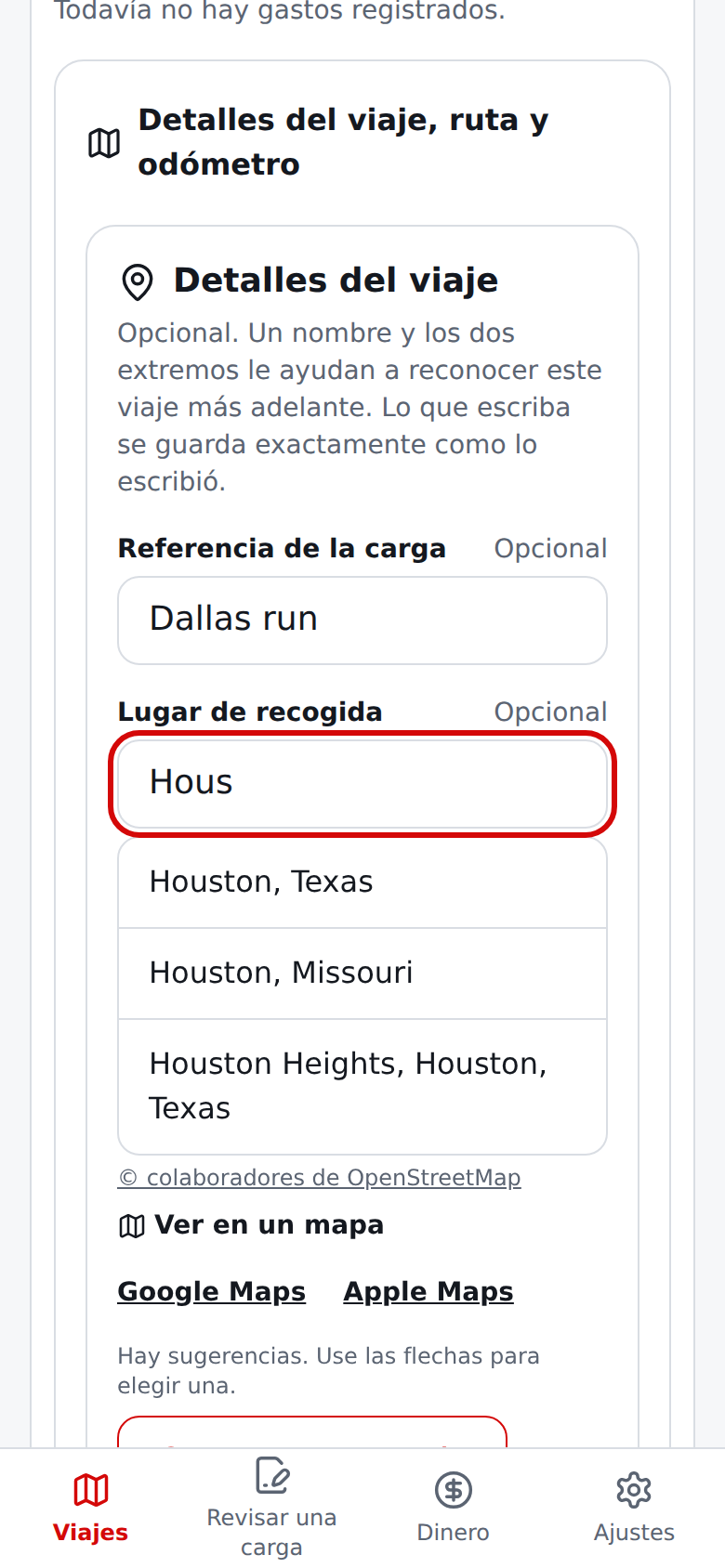
Antes de iniciar, puede agregar una Referencia de la carga, un Lugar de recogida y un Lugar de entrega opcionales; se guardan como los escribe (los saltos de línea pegados y los caracteres ocultos de dirección de texto se convierten en espacios); las sugerencias de lugares y una verificación de dirección opcional se describen más abajo en Lugares y direcciones y aparecen en el viaje, en la cola y en Dinero.
Después de aceptar una carga en su plataforma original, escriba el Odómetro al inicio (la lectura de su tablero ahora; RSL no inicia el viaje sin ella) y seleccione Iniciar un viaje. Una carga en Siguientes pide la misma lectura al iniciarla. RSL no reserva la carga; solo registra su viaje, con una copia fija de la estimación que vio. Puede tener un viaje activo a la vez.
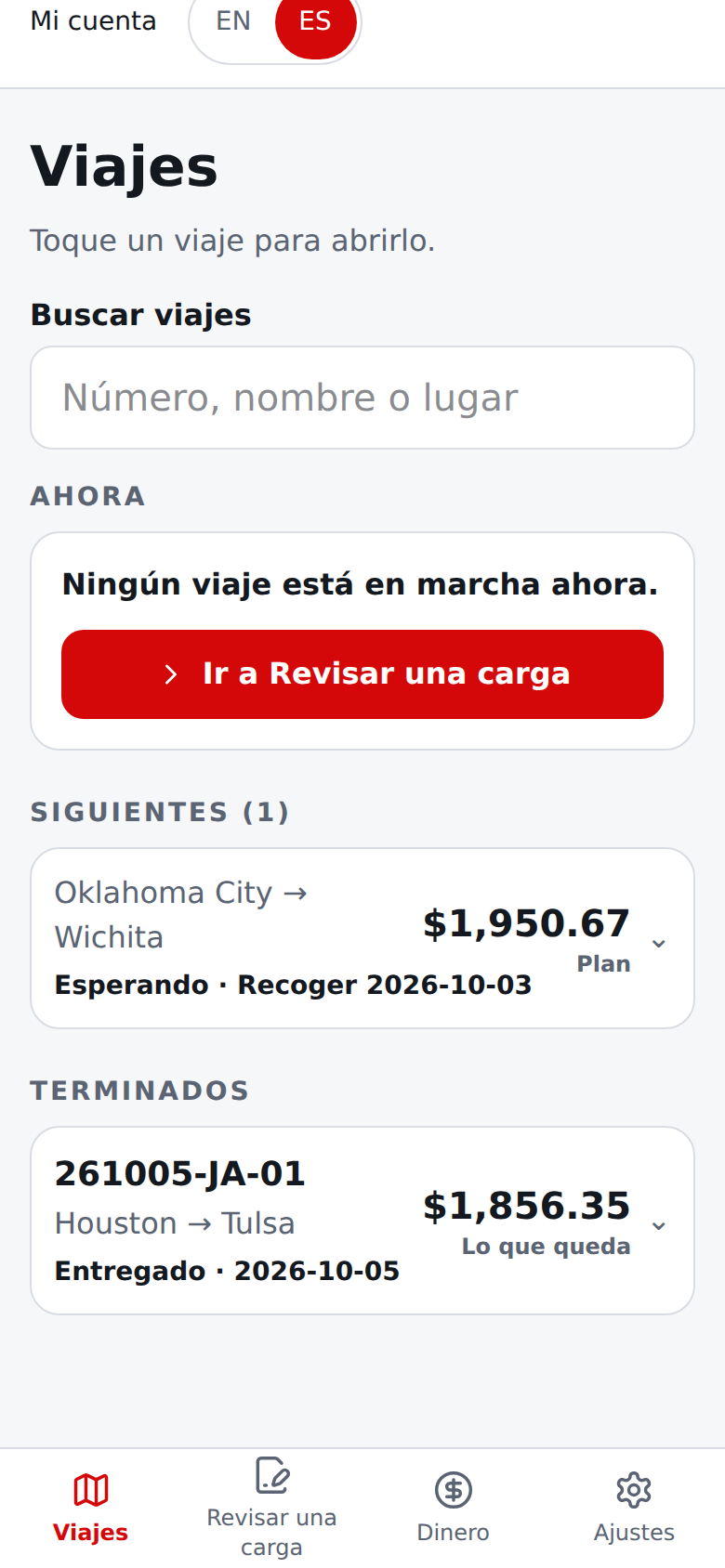
Viajes reúne todos sus viajes en un solo lugar. La barra tiene cuatro entradas: Viajes, Revisar una carga, Dinero y Ajustes. Viajes tiene tres grupos: Ahora (el viaje que está manejando), Siguientes (cargas en espera, hasta 10) y Terminados (viajes entregados).
Cada viaje es una línea grande con su número de viaje (o su nombre, o de dónde a dónde), las ciudades de → a, su estado en palabras (En camino, Esperando, Entregado), la etiqueta de sincronización cuando la sincronización está encendida y un número de dinero con su nombre al lado: Lo que queda para un viaje en camino o entregado, y el resultado planeado (Plan) para una carga en Siguientes.
Toque una línea para abrir el viaje ahí mismo; tóquela otra vez para plegarla. El viaje en camino empieza abierto (si no hay ninguno, abre la primera carga de Siguientes). Sobre los grupos, Buscar viajes (aparece cuando tiene dos o más viajes) encuentra un viaje mientras escribe: un número de viaje (los guiones son opcionales), parte de la referencia de la carga o un lugar de recogida o entrega.
No importan las mayúsculas ni los acentos. Cuando nada coincide, dice No se encontró ningún viaje.
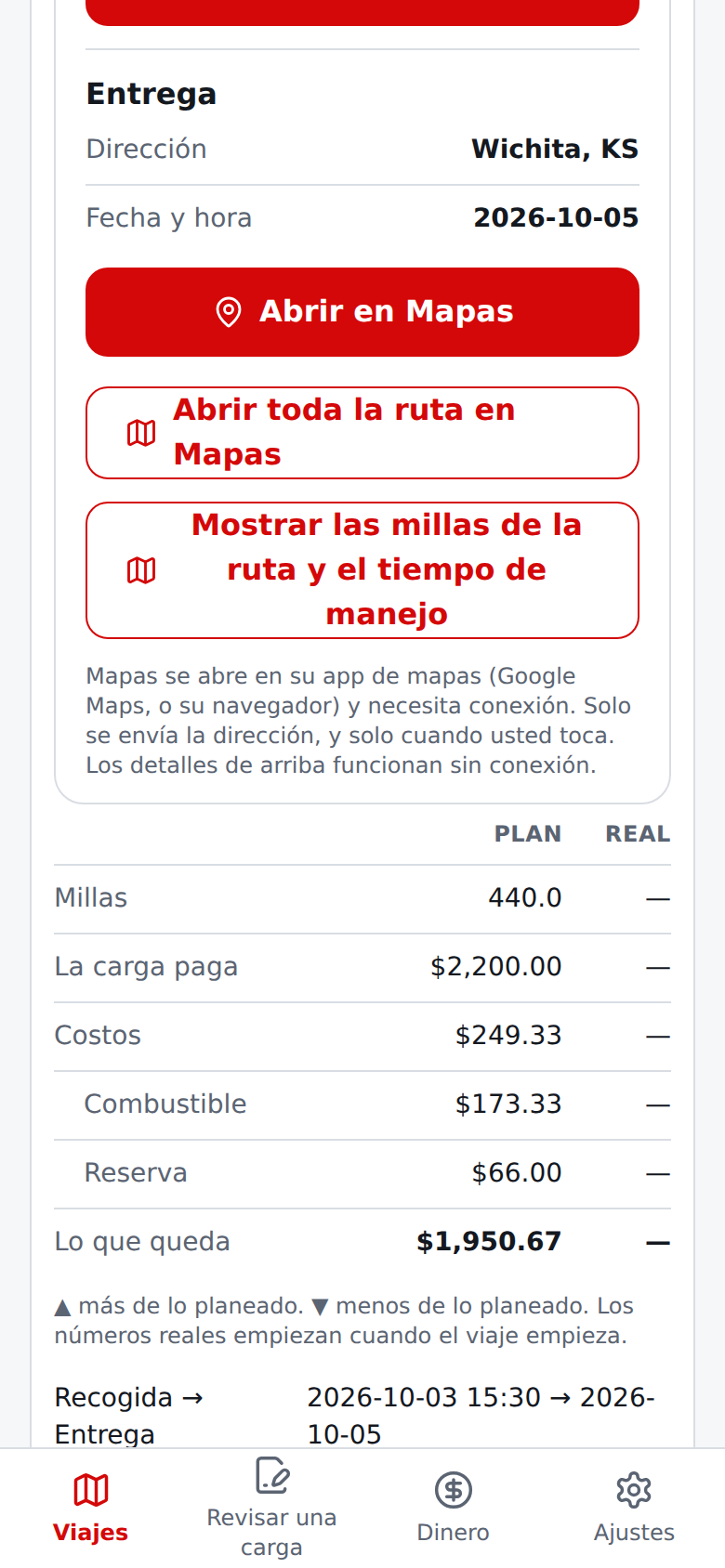
Un viaje abierto muestra Plan y Real lado a lado. Plan es la estimación congelada cuando aceptó la carga (no cambia nunca): las millas, lo que paga la carga, los costos (con el combustible y la reserva cuando la estimación los tiene) y lo que queda.
Real es lo que pasó: las millas del odómetro, los costos contados hasta ahora (los gastos que ingresó más la reserva de mantenimiento por las millas manejadas) y lo que queda. Cada diferencia se escribe con una flecha y una palabra, nunca solo con color: «▲ 30,0 más» o «▼ $17.83 menos». Una carga en Siguientes todavía no tiene números reales.
Para un conductor en un equipo, Plan muestra solo el pago de la carga y las millas planeadas, y Real las millas, los gastos que usted ingresó y lo que queda; los costos propios del camión no se muestran.
Para el viaje en camino, debajo de la tabla ve quién es el viaje (la referencia, o de dónde a dónde, y la fecha), los gastos por registrar, cada uno con su propio símbolo (combustible, comida, peajes, hospedaje, estacionamiento, otro), y la lista de lo que registró.
Todo lo demás está plegado en una sección que puede abrir cuando la necesite: Detalles del viaje, ruta y odómetro (la referencia y los dos extremos, los enlaces de ruta de cada tramo y las lecturas del odómetro). Puede editar la referencia y los dos extremos en cualquier momento mientras el viaje esté activo. Su texto siempre se conserva exactamente como lo escribió. Los Detalles de las paradas de la misma sección toman lo que necesita en cada parada, para la recogida y para la entrega: una dirección, el nombre y el teléfono de un contacto, la hora o ventana de la cita y notas del muelle o la entrada. Luego aparecen en la sección Paradas e instrucciones de manejo que describe el punto 11.
Números de viaje. Cada viaje nuevo recibe un número como 261003-JA-01: el día en que empezó el viaje (año, mes y día, según la zona horaria de su propio teléfono), sus letras y la cuenta de los viajes de ese día con las mismas letras (01, 02 y así; 100 después del 99). El número es definitivo desde que empieza el viaje y nunca cambia.
La primera vez que inicia un viaje, RSL pregunta una sola vez Sus letras para los números de viaje: escriba 2 o 3 letras (por ejemplo JA para José Álvarez). RSL las pasa a mayúsculas y quita los acentos (una é pasa a E); no se aceptan números ni otros caracteres, y ningún viaje empieza hasta que las letras estén bien.
Solo se guardan las letras, en este dispositivo y en su archivo de copia: RSL no pide ni guarda su nombre. Puede cambiarlas cuando quiera en Ajustes → Sus datos en este dispositivo → Sus letras para los números de viaje; los viajes nuevos usan las letras nuevas y los viajes que ya tienen número lo conservan.
Una carga en Siguientes todavía no tiene número (la tarjeta dice que el número se da al iniciar); lo recibe, con la fecha de ese día, cuando usted elige Iniciar este viaje. Los viajes de antes de esta versión no tienen número y no se vuelven a numerar; siguen mostrando su referencia o su ruta.
El número se muestra en la línea de cada viaje de Viajes, en la revisión antes de marcar un viaje como entregado y en las listas de viajes.
Lugares y direcciones. Mientras escribe un lugar de recogida o de entrega (tres o más caracteres), RSL le ofrece lugares que coinciden (con el crédito © colaboradores de OpenStreetMap; donde la búsqueda está desactivada simplemente no verá sugerencias); elija uno con un toque o con las flechas y Enter, o ignore la lista y conserve su propio texto.
Para hacer las sugerencias, el texto que escribió se envía a través de RSL a un buscador basado en OpenStreetMap; allí no se guarda nada.
Verificar dirección (en Detalles del viaje) envía el texto al servicio de validación de direcciones de Google (o, si no está disponible, a la lista de direcciones del Censo de EE. UU.) y le indica una de tres cosas: Dirección confirmada (completa y reconocida hasta la casa o el edificio), Encontrada, pero algunas partes no se pudieron confirmar (por ejemplo falta el número de unidad o el código postal, con la coincidencia más cercana), o que la dirección no se pudo confirmar (una calle sin número de casa confirmado cuenta como no confirmada, así que una línea solo con la calle nunca reemplaza el número que escribió).
Una coincidencia o la coincidencia más cercana se le ofrece con Usar esta y nunca reemplaza su texto por sí sola (si sigue escribiendo mientras se verifica, esa respuesta se descarta); los nombres de lugares y los negocios a menudo no validan como direcciones, y la cobertura fuera de EE. UU. es limitada.
Si verifica direcciones con mucha frecuencia en un minuto, las verificaciones restantes usan la lista del Censo de EE. UU. en lugar de Google. Una verificación de dirección puede tardar hasta unos 12 segundos porque los servicios de direcciones a veces son lentos.
Si alguno de los servicios no está disponible (o ha hecho muchas búsquedas en un minuto), se le avisa y puede seguir escribiendo; espere un momento e inténtelo de nuevo.
En Preview el mensaje también muestra entre paréntesis un código de motivo corto, como timeout, status_503, redirect_301 o network: seguido de un nombre de error corto, que ayuda a quien mantiene la app a encontrar la causa; la app en producción muestra el mensaje sin código y el servidor nunca le envía detalles del error.
Cuando un viaje tiene lugar de recogida, Abrir la ruta en su app de mapas muestra enlaces a Google Maps, Apple Maps y Waze para dos tramos: hasta la recogida, desde donde está ahora (la app de mapas parte de la ubicación actual de su teléfono) y, cuando hay lugar de entrega, de la recogida a la entrega.
Abren su app de mapas en una pestaña nueva con los lugares que escribió; no se envía nada hasta que toque uno.
En el viaje en camino, en Ahora, elija una categoría (combustible, comida, peajes, hospedaje, estacionamiento u otro), ingrese el monto exacto, confirme la fecha, agregue una nota opcional y seleccione Guardar gasto. Use el botón de papelera para quitar uno; enseguida aparece un botón Deshacer que devuelve el gasto con la misma categoría, monto, fecha y nota.
Plan junto a Real muestra el pago de la carga, la estimación del momento en que inició, los costos que registró y Lo que queda: el pago de la carga menos los costos contados. No es ganancia neta; los costos que no registró no se descuentan. Cuando termine el viaje, seleccione Marcar como entregado.
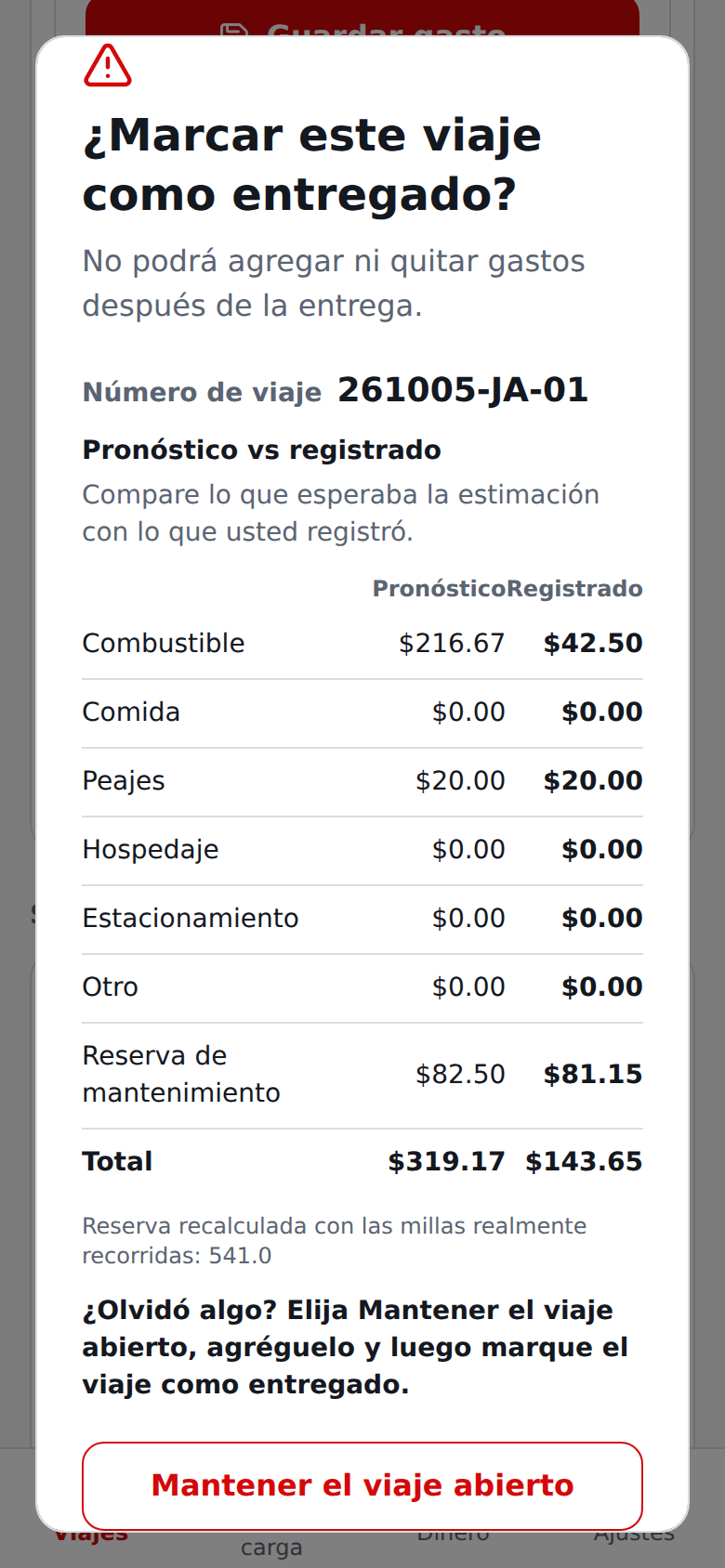
Si aún no se guardó el odómetro de la entrega, RSL lo pide primero (y la lectura inicial en un viaje iniciado antes de que fuera obligatoria); no se muestra ni se cierra nada hasta guardarlo.
Luego RSL muestra Pronóstico vs registrado para cada costo (combustible, comida, peajes, hospedaje, estacionamiento, otro) para que detecte lo que olvidó: elija Mantener el viaje abierto, agréguelo y luego marque el viaje como entregado.
El mantenimiento nunca se anota: se calcula como su reserva de mantenimiento por milla por las millas entre las dos lecturas del odómetro, y la fila Total de la revisión lo cuenta junto a los gastos que registró (un viaje antiguo que ya tiene un gasto de mantenimiento registrado cuenta ese monto, nunca los dos; la reserva calculada aparece entonces como —).
Las lecturas que guarde en ese aviso también aparecen en la tarjeta Odómetro. Un viaje entregado pasa a Terminados y no se puede cambiar; ábralo para ver Plan junto a Real y lo que ingresó, por tipo.
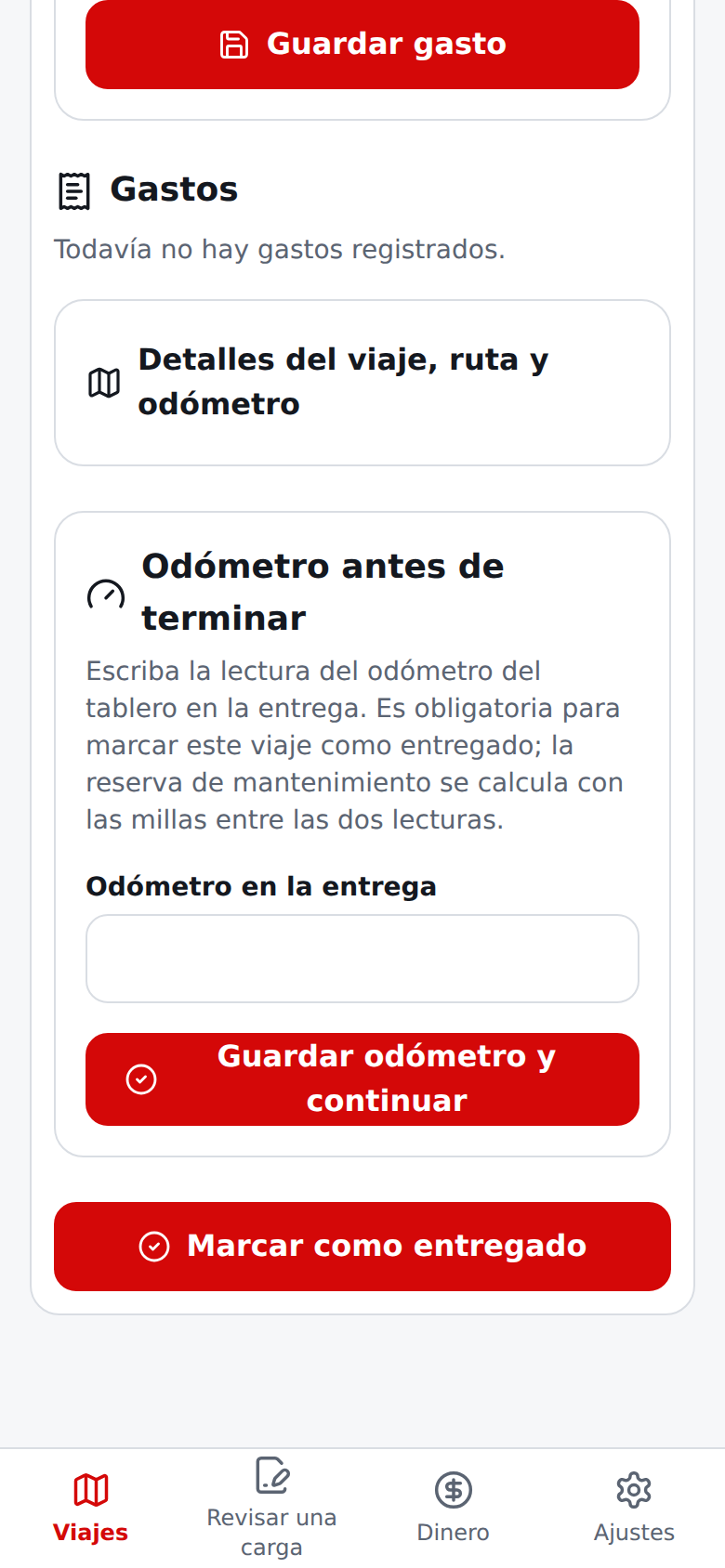
En el mismo viaje, Odómetro registra la lectura del tablero al iniciar el viaje y otra vez en la entrega. Ingrese las millas con un decimal como máximo (por ejemplo 123456.7). Las dos lecturas son obligatorias: la inicial para comenzar el viaje y la final antes de poder marcarlo como entregado. La lectura final no puede ser menor que la inicial.
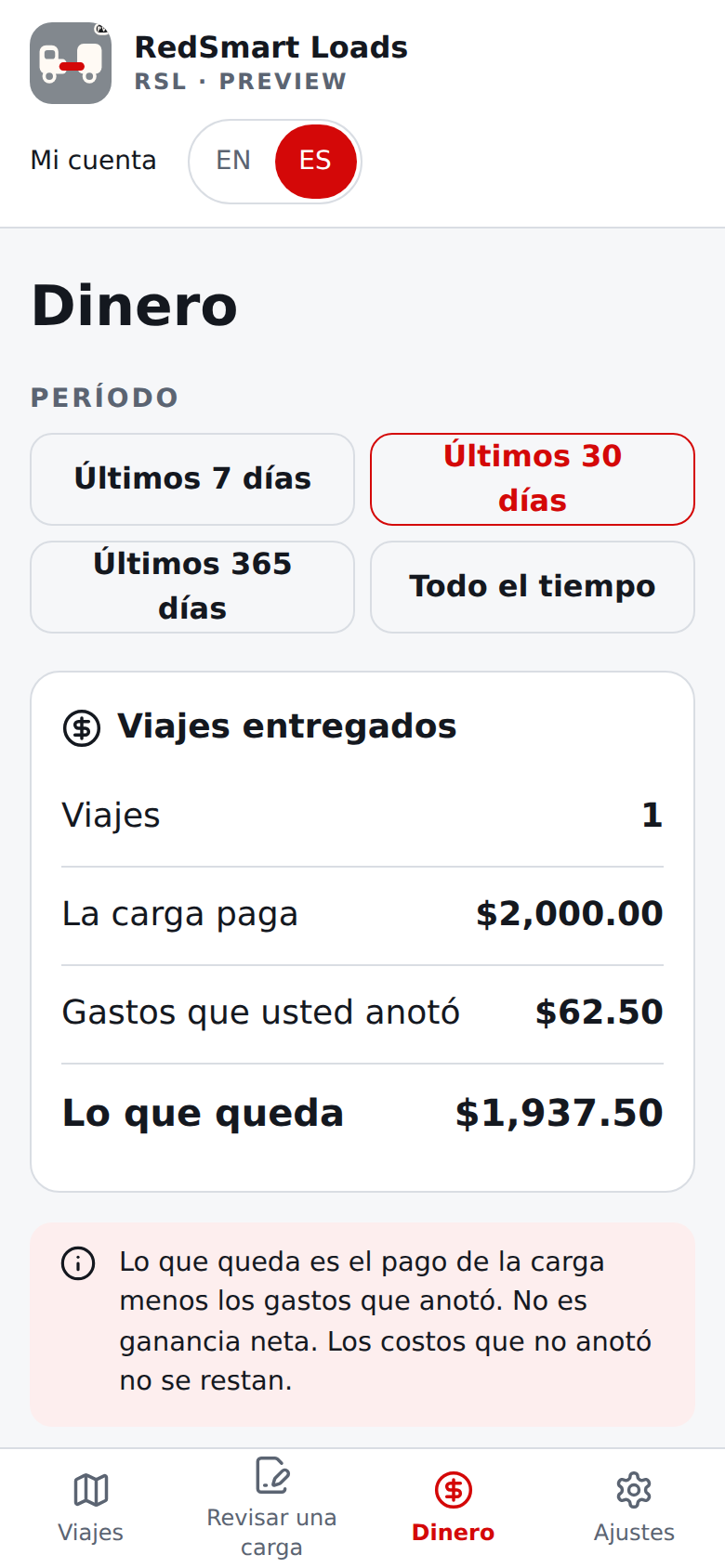
RSL muestra la diferencia como Millas realmente recorridas en el viaje entregado, en Dinero, junto a las millas totales estimadas.
Dinero guarda los totales a lo largo del tiempo y ya no enumera todos los viajes (están en Viajes). Elija Últimos 7 días, Últimos 30 días, Últimos 365 días o Todo el tiempo para ver, de los viajes entregados de ese período, cuántos fueron, lo que pagaron las cargas, los gastos que ingresó y Lo que queda: el pago de la carga menos los gastos que ingresó. No es ganancia neta.
A un conductor en un equipo se le dice que la reserva está en Mi pago. Todo permanece en este dispositivo, salvo que la sincronización esté encendida (vea la sección 9, paso 5), en cuyo caso sus viajes también se guardan en su cuenta.
En una pantalla ancha, la barra lateral reemplaza a la barra, y Viajes, Dinero y Ajustes mantienen una sola columna centrada, la misma pantalla simple que en un teléfono.
Put the next load in NextPonga la siguiente carga en Siguientes
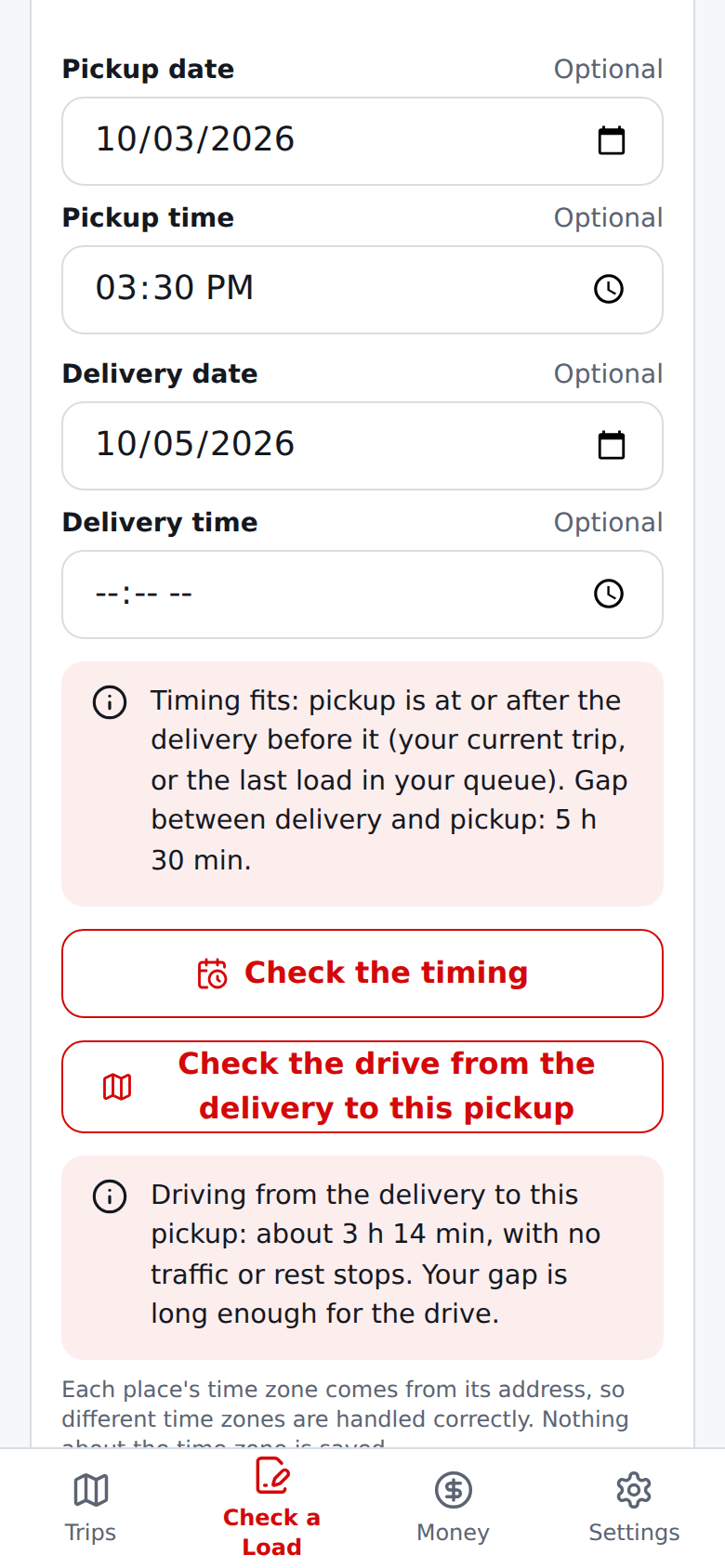
Finding another load whose dates and times work? On its estimate, the Accept this load card has optional Pickup date, Pickup time, Delivery date and Delivery time, in the local time at each place, and the pickup and delivery locations above them.
You never choose a time zone or UTC offset: when you tap Check the timing, RSL finds each place's time zone from its address (the delivery address of the trip or queued load before this one, and this load's pickup address) and turns both local times into exact moments. Dates and times must be real (2026-02-30 or 25:99 is refused with a message), and a time needs its date.
With no active trip, Start a trip starts it. While a trip is active, the card says Timing unknown until you check, and asks for whatever is missing (an address, a date or a time); after you tap it says Timing fits (the pickup is at or after the delivery; exactly equal is a zero-minute gap that fits, and the gap is shown in hours and minutes) or Conflict (the pickup is before the delivery).
An Eastern delivery and a Pacific pickup, overnight and multi-day gaps and daylight-saving changes come out right because both ends are compared as exact moments.
The timing stays unknown, and says which end, when an address is not complete enough to place, when a time falls in the hour that repeats or is skipped when the clocks change, or when the check fails or is not available on this site (it is switched off until an administrator turns it on). Change a time or an address and the answer goes back to unknown until you check again.
RSL does not save the time zones it finds: your trips keep only the dates and times you typed, so reopening a queued load asks you to tap Check the timing again.
When both places are typed and the route service is on, Check the drive from the delivery to this pickup asks the route service (only when you tap) how long the drive is without traffic or rest stops, rounded up to the next minute, and says whether your gap is long enough, shorter than the drive, or that the pickup comes first, once the timing is known (a gap exactly equal to the drive is long enough and any drive is longer than a zero gap).
Put in Next then keeps the load under Next on Trips (up to 10; open its line to see it); its card shows each date and time and has its own Check the timing against the load before it.
Once a load is queued its fields lock and Put in Next turns off, so the same load cannot be put in Next twice, and a load that was already started or removed in another tab is never started or queued twice (starting, queueing, editing, restoring, clearing and syncing trips all take turns through one lock shared by every tab, so no tab's change erases another's).
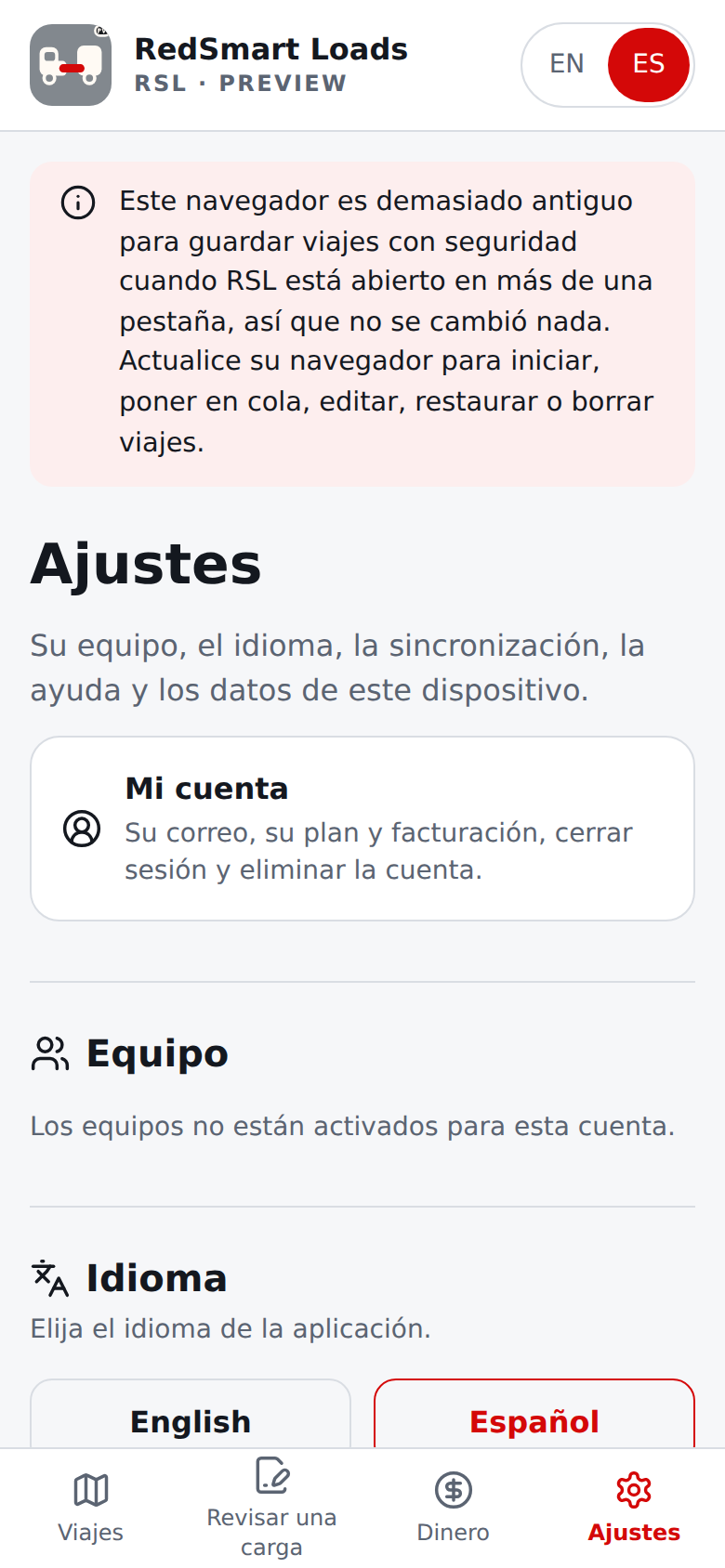
A browser too old to offer that lock (before about 2022) cannot keep trips safe across tabs: RSL then changes nothing, keeps what you typed, and says so under the header and next to the button you used (saving an expense, trip details or odometer, removing or undoing an expense, and Mark delivered all report success only after the change is really stored, never before); update the browser.
A sync that was ended by Clear saved data while it waited never writes its older copy of a trip afterward.
Every save to a trip (an expense, details, odometer, removing or undoing an expense, Mark delivered) is applied to the trip as it is stored at that moment, so two tabs adding expenses to the same trip both land; if the trip was cleared or changed in another tab meanwhile, nothing is saved, nothing is claimed, and the screen says to reload.
Trips saved before times existed still load and show Timing unknown. RSL does not book anything. When the active trip is delivered, choose Start this trip on the queued load; Remove drops one from Next after a confirmation. Loads in Next are not counted as money until they are started and delivered.
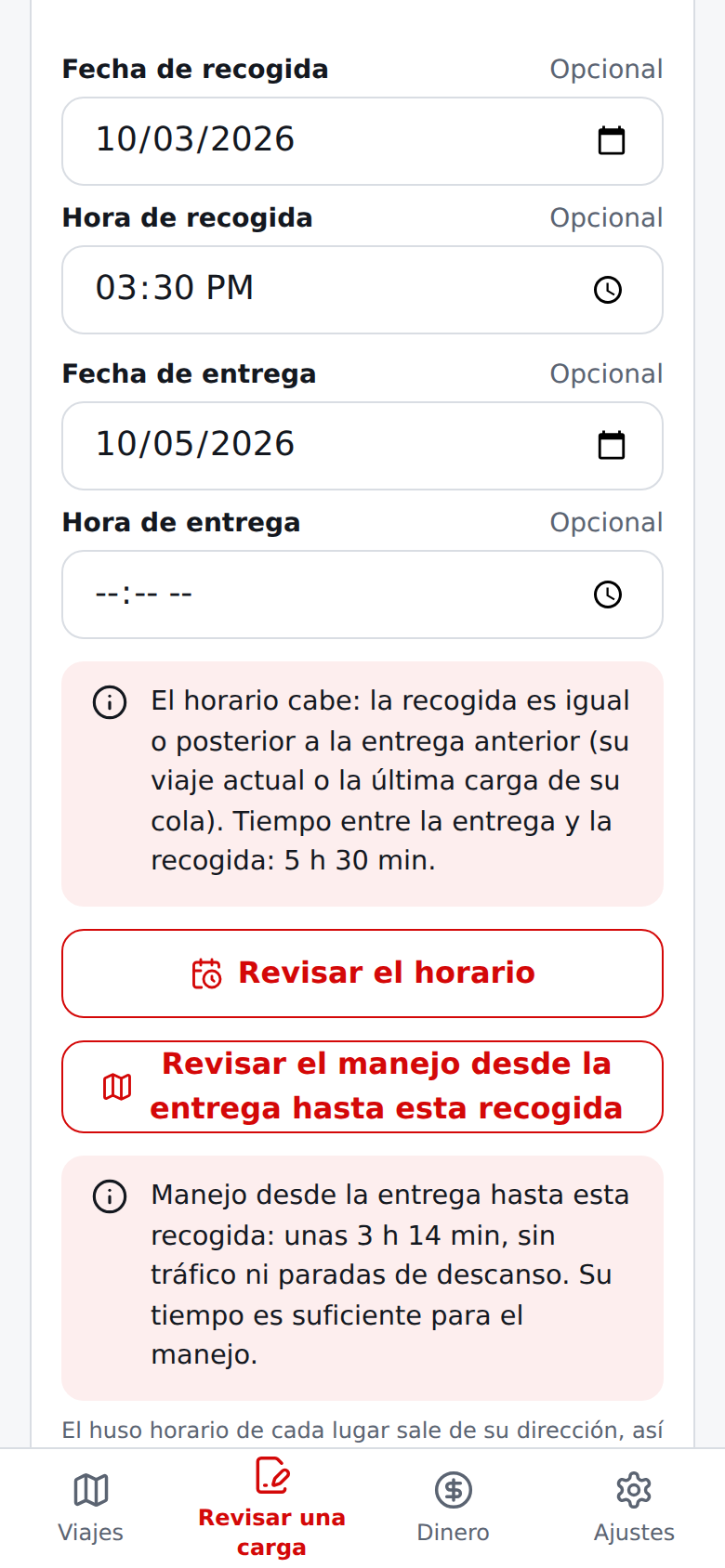
¿Encontró otra carga con fechas y horas compatibles? En su estimación, la tarjeta Aceptar esta carga tiene Fecha de recogida, Hora de recogida, Fecha de entrega y Hora de entrega opcionales, en la hora local de cada lugar, y arriba los lugares de recogida y entrega.
Usted nunca elige un huso horario ni un desfase UTC: cuando toca Revisar el horario, RSL encuentra el huso horario de cada lugar por su dirección (la dirección de entrega del viaje o la carga en cola anterior a esta, y la dirección de recogida de esta carga) y convierte las dos horas locales en momentos exactos.
Las fechas y horas deben ser reales (2026-02-30 o 25:99 se rechazan con un mensaje) y una hora necesita su fecha. Sin un viaje activo, Iniciar un viaje lo inicia.
Con un viaje activo, la tarjeta dice Horario desconocido hasta que usted revise, y pide lo que falte (una dirección, una fecha o una hora); después de tocar dice El horario cabe (la recogida es igual o posterior a la entrega; si coinciden exactamente es un tiempo de cero minutos que cabe, y el tiempo se muestra en horas y minutos) o Conflicto (la recogida es antes de la entrega).
Una entrega en el Este y una recogida en el Pacífico, los tiempos que cruzan la noche o varios días y los cambios de horario de verano salen bien porque se comparan momentos exactos.
El horario sigue desconocido, y dice cuál extremo, cuando una dirección no es lo bastante completa para ubicarla, cuando una hora cae en la hora que se repite o se salta al cambiar el reloj, o cuando la revisión falla o no está disponible en este sitio (está apagada hasta que un administrador la active). Si cambia una hora o una dirección, la respuesta vuelve a desconocida hasta que revise de nuevo.
RSL no guarda los husos horarios que encuentra: sus viajes conservan solo las fechas y horas que escribió, así que al volver a abrir una carga en cola debe tocar Revisar el horario otra vez.
Cuando los dos lugares están escritos y el servicio de rutas está activado, Revisar el manejo desde la entrega hasta esta recogida pregunta al servicio de rutas (solo cuando usted toca) cuánto dura el manejo sin tráfico ni paradas de descanso, redondeado hacia arriba al siguiente minuto, y dice si su tiempo alcanza, si es menor que el manejo o si la recogida es primero, una vez conocido el horario (un tiempo exactamente igual al manejo alcanza, y cualquier manejo es más largo que un tiempo de cero).
Poner en Siguientes guarda la carga en Siguientes dentro de Viajes (hasta 10; abra su línea para verla); su tarjeta muestra cada fecha y hora y tiene su propio Revisar el horario frente a la carga anterior.
Una vez en cola, sus campos se bloquean y Poner en Siguientes se apaga, así que la misma carga no puede ponerse en Siguientes dos veces, y una carga que ya se inició o se quitó en otra pestaña nunca se inicia ni se pone en cola dos veces (iniciar, poner en cola, editar, restaurar, borrar y sincronizar viajes se turnan mediante un único candado compartido por todas las pestañas, así que el cambio de una pestaña no borra el de otra).
Un navegador demasiado antiguo para ofrecer ese candado (anterior a 2022 aproximadamente) no puede mantener los viajes seguros entre pestañas: RSL entonces no cambia nada, conserva lo que escribió y lo dice bajo el encabezado y junto al botón que usó (guardar un gasto, los detalles o el odómetro, quitar o deshacer un gasto y Marcar como entregado informan éxito solo cuando el cambio realmente se guardó, nunca antes); actualice el navegador.
Una sincronización que Borrar datos guardados terminó mientras esperaba nunca escribe después su copia anterior de un viaje.
Cada guardado en un viaje (un gasto, los detalles, el odómetro, quitar o deshacer un gasto, Marcar como entregado) se aplica al viaje tal como está guardado en ese momento, así que dos pestañas que agregan gastos al mismo viaje se guardan las dos; si el viaje se borró o cambió en otra pestaña mientras tanto, no se guarda nada, no se afirma nada y la pantalla pide recargar.
Los viajes guardados antes de que existieran las horas siguen cargándose y muestran Horario desconocido. RSL no reserva nada. Cuando se entregue el viaje activo, elija Iniciar este viaje en la carga en cola; Quitar la elimina de Siguientes tras una confirmación. Las cargas en Siguientes no cuentan como dinero hasta que se inicien y se entreguen.
Save a check and reuse itGuarde una revisión y reutilícela
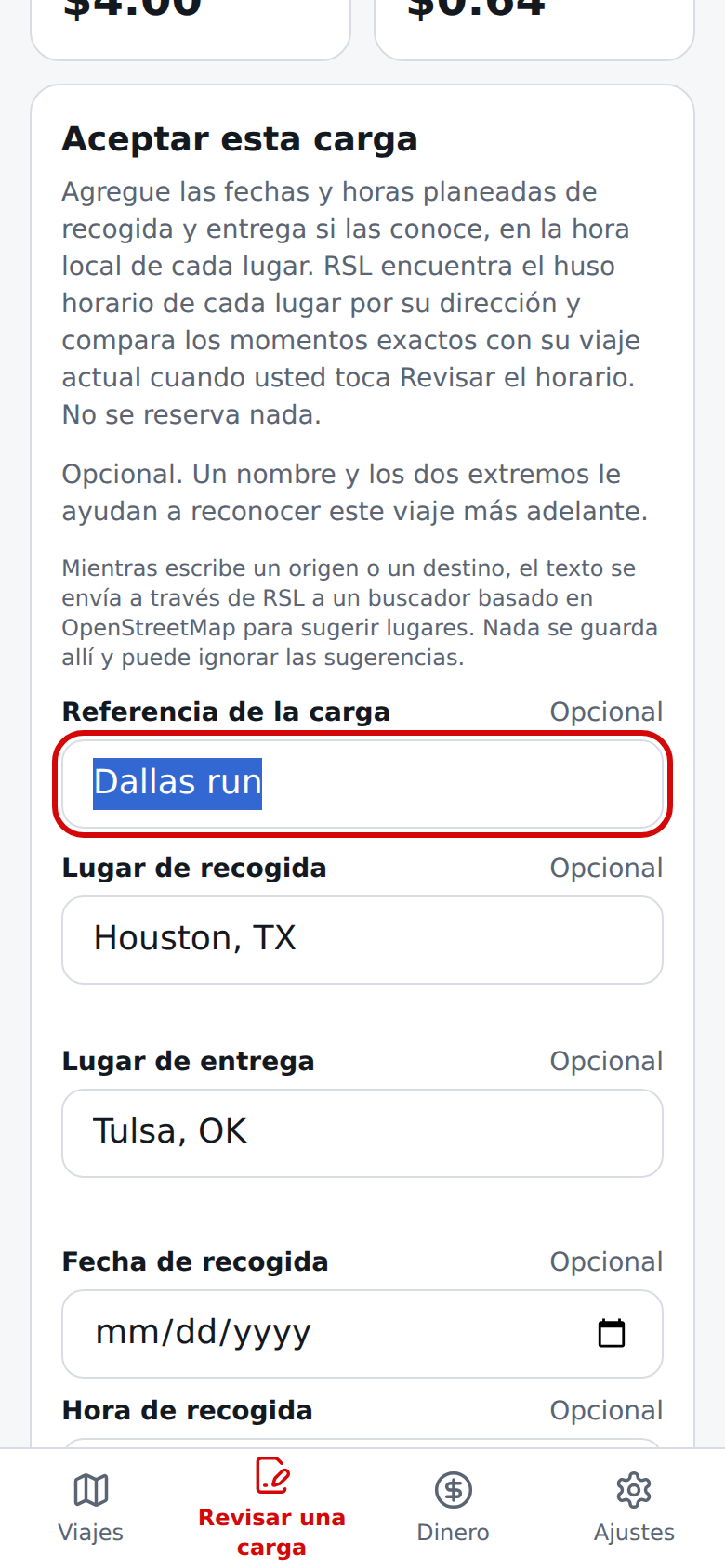
On the estimate, the Save this check card keeps your inputs on this device. Add an optional label (up to 60 characters), such as "Dallas run", and select Save this check. You can keep up to 50 checks. Open Saved loads from the first Check a Load question or from Settings.
Each entry is recalculated from the inputs you saved, so the figures always follow the current formula; nothing but your inputs is stored.
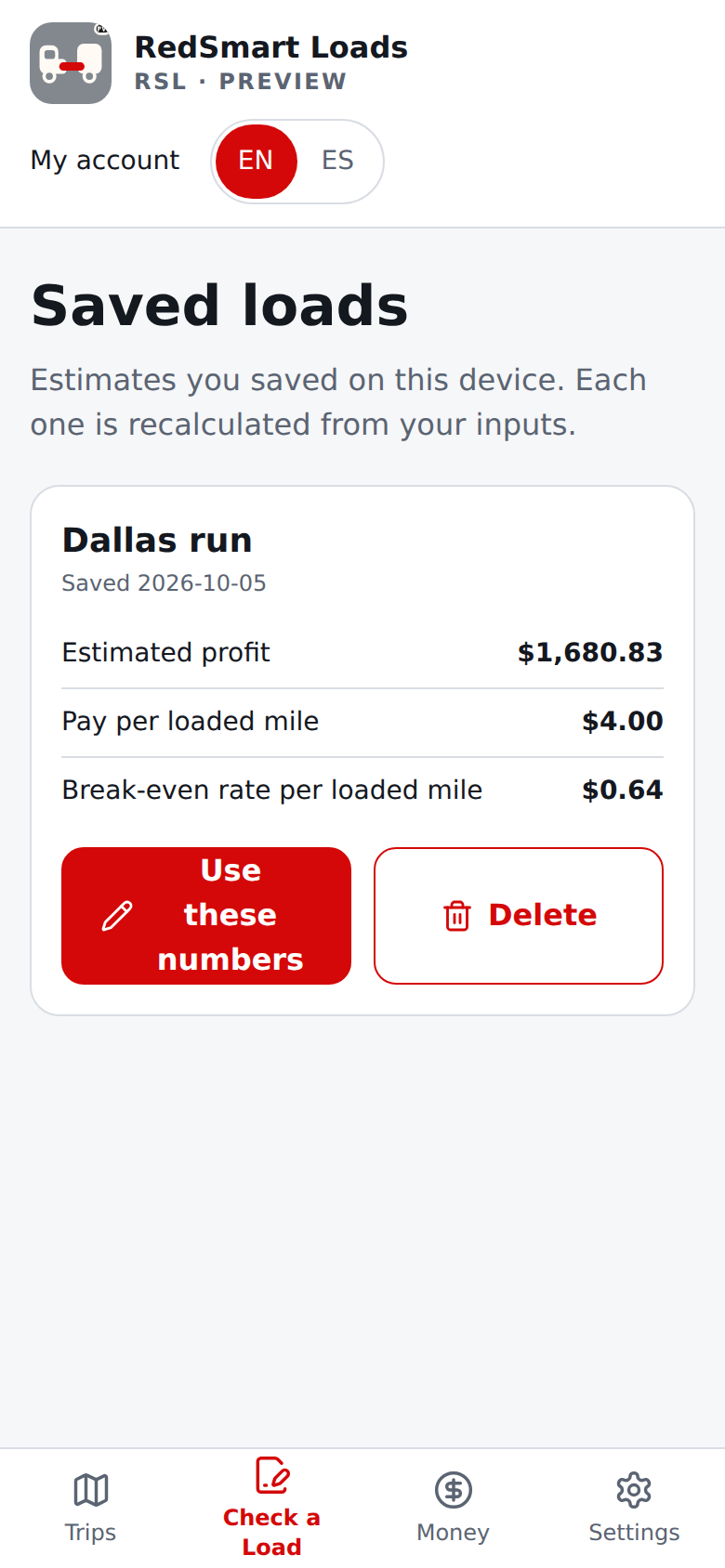
Use these numbers fills Check a Load with that check's values (your truck profile is kept and is not changed; the check's own fuel economy and reserve come back as its answers, but the check uses the ones on your truck profile or agreement when there are any) so you can change one figure and recalculate. Delete asks you to confirm and removes only that check.
En la estimación, la tarjeta Guardar esta revisión conserva sus datos en este dispositivo. Agregue una etiqueta opcional (hasta 60 caracteres), como "Dallas run", y seleccione Guardar esta revisión. Puede conservar hasta 50 revisiones. Abra Cargas guardadas desde la primera pregunta de Revisar una carga o desde Ajustes.
Cada entrada se recalcula con los datos que guardó, así que las cifras siempre siguen la fórmula actual; solo se guardan sus datos.
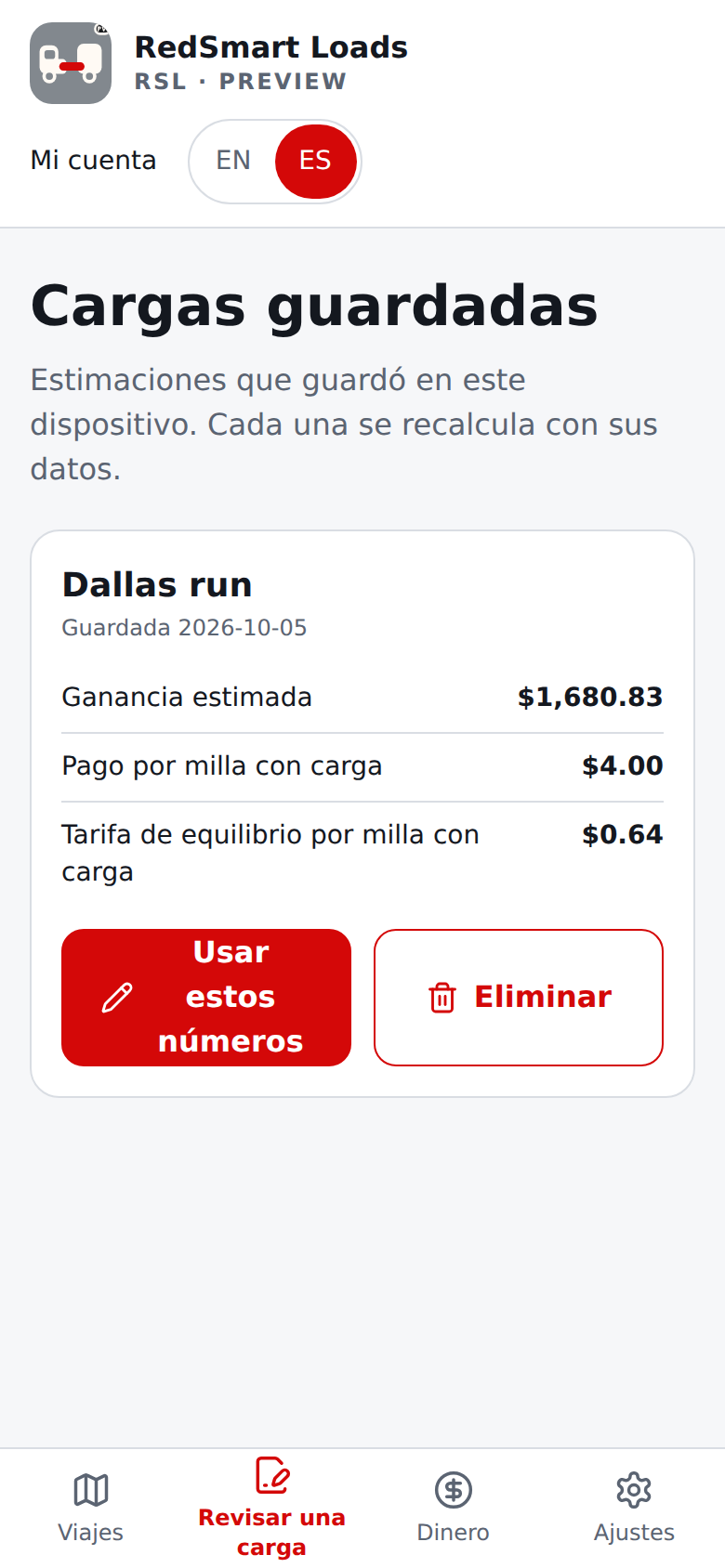
Usar estos números llena Revisar una carga con los valores de esa revisión (se conserva el perfil del camión y no se cambia; el rendimiento y la reserva de esa revisión vuelven como sus respuestas, pero la revisión usa los del perfil de su camión o de su acuerdo cuando los hay) para que cambie una cifra y recalcule. Eliminar pide confirmación y quita solo esa revisión.
Back up and restoreCopia de seguridad y restauración
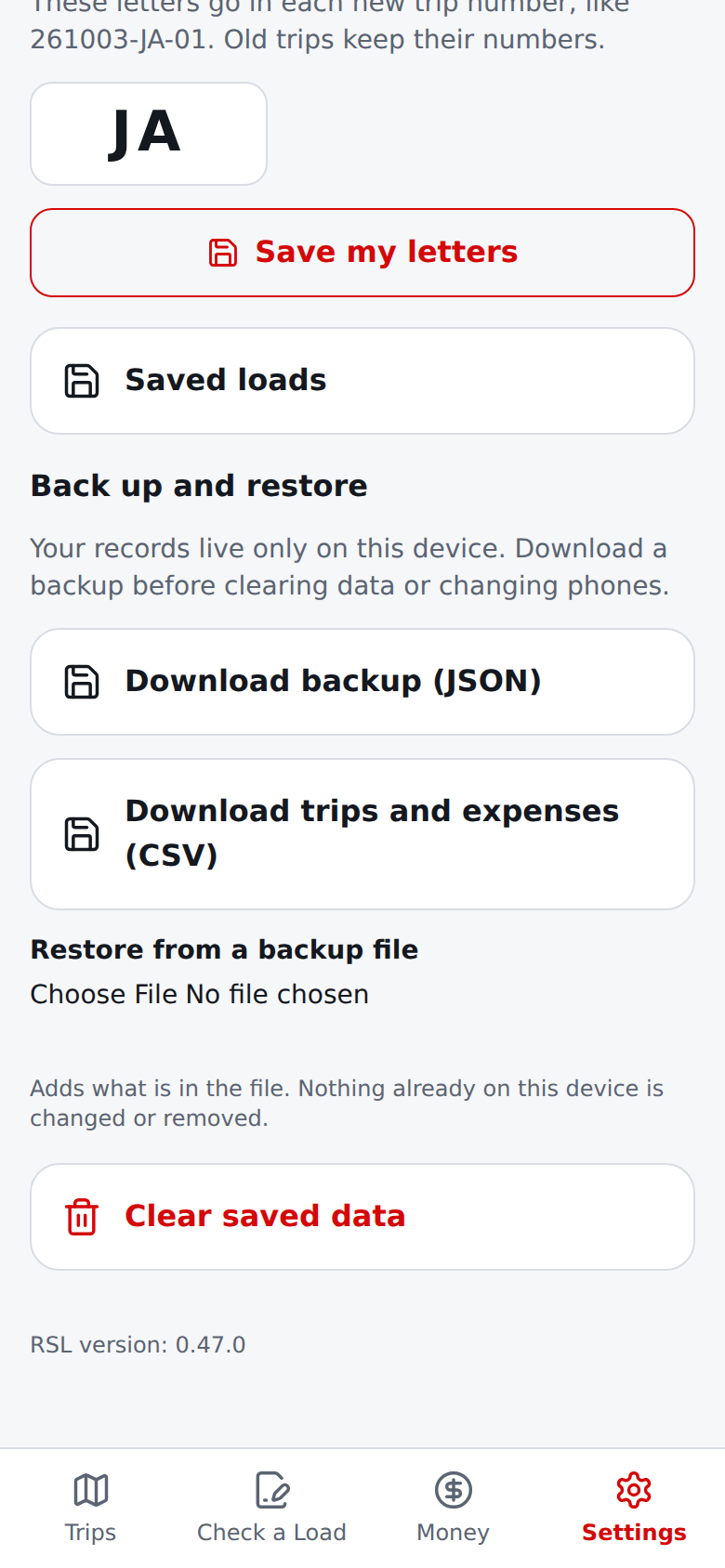
Your records live on this device (and, only when sync is on, also on your account; see section 9, step 5).
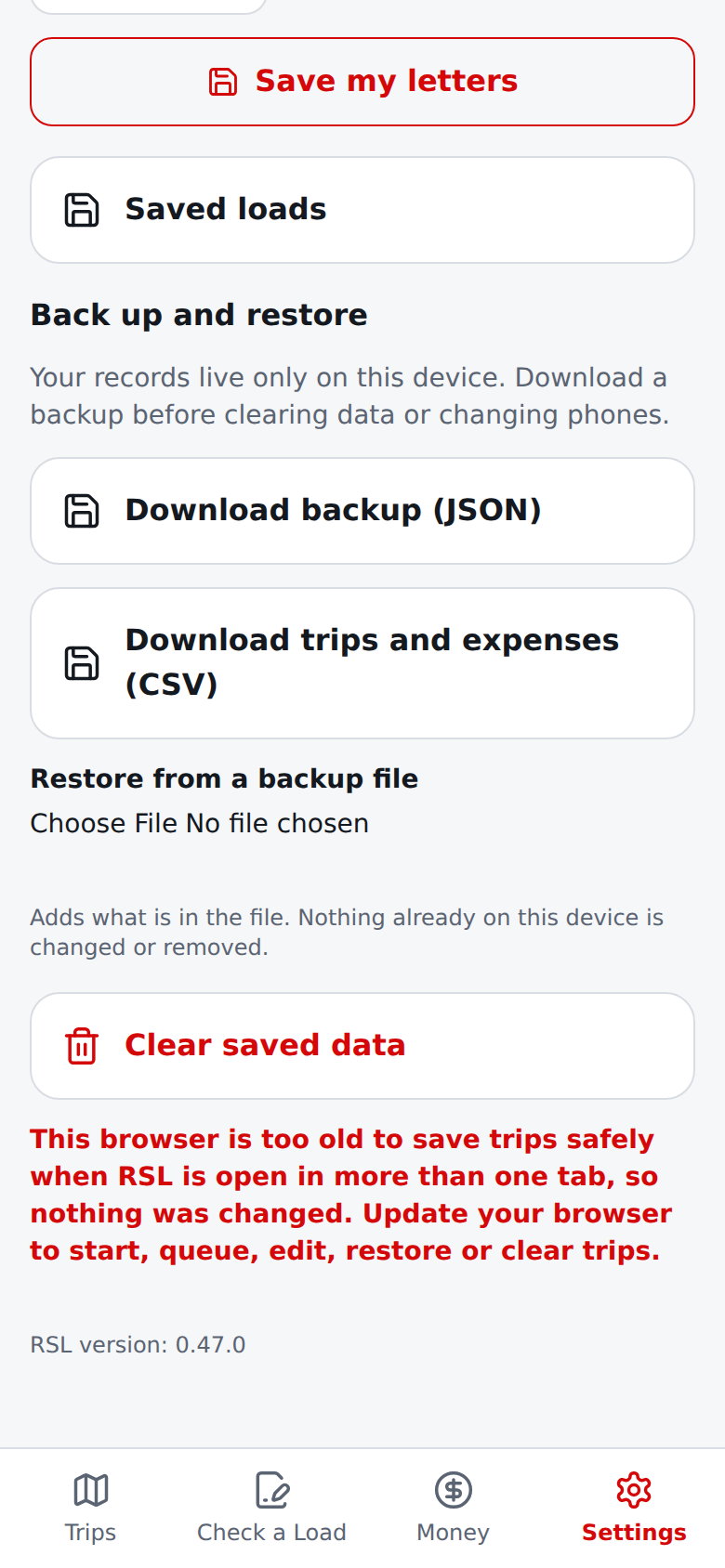
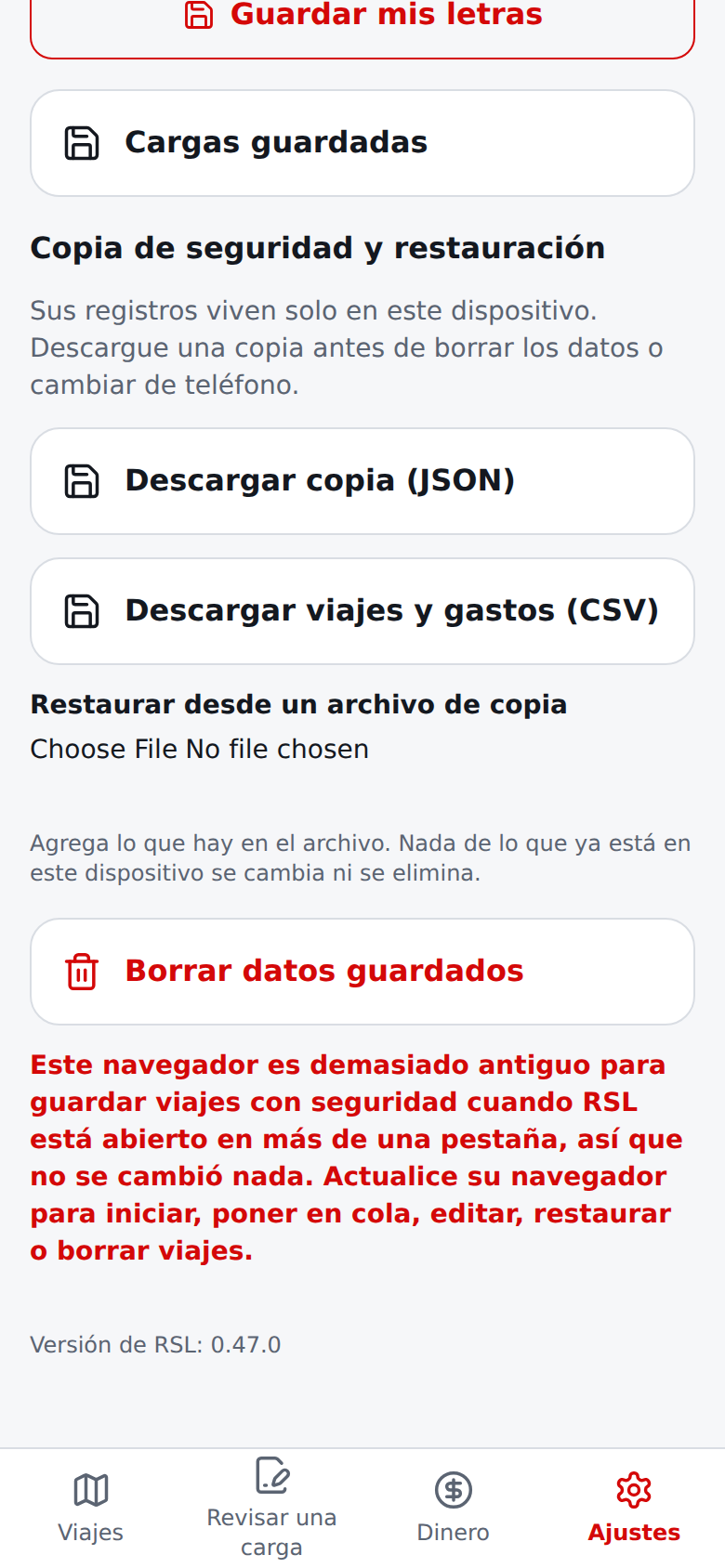
In Settings → Your data on this device → Back up and restore, Download backup (JSON) saves your trips (with their pickup and delivery dates and times), saved loads, truck profile (with its fuel economy and maintenance reserve), and your trip-number letters as one file, and Download trips and expenses (CSV) saves one row per expense, including the times and the expense category (food among them), that opens in a spreadsheet (its trip_id column is the internal id and the trip_number column is the trip number, empty for an older trip; amounts are exact decimals such as 42.50; text that could run as a spreadsheet formula is neutralised).
Restore from a backup file first shows what the file holds and how many records were invalid, then Add to this device adds them. Restoring never changes or removes what is already here, adds at most one active trip, and only fills the truck profile, the fuel economy and maintenance reserve it is missing, and your trip-number letters when none is saved.
Backups made before the reserve, the times or trip numbers existed still restore (those trips stay without a number). A backup keeps each trip's number; your letters are not in the backup, so after restoring on a new device RSL asks for them again at the first trip start.
Sus registros viven en este dispositivo (y, solo cuando la sincronización está encendida, también en su cuenta; vea la sección 9, paso 5).
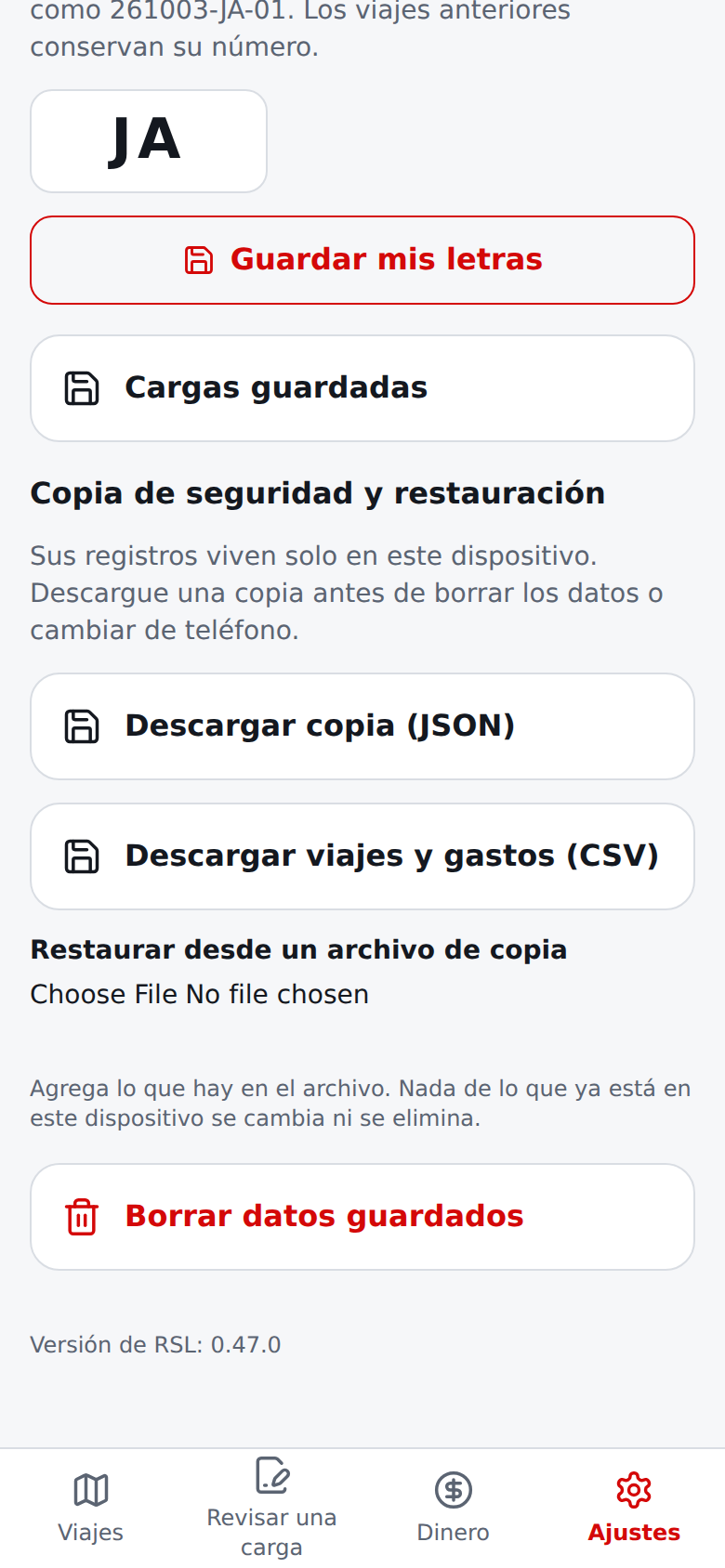
En Ajustes → Sus datos en este dispositivo → Copia de seguridad y restauración, Descargar copia (JSON) guarda sus viajes (con sus fechas y horas de recogida y entrega), cargas guardadas, perfil del camión (con su rendimiento de combustible y su reserva de mantenimiento) y sus letras para el número de viaje en un solo archivo, y Descargar viajes y gastos (CSV) guarda una fila por gasto, con las horas y la categoría del gasto (la comida entre ellas), que se abre en una hoja de cálculo (su columna trip_id es el id interno y la columna trip_number es el número de viaje, vacía en un viaje anterior; los montos son decimales exactos como 42.50; el texto que podría ejecutarse como fórmula se neutraliza).
Restaurar desde un archivo de copia primero muestra lo que contiene el archivo y cuántos registros no eran válidos, y luego Agregar a este dispositivo los agrega. Restaurar nunca cambia ni elimina lo que ya está aquí, agrega como máximo un viaje activo y solo llena el perfil del camión, el rendimiento y la reserva de mantenimiento que le falten y sus letras para el número de viaje cuando no hay uno guardado.
Las copias hechas antes de que existieran la reserva, las horas o los números de viaje se siguen restaurando (esos viajes quedan sin número). Una copia conserva el número de cada viaje; sus letras no van en la copia, así que al restaurar en un dispositivo nuevo RSL las pregunta de nuevo al iniciar el primer viaje.
Language and device dataIdioma y datos del dispositivo
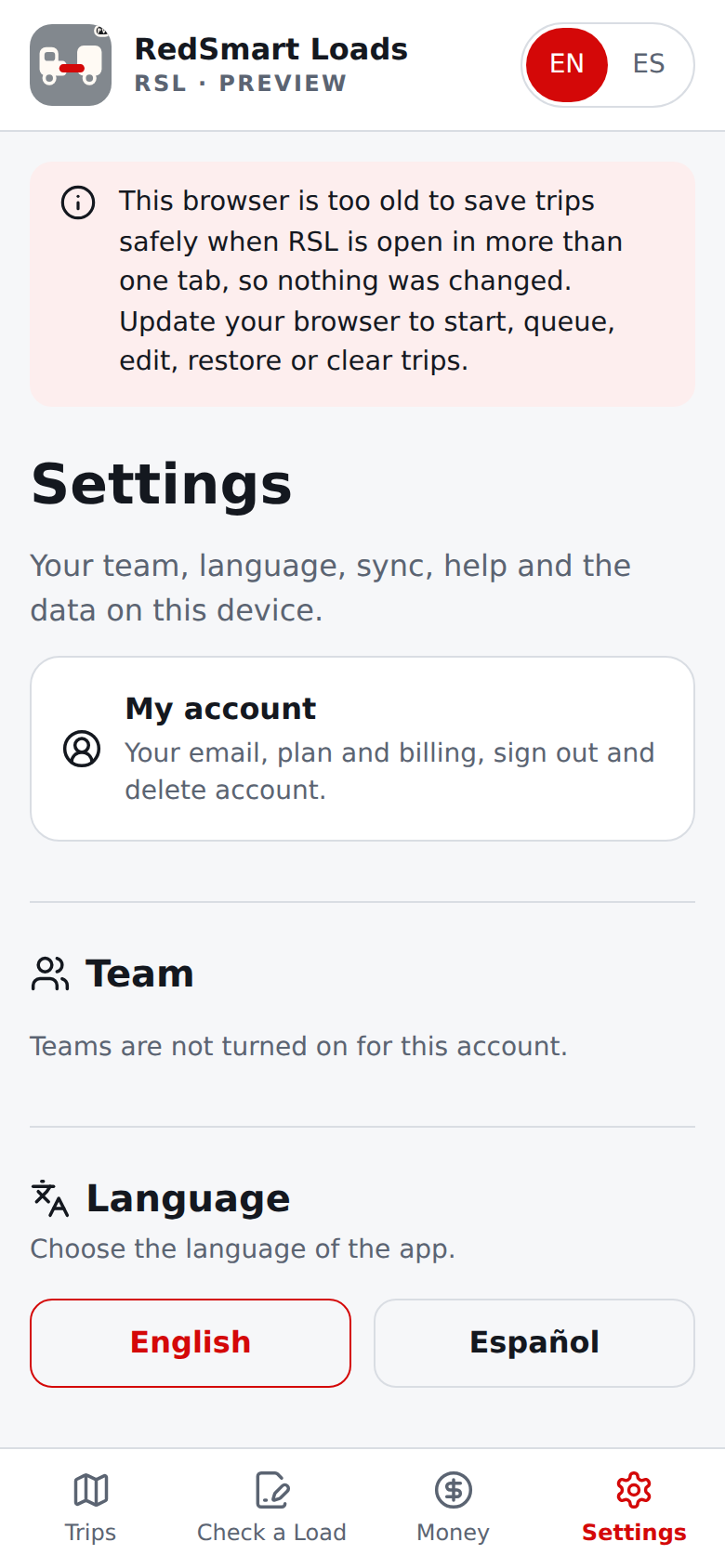
Settings (the last entry of the bar) is one page of labelled sections, always in the same order, each with a heading, a line of help and large buttons. At the very top is My account, which opens the Account page (who you are, your plan and billing, sign out, your account data and delete account; see section 9).
Then: Team (first: with no driver yet you see Add a driver, which opens the invitation form; an owner sees the team, with All trips and Agreements; a driver sees You drive for the owner, My pay, See your agreement and Stop driving; see section 9, step 7; where teams are not turned on it says so); Language; Sync (see section 9, step 5; it says so when sync is not turned on); Guides and help; and last Your data on this device.
Every control is on one of the two screens only: nothing in Settings is repeated on Account, and nothing in Account is repeated in Settings. On a wide screen it is one centred column, like the phone.
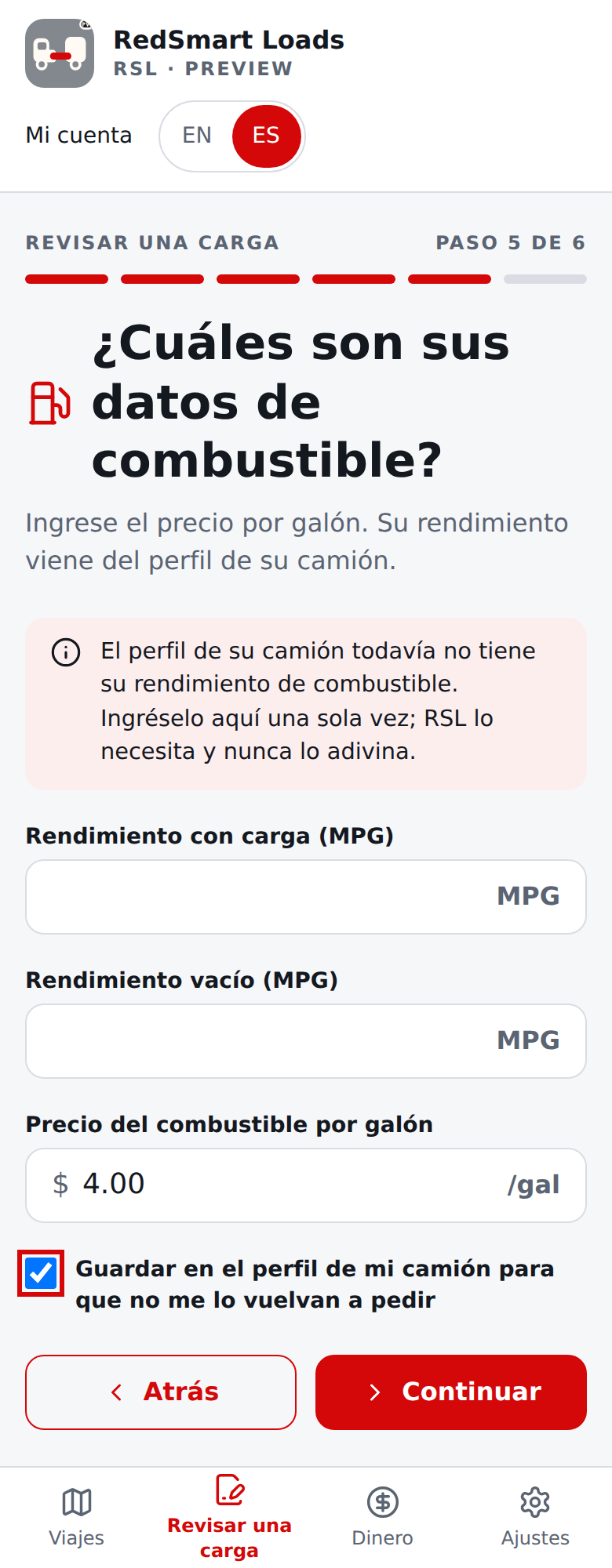
In Your data on this device: My truck links to the truck profile, which holds your ratings, fuel tank, fuel economy (loaded and empty) and maintenance reserve per mile (there is no separate costs box in Settings any more; a value you had set there moved onto the profile). Check a Load uses them on every load. The fuel price is still asked on each load. If your profile does not have a fuel economy or a reserve yet and no agreement supplies the reserve, Check a Load asks for it once, says why, and offers to save the answer to the truck profile (checked by default); RSL never uses 0 or a guess in its place.
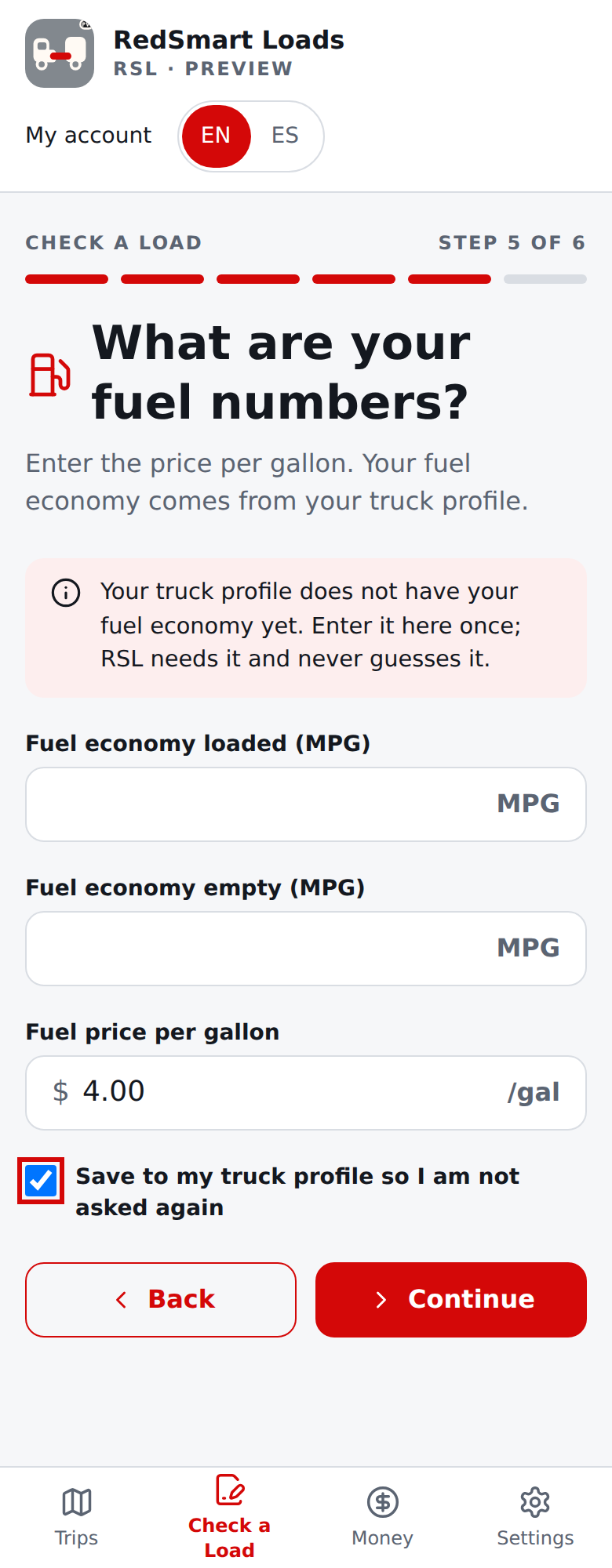
A driver whose owner's agreement applies today gets the maintenance reserve from the agreement (the repair-savings rate they accepted, even if it is 0). The note says so and links to the agreement; with no signal RSL uses the rate it last heard.
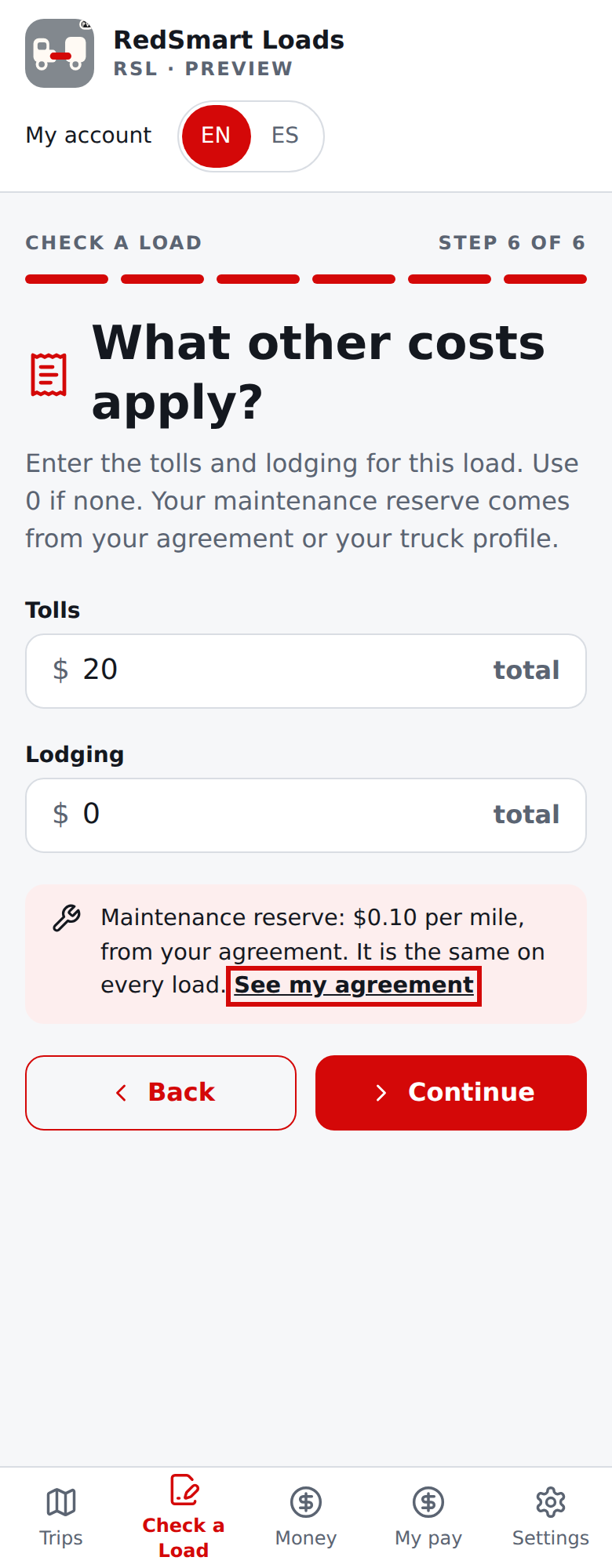
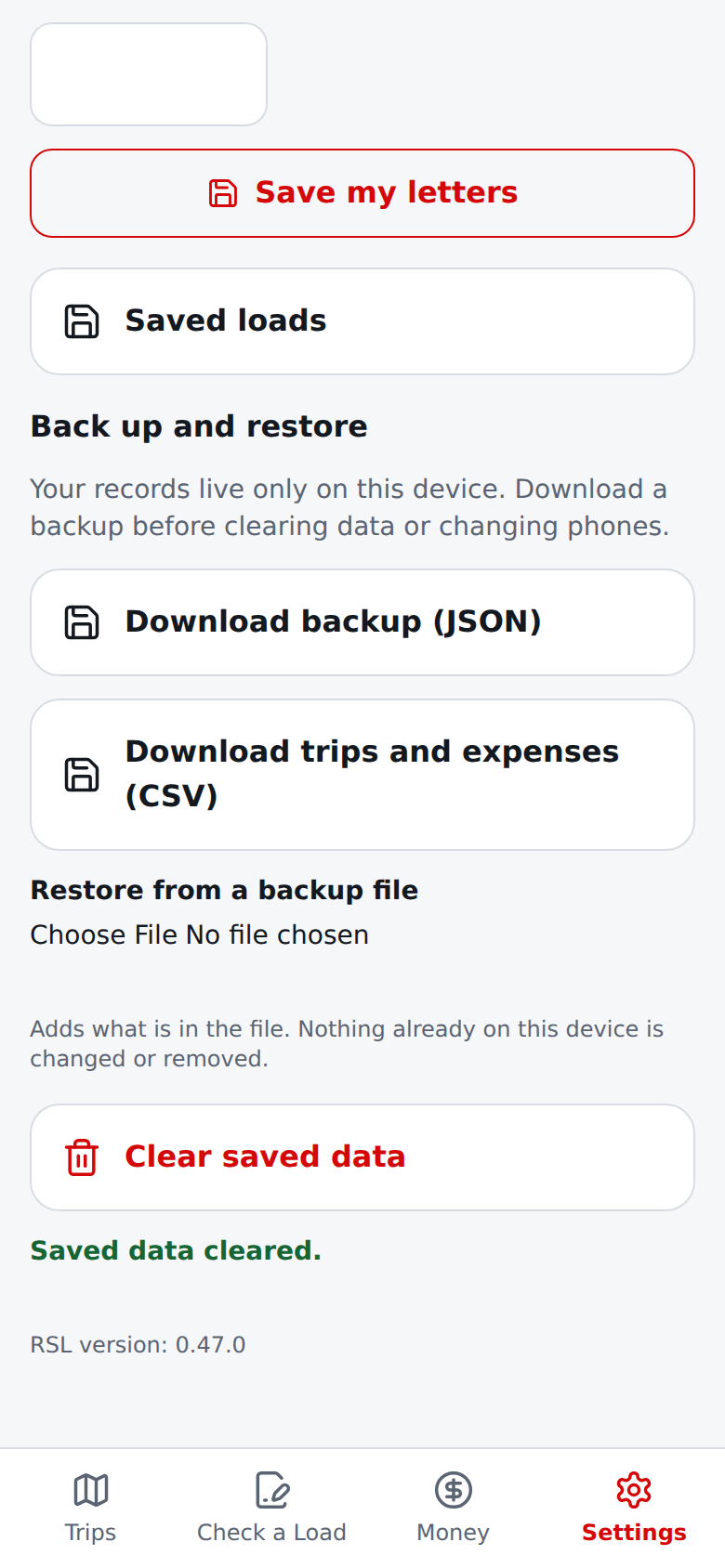
Your letters for trip numbers, Saved loads and Back up and restore follow. The EN · ES switch in the header, or Language in Settings, changes the language between English and Español. Your choice persists in this browser.
When you are signed in, it is also kept on your account, so the emails RSL sends you (such as the sign-in code) follow it; an invited driver starts in the language the owner chose for the invitation and can change it here at any time. The truck and load drafts also stay on this device.
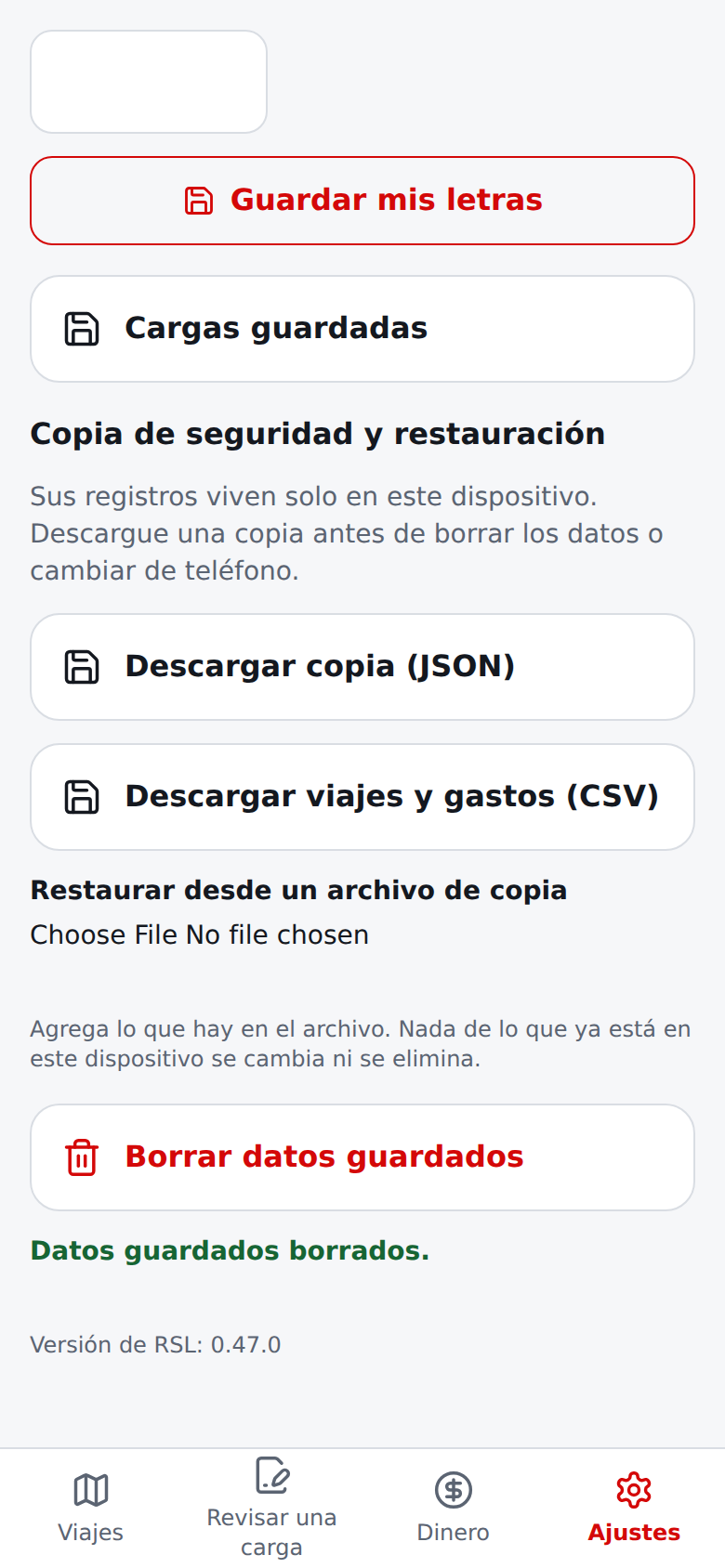
Clear saved data is the last button of the page: it asks you to confirm before it removes the truck profile (with its fuel economy and reserve) and the agreement rate kept on this device, the load draft, your trips, your saved loads, and your trip-number letters (download a backup first if you may want them back); with sync off there is no server copy to restore (with sync on, your account keeps your records and they come back at the next sync; Settings then says so on its data note, its backup note and the clear confirmation, instead of saying the records live only on this device).
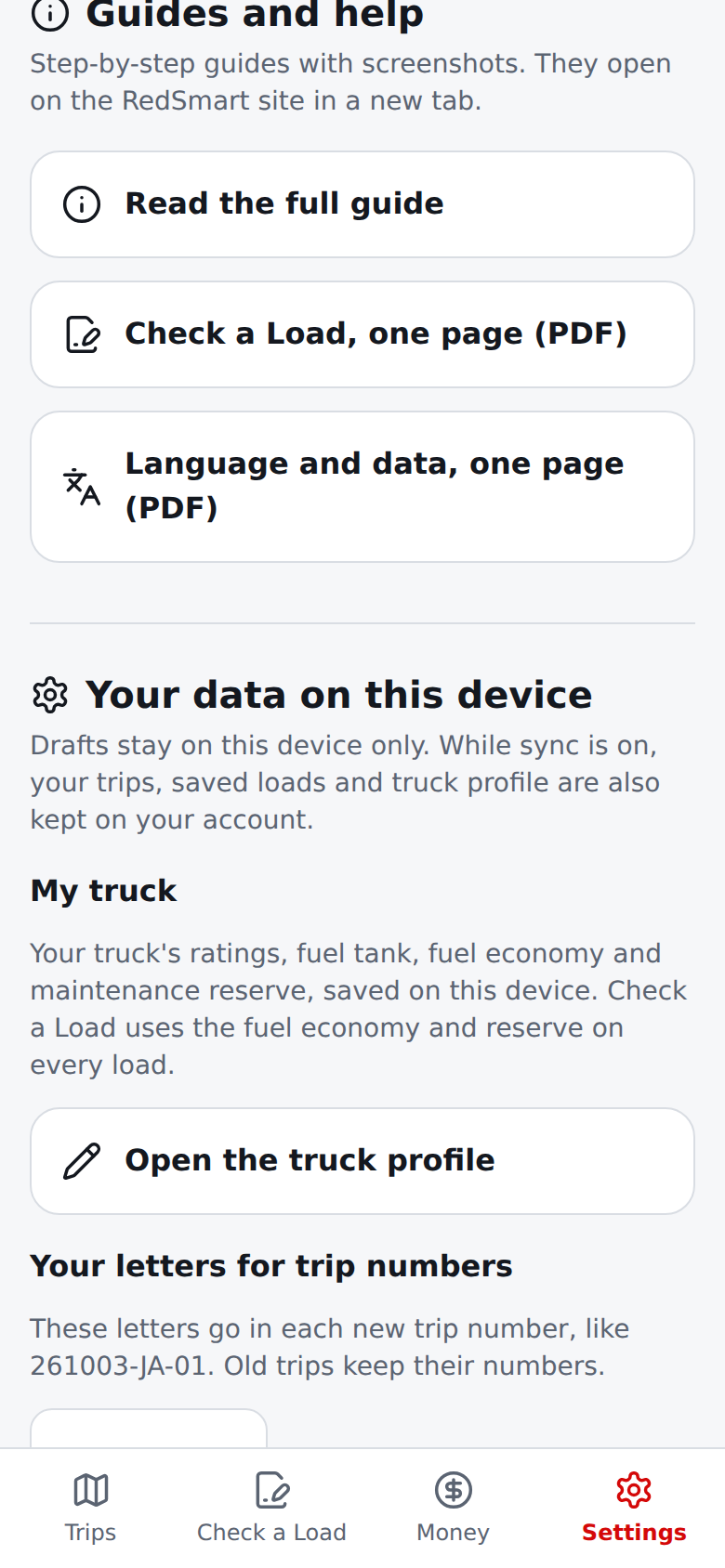
Guides and help has links to this guide and the printable one-page PDFs in your current language; they open on the RedSmart website in a new tab. The same guide is published at redsmartcorp.com/RS-Apps/RSL/guide/, where you can switch between English and Español. The header shows the RedSmart Loads symbol beside the name.
The word PREVIEW (with a small PV mark on the icon) shows you are on the test site, and the RSL version appears at the bottom of Settings.
RSL has no vehicle scan, weight or license alert, receipt capture, settlement, or payment feature yet, and accounts exist only where an administrator has turned them on (see section 9); trips and expenses are recorded only by you, on this device (and on your account too when an administrator has turned sync on; see section 9, step 5).
For a shorter illustrated workflow, use Check a Load in one page or Language and local data in one page.
Ajustes (la última entrada de la barra) es una sola página de secciones con nombre, siempre en el mismo orden, cada una con un título, una línea de ayuda y botones grandes. Arriba de todo está Mi cuenta, que abre la página de la cuenta (quién es usted, su plan y facturación, cerrar sesión, los datos de su cuenta y eliminar la cuenta; vea la sección 9).
Luego: Equipo (primero: si todavía no tiene conductores ve Agregar un conductor, que abre el formulario de invitación; un dueño ve su equipo, con Todos los viajes y Acuerdos; un conductor ve Usted maneja para el dueño, Mi pago, Ver su acuerdo y Dejar de manejar; vea la sección 9, paso 7; donde los equipos no están activados, lo dice); Idioma; Sincronización (vea la sección 9, paso 5; dice cuando la sincronización no está activada); Guías y ayuda; y al final Sus datos en este dispositivo.
Cada control está en una sola de las dos pantallas: nada de Ajustes se repite en Mi cuenta, y nada de Mi cuenta se repite en Ajustes. En una pantalla ancha es una sola columna centrada, como en el teléfono.
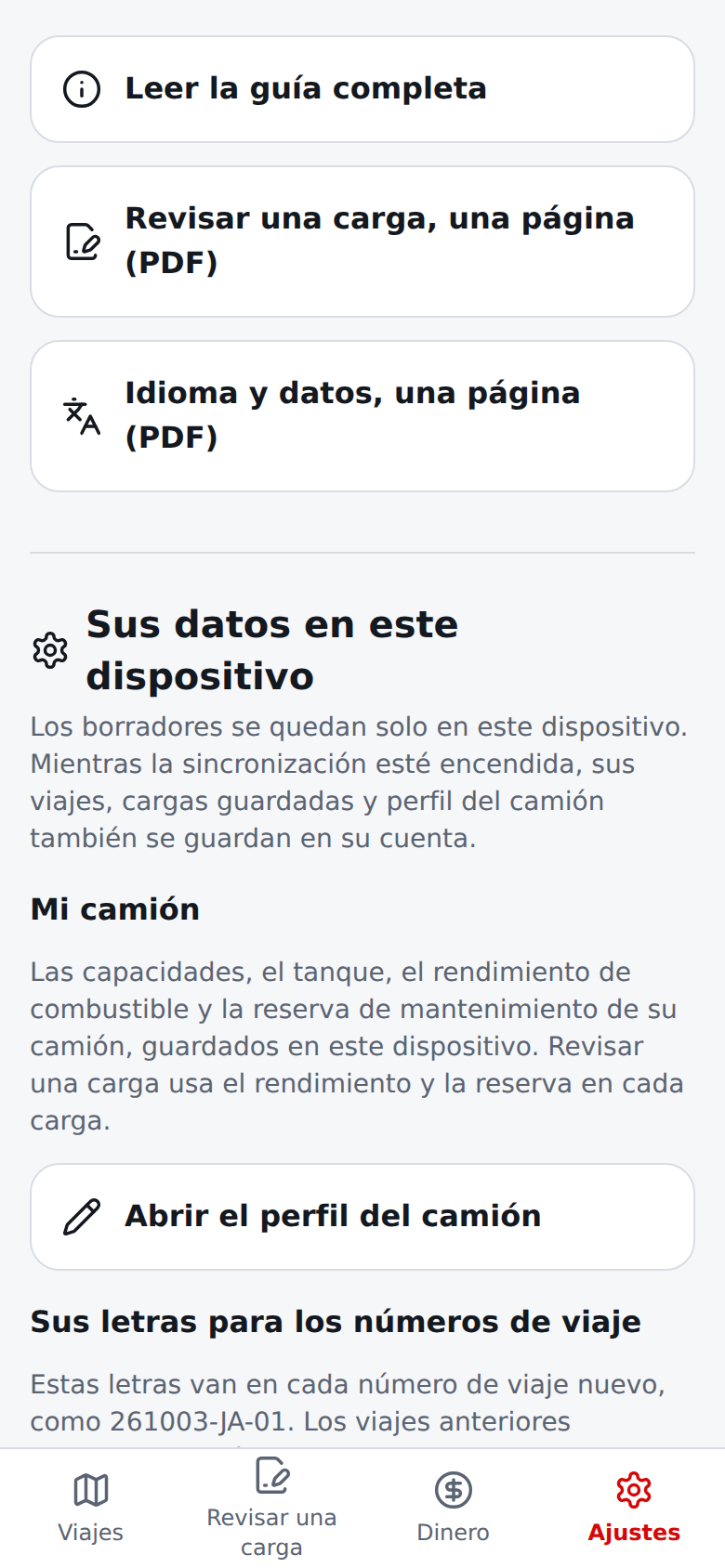
En Sus datos en este dispositivo: Mi camión enlaza con el perfil del camión, que guarda sus capacidades, el tanque, el rendimiento de combustible (con carga y vacío) y la reserva de mantenimiento por milla (ya no hay un cuadro de costos aparte en Ajustes; un valor que había definido allí pasó al perfil). Revisar una carga los usa en cada carga. El precio del combustible se sigue preguntando en cada carga. Si su perfil todavía no tiene un rendimiento o una reserva y ningún acuerdo aporta la reserva, Revisar una carga lo pregunta una sola vez, dice por qué y ofrece guardar la respuesta en el perfil del camión (marcado de forma predeterminada); RSL nunca usa 0 ni una suposición en su lugar.
Un conductor cuyo acuerdo del dueño aplica hoy recibe la reserva de mantenimiento del acuerdo (la tarifa de ahorros de reparaciones que aceptó, aunque sea 0). La nota lo dice y enlaza con el acuerdo; sin señal, RSL usa la última tarifa que conoció.
Siguen Sus letras para los números de viaje, Cargas guardadas y Copia de seguridad y restauración. El selector EN · ES del encabezado, o Idioma en Ajustes, cambia el idioma entre English y Español. La elección permanece en este navegador.
Si ha iniciado sesión, también se guarda en su cuenta, y los correos que RSL le envía (como el código para entrar) la siguen; un conductor invitado empieza en el idioma que el dueño eligió para la invitación y puede cambiarlo aquí cuando quiera. Los borradores del camión y la carga también quedan en este dispositivo.
Borrar datos guardados es el último botón de la página: pide confirmación antes de eliminar el perfil del camión (con su rendimiento y su reserva), la tarifa del acuerdo guardada en este dispositivo, el borrador de la carga, sus viajes, sus cargas guardadas y las letras de sus números de viaje (descargue antes una copia si podría querer recuperarlos); con la sincronización apagada no hay copia en un servidor para recuperarlos (con ella encendida, su cuenta conserva sus registros y vuelven en la próxima sincronización; Ajustes lo dice entonces en su nota de datos, en su nota de copia de seguridad y en la confirmación de borrado, en vez de decir que los registros viven solo en este dispositivo).
Guías y ayuda tiene enlaces a esta guía y a los PDF imprimibles de una página en su idioma actual; se abren en el sitio web de RedSmart en una pestaña nueva. La misma guía se publica en redsmartcorp.com/RS-Apps/RSL/guide/, donde puede cambiar entre English y Español. El encabezado muestra el símbolo de RedSmart Loads junto al nombre.
La palabra PREVIEW (con una pequeña marca PV en el ícono) indica que está en el sitio de prueba, y la versión de RSL aparece al final de Ajustes.
RSL todavía no tiene escaneo de vehículo, alerta de peso o licencia, captura de recibos, liquidación ni pagos, y las cuentas existen solo donde un administrador las ha activado (vea la sección 9); los viajes y gastos los registra solo usted, en este dispositivo (y también en su cuenta cuando un administrador ha encendido la sincronización; vea la sección 9, paso 5).
Para instrucciones breves con imágenes, consulte Revisar una carga en una página o Idioma y datos locales en una página.
Sign in, when accounts are turned onInicie sesión, cuando las cuentas estén activadas
Accounts are on in Preview from v0.30.0: RSL asks you to sign in before it shows the app. Where an administrator leaves accounts off, none of this appears and RSL works exactly as described above.
No password yet, or forgot it? Choose Forgot password? next to Password. Enter your email and choose Email me a code; RSL emails a 6-digit password code (it answers the same whether or not the address has access). Type the code and a New password of at least 12 characters, then Save password and sign in. You are signed in, and any other device signed in as you is signed out. This code only sets a password: it does not work in the sign-in code box, and a sign-in code does not work here. Everyone who signed in with a code or Google before v0.48.0 sets a first password this way, or keeps using a code or Google.
- Open RSL. The sign-in page looks like every RedSmart app's (since v0.48.0): the RedSmart Loads logo and name (and PREVIEW on Preview), Sign in, then Email and Password. Type both and choose the red Sign in button (on Preview, a short "are you human" check may appear above it). Show lets you see what you typed. A wrong password, an address that has no password yet and an address without access all get the same message ("That email and password don't match"), so RSL never shows who has access; after ten tries in an hour, wait a while. Under or are the other ways: Continue with Google (where it is offered, with the same rules: only a Google address an administrator invited gets in, and Google must report the email as verified), Continue with Apple (since v0.51.0, beside Google on one row, with the same rules; an Apple "Hide My Email" address matches no invitation, so use the address you were invited with) and Email me a code, which emails a 6-digit code to the address in the Email box that works for 10 minutes. Only people an administrator invited can sign in. Under the card, English · Español switches the language (your device remembers the choice) and the version is shown. The language you used on the sign-in page is kept for the emails RSL sends you later, also if an administrator added you before your first sign-in. Asking for a code twice at once sends one code. The English/Español link on the "no access yet" page works too.
- With a code: type it and choose Sign in (Use your password instead goes back). You land on the page you were heading to, also if you switched the language on the sign-in page. A wrong or expired code gets the same message ("not right, or it has expired"); you can try a few times, then ask for a new one.
- No access yet? Choose Request access at the bottom of the card, enter your email (your name is optional) and send. If you also see Email us instead on that page, it opens your own email app with a request half written, in case you would rather write to us; RSL sends nothing itself. An administrator reviews requests and emails you when your access is ready.
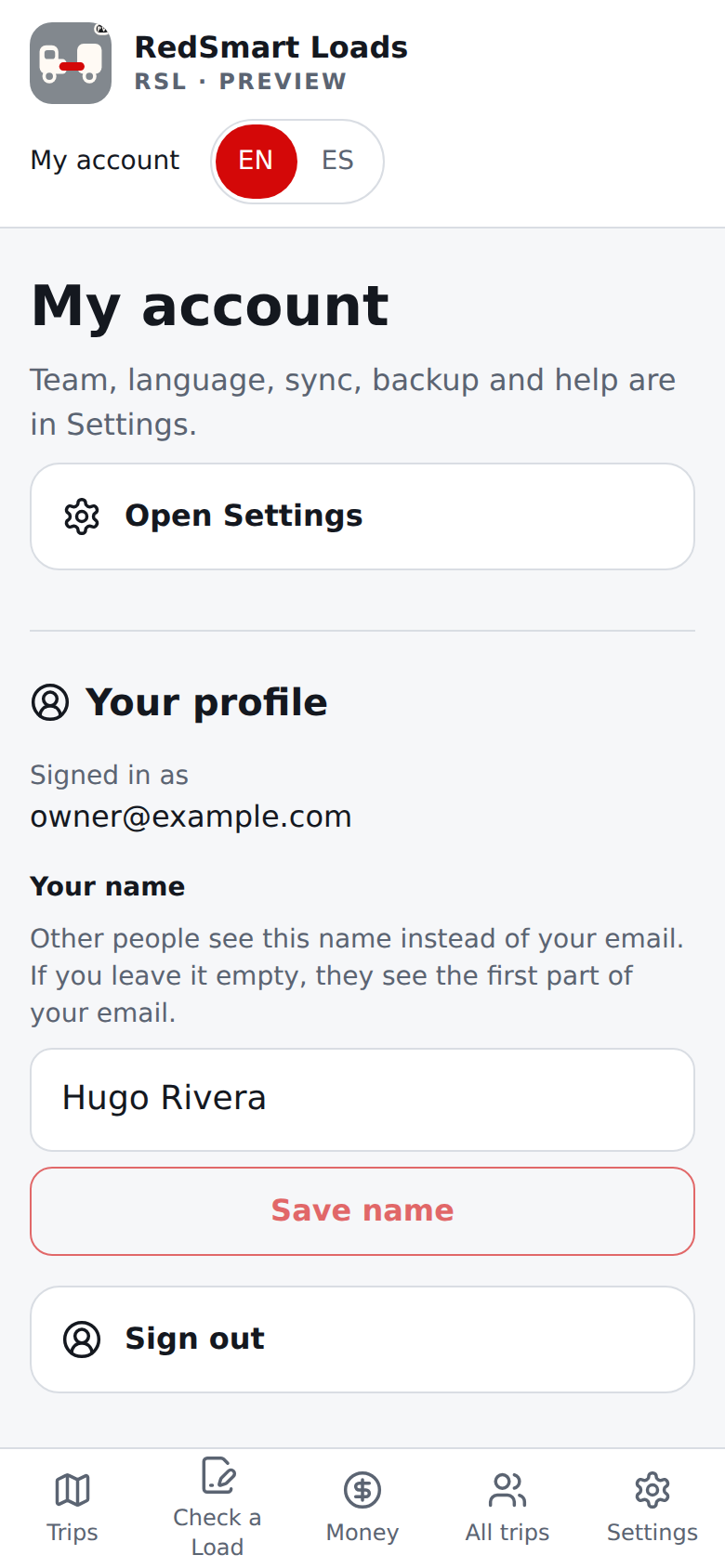
- After you sign in, the header shows My account (also the first entry of Settings). If you are on a free trial it also shows the days left; the trial is 14 days from your first sign-in. My account holds only who you are and what you pay, in four sections, always in this order. Your profile shows who you are signed in as, has Your name (a box and Save name: other people see this name instead of your email, so type the name you want your owner or your drivers to read, 1 to 60 characters, with no web address or link (none of
/ \ < > [ ] { } |:or@(no colons), and put a space after every dot, as in "J. R. R. Tolkien", because anything likeexample.comorAna.Cois taken for a web address; a refused name shows "Use 1 to 60 letters or numbers. No @, no colons, no web addresses (put a space after a dot) and no line breaks."; RSL does not verify names, and the invitation email says so); leave it empty and they see only the first part of your email, with dots shown as spaces (maria.lopez@… shows as "maria lopez"), never the part after the @, and a plain word instead when that part says nothing about you, such as a single letter, digits or a shared mailbox like "info"; only you can change it, and it is deleted with your account) and has Sign out (and Access requests for an administrator). Plan and billing shows your access and when it ends (or "No access yet" or "Ended" when you have none; Request access is still open to you), the card of item 6 when your access has ended, and, for an owner where teams are on, the billing of item 10 (a driver is told the plan is their owner's). Your account data has Download my account data (a plain JSON file you can open in any text editor, with your account, access and sign-in records, and any trips, saved loads and truck profile synced to your account, while anything that was never synced stays on your device; an account holds up to 5,000 synced trips, and a trip you delete is remembered for 90 days so it cannot come back from another device). Delete my account is last: type your own email address to confirm and RSL erases your account, access records and sign-ins from its servers for good and signs you out. Both work even if your access has ended, and a person with no access yet finds them on the page they are shown. We keep only an irreversible marker that your email already had a free trial, so a trial cannot be restarted by deleting and re-joining. Records you synced (see step 5) are in the file and are erased with your account; records that never left your device are in neither, and deleting your account does not touch them, so use Back up and restore in Settings to save those. The team, language, sync, backup and help are in Settings, which My account links to under its title.
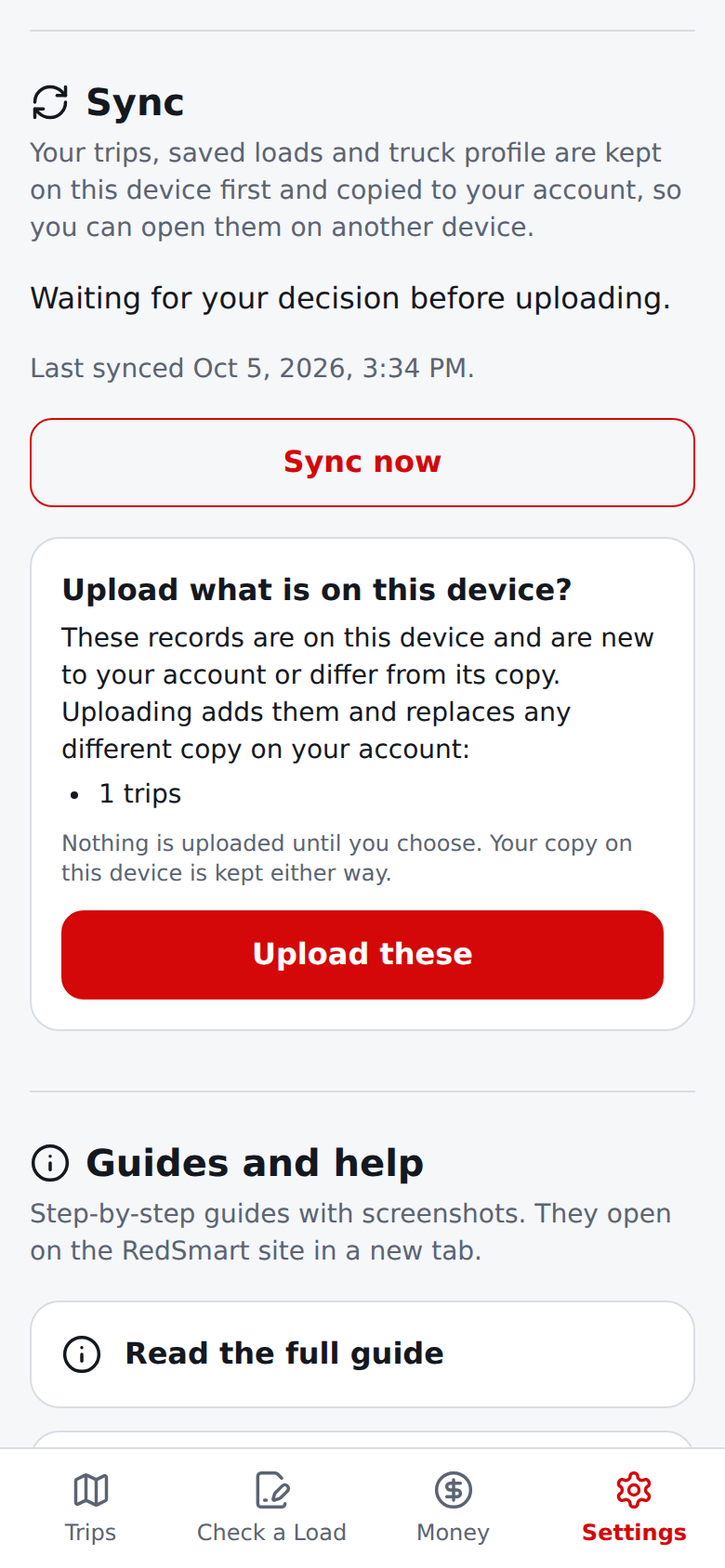
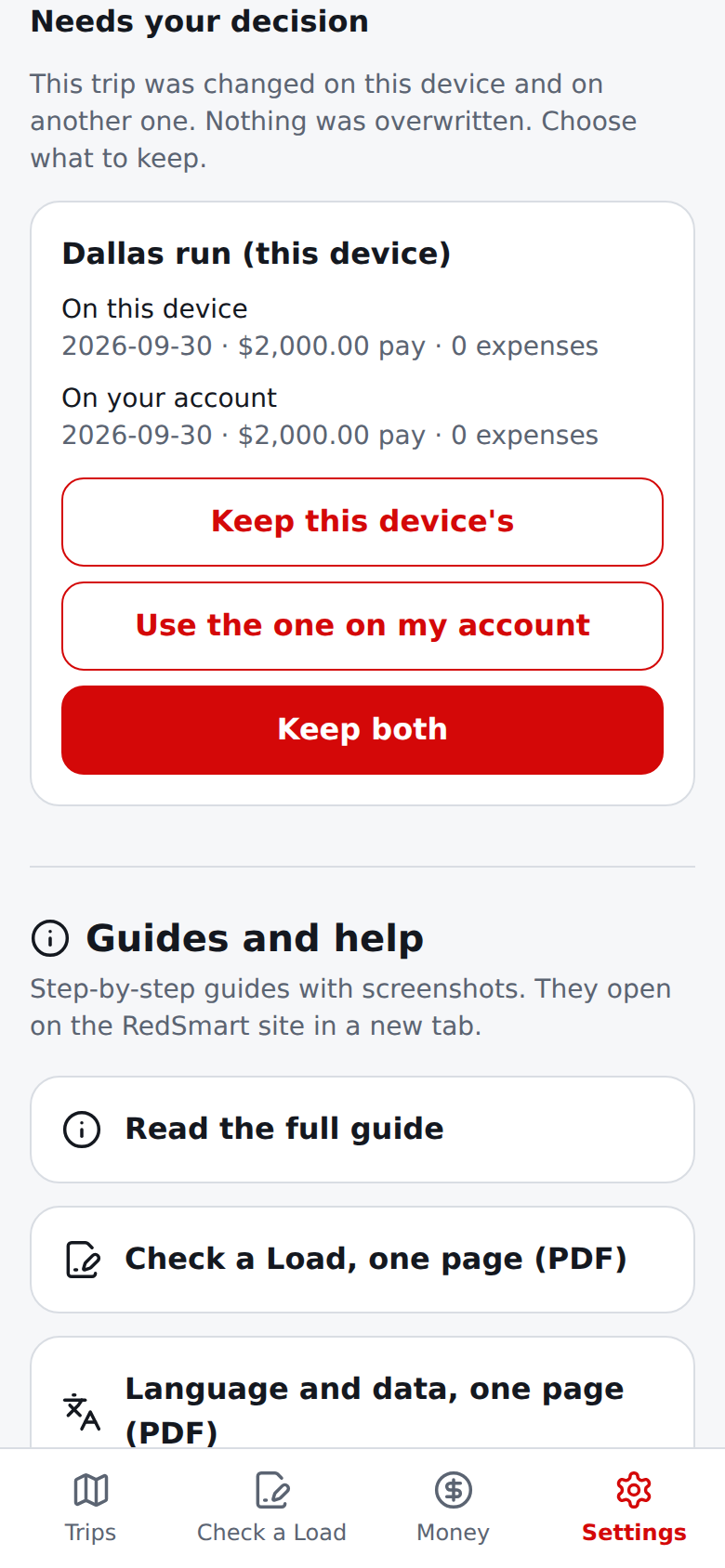
- Sync, only when an administrator has turned it on (otherwise none of this appears). Settings then shows the Sync status with its buttons, and the header shows Sync needs you (it opens that section) whenever it wants a decision. Your trips, saved loads and truck profile are kept on this device first and copied to your account, so you can open them on another device; everything keeps working offline, and RSL syncs again when you are back online. The first time, if this device has records that are not on your account yet, RSL asks Upload what is on this device?, shows the counts, and uploads nothing until you choose Upload these (the list includes records that are already on your account but differ from the copy on this device, because uploading would replace the account's copy); your copy on this device is kept either way (deleting a record that RSL read from your account is the one thing sent before you answer, because it is your own deletion of your own record). If someone else signs in on the same browser, RSL starts again for that account and asks again, and never uploads this device's records to a different account without asking (deleting your account also forgets this device's sync record, so a new account made later with the same email starts afresh). If your account is full, records that did not fit are tried again at the next syncs, in case room is made on another device. Each trip on Trips, and each saved load, carries a small label: Waiting to sync, Synced or Needs your decision. If the same trip was changed on this device and on another one, nothing is overwritten: Sync shows both versions (if the copy on your account is damaged and cannot be read, it says so and offers only this device's copy) and you choose Keep this device's, Use the one on my account or Keep both (the other version stays as its own trip). If both versions are active trips, Keep both is not offered (there is only ever one active trip), and a trip started on another device waits under Sync until you deliver your current trip (and keeps waiting if you start another active trip in a second tab at that very moment), and Keep both comes back once you have delivered yours. If you choose while a sync is running, RSL finishes that run first and then applies your choice. If the account's copy of a trip waiting for your decision is deleted while this device is offline for a long time, the decision stays and shows the account's side as deleted (this includes a decision that came up at the very first sync of a device, even one against a deletion). A sync that was running when another person signed in simply stops, so nothing it read for the first person is ever shown to the second. A trip changed in two places appears under Sync as a decision only once RSL has read the account's copy (until then it just shows as waiting; if the account turns out to have deleted it, it then appears with the account's side as deleted), so a choice is never made on a guess. A decision also goes away by itself if the account's copy later becomes identical to the one on this device, or if both are deleted; the same happens if you edit this device's copy to be identical to the account's, or delete it when the account's is already deleted. If you choose just as the same trip is edited in another tab (or another tab starts an active trip that your choice would put beside it), RSL does not apply the choice: the decision stays, now showing the new edit. This also holds when RSL is open in two tabs: only one tab syncs at a time, and before every sync RSL checks who is signed in, so signing in as someone else in another tab never sends this device's records to the wrong account, and a choice you tap under Sync is checked the same way (if someone else is signed in by then, or RSL cannot tell because you are offline, nothing is applied and you can choose again); if the sign-in changes in the middle of a sync, the server refuses that sync and RSL tries again for the right person. Settings follows the change too when you come back to it, and until it does, its Sync section only says it is checking, so a yes is never given for the wrong person; if you sign out in another tab, My account takes you to sign in. If your account refused a record that was only on this device (for example because the account was full) and you then delete that record, or change it to something else, the note that it could not be synced goes away. A trip you create and then delete before RSL learned that it arrived stays deleted. The version shown for this device is always the trip as it is now, including anything you changed after the conflict appeared. Saved loads and the truck profile never ask: the latest change wins. Clear data in Settings clears only this device and deletes nothing from your account (it also stops any sync running in another tab of this browser); the records come back the next time RSL syncs. Deleting a trip removes it everywhere (if it is deleted on your account and on this device at the same moment, it is simply gone: nothing to decide). If the same trip, saved check or truck profile is on this device and on your account with identical contents (for example restored from the same backup), RSL just treats it as already synced: nothing to decide and nothing to upload (this includes a record that you save identically in a second tab at the very moment it is read). The first time a device syncs after an update that did not yet record the server's clock, RSL reads everything once to be sure it missed no deletion. Each sync first reads what changed on your account and only then sends what you changed, so an old edit never lands on a trip that was deleted and made again meanwhile (you are asked instead, and the old edit waits until you decide). If you created a trip on a device and the connection dropped before RSL learned it had arrived, and the device then stays away for more than 90 days, RSL does not send that trip again by itself (it may have been deleted from another device meanwhile): it shows it under Sync for you to decide once RSL has finished reading your account (until then it just shows as waiting; if you deleted it yourself in the meantime and the account holds nothing either, it simply disappears). If a device has been away for more than 90 days, RSL reads everything again at its next sync, before sending any change from that device (including a trip you restored from a backup), and removes the records that were deleted on your account in the meantime, and takes the account's current copy of a record that was deleted and made again (anything you changed on that device meanwhile is kept for you to decide, and a trip you restore from a backup never overwrites a different trip that was made again under the same id meanwhile).
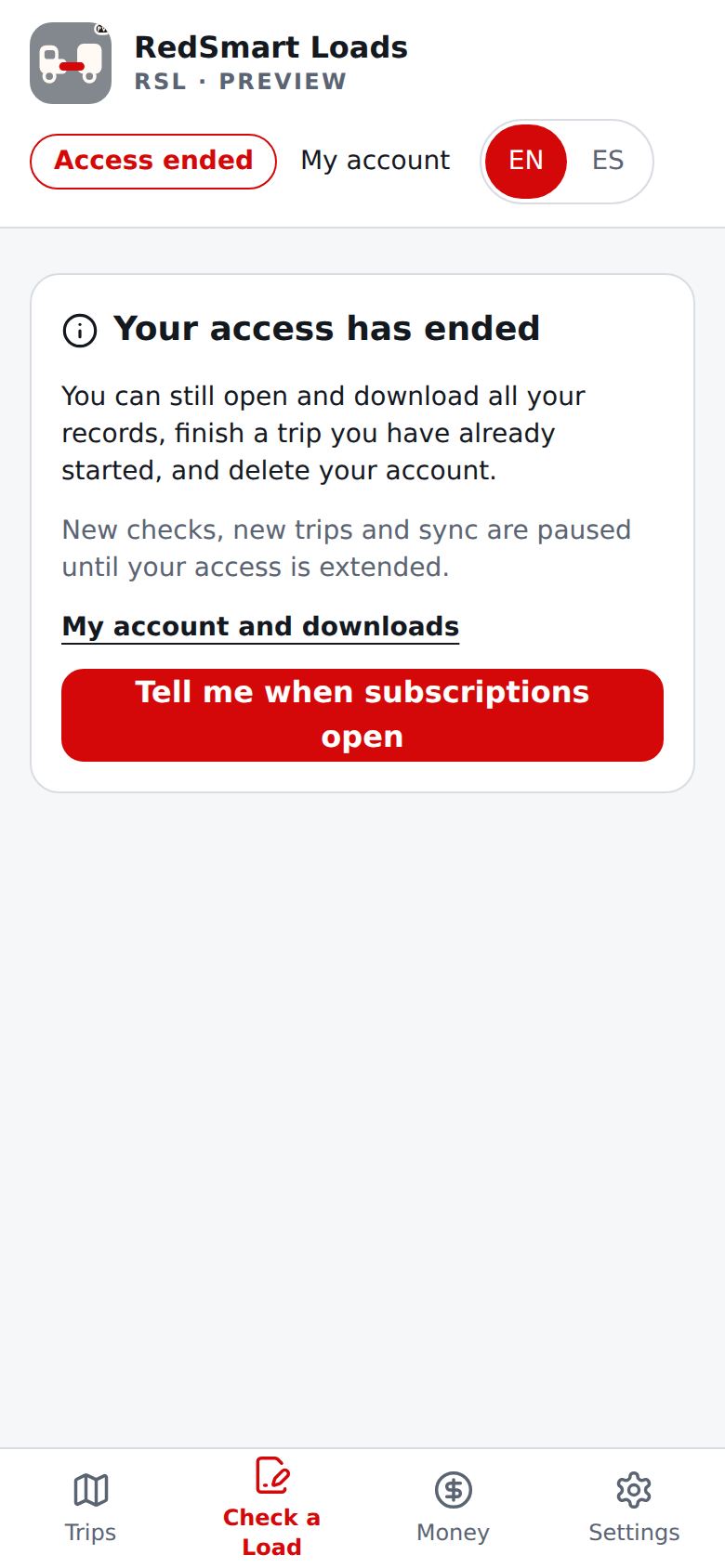
- When an administrator ends the free trial. This is off by default and nothing here applies until it is turned on. If your access ends, the header shows Access ended and Check a Load (and My account) shows a card that says what is paused and what is not: you can still sign in, open the app, download all your records (Download my account data), finish a load you have already started (also offline, Open my trip), see all safety and license information, and delete your account. New checks (including saving one and starting or queueing a trip from it), starting a load that was already queued, new place suggestions, address checks, route miles and sync stop until your access is extended or you subscribe (the Sync section says sync is not turned on and the Sync needs you prompt is hidden meanwhile); what you had typed stays in your draft. Tell me when subscriptions open records that you want an email. While you are online RSL checks your access again every 15 minutes (and whenever you open it or come back to it), and what it remembers belongs to the account you are signed in as. While you are offline, RSL keeps working for up to seven days from the last time it could check your access (never past the end date of your access); after that it behaves as if your access had ended until it can check again, but a trip you have already started is never taken away. You get an email three days before, one day before and once your access has ended (the same words whether it was a free trial or a time-limited grant, and one email for each, even if you were given access twice), with one link to My account; if you have asked to be told when subscriptions open, that is on your account download too. Your records are never held back.
- Team (owners and drivers), only when an administrator has turned it on for a pilot (otherwise none of this appears, and it is not on production). As an owner, Settings starts with a Team section (a person with no driver yet sees one plain Add a driver entry, which opens the form): type a driver's email, their name if you want (Driver's name (optional): you see it instead of their email until they set their own name, and theirs is shown once they do) and their 2 or 3 trip-number letters (like JM), choose the Language of the invitation (English or Español; it starts as the language you are using now), and choose Send invitation. The driver gets the email, and then the sign-in page and the sign-in code email, in that language, with a link that works for 7 days; the driver can change their own language later in their own Settings, and the emails they get after that follow it. Below you see Your drivers (by name, never by email, with their letters; a driver with no usable name shows as their letters, such as Driver JA; Remove driver asks first), Invitations waiting (the address and the name you typed, so you can see who is invited, with Cancel invitation; an invitation that ended shows as Expired or Said no), and the letters of drivers who left, which are never given out again. Under the team, All trips and Agreements open the owner's other screens (sections below). A driver sees only their own trips; they do not see your costs, your share or other drivers. As a driver, open the link in the email and sign in with the address that was invited; the page names the owner (by name, never their email: if they have not set a name it shows the first part of their email, or says "this owner" when that part says nothing) and your letters, and says what accepting means: from now on the owner can see your trips, expenses and odometer numbers, trips you made before joining stay yours and are not shared, you see only your own, and sync is always on and cannot be turned off. Tick I understand. Trips I made before joining stay mine. Trips I make from now on are shared with the owner, and they keep them if I leave. (Accept stays off until you do), then choose Accept, or choose No, thank you. Your phone asks the server who you are before every sync, so a change made on another phone is noticed before anything is sent, and trips you made while you drove that your phone could not send in time (for example if it was offline the whole time) are sent to the owner once you reconnect, even after you stopped driving. Download my account data holds everything you own on the server, including trips you made before joining; trips you made as a driver belong to the owner and are in your download only while you still drive for them (your own phone keeps its copy). The page shows no app menu, only the language switch and Sign out, because you have no access until you accept. If you already have your own account, it is paused while you drive for the owner (trips you made before joining stay yours, are not shared and are not sent from your phone while you drive; the page offers a download of your records first); you get it back if you stop, and then those trips sync to your own account again, while the trips you made as a driver stay with the owner and on your phone only. After that, the Team section of Settings shows You drive for the owner's name (or "your owner"), your letters, My pay, See your agreement and Stop driving (it asks first), and the delete-account form on My account is replaced by a note to stop driving first. An expired, cancelled or already used link says so. An owner who has drivers, or a person who pays for their own plan, cannot join another team. Statements for a period are not in this release.
Your name, once. The first time you invite a driver, the invitation form also asks What is your name? Type the name you want your drivers to read. You do this once. You can change it later in My account.
A driver who has no name yet is asked the same question on the invitation page, before Accept works. Declining never asks for a name.
The name is the one you type. It is never taken from your Google sign-in, and it follows the same rules as Your name in My account. A person who already has a name never sees the question.
If you joined before this step existed and have not typed a name, other people still see the first part of your email, or a plain word such as "your owner" or Driver JA, until you type one.
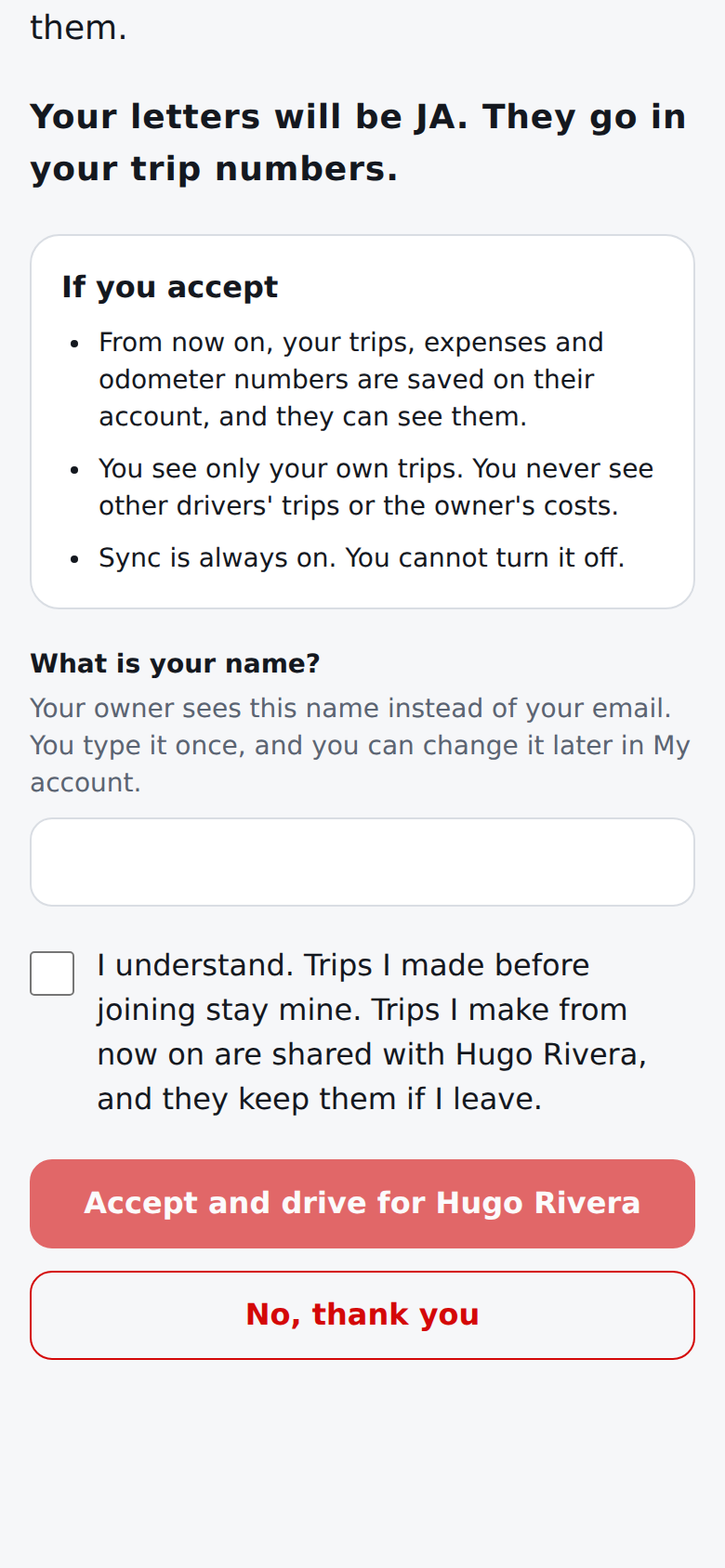
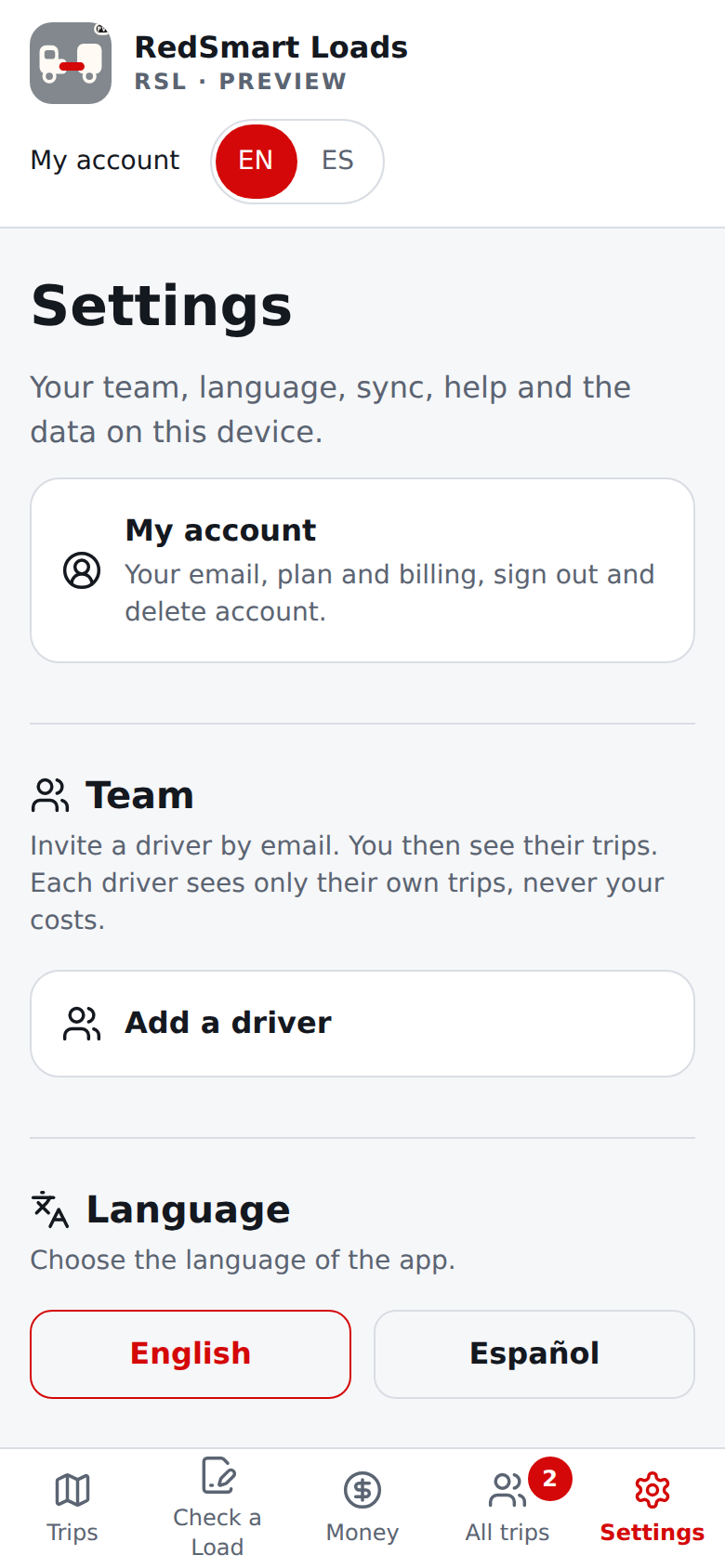
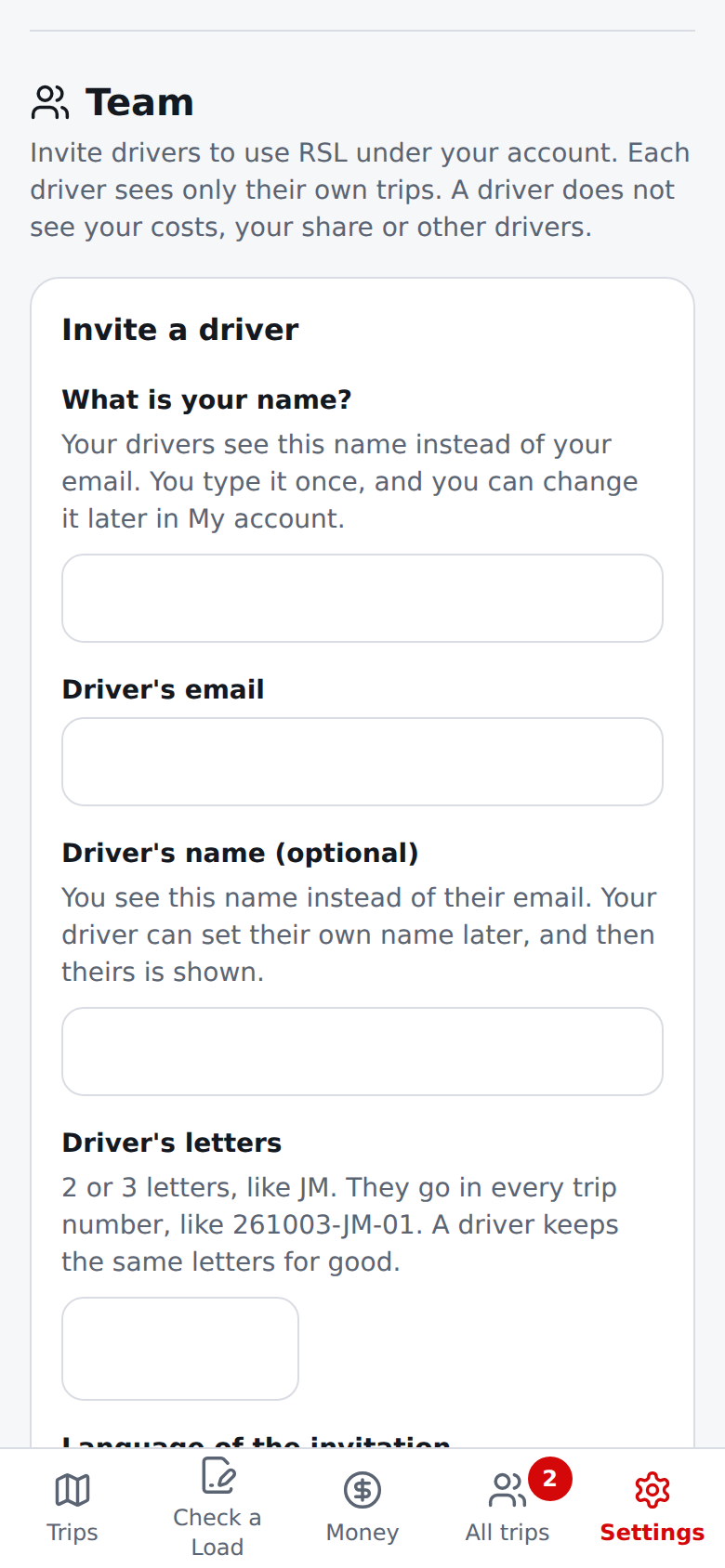
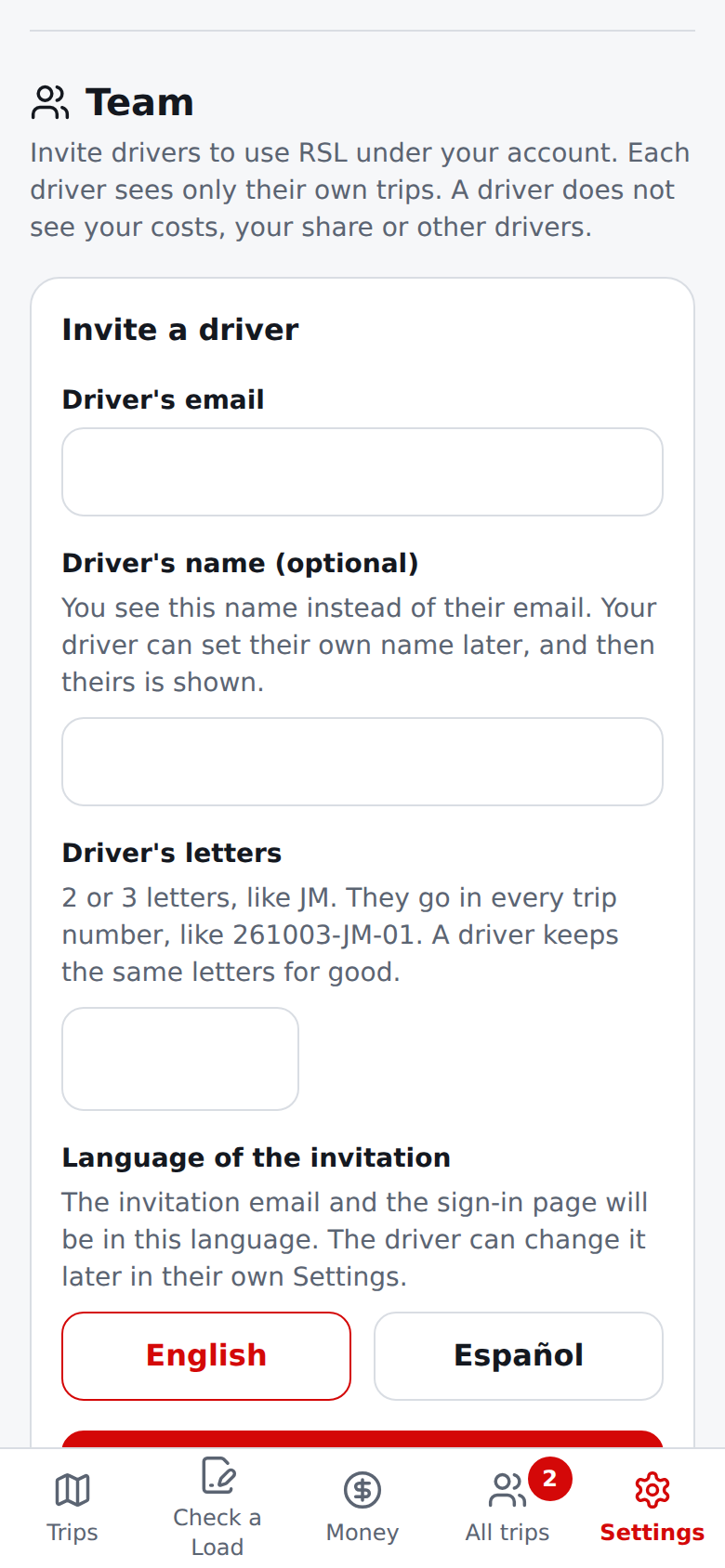
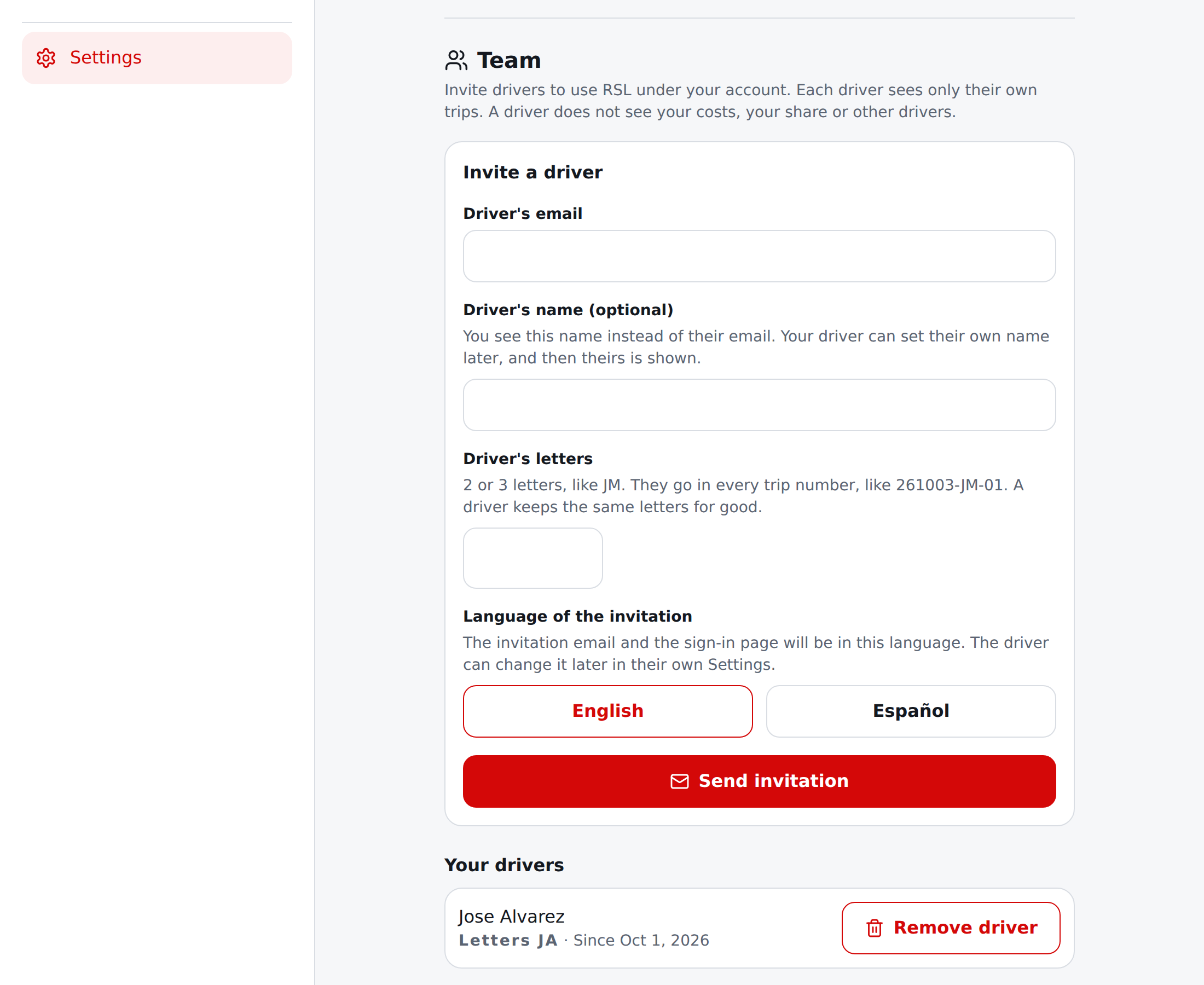
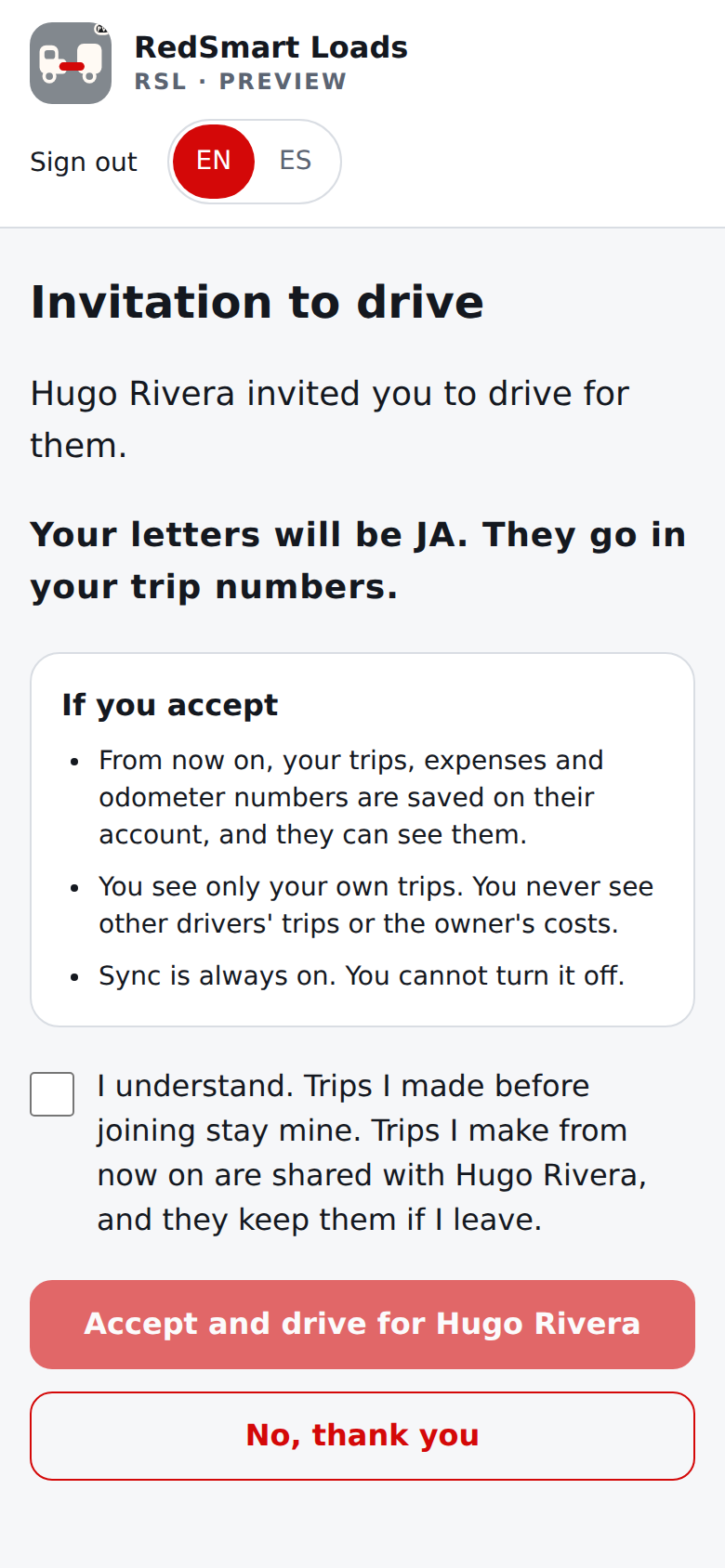
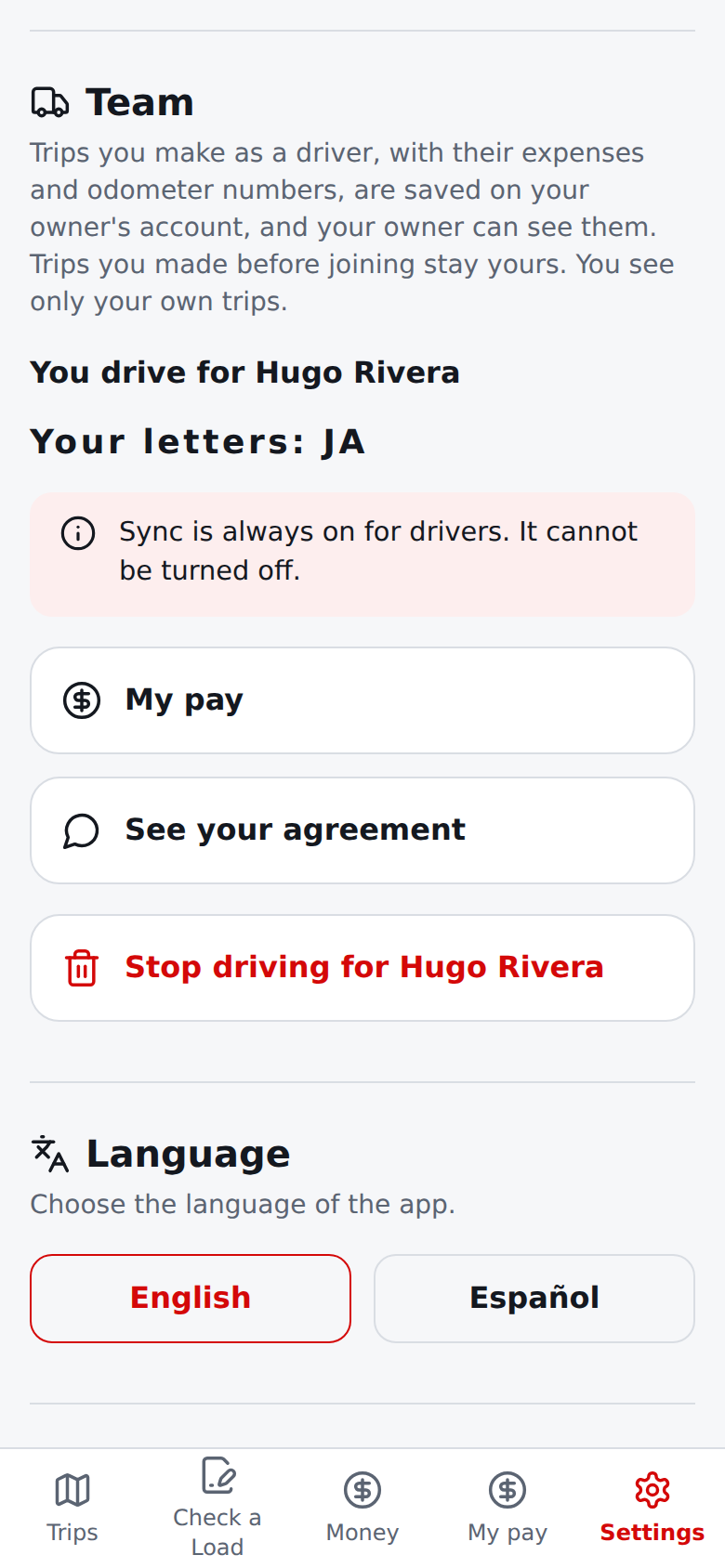
The Team screens above use stand-in answers (see the screenshot provenance), because the capture environment has no account server.
- All trips (owners), only where Team is turned on. An owner sees All trips in the navigation (a driver does not). Trips lists every trip of every driver on the account: one table on a wide screen (trip number, driver, route, Now, Next or Done, load pay, what is left) and one card per trip on a phone. Choose a driver, Now, Next or Done, or the days a trip started between, and choose Show more trips for a long list. Choose a trip to see its details beside the list: Plan (the estimate made when the trip began) next to Real (odometer miles, expenses entered, and the maintenance reserve for the miles driven), with each difference written as "more" or "less" with an arrow, and the expenses entered. Where no agreement applied to the trip, no driver pay is shown; where one did, the trip also shows what it does (item 9). By driver and By truck add up trips, load pay of delivered trips, expenses, what is left and miles driven. A truck here is the truck saved by the person who drove the trip, because trips do not say which truck was used yet. What is left is not profit: costs nobody entered are not taken out.
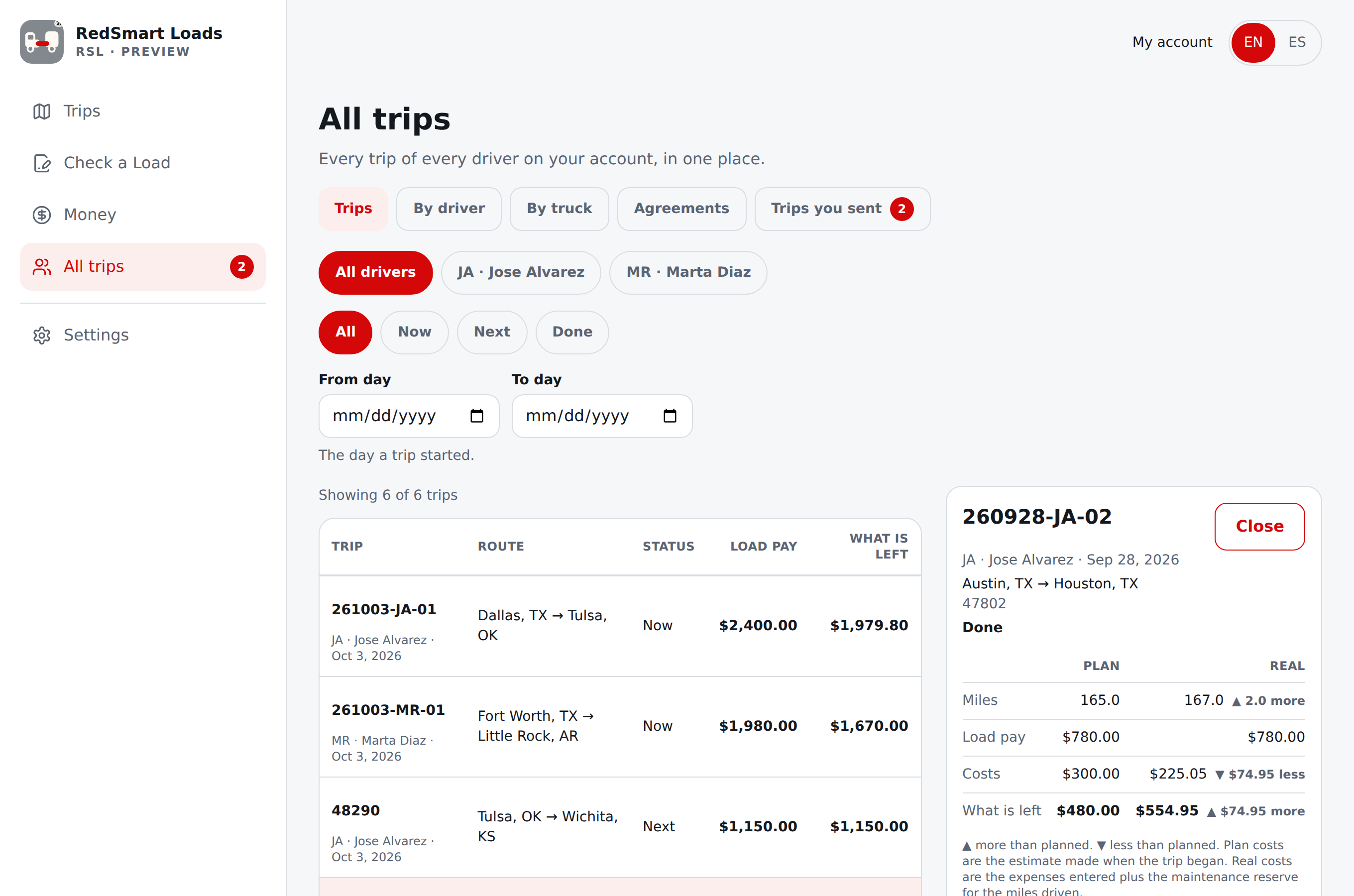
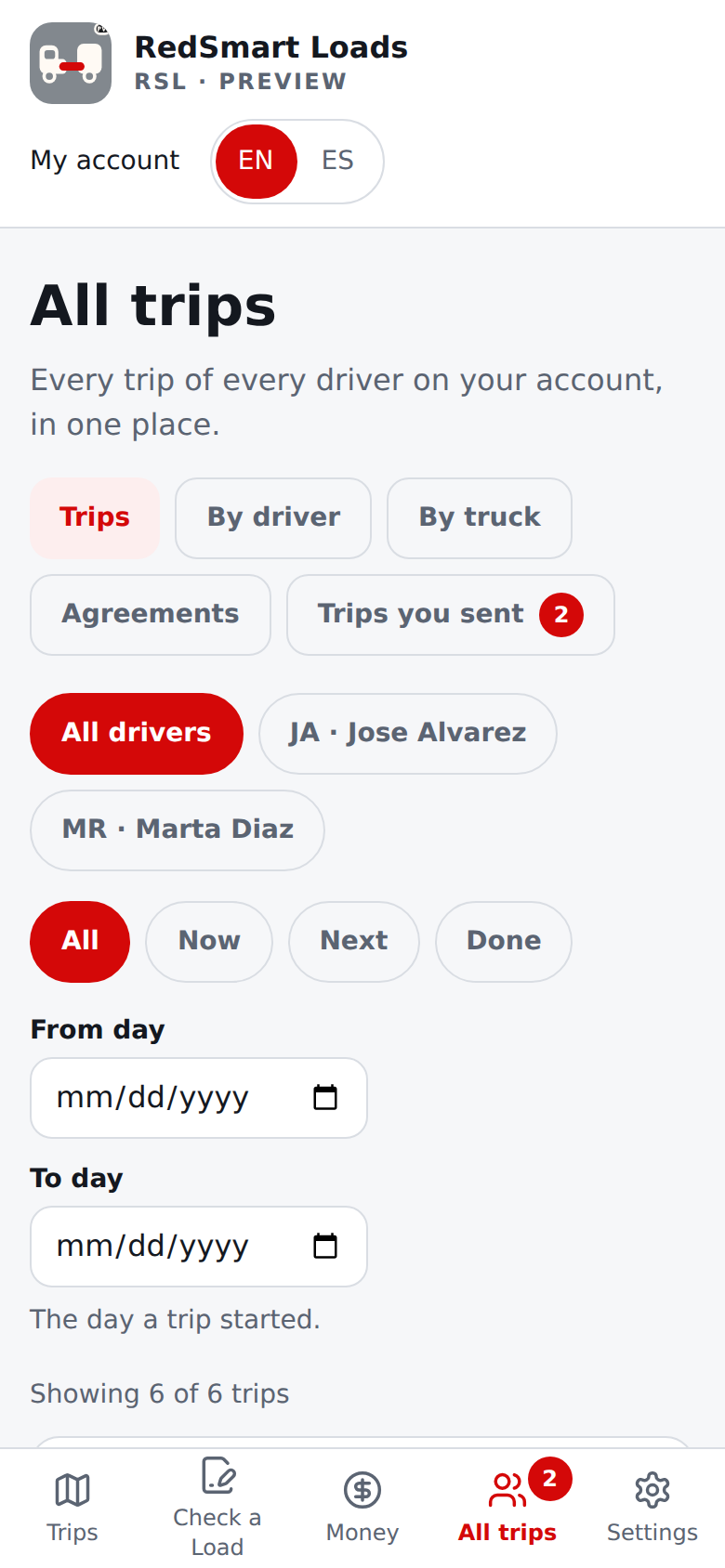
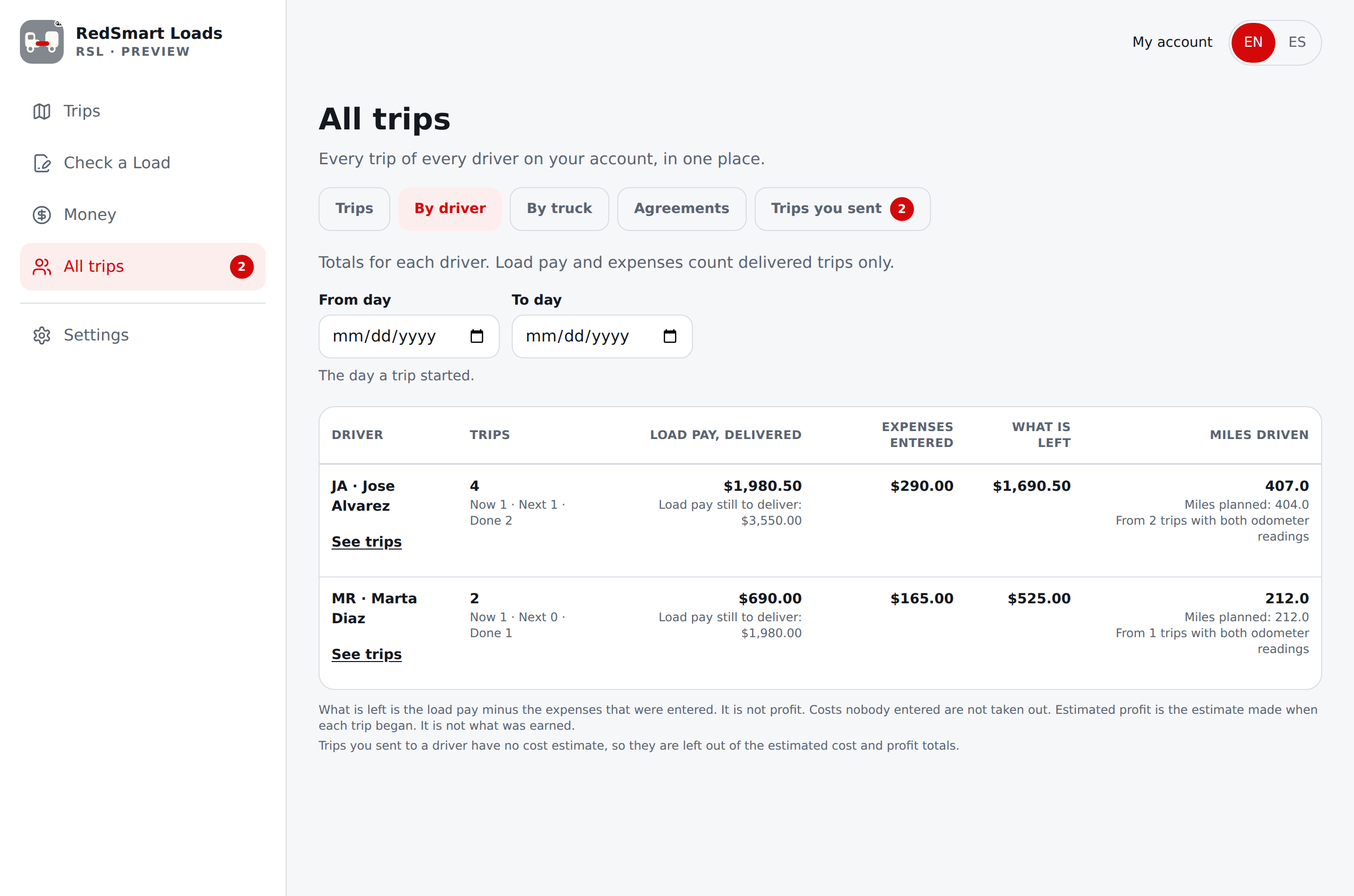
- Agreements and My pay, only where Team is turned on. An agreement says how a driver is paid and who pays each cost. The driver must accept it, and after you both agree it cannot change: to change it, send a new one. As an owner, open All trips and choose Agreements, pick a driver and fill in the form (it starts blank): the driver's pay as a percent of what the load pays, the day it starts (and, if you want, the day it ends), the repair savings in dollars for each mile, and for each kind of cost (fuel, tolls and scales, repairs and maintenance, meals and lodging, other) who usually pays it, how (your fuel card, the driver's own money, or the repair savings first), the driver's share when you pay, and what you pay back when the driver pays. The one for the usual payer is required; if you leave the other empty it is 100 minus the first. Beside the form, What this does on a trip shows the numbers on an example trip as you type. Choose Send to the driver to accept; the driver is emailed. You see their answer (and message) there, can Withdraw a proposal that waits, End an agreement in force (it asks first) and open the printable copy. As a driver, a banner says Your owner sent you an agreement. Open it. The screen has plain words and bars first (how much you pay of each cost), a Listen to all of it button that reads it aloud when your phone can, and the full terms behind a tap. Choose I agree (it asks once more, because an accepted agreement cannot change), or I have a question to Ask for a change or say No, I do not agree, with a short message if you like. Until you accept a new agreement, your old one stays in force. When you enter an expense, Who paid? lets you say My owner paid (card) or I paid from my pocket; the default is what the agreement says is usual. My pay shows each trip: what the load paid, your percent, your share of the costs your owner paid, what went into your repair savings, what your owner pays back, From your owner, what you paid from your pocket (shown for your records, never taken from your pay) and Your real earnings, with the repair savings balance and every addition and use. A trip that started before the agreement says so and has no numbers. This is a record of the numbers you agreed: it is not payroll, not a tax form and not legal advice, and RSL does not pay anyone. Names, not emails: pick a driver by their letters and name, and the driver reads "Your owner: <name>"; the printable copy names the owner and the driver by name (a driver who left shows as "A driver who no longer uses RSL" with their letters), and the emails about an agreement name the other person the same way. Printable copy: from either side, Open the printable copy shows one plain page of the exact terms, who accepted and when, with a Print button. The wording of agreements and of this line is a pilot wording that has not had its legal review. Not in this release: holding back new trips until an agreement is accepted, questioning a figure, the final statement when a driver leaves, and the microphone on text fields.
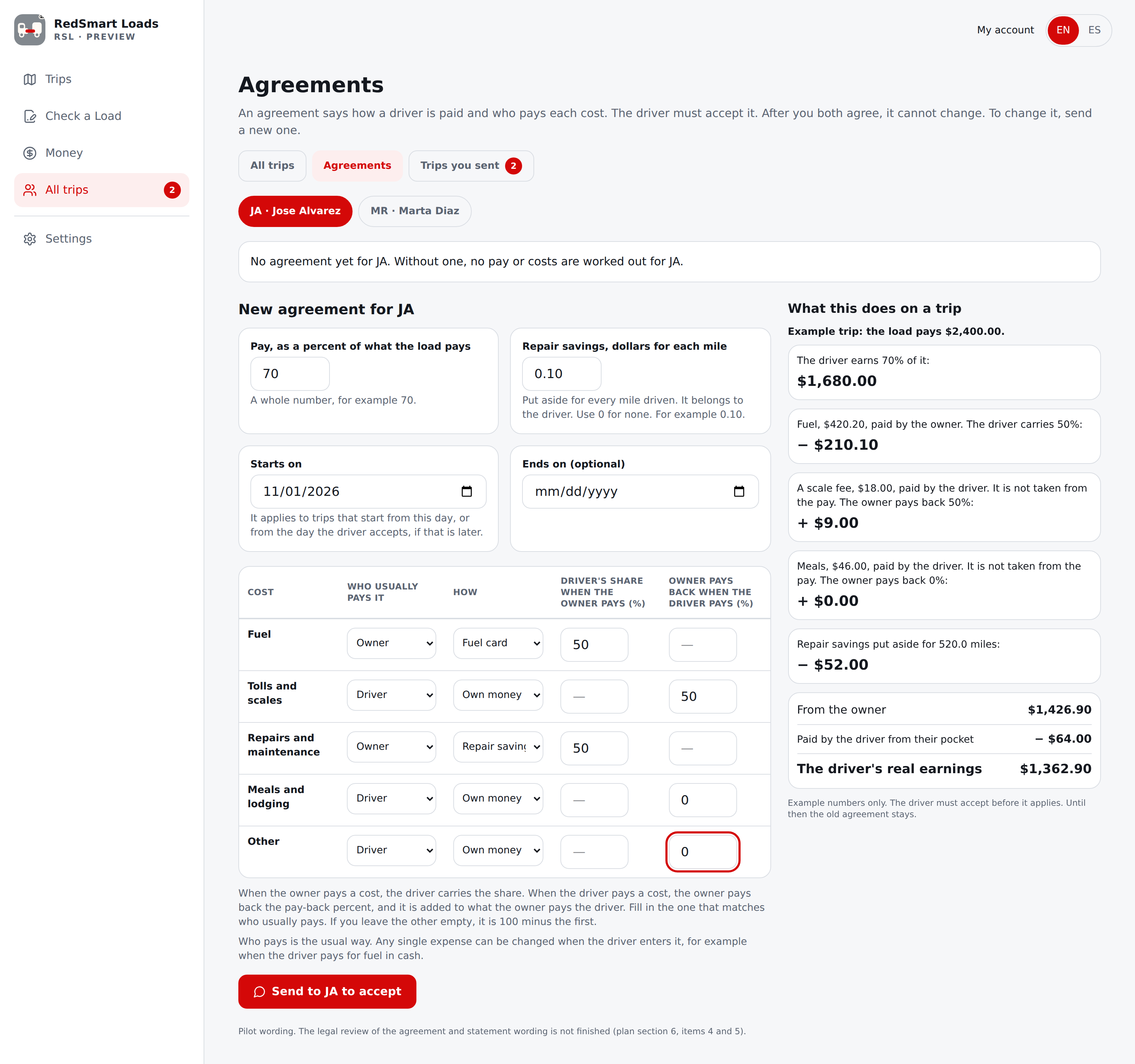
On a phone, the same screen shows each kind of cost as its own card: the cost name, then the four questions one under another, each with its label. The page does not slide sideways.
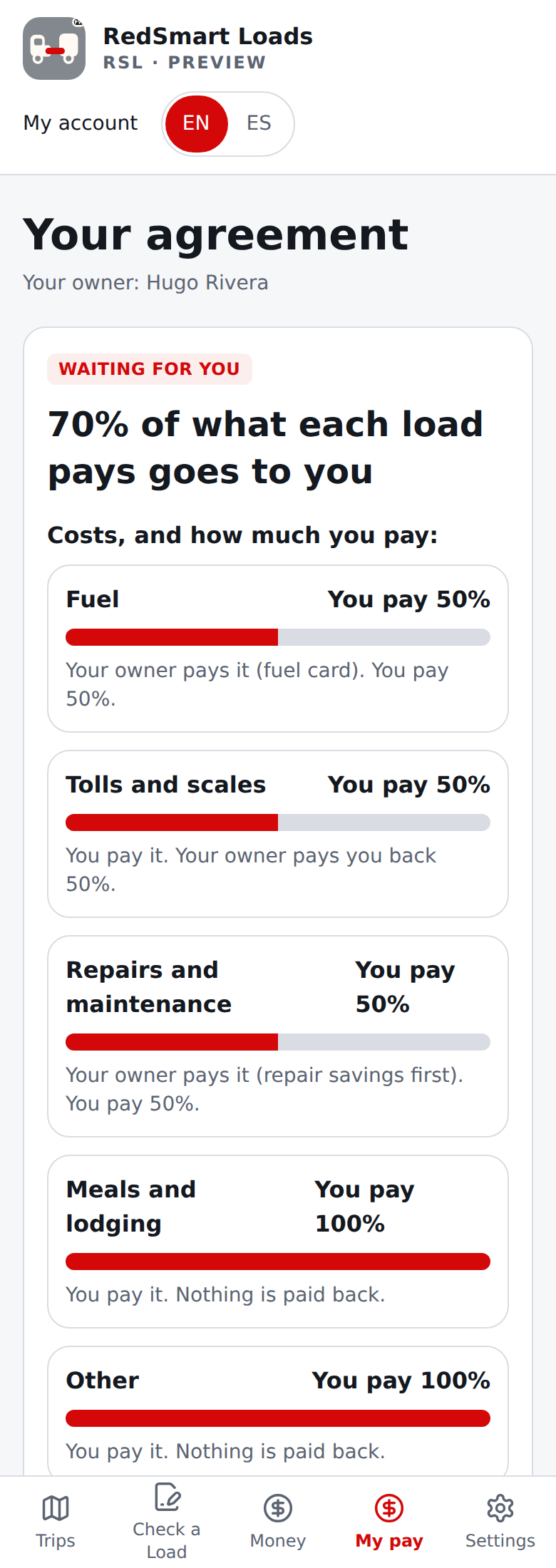
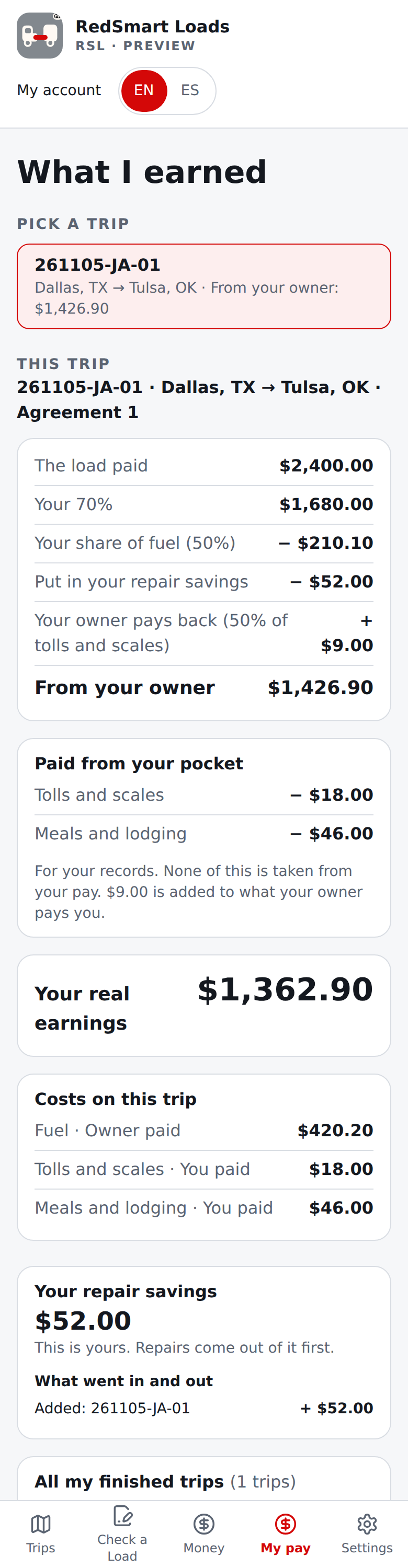
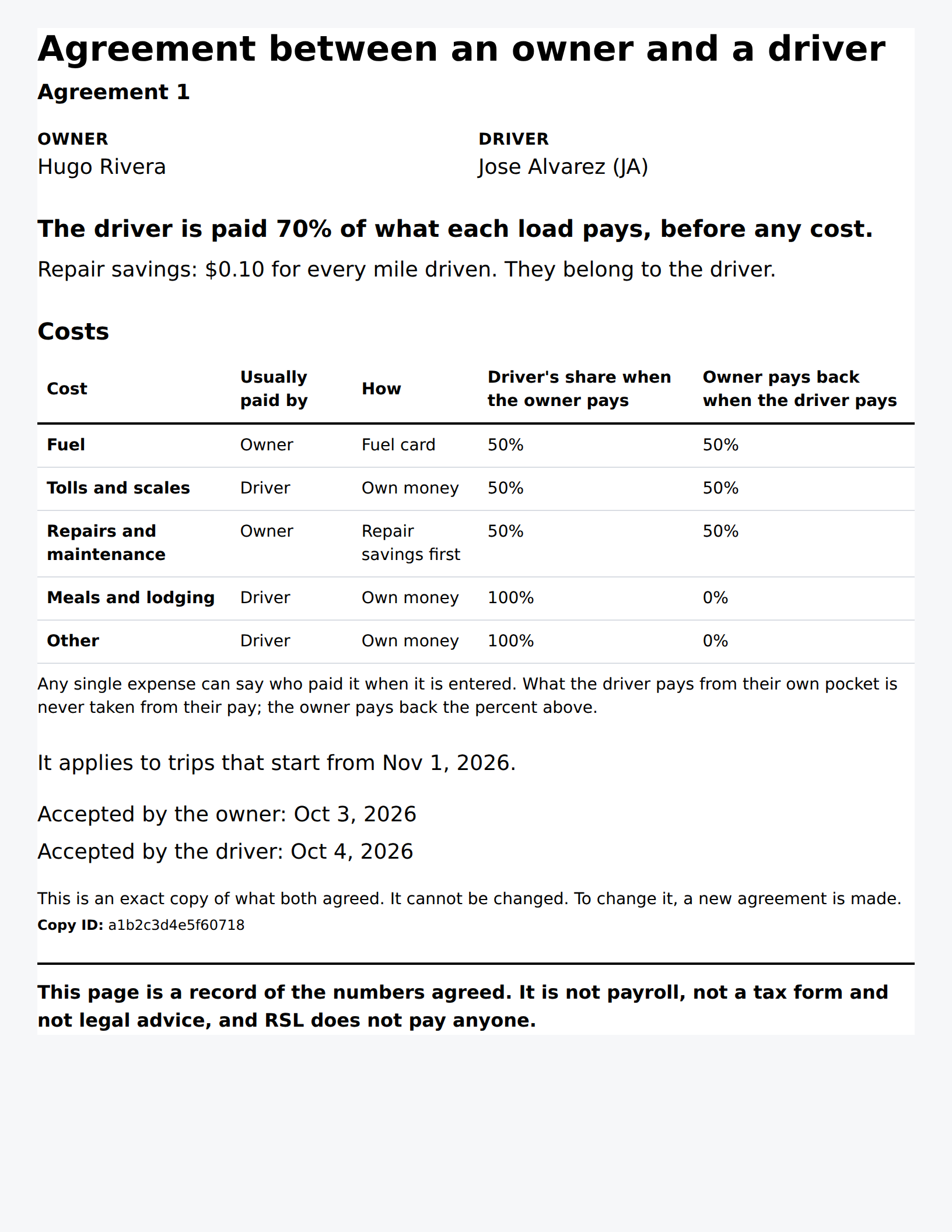
The agreement screens above use stand-in answers (see the screenshot provenance), because the capture environment has no account server.
- Billing (owners) and when the account is read-only, only where Team is turned on. As an owner, My account has the billing inside Plan and billing (the Team is in Settings). It shows Seats in use (one for each driver; you, the owner, are the plan itself) and the seats on your subscription, says in plain words whether your subscription matches your drivers, and shows your plan and its date. When you add a driver, the seat is added when they accept, and you pay only for the part of the billing period that is left (this is called proration). When a driver leaves or you remove one, the seat comes off and what you already paid for and did not use comes back as a credit on your next invoice. RSL never shows a price: the amounts are on your Stripe invoices. Manage billing and invoices opens Stripe's own page (card, invoices, cancel); with no plan you can choose Subscribe, billed monthly or Subscribe, billed yearly (only where billing is turned on). If a seat could not be updated yet, the section says so and RSL keeps trying; if that takes more than 3 days you cannot invite more drivers until it is fixed, and drivers already on the account are not touched. If a payment fails, you and your drivers keep full access for 7 days (the section says when that ends). After that, or when your plan ends, the whole account is read-only, for you and for every driver: you can still look at your records, download them and print them, see safety and license warnings, finish a trip that already started, and (as an owner) look at All trips, totals and Billing, and remove a driver; nobody can start new trips, sync, send or answer agreements or invite drivers. A driver sees a card that says their owner's plan is not active, what still works, and that what they record on the phone stays there and goes to you after you renew; nothing is lost, and they have no "notify me" button because they cannot fix it. Nobody can accept an invitation to a read-only account. When you pay, everything comes back at once. A person who is not on a team sees the card in item 6 as before.
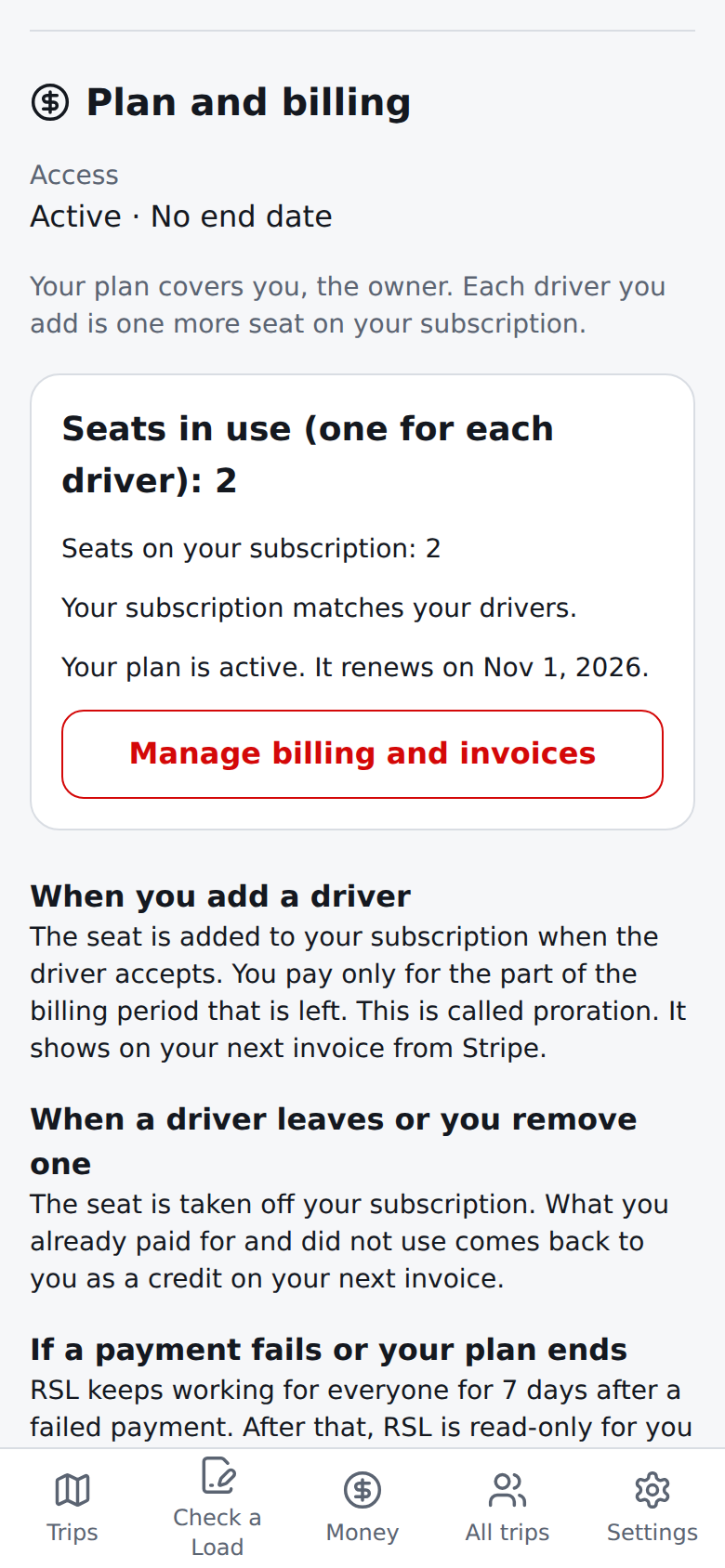
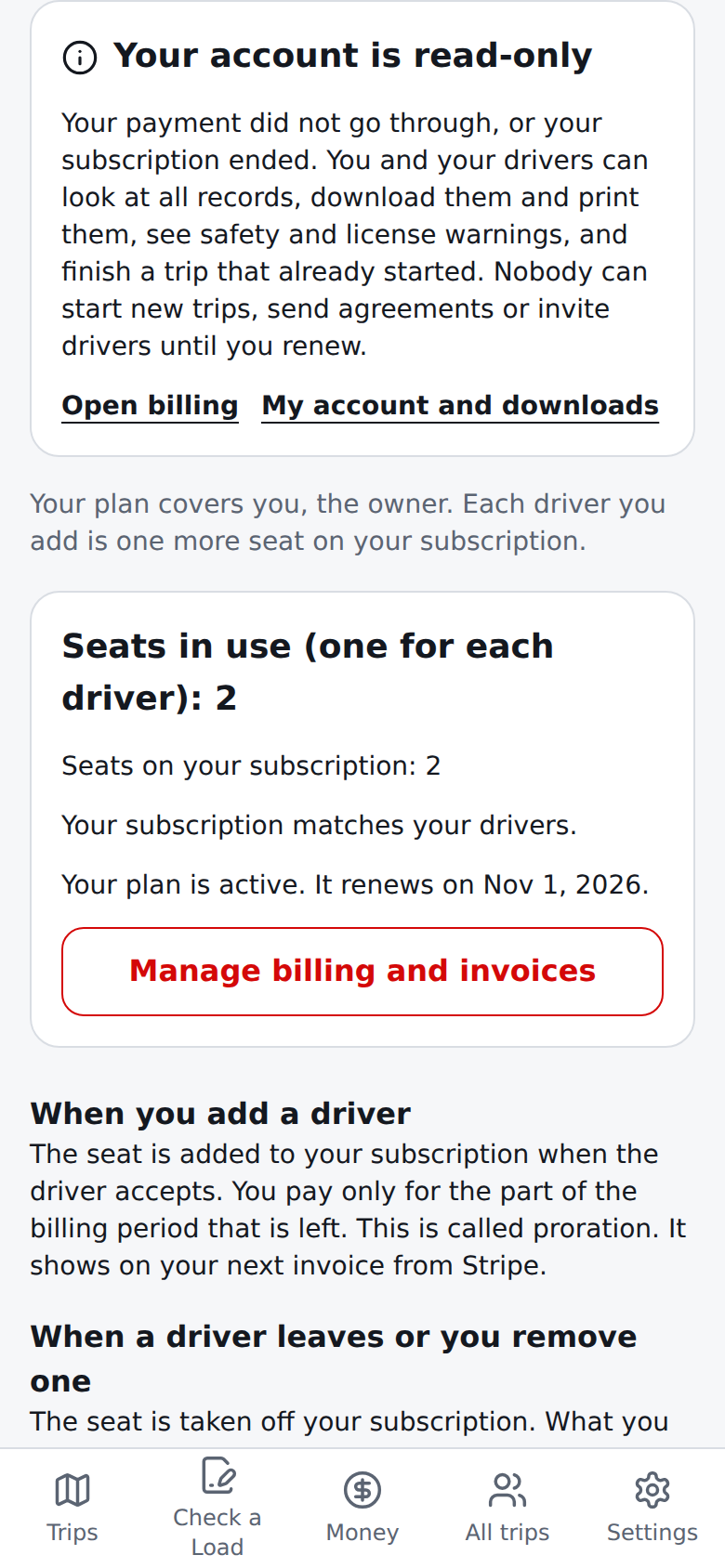
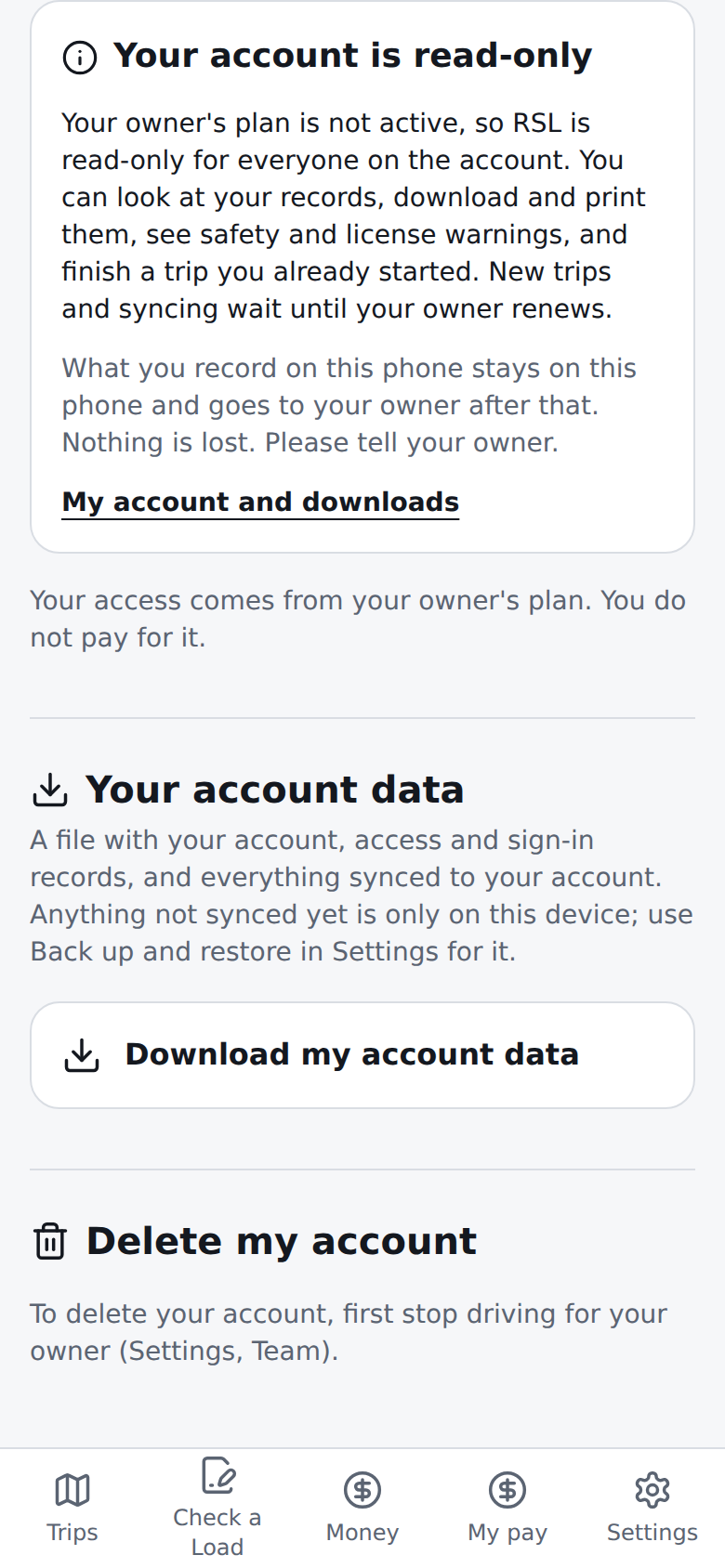
The Billing screens above use stand-in answers (see the screenshot provenance), because the capture environment has no account server and no Stripe.
- Send a trip to a driver from a load check (owners) and trips from your owner (drivers), only where Team is turned on. An owner can type a trip for one driver. It then shows on the driver's phone, ready to start.
As an owner, check a load as usual. At the end of the result, under the start and queue controls, the Send to a driver section offers Choose a driver and send. It is there only for an owner of a team account. A driver or a person with no team never sees it. If you have no drivers yet, it says so and links to Settings, Team, where you add one.
The form is filled in from the check: the Load reference, the Pickup location and Delivery location, the Pickup date and Delivery date if you typed them in the result, the Offered load pay and the Loaded miles. You can change any of them, and add a short Message for the driver (up to 300 characters). Pick the driver. The form is filled in when you open it; if you change the places or dates above afterwards, close the form and open it again. The times are not sent, only the dates.
If you have not typed your name yet, the form first asks What is your name? Type it once. It is saved, and the trip is sent in the same tap. This is the same question as in item 7.
The panel under the form shows what the driver will see. Choose Send trip. Your costs and profit are never part of it. A driver can have 10 trips waiting at once. After it is sent, the form closes and a note links to Trips you sent.
Stop details (optional). The form has a Stop details section, closed until you open it, for the pickup and for the delivery: a street address (only when the place above is just a city), a contact name, a contact phone, the appointment time or window (for example 08:00-10:00 or FCFS 6am-2pm) and dock or gate notes. A phone number takes digits, + ( ) - . and an extension like x12; anything else is refused with the field named. The panel under the form shows them as the driver will see them. They are shown only to this driver and to you, in the app. The email to the driver does not carry them; it keeps the route and your message. Change a sent trip and the details come back in the form.


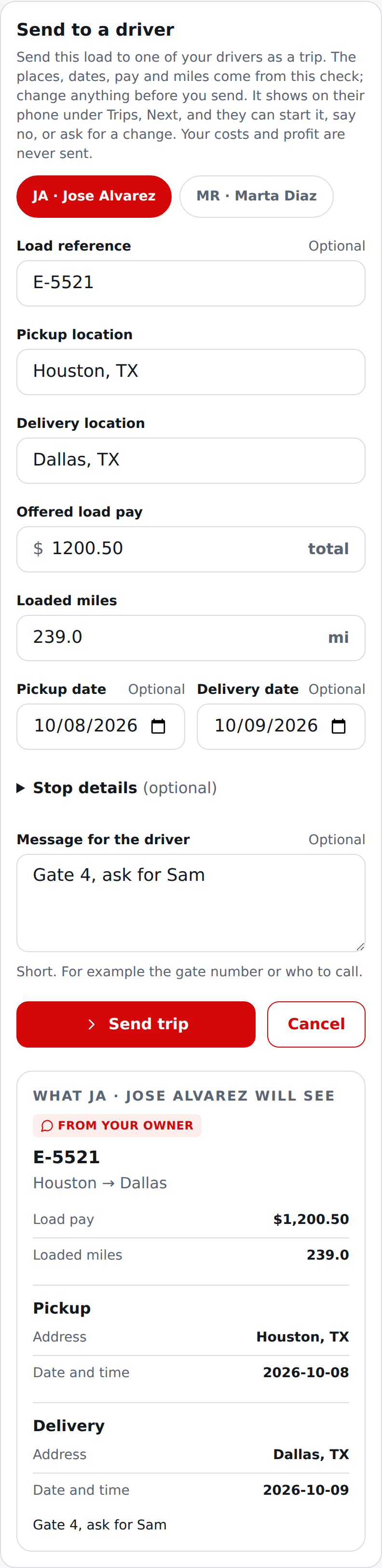
Trips you sent is under All trips, next to Agreements. It shows where each trip stands: sent and waiting, started, the driver said no, the driver asked for a change (with their message), or taken back. History lists each step. A trip with stop details has a Stop details line you can open to read them.
Until the driver starts a trip, you can Change it (the driver is told and reads it again), Send to another driver, or Take back (after a confirmation). Once the driver starts it, the facts you typed are locked.
The driver is told by email when you send, change or take back a trip.
You are told by email, by the driver's name, when the driver starts the trip, says no, or asks for a change. The email links to Trips you sent. It shows the driver's message as they typed it, one line, without web addresses or domains. The name and the message are not checked by RedSmart Loads, and the email says so.
You get the email about a start once, even if the phone syncs again or you open the screen many times. If an email cannot be sent, nothing is lost: the trip and the badge still show it.
A number badge shows how many trips need you: a driver said no, asked for a change, or started a trip, and you have not looked yet. It is on All trips, on Trips you sent and in Settings under Team. Open Trips you sent and it goes away. Those trips are tagged New on that visit.
A new answer shows the next time you open the app or come back to it. It is not pushed to your phone. Corrections after a trip has started follow the rules for owner corrections, which are not built yet.
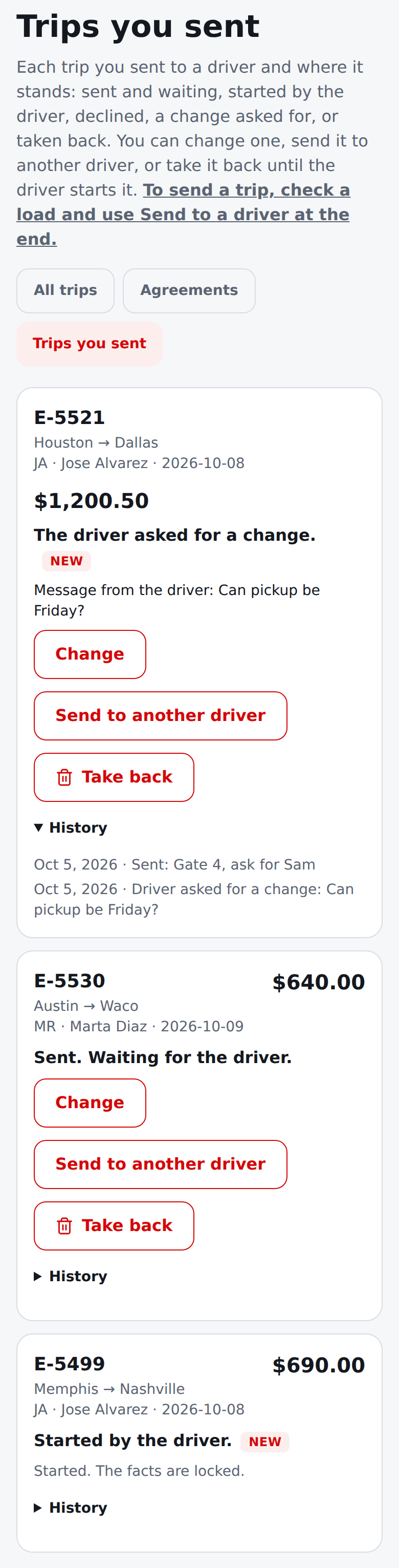
A trip the driver started from one you sent holds only the load pay and the miles. It is marked as having no estimate, so All trips shows a dash for its estimate and a note instead of a profit. By driver and By truck leave it out of the estimated cost and profit totals and say so.
Trips sent before this change are recognised the same way. The mark stays with the trip, so it is the same on every screen.
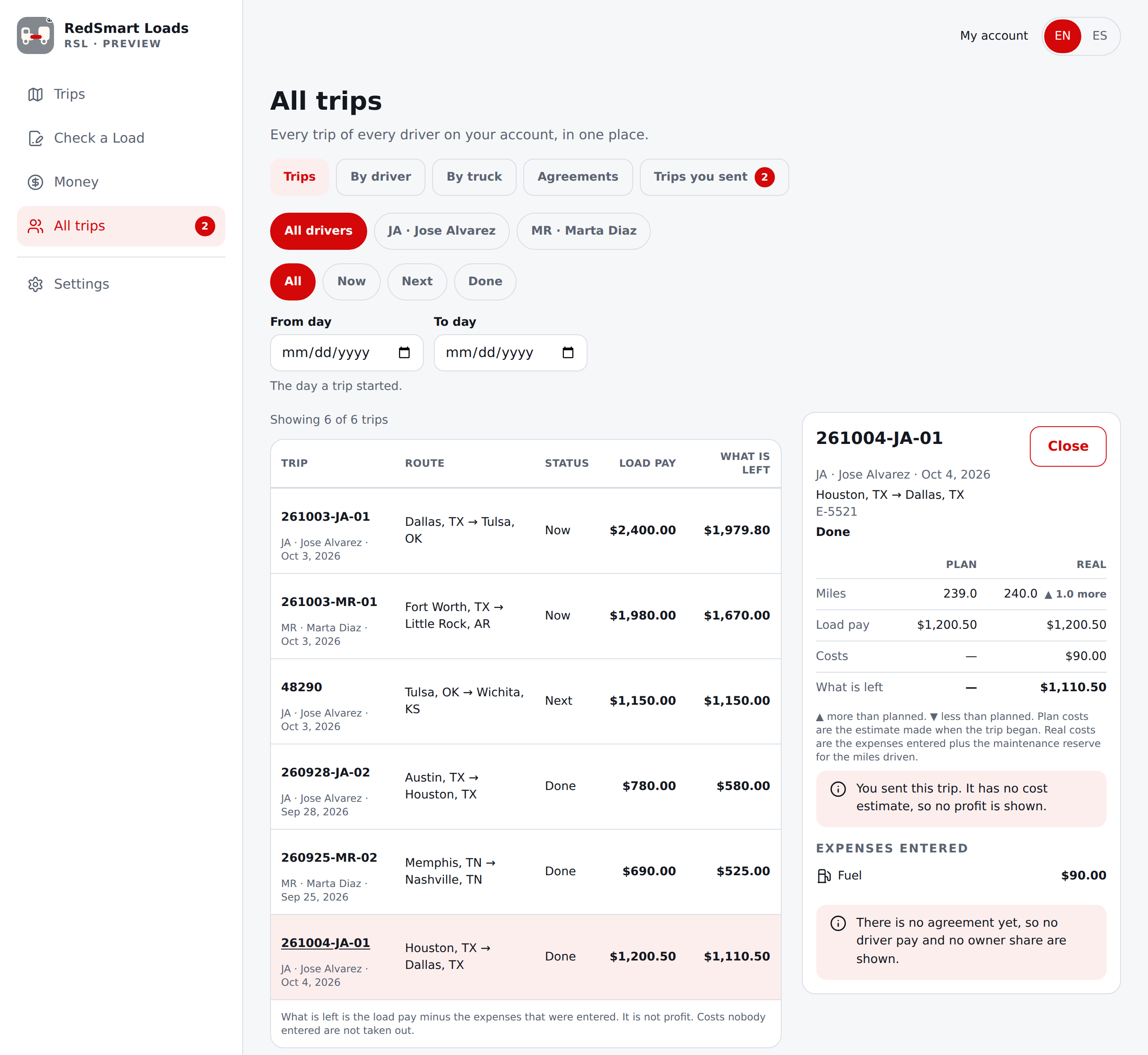
As a driver, the trip is in Trips, under Next, with the tag From your owner and your owner's name (never an email address). Open it to see everything, the load pay included. You never see your owner's costs.
Type your starting odometer and choose Start this trip. It becomes your trip under Now, with your own trip number (given when you start, so its date is the start date). Starting works with no connection once the trip is on your phone.
You can also choose Decline, or Ask for a change and write what should change. Your owner is told by email and a badge, and sees it under Trips you sent. These two need a connection. Your owner is also told when you start the trip.
Stops and driving instructions. In the opened trip, and later on the trip under Now, this section lists each stop, Pickup and Delivery: the address, the date and time, the contact with a phone number you can tap to call, and the dock or gate notes, whatever your owner typed (you can type the same for your own trips under Trip details). Open in Maps under each stop opens directions to it in your map app (Google Maps if it is installed, your browser if not), from where you are. Open the whole route in Maps opens pickup to delivery. The text is on your phone with the trip and works with no connection; the maps need one, and only the address is sent, and only when you tap. Where the route service is on, Show route miles and drive time asks for the miles and the time from the pickup to the delivery and, if the miles differ from the trip's by a mile or more, shows both and says they are estimates. It is a car's route, not a truck's, and it is not a map picture.
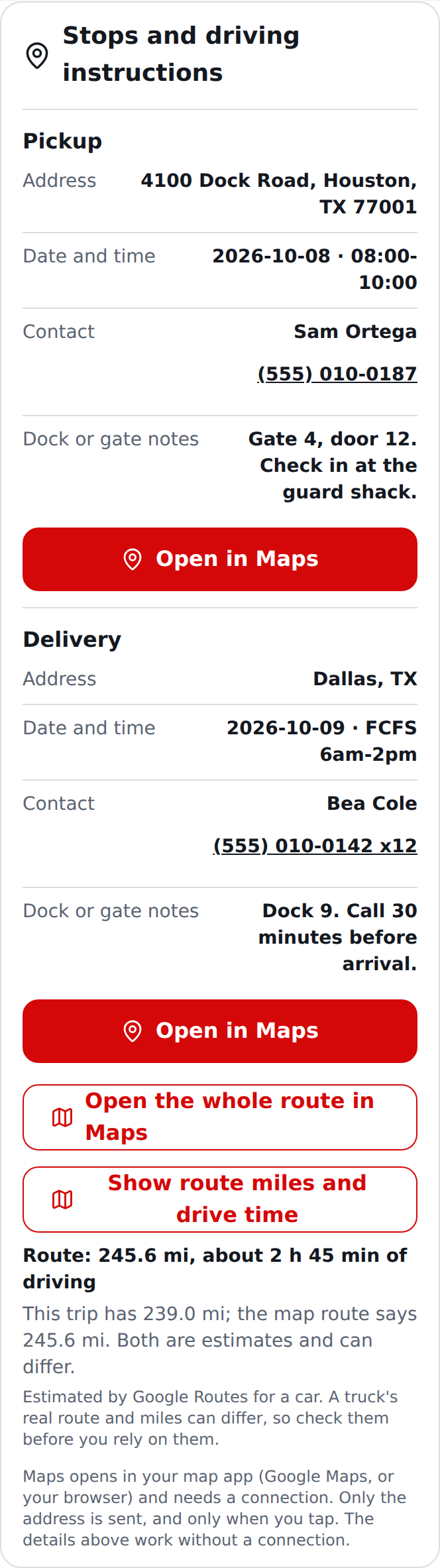
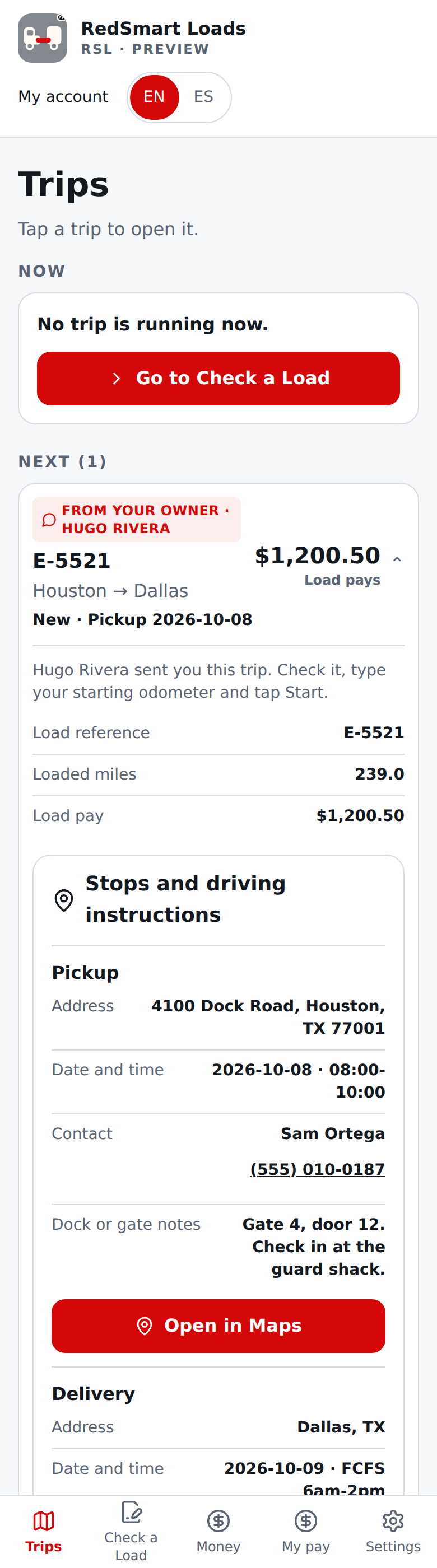
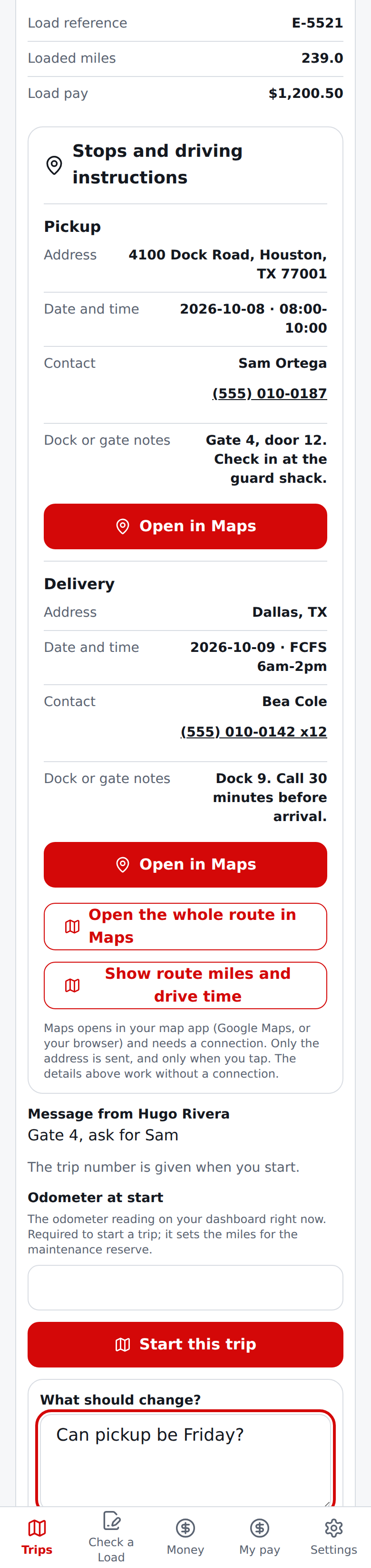
If your owner changes or takes back the trip before you start it, the phone shows that the next time it connects. A trip that is still waiting when you leave the team is taken back.
A trip you started from one your owner sent has no estimate of costs or profit to compare with. In Trips, its Plan and Real table shows a dash for costs and for what is left, and a note says why. It stays that way if you later leave the team. The pay, the miles and your own expenses show as usual.
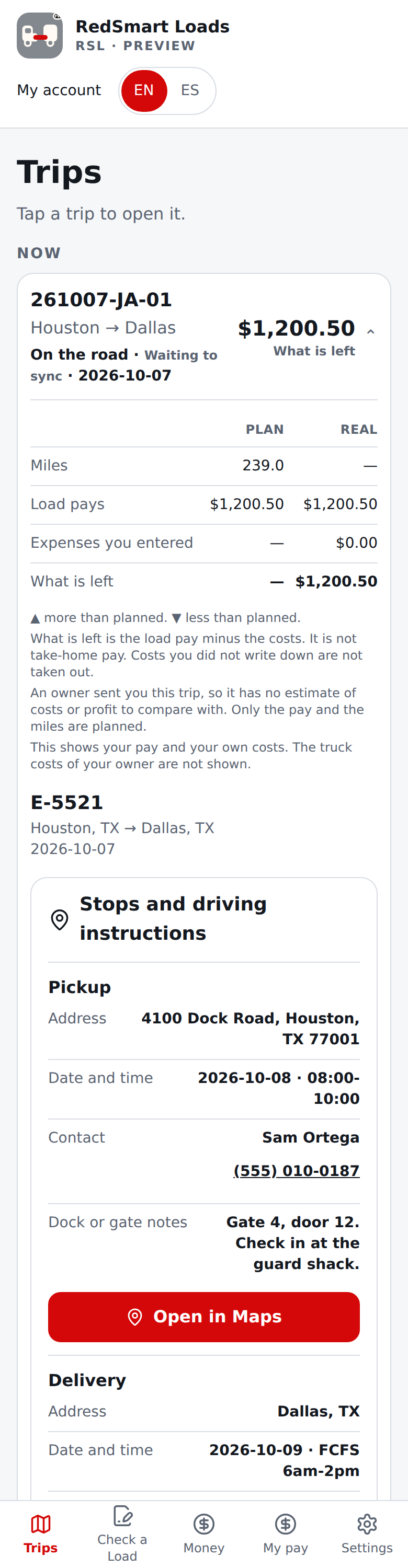
The Send to a driver and Trips you sent screens above use stand-in answers (see the screenshot provenance), because the capture environment has no account server.
The All trips screens use stand-in answers (see the screenshot provenance), because the capture environment has no account server.
Without sync, your trucks, loads, trips and expenses are stored only on this device. The trial countdown is information only in this release; nothing stops working when it reaches zero.
Las cuentas están activadas en Preview desde la v0.30.0: RSL le pide iniciar sesión antes de mostrar la app. Donde un administrador deje las cuentas apagadas, nada de esto aparece y RSL funciona exactamente como se describe arriba.
¿Aún no tiene contraseña o la olvidó? Elija ¿Olvidaste tu contraseña? junto a Contraseña. Escriba su correo y elija Enviarme un código; RSL le envía un código de contraseña de 6 dígitos (responde igual tenga o no acceso ese correo). Escriba el código y una Contraseña nueva de al menos 12 caracteres, y elija Guardar contraseña y entrar. Queda con la sesión iniciada, y cualquier otro dispositivo con su sesión la cierra. Este código solo sirve para crear la contraseña: no funciona en la casilla del código de inicio de sesión, y un código de inicio de sesión no funciona aquí. Quien entraba con un código o con Google antes de v0.48.0 crea así su primera contraseña, o sigue usando un código o Google.
- Abra RSL. La página de inicio de sesión es igual a la de todas las apps de RedSmart (desde v0.48.0): el logotipo y el nombre de RedSmart Loads (y PREVIEW en Preview), Iniciar sesión y luego Correo electrónico y Contraseña. Escriba los dos y elija el botón rojo Iniciar sesión (en Preview puede aparecer encima una breve verificación de que usted es una persona). Mostrar le deja ver lo que escribió. Una contraseña incorrecta, un correo que aún no tiene contraseña y un correo sin acceso reciben el mismo mensaje («El correo y la contraseña no coinciden»), así que RSL nunca muestra quién tiene acceso; después de diez intentos en una hora, espere un rato. Debajo de o están las otras formas: Continuar con Google (donde se ofrece, con las mismas reglas: solo entra una dirección de Google que un administrador invitó, y Google debe confirmar que el correo está verificado), Continuar con Apple (desde v0.51.0, junto a Google en la misma fila, con las mismas reglas; una dirección de "Ocultar mi correo" de Apple no coincide con ninguna invitación, así que use la dirección con la que lo invitaron) y Enviarme un código, que envía al correo escrito en la casilla un código de 6 dígitos que sirve por 10 minutos. Solo pueden entrar las personas que un administrador invitó. Debajo de la tarjeta, English · Español cambia el idioma (su dispositivo recuerda la elección) y se muestra la versión. El idioma que usó en la página de inicio de sesión se conserva para los correos que RSL le envíe después, también si un administrador lo agregó antes de su primer inicio de sesión. Pedir un código dos veces a la vez envía un solo código. El enlace English/Español de la página «aún sin acceso» también funciona.
- Con un código: escríbalo y elija Iniciar sesión (Usar tu contraseña regresa). Llega a la página a la que iba, también si cambió el idioma en la página de inicio de sesión. Un código incorrecto o vencido da el mismo mensaje («no es correcto o venció»); puede intentar unas pocas veces y después pida uno nuevo.
- ¿Aún no tiene acceso? Elija Solicitar acceso al pie de la tarjeta, escriba su correo (el nombre es opcional) y envíe. Si en esa página también ve Escríbenos por correo, abre su propia aplicación de correo con una solicitud a medio escribir, por si prefiere escribirnos; RSL no envía nada por sí mismo. Un administrador revisa las solicitudes y le escribe cuando su acceso esté listo.
- Después de iniciar sesión, el encabezado muestra Mi cuenta (también la primera entrada de Ajustes). Si está en una prueba gratis también muestra los días que quedan; la prueba dura 14 días desde su primer inicio de sesión. Mi cuenta reúne solo quién es usted y qué paga, en cuatro secciones, siempre en este orden. Su perfil muestra con qué correo inició sesión, tiene Su nombre (un cuadro y Guardar nombre: las demás personas ven este nombre en lugar de su correo, así que escriba el nombre que quiere que lean su dueño o sus conductores, de 1 a 60 caracteres, sin direcciones web ni enlaces (ninguno de
/ \ < > [ ] { } |:ni@(sin dos puntos), y ponga un espacio después de cada punto, como en «J. R. R. Tolkien», porque algo comoejemplo.comoAna.Cose toma por una dirección web; un nombre rechazado muestra «Use de 1 a 60 letras o números. Sin @, sin dos puntos, sin direcciones web (ponga un espacio después de un punto) y sin saltos de línea.»; RSL no verifica los nombres, y el correo de la invitación lo dice); si lo deja vacío, ven solo la primera parte de su correo, con los puntos mostrados como espacios (maria.lopez@… se muestra como «maria lopez»), nunca lo que va después de la @, y una palabra simple cuando esa parte no dice nada de usted, como una sola letra, números o un buzón compartido como «info»; solo usted puede cambiarlo y se borra con su cuenta) y tiene Cerrar sesión (y Solicitudes de acceso para un administrador). Plan y facturación muestra su acceso y cuándo termina (o «Aún sin acceso» o «Terminó» si no tiene; Solicitar acceso sigue abierto para usted), la tarjeta del punto 6 cuando su acceso terminó y, para un dueño donde los equipos están activados, la facturación del punto 10 (a un conductor se le dice que el plan es de su dueño). Los datos de su cuenta tiene Descargar los datos de mi cuenta (un archivo JSON simple que puede abrir en cualquier editor de texto, con su cuenta, su acceso y sus inicios de sesión, y los viajes, cargas guardadas y perfil del camión sincronizados con su cuenta, mientras que lo que nunca se sincronizó se queda en su dispositivo; una cuenta guarda hasta 5,000 viajes sincronizados, y un viaje que borre se recuerda 90 días para que no vuelva desde otro dispositivo). Eliminar mi cuenta va al final: escriba su propio correo para confirmar y RSL borra para siempre su cuenta, sus registros de acceso y sus inicios de sesión de sus servidores, y cierra su sesión. Ambas funcionan aunque su acceso haya terminado, y quien aún no tiene acceso las encuentra en la página que se le muestra. Solo guardamos una marca irreversible de que su correo ya tuvo una prueba gratis, para que no se pueda reiniciar borrando la cuenta y volviendo a unirse. Los registros que sincronizó (vea el paso 5) van en el archivo y se borran con su cuenta; los que nunca salieron de su dispositivo no van en ninguno de los dos y eliminar su cuenta no los toca, así que use Copia de seguridad y restauración en Ajustes para guardarlos. El equipo, el idioma, la sincronización, la copia de seguridad y la ayuda están en Ajustes, al que Mi cuenta enlaza bajo su título.
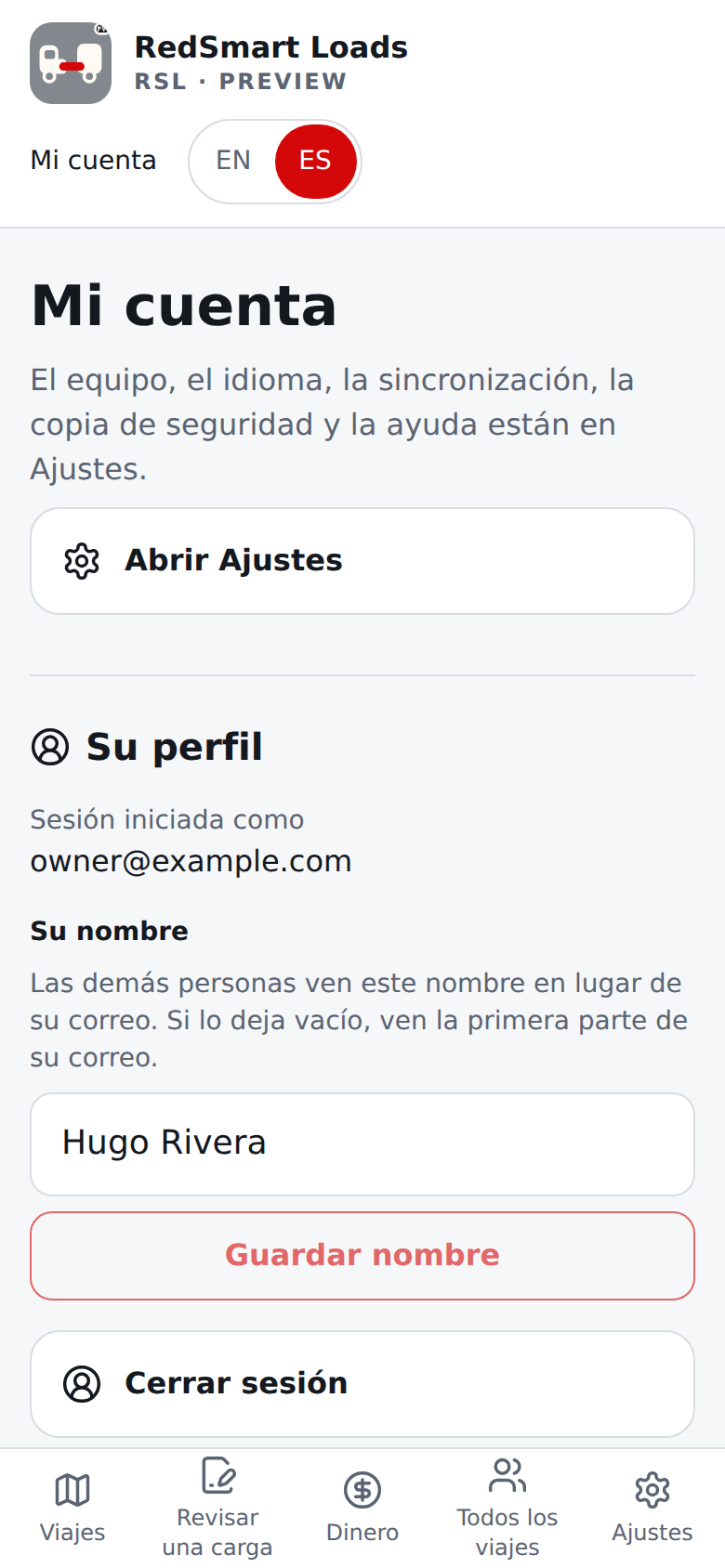
- Sincronización, solo cuando un administrador la ha activado (si no, nada de esto aparece). Ajustes muestra entonces el estado de Sincronización con sus botones, y el encabezado muestra La sincronización te necesita (abre esa sección) cuando quiere una decisión. Tus viajes, cargas guardadas y perfil del camión se guardan primero en este dispositivo y se copian a tu cuenta, para que puedas abrirlos en otro dispositivo; todo sigue funcionando sin conexión y RSL sincroniza de nuevo cuando vuelves a tener conexión. La primera vez, si este dispositivo tiene registros que aún no están en tu cuenta, RSL pregunta ¿Subir lo que hay en este dispositivo?, muestra las cantidades y no sube nada hasta que elijas Subir estos (la lista incluye los registros que ya están en tu cuenta pero difieren de la copia de este dispositivo, porque subirlos reemplazaría la copia de la cuenta); tu copia en este dispositivo se conserva en cualquier caso (borrar un registro que RSL leyó de tu cuenta es lo único que se envía antes de que respondas, porque es tu propio borrado de tu propio registro). Si otra persona inicia sesión en el mismo navegador, RSL empieza de nuevo para esa cuenta y vuelve a preguntar, y nunca sube los registros de este dispositivo a otra cuenta sin preguntar (eliminar tu cuenta también borra el registro de sincronización de este dispositivo, así que una cuenta nueva con el mismo correo empieza de cero). Si tu cuenta está llena, los registros que no cupieron se intentan de nuevo en las siguientes sincronizaciones, por si se libera espacio en otro dispositivo. Cada viaje en Viajes, y cada carga guardada, lleva una etiqueta pequeña: Esperando sincronizar, Sincronizado o Necesita tu decisión. Si el mismo viaje se cambió en este dispositivo y en otro, no se sobrescribe nada: Sincronización muestra ambas versiones (si la copia de tu cuenta está dañada y no se puede leer, lo dice y ofrece solo la de este dispositivo) y eliges Conservar el de este dispositivo, Usar el de mi cuenta o Conservar ambos (la otra versión queda como un viaje aparte). Si ambas versiones son viajes activos, Conservar ambos no se ofrece (solo hay un viaje activo a la vez), y un viaje iniciado en otro dispositivo espera en Sincronización hasta que entregues tu viaje actual (y sigue esperando si inicias otro viaje activo en una segunda pestaña justo en ese momento), y Conservar ambos vuelve a ofrecerse cuando hayas entregado el tuyo. Si eliges mientras se sincroniza, RSL termina primero esa sincronización y luego aplica tu elección. Si la copia de tu cuenta de un viaje que espera tu decisión se borra mientras este dispositivo está mucho tiempo sin conexión, la decisión sigue pendiente y muestra el lado de la cuenta como borrado (esto incluye una decisión surgida en la primera sincronización de un dispositivo, incluso una frente a un borrado). Una sincronización que estaba en curso cuando otra persona inició sesión simplemente se detiene, así que nada de lo que leyó para la primera persona se muestra a la segunda. Un viaje cambiado en dos lugares aparece en Sincronización como decisión solo cuando RSL ha leído la copia de la cuenta (hasta entonces solo figura como en espera; si resulta que la cuenta lo borró, aparece entonces con el lado de la cuenta como borrado), así que nunca se elige a ciegas. Una decisión también desaparece sola si la copia de la cuenta pasa a ser idéntica a la de este dispositivo, o si ambas se borran; lo mismo ocurre si editas la copia de este dispositivo para que sea idéntica a la de la cuenta, o la borras cuando la de la cuenta ya está borrada. Si eliges justo cuando el mismo viaje se edita en otra pestaña (o otra pestaña inicia un viaje activo que tu elección dejaría a su lado), RSL no aplica la elección: la decisión sigue pendiente y muestra la nueva edición. Esto también vale con RSL abierto en dos pestañas: solo una pestaña sincroniza a la vez, y antes de cada sincronización RSL comprueba quién tiene la sesión, así que iniciar sesión como otra persona en otra pestaña nunca envía los registros de este dispositivo a la cuenta equivocada, y una opción que toques en Sincronización se comprueba igual (si para entonces hay otra persona con sesión, o RSL no puede saberlo porque no tienes conexión, no se aplica nada y puedes elegir de nuevo); si el inicio de sesión cambia en medio de una sincronización, el servidor la rechaza y RSL lo intenta de nuevo para la persona correcta. Ajustes también sigue el cambio cuando vuelves a ellos, y mientras tanto su sección Sincronización solo dice que está revisando, para que nunca se dé un sí por la persona equivocada; si cierras sesión en otra pestaña, Mi cuenta te lleva a iniciar sesión. Si tu cuenta rechazó un registro que solo estaba en este dispositivo (por ejemplo porque la cuenta estaba llena) y luego lo borras, o lo cambias por otra cosa, el aviso de que no se pudo sincronizar desaparece. Un viaje que creas y luego borras antes de que RSL sepa que llegó se queda borrado. La versión que se muestra de este dispositivo es siempre el viaje tal como está ahora, incluido cualquier cambio posterior a la aparición del conflicto. Las cargas guardadas y el perfil del camión no preguntan: gana el último cambio. Borrar datos en Ajustes borra solo este dispositivo y no elimina nada de tu cuenta (también detiene cualquier sincronización en curso en otra pestaña de este navegador); los registros vuelven la próxima vez que RSL sincronice. Borrar un viaje lo quita en todas partes (si se borra en tu cuenta y en este dispositivo al mismo tiempo, simplemente desaparece: nada que decidir). Si el mismo viaje, carga guardada o perfil del camión está en este dispositivo y en tu cuenta con contenido idéntico (por ejemplo restaurado desde la misma copia), RSL lo da por sincronizado: nada que decidir y nada que subir (esto incluye un registro que guardas idéntico en una segunda pestaña justo en el momento de leerlo). La primera vez que un dispositivo sincroniza tras una actualización que aún no registraba el reloj del servidor, RSL lo lee todo una vez para asegurarse de no haber perdido ningún borrado. Cada sincronización primero lee lo que cambió en tu cuenta y solo después envía lo que cambiaste, así que una edición antigua nunca cae sobre un viaje que se borró y se creó de nuevo mientras tanto (se te pregunta, y la edición antigua espera hasta que decidas). Si creaste un viaje en un dispositivo y la conexión se cortó antes de que RSL supiera que había llegado, y el dispositivo luego permanece ausente más de 90 días, RSL no vuelve a enviar ese viaje por sí solo (puede haberse borrado desde otro dispositivo mientras tanto): lo muestra en Sincronización para que decidas cuando RSL termine de leer tu cuenta (hasta entonces solo figura como en espera; si lo borraste tú mismo mientras tanto y la cuenta tampoco tiene nada, simplemente desaparece). Si un dispositivo ha estado ausente más de 90 días, RSL lo lee todo de nuevo en su próxima sincronización, antes de enviar ningún cambio de ese dispositivo (incluido un viaje que restauraste desde una copia), y quita los registros que se borraron en tu cuenta mientras tanto y toma la copia actual de tu cuenta de un registro que se borró y se volvió a crear (lo que cambiaste en ese dispositivo mientras tanto se conserva para que decidas, y un viaje que restauras desde una copia nunca sobrescribe otro viaje distinto que se haya creado de nuevo con el mismo id mientras tanto).
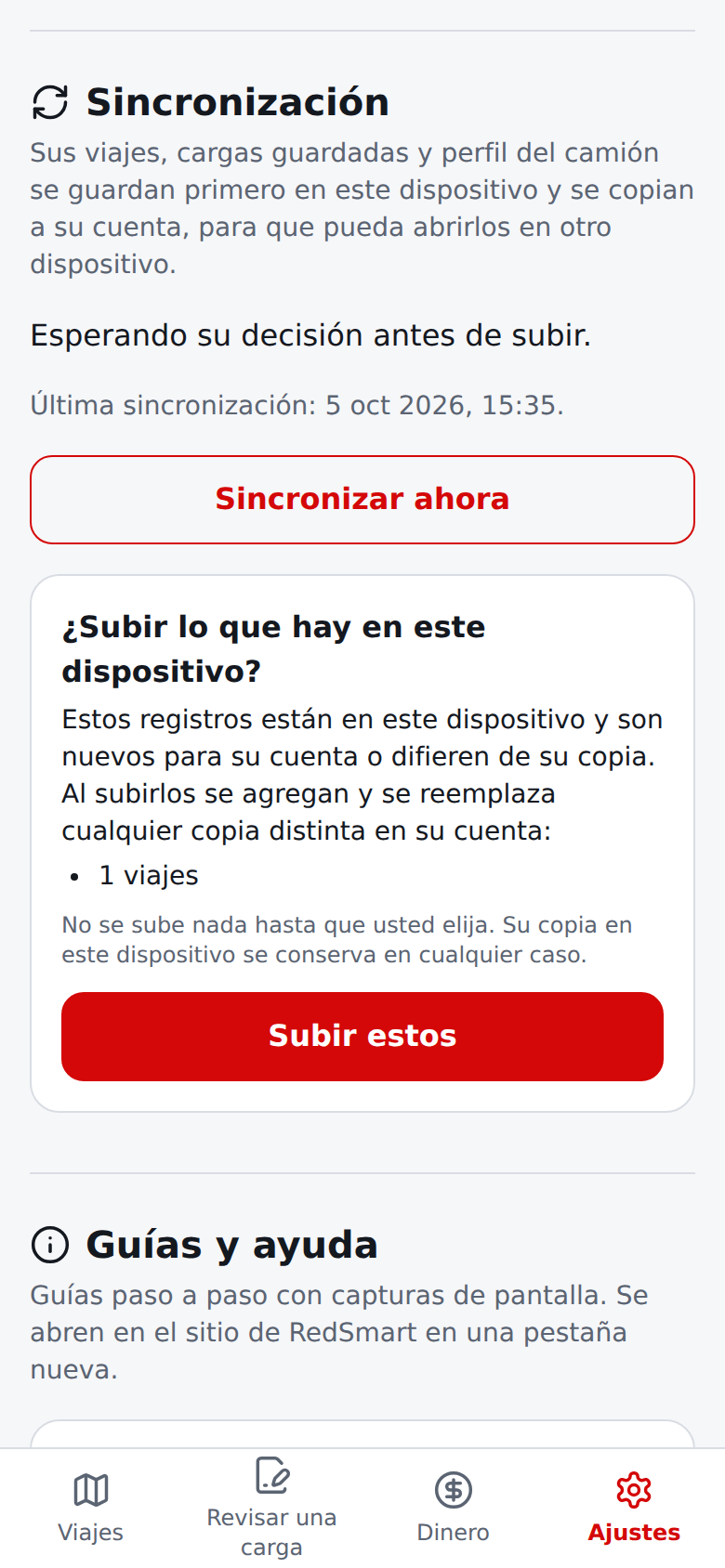
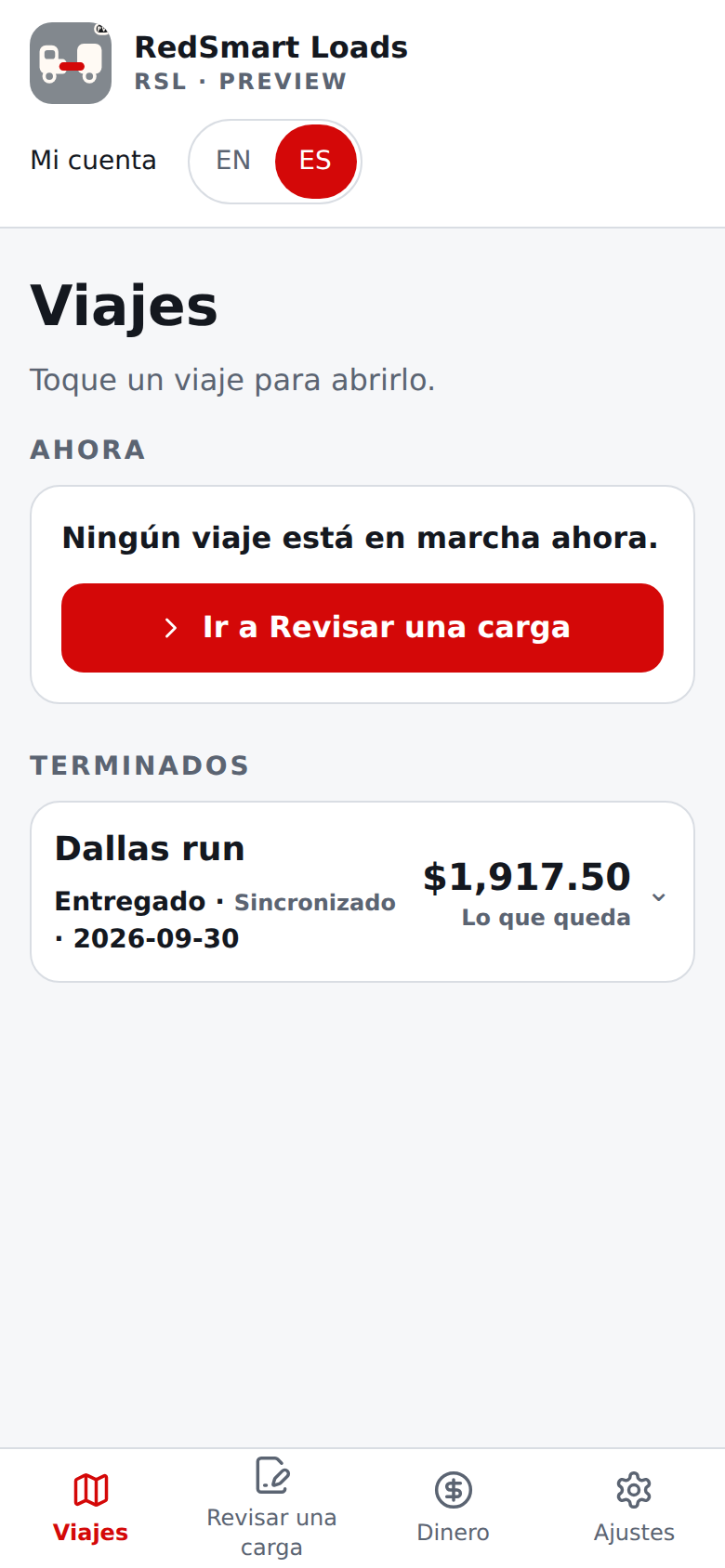
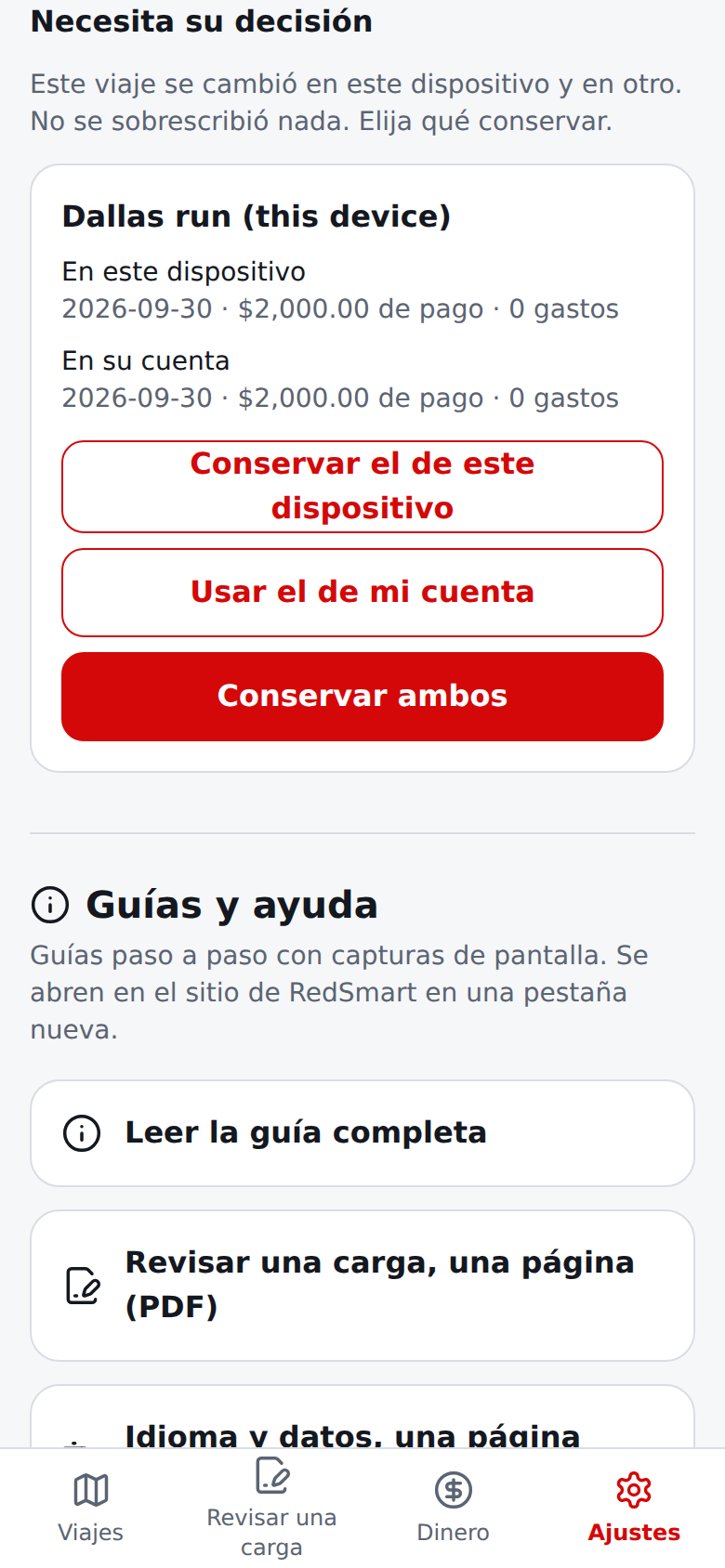
- Cuando un administrador termina la prueba gratis. Está apagado por defecto y nada de esto se aplica hasta que se encienda. Si tu acceso termina, el encabezado muestra Acceso terminado y Revisar una carga (y Mi cuenta) muestra una tarjeta que dice qué está en pausa y qué no: todavía puedes iniciar sesión, abrir la app, descargar todos tus registros (Descargar los datos de mi cuenta), terminar una carga que ya empezaste (también sin conexión, Abrir mi viaje), ver toda la información de seguridad y de licencia, y eliminar tu cuenta. Las nuevas revisiones (incluido guardar una y empezar o poner en cola un viaje desde ella), empezar una carga que ya estaba en cola, las nuevas sugerencias de lugares, verificaciones de direcciones, millas de ruta y la sincronización se detienen hasta que se extienda tu acceso o te suscribas (la sección Sincronización y el aviso La sincronización te necesita se ocultan mientras tanto); lo que habías escrito se queda en tu borrador. Avísame cuando se abran las suscripciones registra que quieres un correo. Con conexión, RSL vuelve a comprobar tu acceso cada 15 minutos (y cuando la abres o regresas a ella), y lo que recuerda pertenece a la cuenta con la que iniciaste sesión. Sin conexión, RSL sigue funcionando hasta siete días desde la última vez que pudo comprobar tu acceso (nunca más allá de la fecha de fin de tu acceso); después se comporta como si tu acceso hubiera terminado hasta que pueda comprobarlo de nuevo, pero un viaje que ya empezaste nunca se te quita. Recibes un correo tres días antes, uno un día antes y uno cuando tu acceso ya terminó (las mismas palabras si era una prueba gratis o una concesión con fecha de fin, y un solo correo por cada una, aunque te hayan dado acceso dos veces), con un enlace a Mi cuenta; si pediste que te avisen cuando se abran las suscripciones, eso también está en la descarga de tu cuenta. Tus registros nunca se retienen.
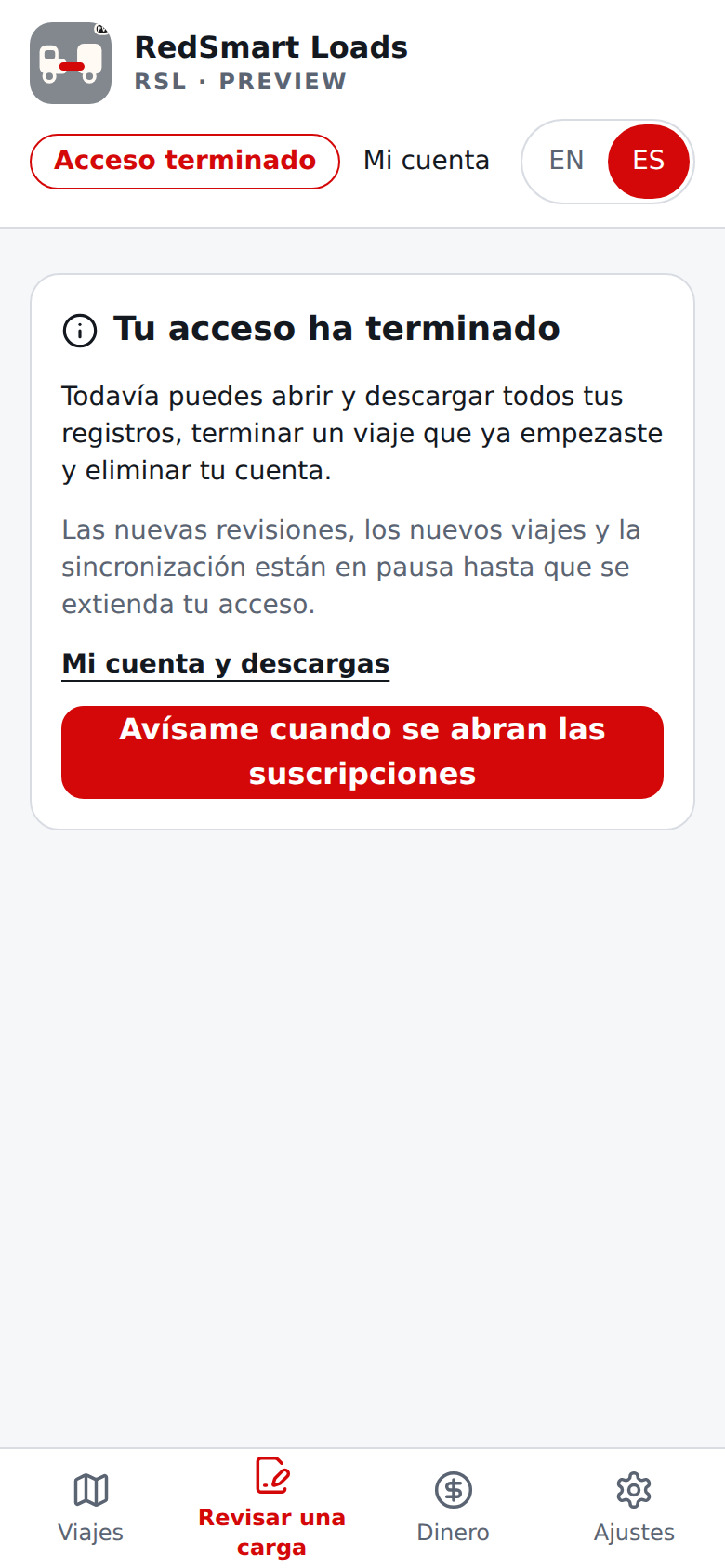
- Equipo (dueños y conductores), solo cuando un administrador lo ha activado para un piloto (si no, nada de esto aparece, y no está en producción). Como dueño, Ajustes empieza con una sección Equipo (quien todavía no tiene conductores ve una sola entrada clara, Agregar un conductor, que abre el formulario): escriba el correo del conductor, su nombre si quiere (Nombre del conductor (opcional): usted lo ve en lugar de su correo hasta que él ponga su propio nombre, y entonces se muestra el suyo) y sus 2 o 3 letras para los números de viaje (como JM), elija el Idioma de la invitación (English o Español; empieza en el idioma que usted está usando ahora) y elija Enviar invitación. El conductor recibe el correo, y luego la página para entrar y el correo con el código para entrar, en ese idioma, con un enlace que sirve por 7 días; el conductor puede cambiar su propio idioma después en sus propios Ajustes, y los correos que reciba desde entonces siguen su elección. Debajo verá Sus conductores (por nombre, nunca por correo, con sus letras; un conductor sin un nombre útil aparece con sus letras, como Conductor JA; Quitar conductor pregunta primero), Invitaciones esperando (el correo y el nombre que usted escribió, para ver a quién invitó, con Cancelar invitación; una invitación terminada aparece como Vencida o Dijo que no) y las letras de conductores que se fueron, que nunca se vuelven a dar. Bajo el equipo, Todos los viajes y Acuerdos abren las otras pantallas del dueño (secciones siguientes). Cada conductor ve solo sus propios viajes; no ve sus costos, su parte ni a otros conductores. Como conductor, abra el enlace del correo e inicie sesión con el correo invitado; la página nombra al dueño (por nombre, nunca por su correo: si no puso un nombre muestra la primera parte de su correo, o dice «este dueño» cuando esa parte no dice nada) y sus letras, y dice qué significa aceptar: desde ahora el dueño puede ver sus viajes, gastos y millas del tablero, los viajes que hizo antes de unirse siguen siendo suyos y no se comparten, usted ve solo los suyos, y la sincronización siempre está activada y no se puede apagar. Marque Entiendo. Los viajes que hice antes de unirme siguen siendo míos. Los viajes que haga desde ahora se comparten con el dueño, y esa persona los conserva si yo me voy. (Aceptar queda apagado hasta entonces) y elija Aceptar, o elija No, gracias. Su teléfono pregunta al servidor quién es usted antes de cada sincronización, así que un cambio hecho en otro teléfono se nota antes de enviar nada, y los viajes que hizo mientras manejaba y que su teléfono no pudo enviar a tiempo (por ejemplo, si estuvo sin conexión todo el tiempo) se envían al dueño cuando vuelva la conexión, aunque ya haya dejado de manejar. Descargar los datos de mi cuenta incluye todo lo que usted tiene en el servidor, también los viajes que hizo antes de unirse; los viajes que hizo como conductor pertenecen al dueño y aparecen en su descarga solo mientras siga manejando para él (su propio teléfono conserva su copia). La página no muestra el menú de la app, solo el cambio de idioma y Cerrar sesión, porque usted no tiene acceso hasta aceptar. Si ya tiene su propia cuenta, queda en pausa mientras maneja para el dueño (los viajes que hizo antes de unirse siguen siendo suyos, no se comparten y su teléfono no los envía mientras maneja; la página ofrece descargar sus registros primero); la recupera si deja de manejar, y entonces esos viajes se sincronizan de nuevo con su propia cuenta, mientras que los viajes que hizo como conductor se quedan con el dueño y solo en su teléfono. Después, la sección Equipo de Ajustes muestra Usted maneja para el nombre del dueño (o «su dueño»), sus letras, Mi pago, Ver su acuerdo y Dejar de manejar (pregunta primero), y el formulario para borrar la cuenta en Mi cuenta se reemplaza por una nota para dejar de manejar primero. Un enlace vencido, cancelado o ya usado lo dice. Un dueño que tiene conductores, o una persona que paga su propio plan, no puede unirse a otro equipo. Los estados de cuenta por período no están en esta versión.
Su nombre, una sola vez. La primera vez que invite a un conductor, el formulario de invitación también pregunta ¿Cuál es su nombre? Escriba el nombre que quiere que lean sus conductores. Lo hace una sola vez. Después puede cambiarlo en Mi cuenta.
Un conductor que todavía no tiene nombre recibe la misma pregunta en la página de la invitación, antes de que Aceptar funcione. Rechazar nunca pide un nombre.
El nombre es el que usted escribe. Nunca se toma de su inicio de sesión con Google, y sigue las mismas reglas que Su nombre en Mi cuenta. Una persona que ya tiene nombre nunca ve la pregunta.
Si usted entró antes de este paso y no ha escrito un nombre, las demás personas siguen viendo la primera parte de su correo, o una palabra sencilla como "su dueño" o Conductor JA, hasta que lo escriba.
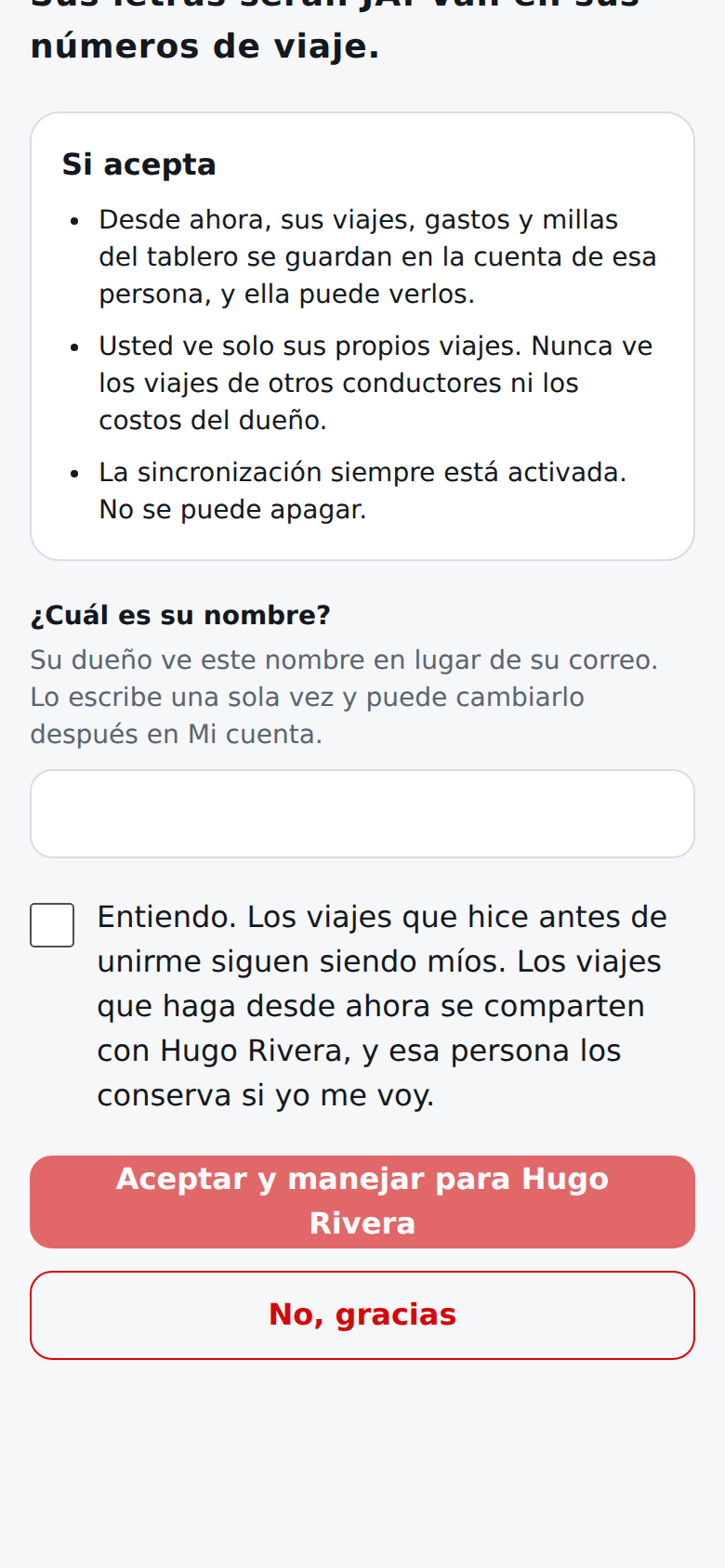
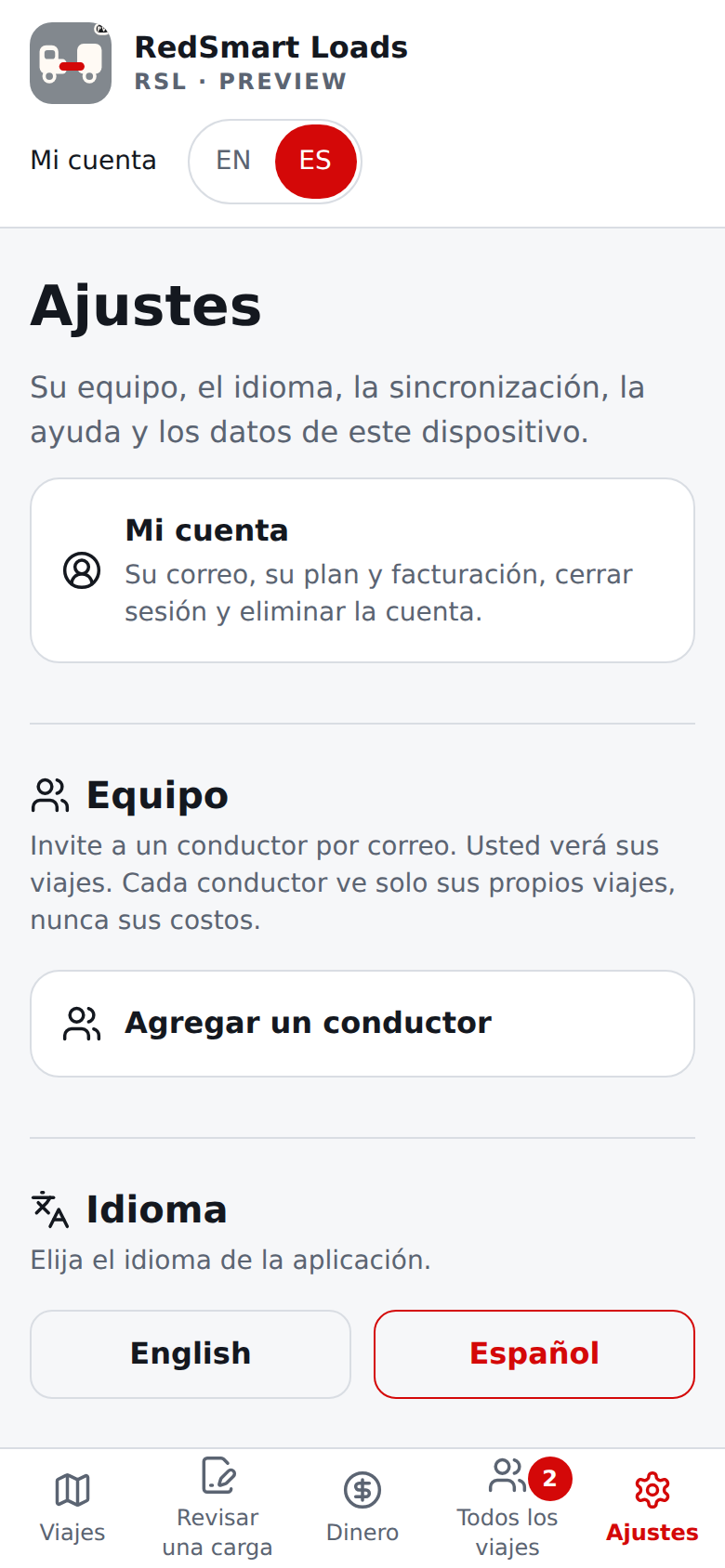
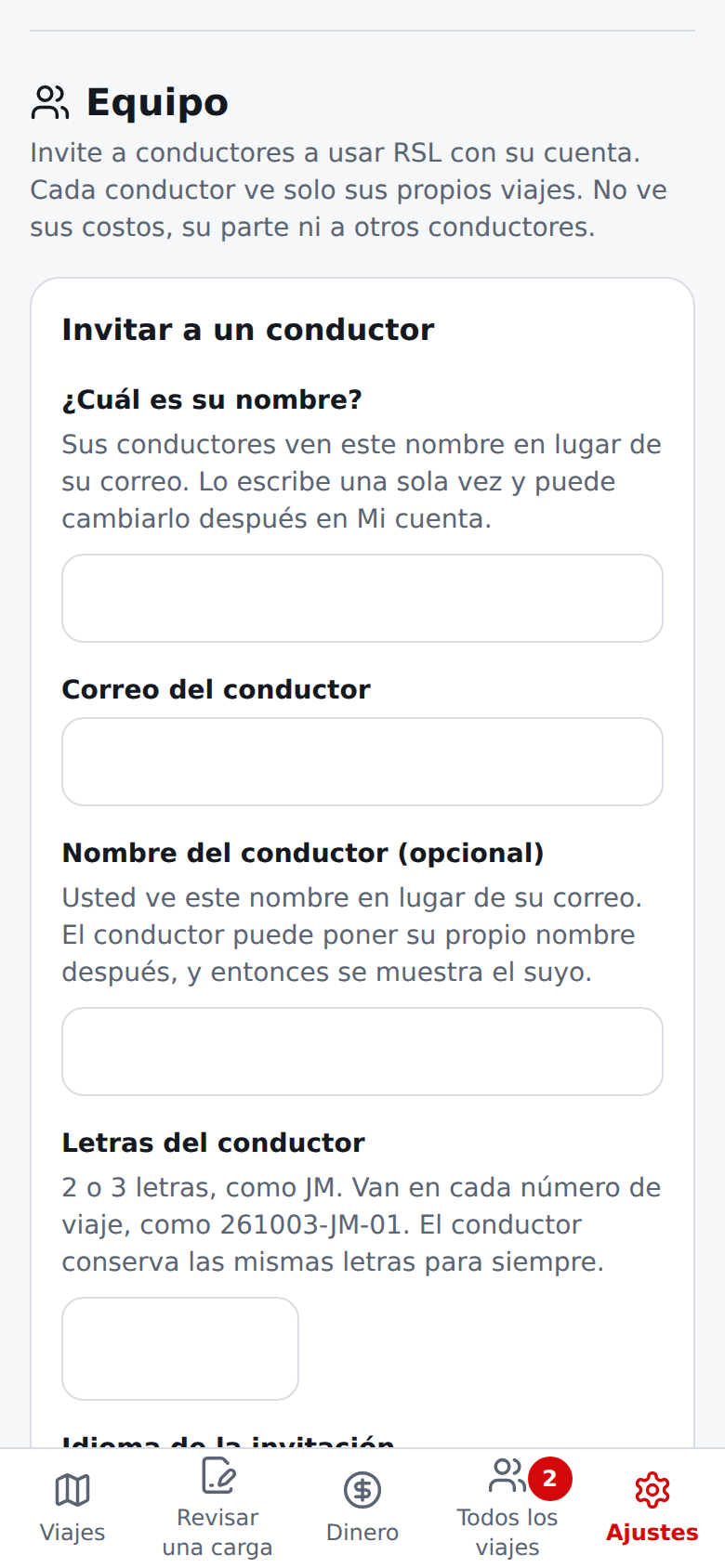
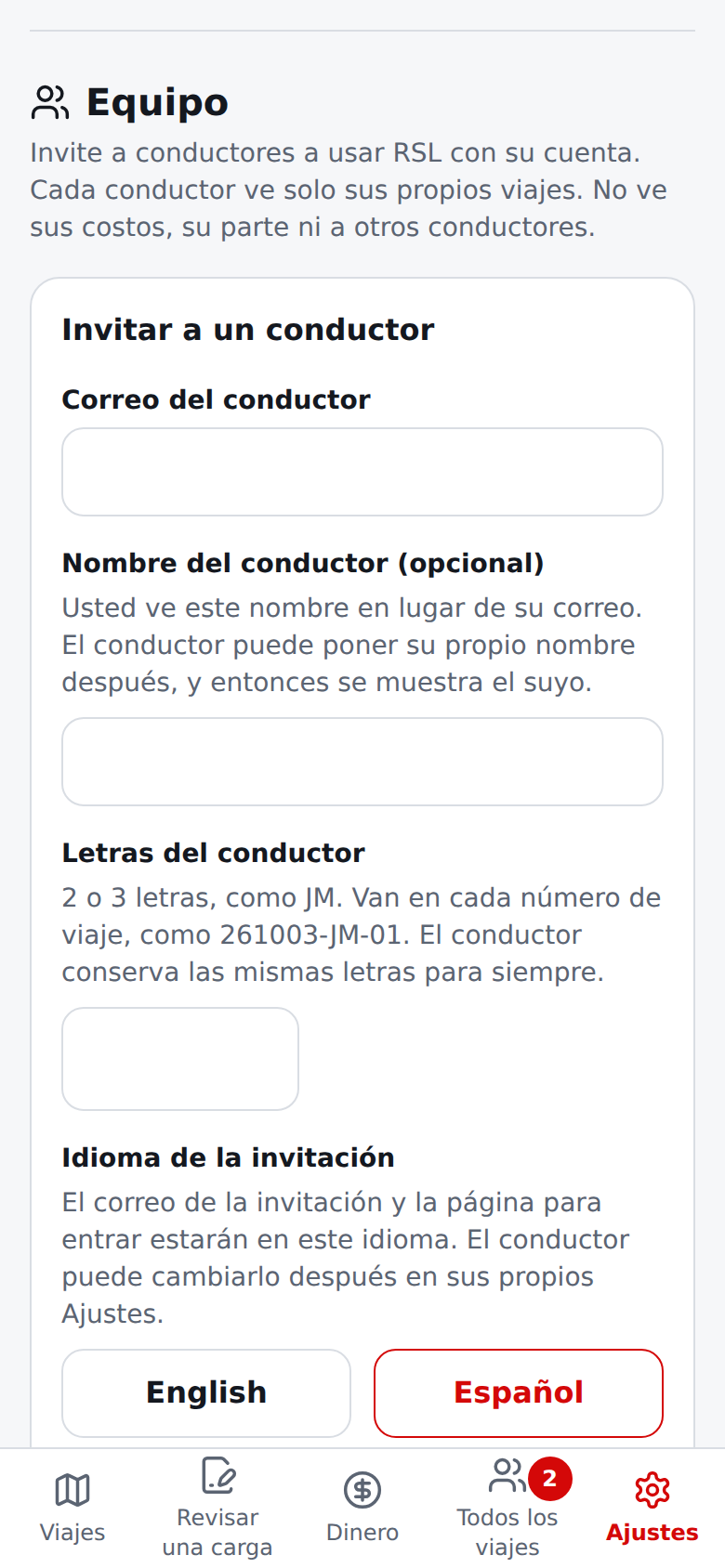
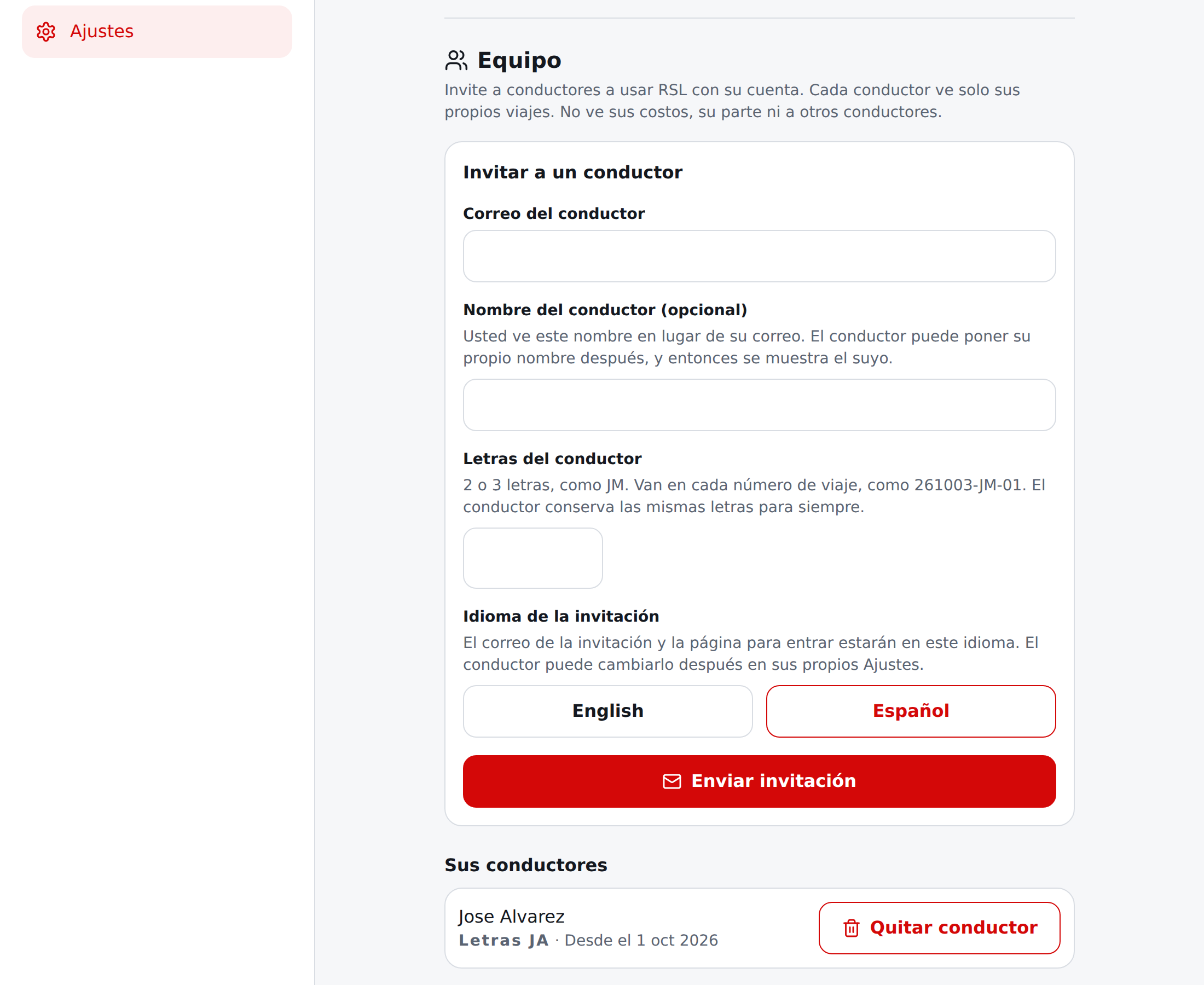
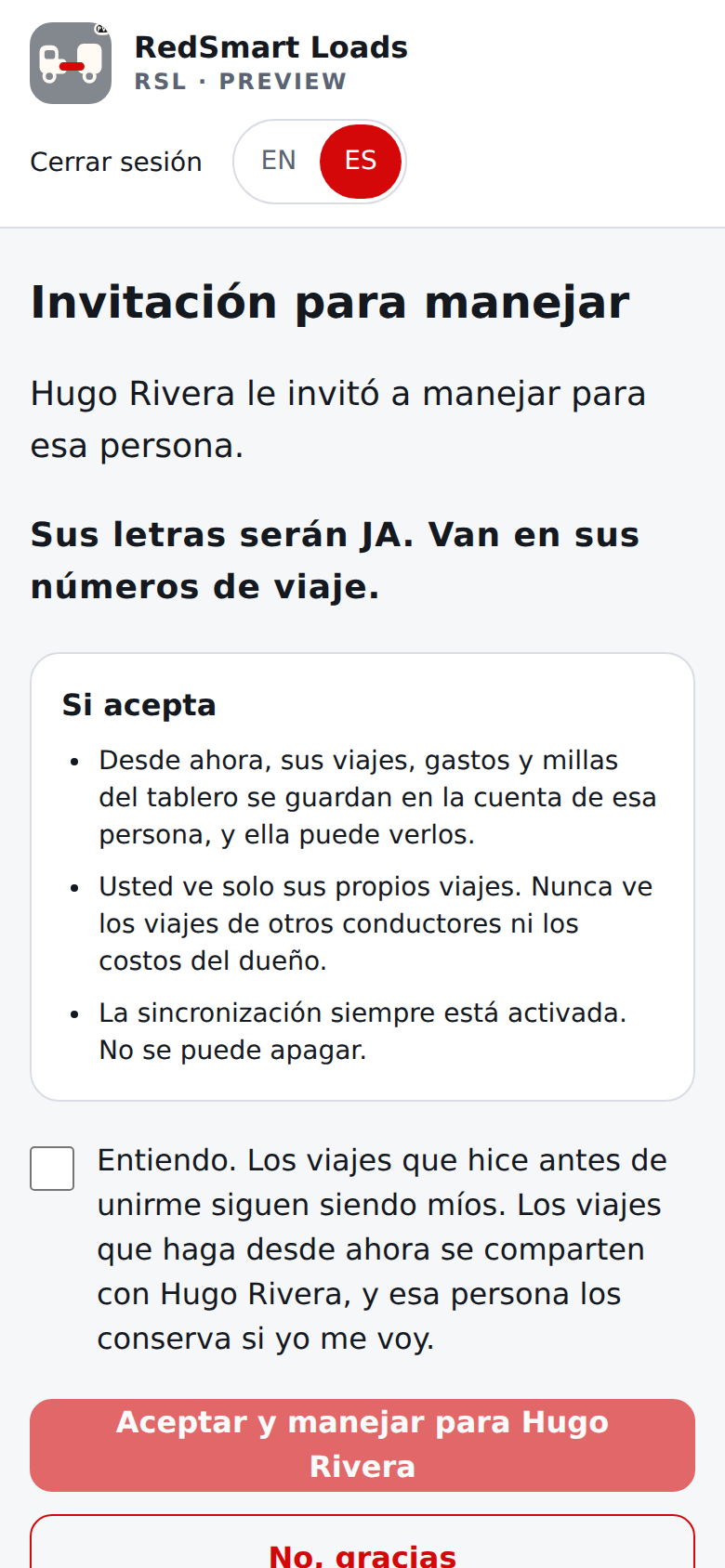
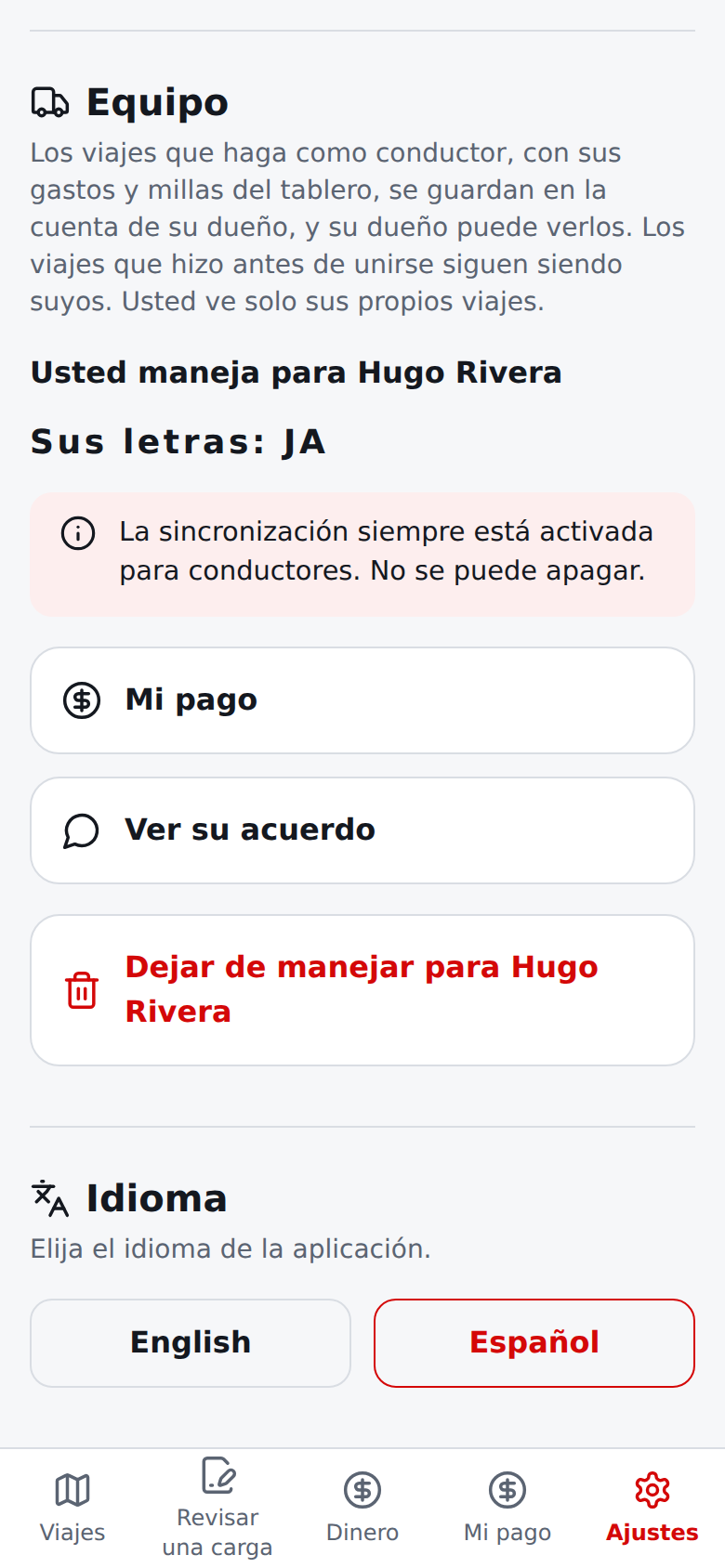
Las pantallas de Equipo usan respuestas de ejemplo (vea el origen de las capturas), porque el entorno de captura no tiene servidor de cuentas.
- Todos los viajes (dueños), solo donde Equipo está activado. Un dueño ve Todos los viajes en la navegación (un conductor no). Viajes muestra todos los viajes de todos los conductores de la cuenta: una tabla en pantalla ancha (número de viaje, conductor, ruta, Ahora, Siguientes o Terminados, pago de la carga, lo que queda) y una tarjeta por viaje en el teléfono. Elija un conductor, Ahora, Siguientes o Terminados, o los días entre los que empezó el viaje, y elija Ver más viajes si la lista es larga. Elija un viaje para ver sus detalles junto a la lista: Plan (el cálculo hecho al empezar el viaje) junto a Real (millas del odómetro, gastos anotados y la reserva de mantenimiento por las millas recorridas), con cada diferencia escrita como "más" o "menos" con una flecha, y los gastos anotados. Si ningún acuerdo valía para el viaje, no se muestra el pago del conductor; si lo había, el viaje muestra también lo que hace el acuerdo (punto 9). Por conductor y Por camión suman viajes, pago de las cargas entregadas, gastos, lo que queda y millas recorridas. Aquí un camión es el que guardó la persona que hizo el viaje, porque los viajes todavía no dicen qué camión se usó. Lo que queda no es ganancia: los costos que nadie anotó no se restan.
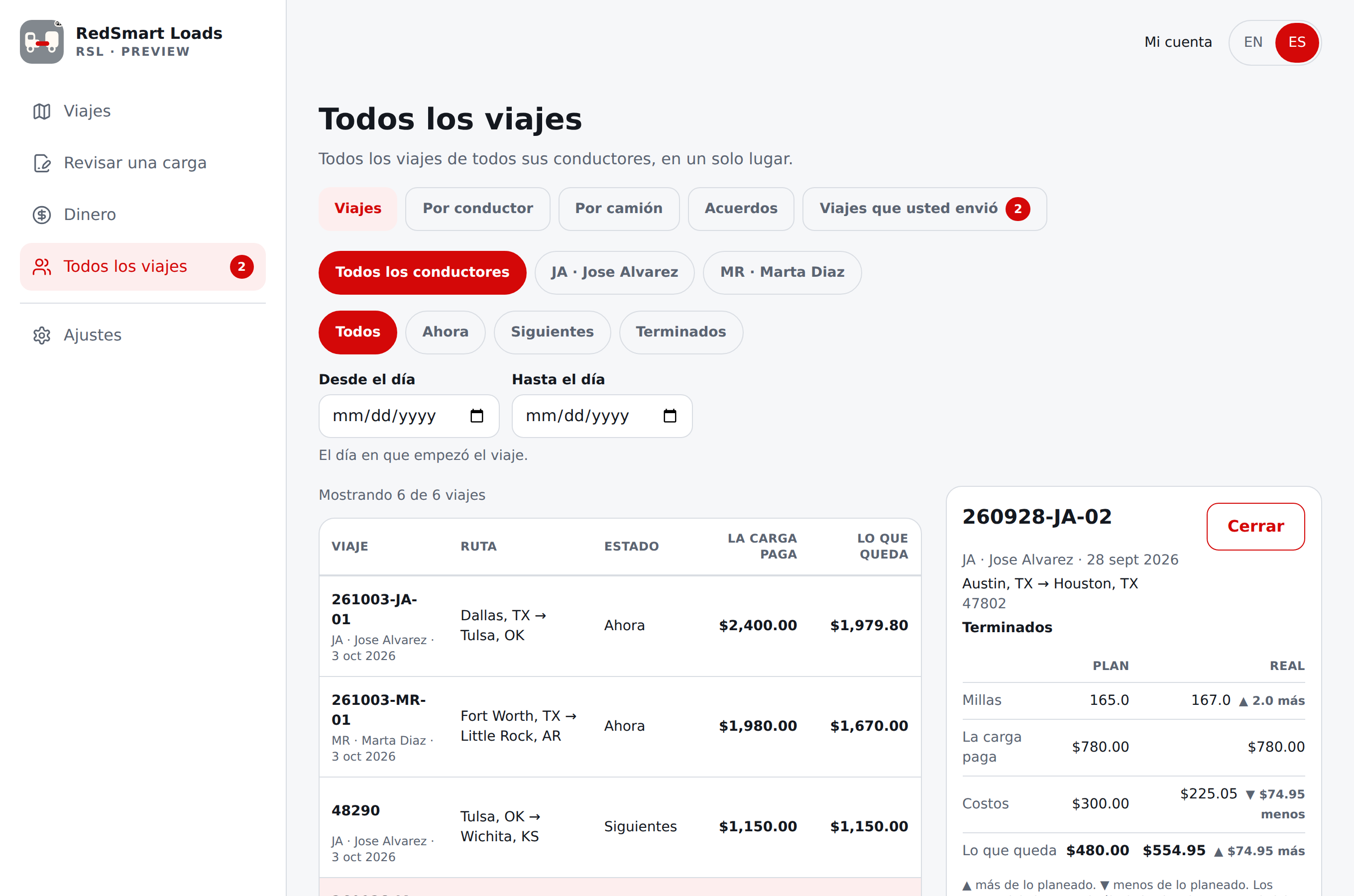
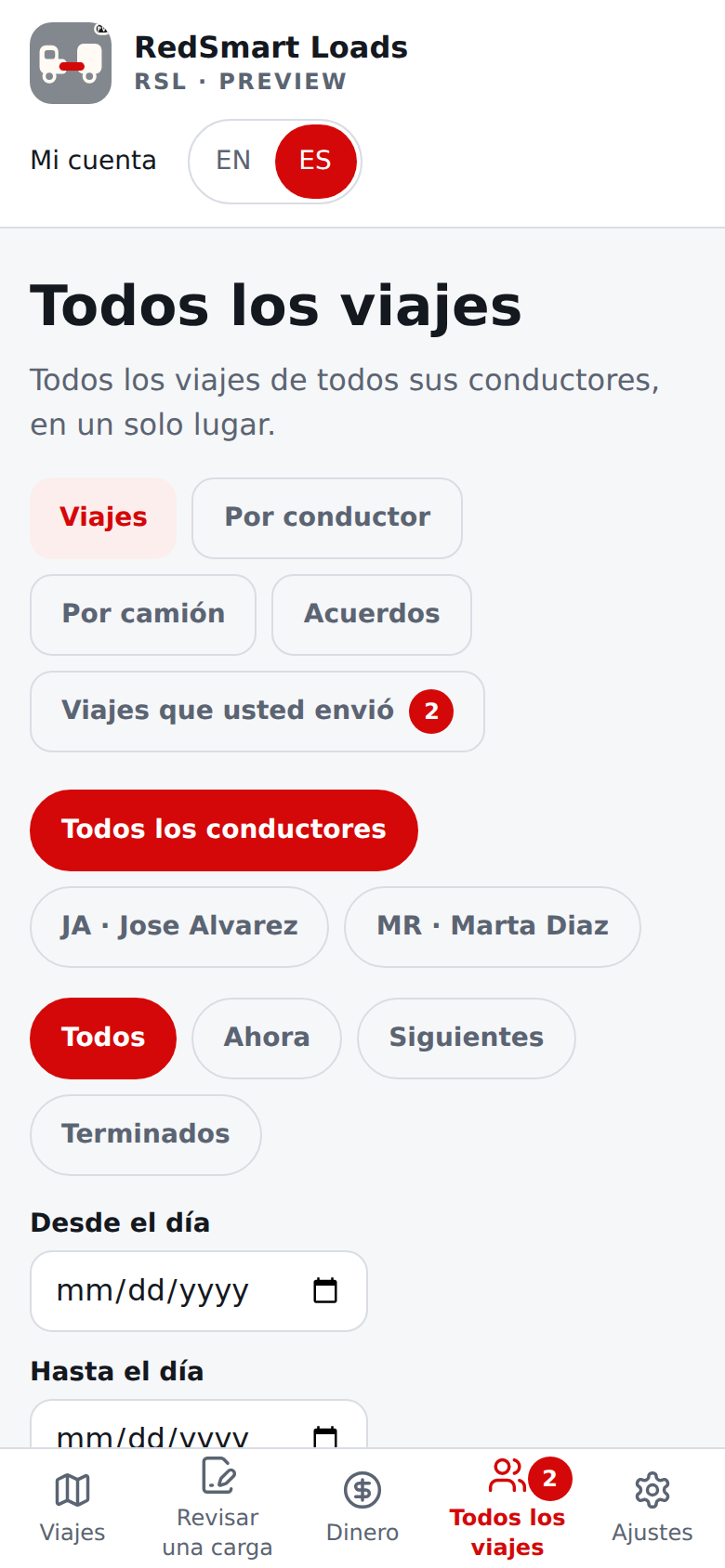
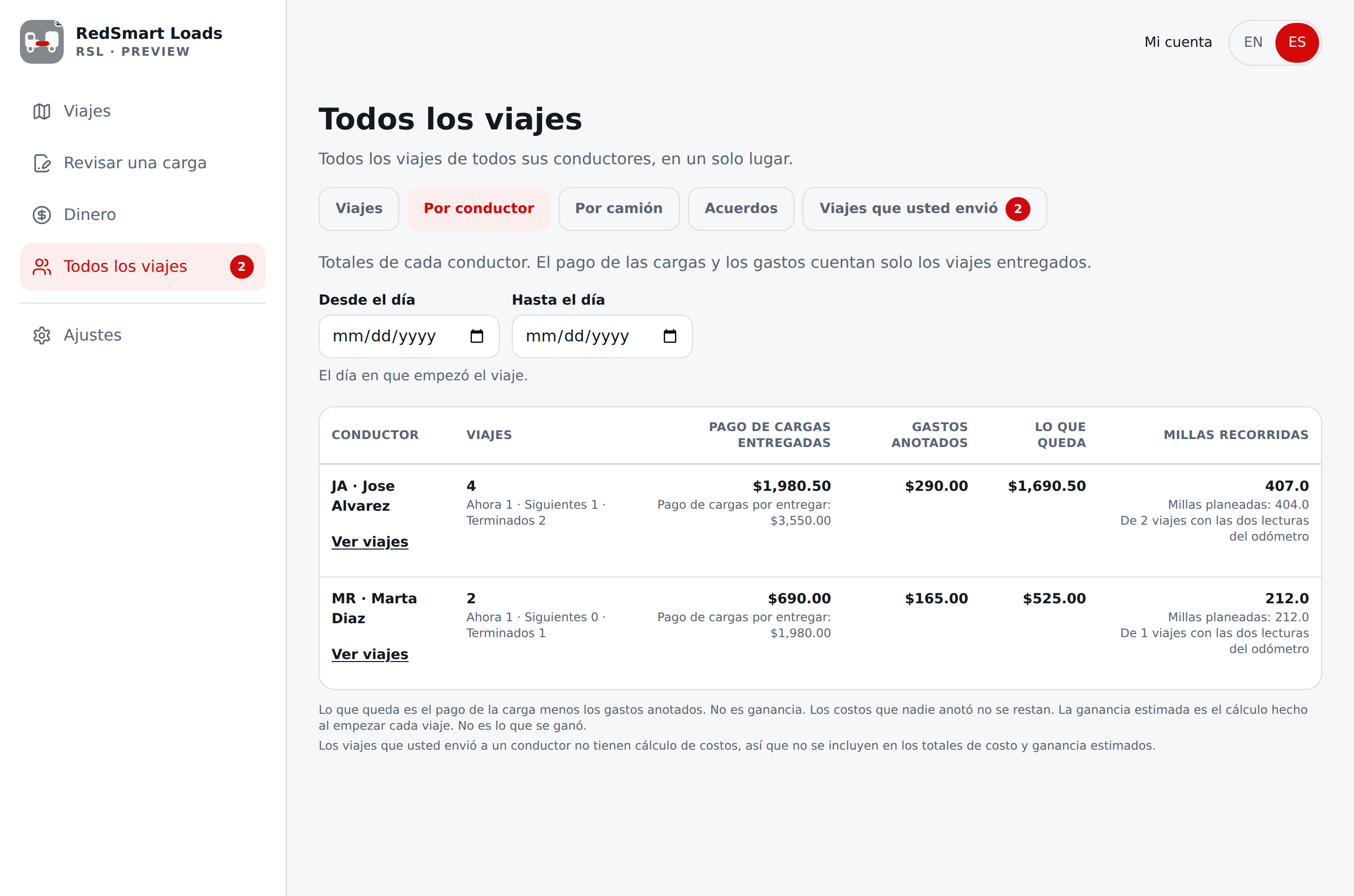
- Acuerdos y Mi pago, solo donde Equipo está activado. Un acuerdo dice cómo se le paga a un conductor y quién paga cada costo. El conductor debe aceptarlo, y cuando los dos estén de acuerdo no cambia: para cambiarlo, envíe uno nuevo. Como dueño, abra Todos los viajes y elija Acuerdos, escoja un conductor y llene el formulario (empieza vacío): el pago del conductor como porcentaje de lo que paga la carga, el día en que empieza (y, si quiere, el día en que termina), los ahorros de reparaciones en dólares por cada milla, y para cada tipo de costo (combustible, peajes y básculas, reparaciones y mantenimiento, comidas y hospedaje, otros) quién lo paga normalmente, cómo (su tarjeta de combustible, el dinero del conductor, o primero los ahorros de reparaciones), la parte del conductor cuando usted paga y lo que usted devuelve cuando paga el conductor. El del pagador habitual es obligatorio; si deja el otro vacío, es 100 menos el primero. Junto al formulario, Qué hace esto en un viaje muestra los números en un viaje de ejemplo mientras escribe. Elija Enviar al conductor para que acepte; al conductor le llega un correo. Allí ve su respuesta (y su mensaje), puede Retirar una propuesta que espera, Terminar un acuerdo en vigor (pregunta antes) y abrir la copia para imprimir. Como conductor, un aviso dice Su dueño le envió un acuerdo. Ábralo. La pantalla tiene primero palabras simples y barras (cuánto paga de cada costo), un botón Escuchar todo que lo lee en voz alta cuando su teléfono puede, y los términos completos detrás de un toque. Elija Estoy de acuerdo (pregunta una vez más, porque un acuerdo aceptado no cambia), o Tengo una pregunta para Pedir un cambio o decir No, no estoy de acuerdo, con un mensaje corto si quiere. Hasta que acepte un acuerdo nuevo, sigue el anterior. Al anotar un gasto, ¿Quién pagó? le deja decir Mi dueño pagó (tarjeta) o Pagué de mi bolsillo; lo habitual es lo que dice el acuerdo. Mi pago muestra cada viaje: lo que pagó la carga, su porcentaje, su parte de los costos que pagó su dueño, lo que se puso en sus ahorros de reparaciones, lo que su dueño le devuelve, De su dueño, lo que usted pagó de su bolsillo (para sus registros, nunca se descuenta de su pago) y Sus ganancias reales, con el saldo de los ahorros de reparaciones y cada entrada y uso. Un viaje que empezó antes del acuerdo lo dice y no tiene números. Esto es un registro de los números acordados: no es nómina, ni un formulario de impuestos, ni asesoría legal, y RSL no paga a nadie. Nombres, no correos: elija a un conductor por sus letras y su nombre, y el conductor lee «Su dueño: <nombre>»; la copia para imprimir nombra al dueño y al conductor por su nombre (un conductor que se fue aparece como «Un conductor que ya no usa RSL» con sus letras), y los correos sobre un acuerdo nombran a la otra persona de la misma manera. Copia para imprimir: desde cualquiera de los dos lados, Abrir la copia para imprimir muestra una página simple con los términos exactos, quién aceptó y cuándo, con un botón Imprimir. El texto de los acuerdos y de esa línea es un texto del piloto que todavía no tiene su revisión legal. No está en esta versión: frenar los viajes nuevos hasta que se acepte un acuerdo, preguntar por una cifra, el estado de cuenta final cuando un conductor se va, y el micrófono en los campos de texto.
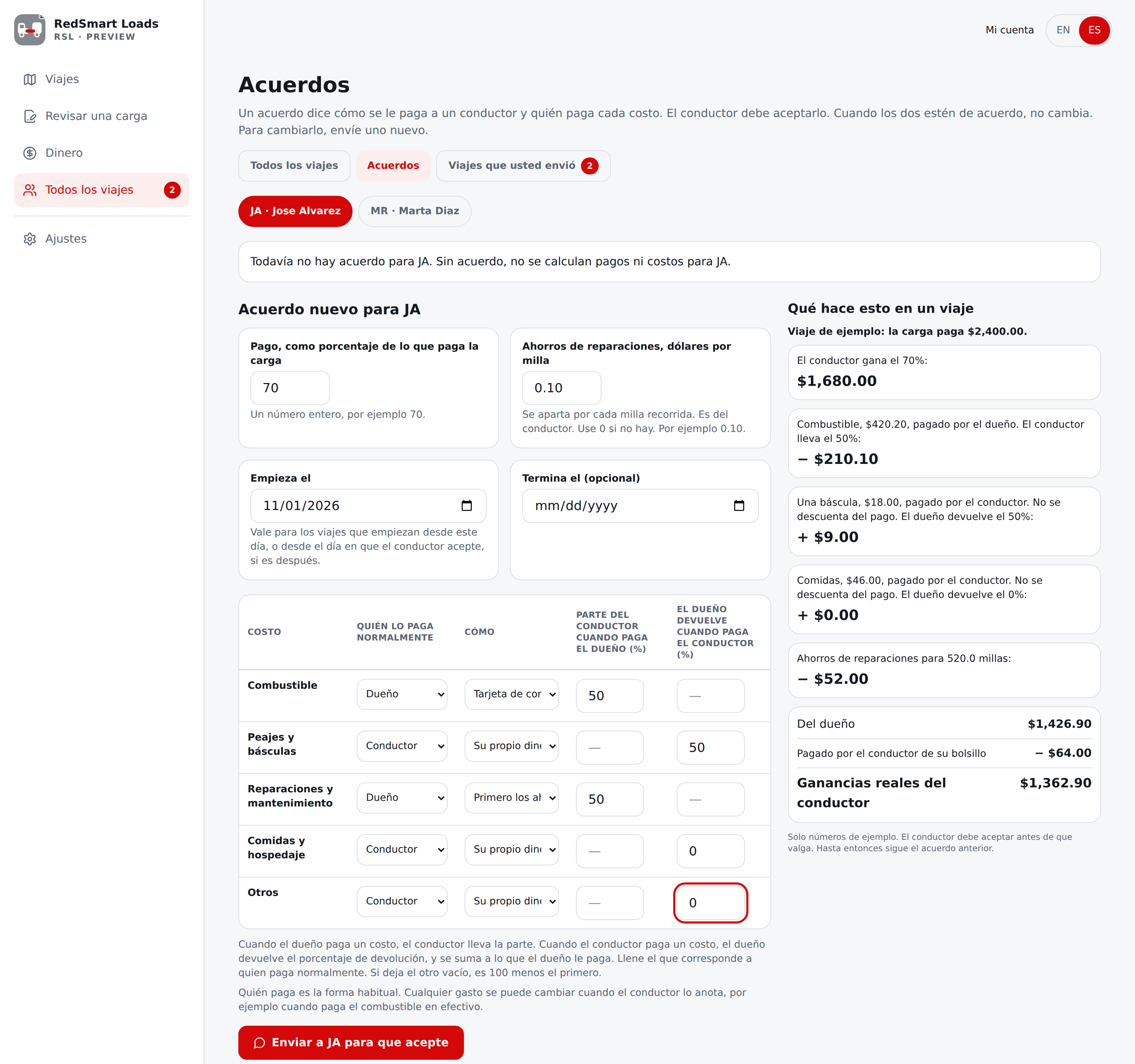
En un teléfono, esta misma pantalla muestra cada tipo de costo en su propia tarjeta: el nombre del costo y debajo las cuatro preguntas, cada una con su título. La página no se mueve hacia los lados.
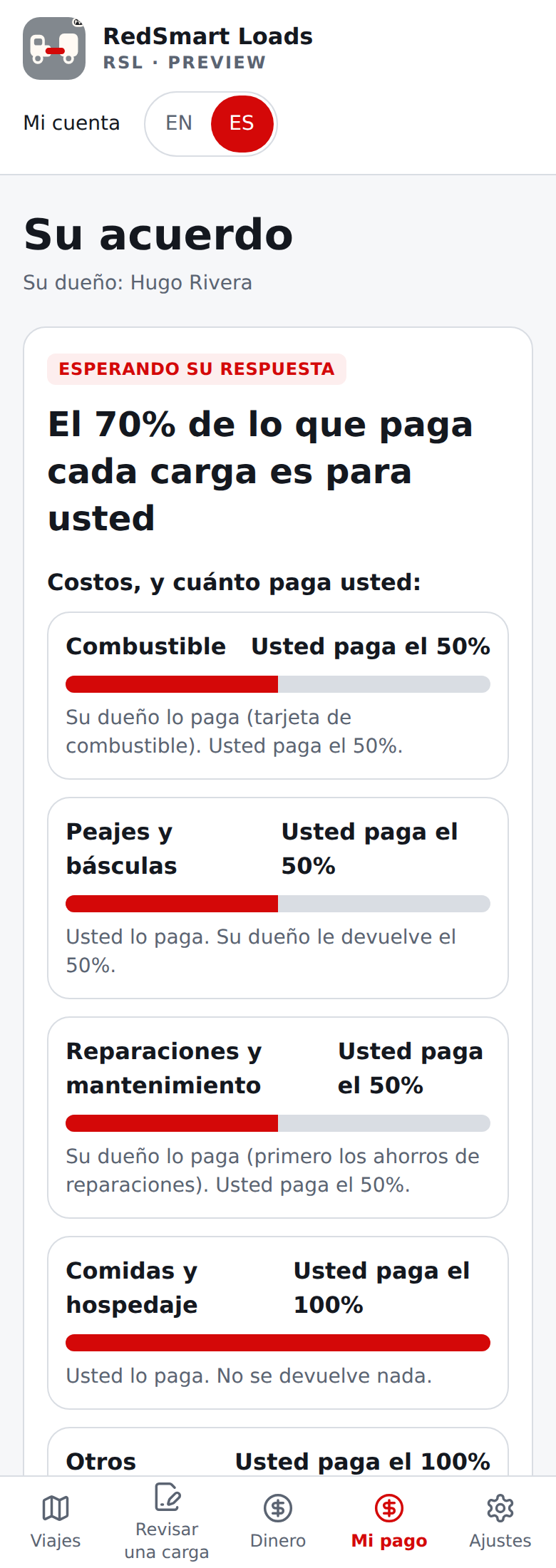
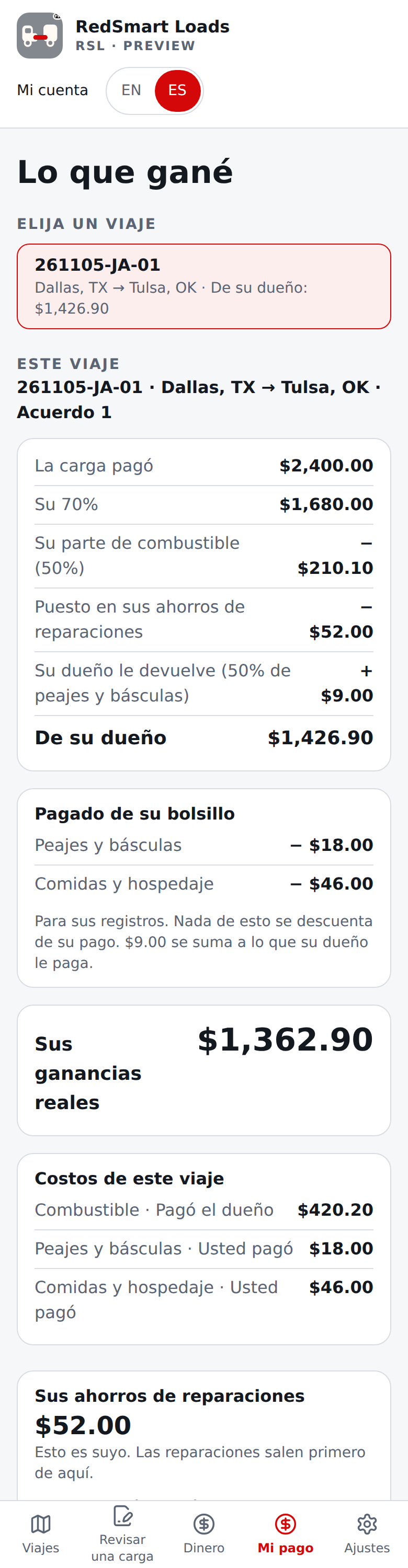
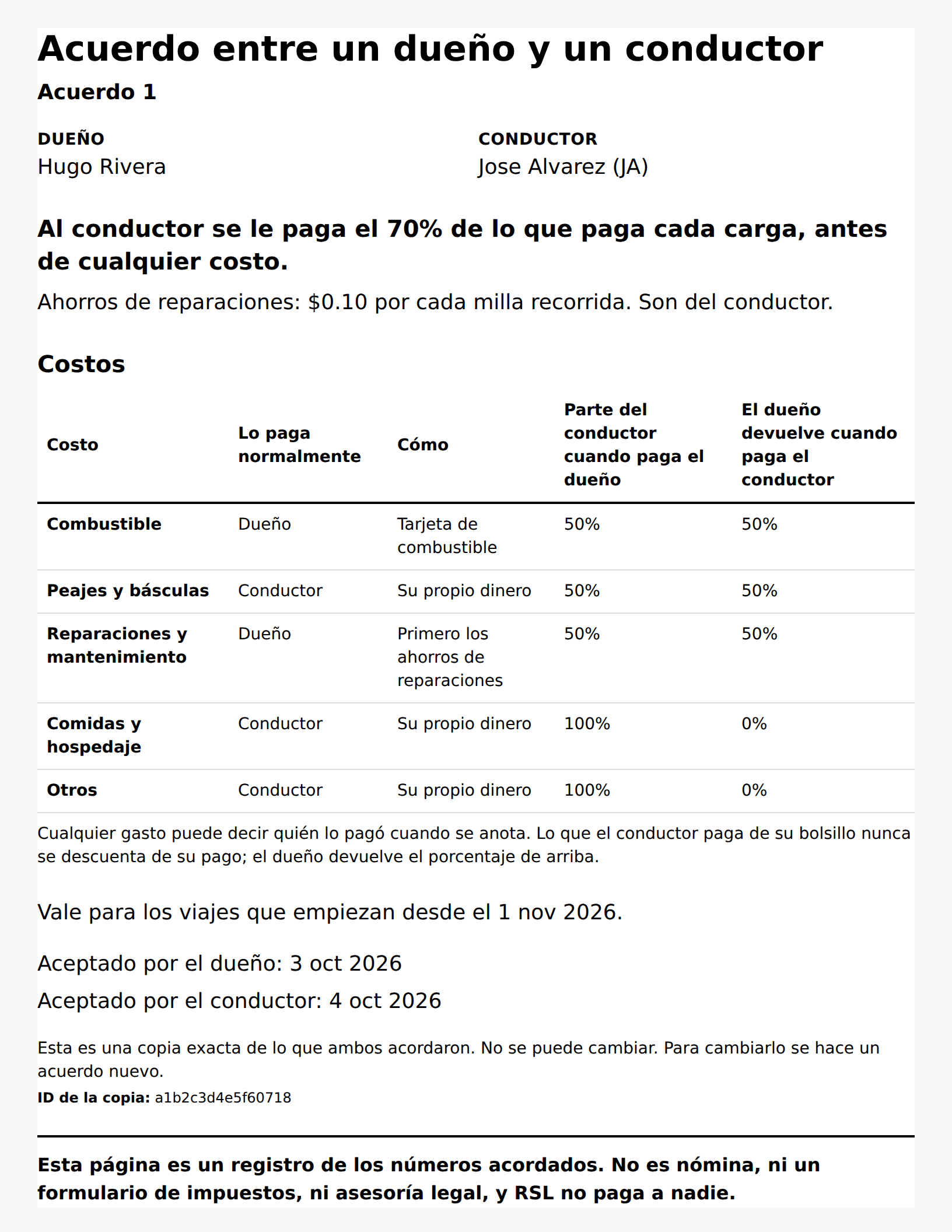
Las pantallas de acuerdos de arriba usan respuestas de relleno (vea el origen de las capturas), porque el entorno de captura no tiene un servidor de cuentas.
- Facturación (dueños) y cuando la cuenta es solo de lectura, solo donde Equipo está activado. Como dueño, Mi cuenta tiene la facturación dentro de Plan y facturación (el equipo está en Ajustes). Muestra los Asientos en uso (uno por cada conductor; usted, el dueño, es el plan mismo) y los asientos en su suscripción, dice en palabras sencillas si su suscripción coincide con sus conductores, y muestra su plan y su fecha. Cuando agrega un conductor, el asiento se agrega cuando acepta, y usted paga solo la parte del periodo de facturación que queda (esto se llama prorrateo). Cuando un conductor se va o usted lo quita, el asiento se quita y lo que ya pagó y no usó vuelve a usted como un crédito en su próxima factura. RSL nunca muestra un precio: los montos están en sus facturas de Stripe. Administrar la facturación y las facturas abre la página propia de Stripe (tarjeta, facturas, cancelar); sin plan puede elegir Suscribirse, pago mensual o Suscribirse, pago anual (solo donde la facturación está activada). Si un asiento todavía no se pudo actualizar, la sección lo dice y RSL sigue intentando; si tarda más de 3 días no puede invitar más conductores hasta que se arregle, y los conductores que ya están en la cuenta no se tocan. Si un pago falla, usted y sus conductores conservan el acceso completo durante 7 días (la sección dice cuándo termina). Después, o cuando su plan termina, toda la cuenta es solo de lectura, para usted y para cada conductor: todavía pueden ver sus registros, descargarlos e imprimirlos, ver las advertencias de seguridad y de licencia, terminar un viaje que ya empezó y (como dueño) ver Todos los viajes, los totales y la Facturación, y quitar a un conductor; nadie puede empezar viajes nuevos, sincronizar, enviar ni responder acuerdos, ni invitar conductores. Un conductor ve una tarjeta que dice que el plan de su dueño no está activo, qué sigue funcionando, y que lo que registre en el teléfono se queda allí y llega a usted después de que renueve; no se pierde nada, y no tiene el botón "avísame" porque no puede arreglarlo. Nadie puede aceptar una invitación a una cuenta solo de lectura. Cuando usted paga, todo vuelve a la vez. Una persona que no está en un equipo ve la tarjeta del punto 6 como antes.
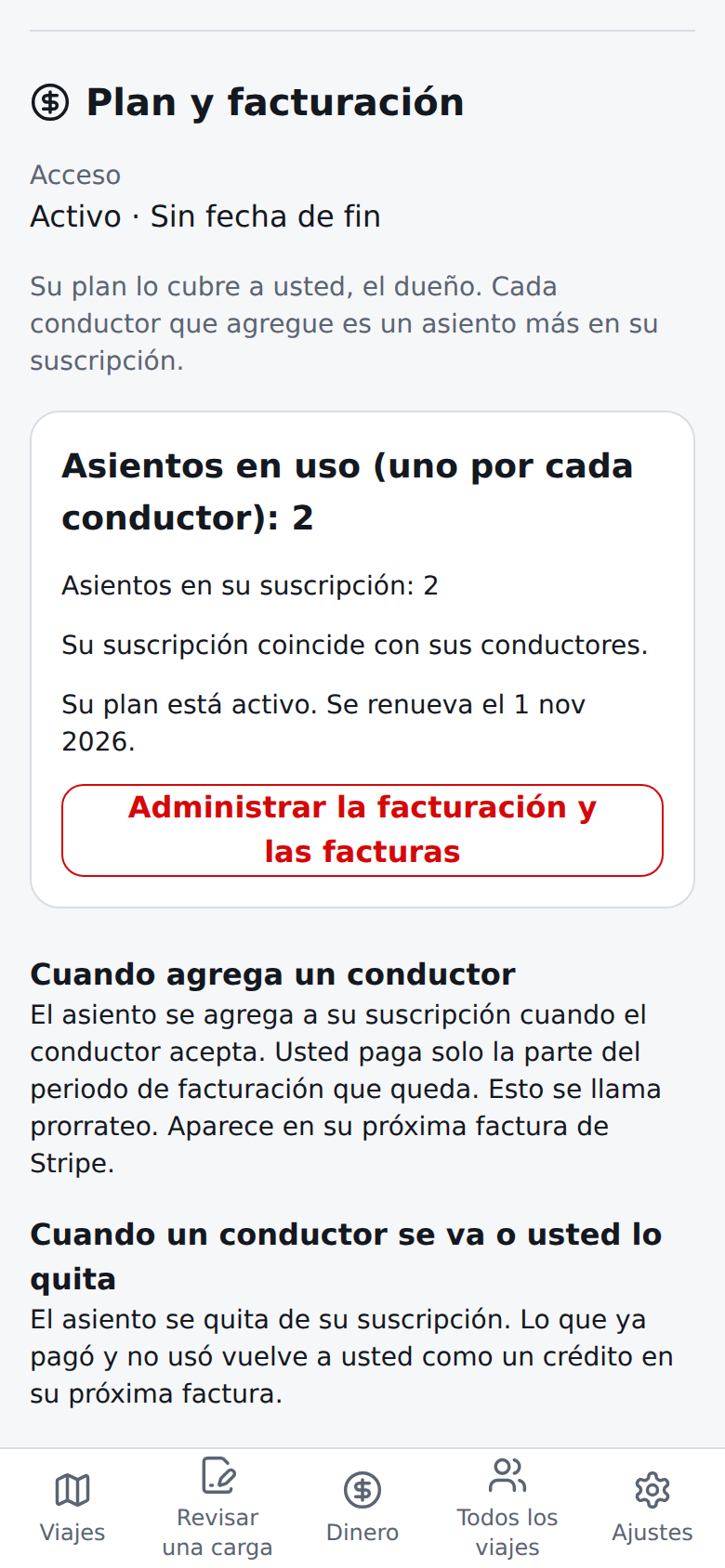
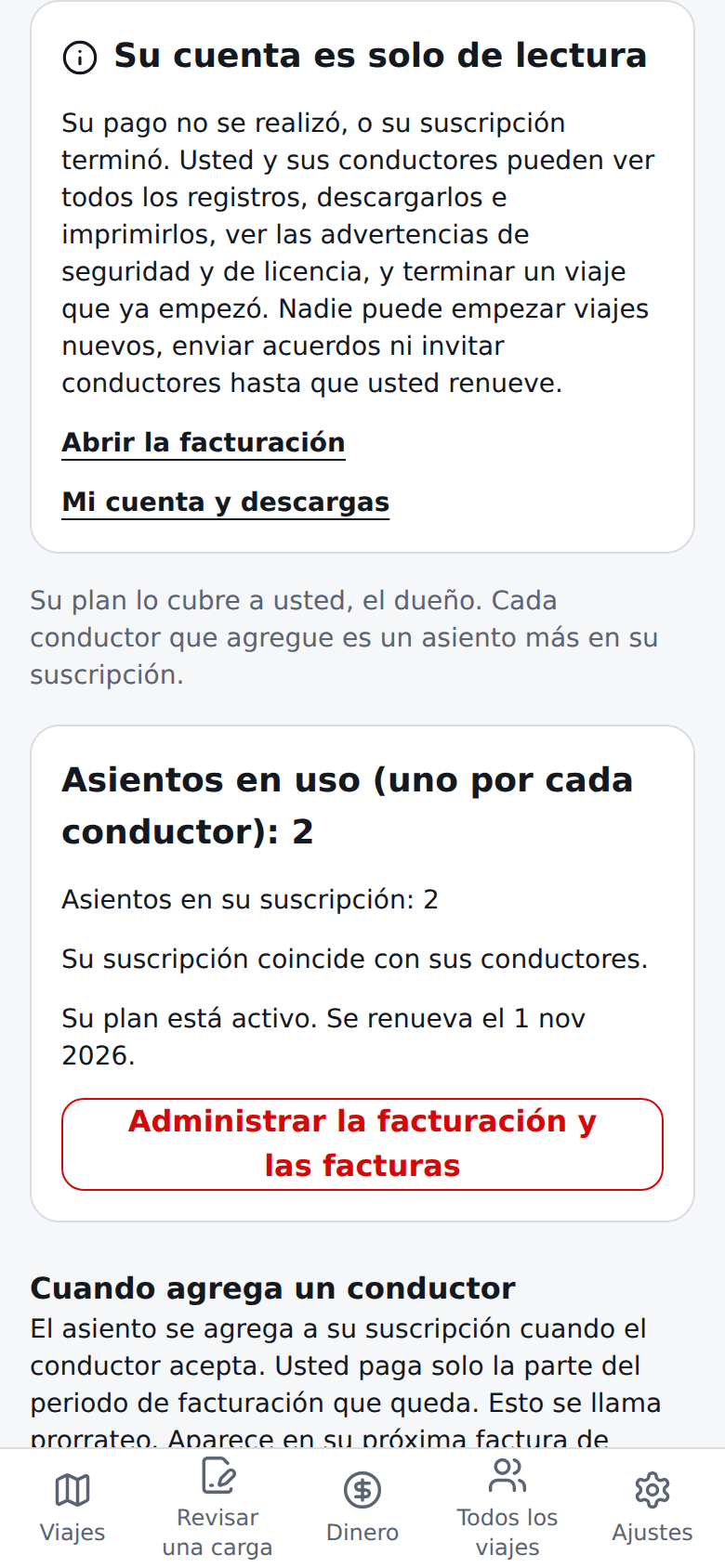
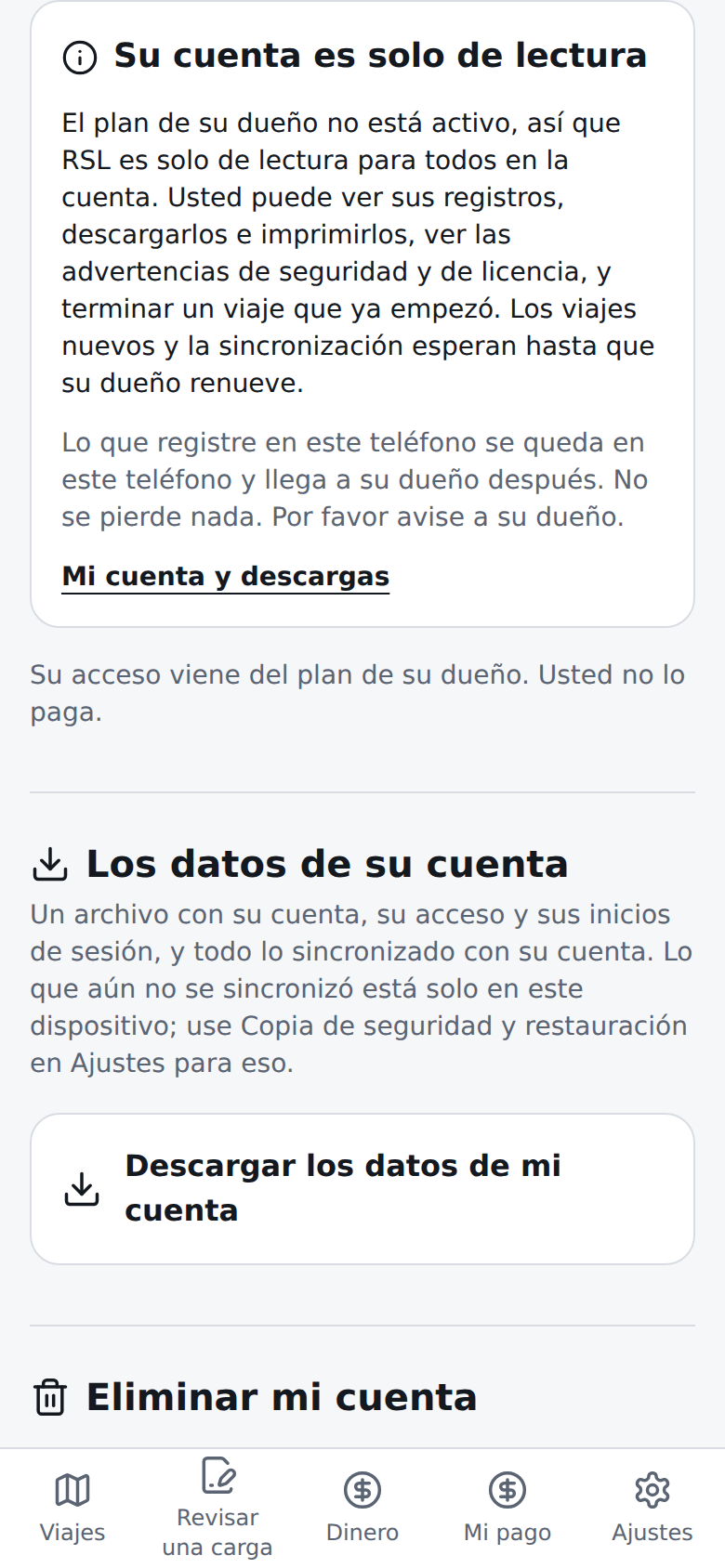
Las pantallas de Facturación de arriba usan respuestas de relleno (vea el origen de las capturas), porque el entorno de captura no tiene un servidor de cuentas ni Stripe.
- Enviar un viaje a un conductor desde una revisión de carga (dueños) y viajes de su dueño (conductores), solo donde Equipo está activado. Un dueño puede escribir un viaje para un conductor. Entonces aparece en el teléfono del conductor, listo para iniciarlo.
Como dueño, revise una carga como siempre. Al final del resultado, debajo de los controles de iniciar y poner en cola, la sección Enviar a un conductor ofrece Elegir un conductor y enviar. Solo la ve un dueño de una cuenta con equipo. Un conductor o una persona sin equipo nunca la ve. Si todavía no tiene conductores, lo dice y enlaza a Ajustes, Equipo, donde se agrega uno.
El formulario viene llenado con lo de la revisión: la Referencia de la carga, el Lugar de recogida y el Lugar de entrega, la Fecha de recogida y la Fecha de entrega si las escribió en el resultado, el Pago ofrecido por la carga y las Millas con carga. Puede cambiar cualquiera y agregar un Mensaje para el conductor corto (hasta 300 caracteres). Elija el conductor. El formulario se llena cuando lo abre; si después cambia los lugares o las fechas de arriba, ciérrelo y ábralo otra vez. Las horas no se envían, solo las fechas.
Si todavía no ha escrito su nombre, el formulario primero pregunta ¿Cuál es su nombre? Escríbalo una sola vez. Se guarda y el viaje se envía en el mismo toque. Es la misma pregunta del punto 7.
El panel debajo del formulario muestra lo que verá el conductor. Elija Enviar viaje. Sus costos y su ganancia nunca van incluidos. Un conductor puede tener 10 viajes esperando a la vez. Después de enviarlo, el formulario se cierra y una nota enlaza a Viajes que usted envió.
Detalles de las paradas (opcional). El formulario tiene una sección Detalles de las paradas, cerrada hasta que usted la abre, para la recogida y para la entrega: una dirección (solo cuando el lugar de arriba es solo una ciudad), el nombre del contacto, el teléfono del contacto, la hora de la cita o ventana (por ejemplo 08:00-10:00 o FCFS 6am-2pm) y notas del muelle o la entrada. Un teléfono admite dígitos, + ( ) - . y una extensión como x12; cualquier otra cosa se rechaza con el campo señalado. El panel debajo del formulario los muestra como los verá el conductor. Solo los ven este conductor y usted, en la aplicación. El correo al conductor no los incluye; conserva la ruta y su mensaje. Si cambia un viaje enviado, los detalles vuelven al formulario.


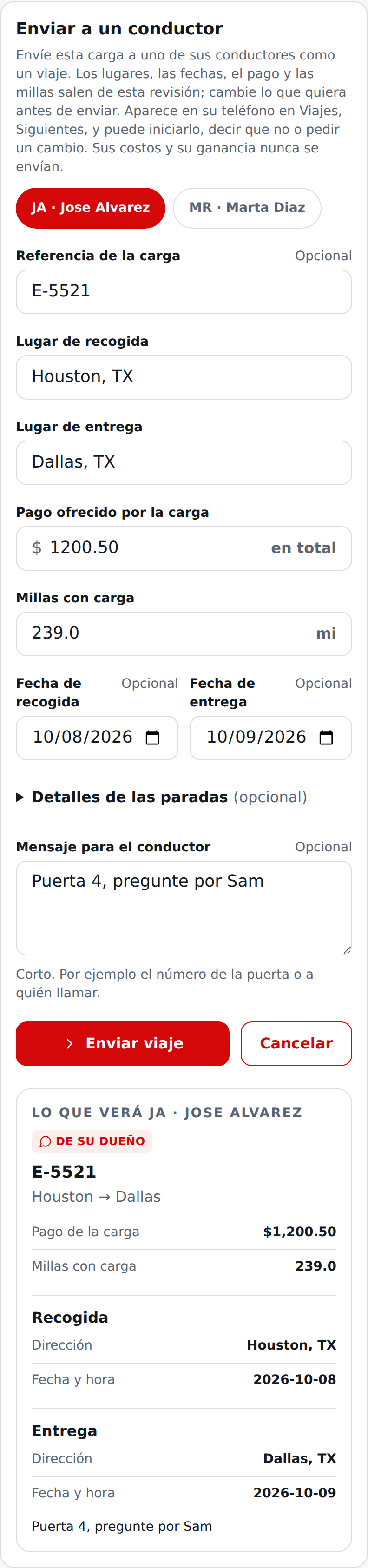
Viajes que usted envió está en Todos los viajes, junto a Acuerdos. Muestra en qué punto está cada viaje: enviado y esperando, iniciado, el conductor dijo que no, el conductor pidió un cambio (con su mensaje), o retirado. Historial lista cada paso. Un viaje con detalles de las paradas tiene una línea Detalles de las paradas que puede abrir para leerlos.
Hasta que el conductor inicie un viaje, usted puede Cambiarlo (se avisa al conductor y lo vuelve a leer), Enviarlo a otro conductor o Retirarlo (después de una confirmación). Cuando el conductor lo inicia, los datos que usted escribió ya no se pueden cambiar.
Se avisa al conductor por correo cuando usted envía, cambia o retira un viaje.
A usted se le avisa por correo, con el nombre del conductor, cuando el conductor inicia el viaje, dice que no, o pide un cambio. El correo enlaza a Viajes que usted envió. Muestra el mensaje del conductor tal como lo escribió, en una línea y sin direcciones web ni dominios. RedSmart Loads no verifica el nombre ni el mensaje, y el correo lo dice.
El correo de un inicio le llega una sola vez, aunque el teléfono sincronice otra vez o usted abra la pantalla muchas veces. Si un correo no se puede enviar, no se pierde nada: el viaje y la insignia lo siguen mostrando.
Una insignia con un número muestra cuántos viajes le necesitan: un conductor dijo que no, pidió un cambio o inició un viaje, y usted todavía no lo ha visto. Está en Todos los viajes, en Viajes que usted envió y en Ajustes dentro de Equipo. Abra Viajes que usted envió y desaparece. En esa visita esos viajes llevan la etiqueta Nuevo.
Una respuesta nueva se ve la próxima vez que abra la aplicación o vuelva a ella. No se empuja a su teléfono. Las correcciones después de iniciado un viaje siguen las reglas de correcciones del dueño, que todavía no están hechas.
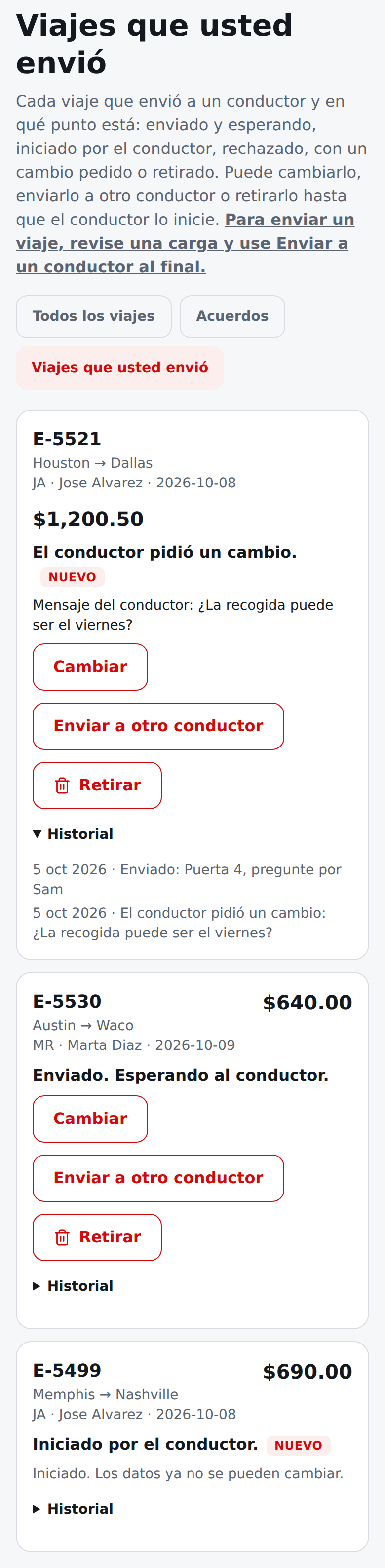
Un viaje que el conductor inició a partir de uno que usted envió tiene solo el pago de la carga y las millas. Queda marcado como sin cálculo, así que Todos los viajes muestra un guion en su estimación y una nota en lugar de una ganancia. Por conductor y Por camión lo dejan fuera de los totales de costo y ganancia estimados y lo dicen.
Los viajes enviados antes de este cambio se reconocen igual. La marca se queda con el viaje, así que es la misma en todas las pantallas.
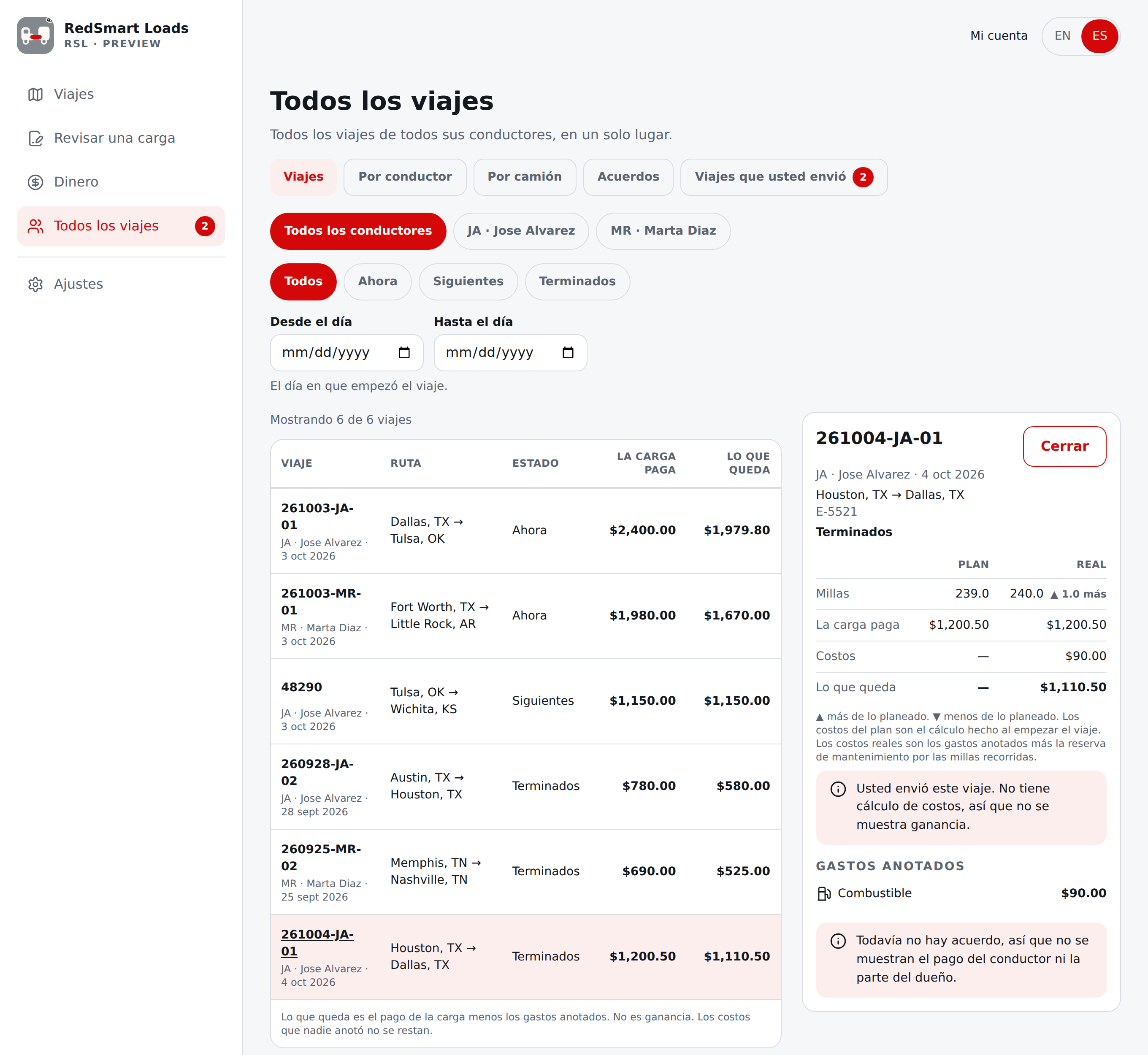
Como conductor, el viaje está en Viajes, en Siguientes, con la etiqueta De su dueño y el nombre de su dueño (nunca una dirección de correo). Ábralo para ver todo, el pago de la carga incluido. Nunca ve los costos de su dueño.
Escriba su odómetro al inicio y elija Iniciar este viaje. Pasa a ser su viaje en Ahora, con su propio número de viaje (se da al empezar, así que su fecha es la fecha de inicio). Iniciar funciona sin conexión una vez que el viaje está en su teléfono.
También puede elegir Rechazar, o Pedir un cambio y escribir qué debe cambiar. Su dueño recibe un correo y una insignia, y lo ve en Viajes que usted envió. Estas dos necesitan conexión. A su dueño también se le avisa cuando usted inicia el viaje.
Paradas e instrucciones de manejo. En el viaje abierto, y después en el viaje en Ahora, esta sección enumera cada parada, Recogida y Entrega: la dirección, la fecha y hora, el contacto con un teléfono que puede tocar para llamar, y las notas del muelle o la entrada, lo que escribió su dueño (usted puede escribir lo mismo en sus propios viajes en Detalles del viaje). Abrir en Mapas, debajo de cada parada, abre las indicaciones hasta ella en su app de mapas (Google Maps si está instalada, su navegador si no), desde donde está. Abrir toda la ruta en Mapas abre de la recogida a la entrega. El texto está en su teléfono con el viaje y funciona sin conexión; los mapas la necesitan, y solo se envía la dirección, y solo cuando usted toca. Donde el servicio de rutas está activado, Mostrar las millas de la ruta y el tiempo de manejo pide las millas y el tiempo de la recogida a la entrega y, si las millas difieren de las del viaje en una milla o más, muestra ambas y dice que son estimados. Es la ruta de un automóvil, no de un camión, y no es una imagen de mapa.
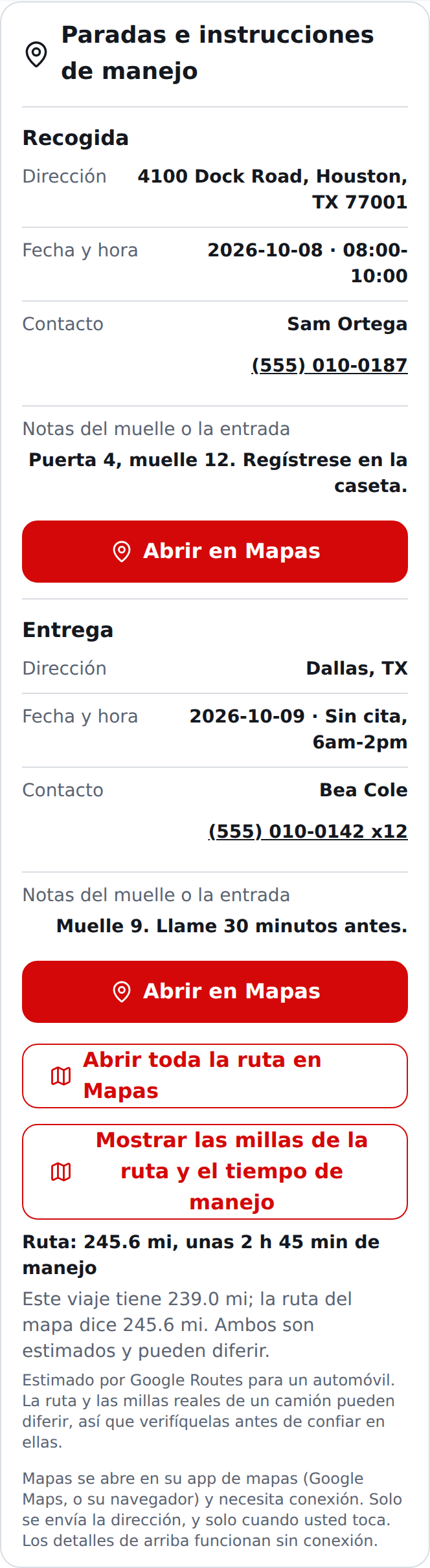
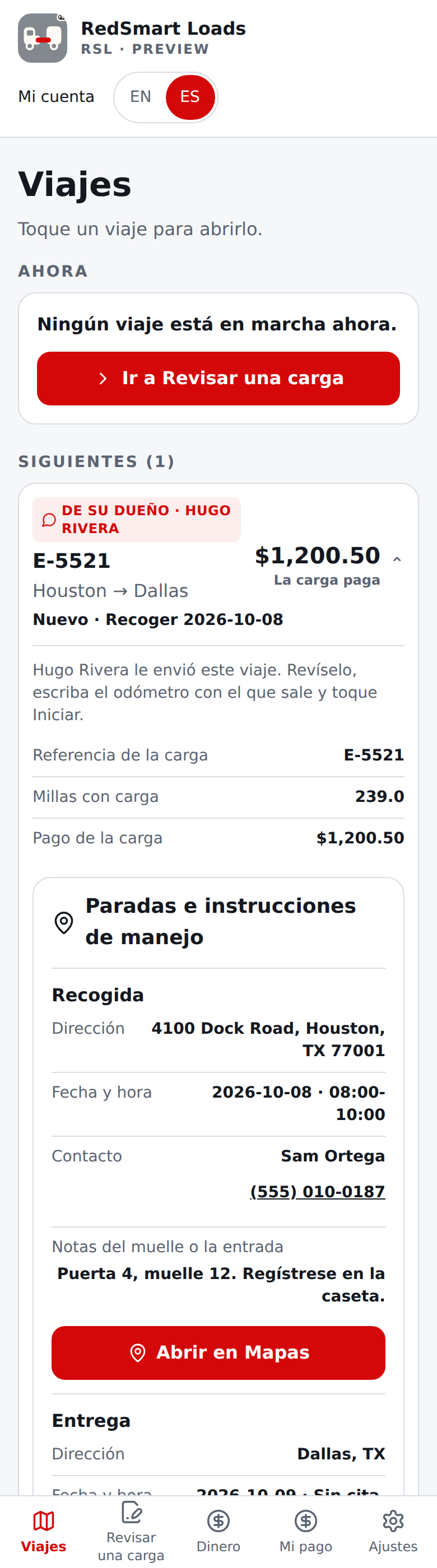
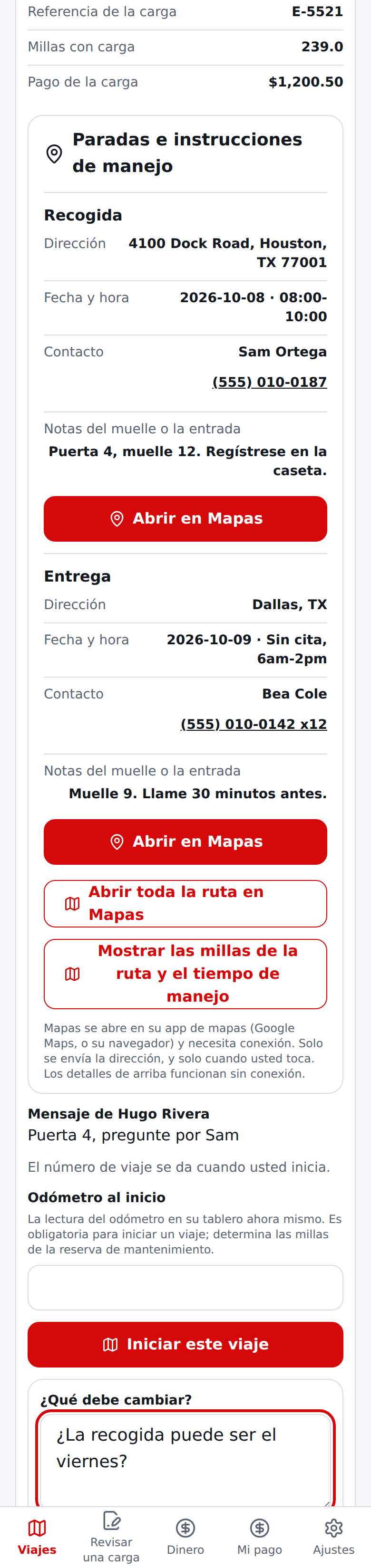
Si su dueño cambia o retira el viaje antes de que usted lo inicie, el teléfono lo muestra la próxima vez que se conecte. Un viaje que sigue esperando cuando usted deja el equipo se retira.
Un viaje que usted inició a partir de uno de su dueño no tiene cálculo de costos ni de ganancia con el que comparar. En Viajes, su tabla Plan y Real muestra un guion en costos y en lo que queda, y una nota dice por qué. Sigue así aunque después usted deje el equipo. El pago, las millas y sus propios gastos se ven como siempre.
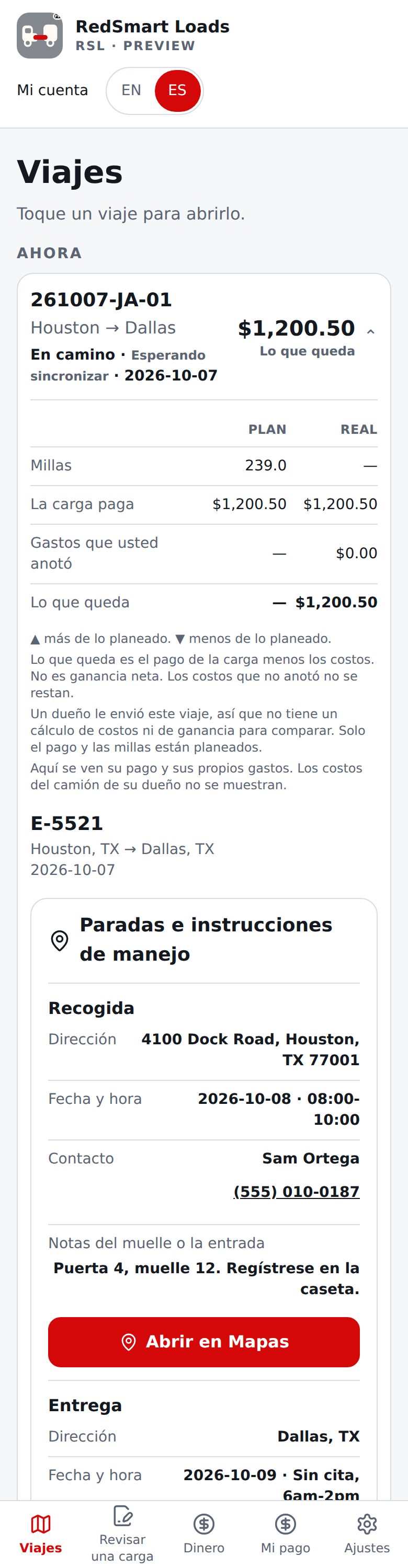
Las pantallas de Enviar a un conductor y Viajes que usted envió de arriba usan respuestas de ejemplo (vea el origen de las capturas), porque el entorno de captura no tiene servidor de cuentas.
Las pantallas de Todos los viajes usan respuestas de ejemplo (vea el origen de las capturas), porque el entorno de captura no tiene servidor de cuentas.
Sin sincronización, tus camiones, cargas, viajes y gastos se guardan solo en este dispositivo. La cuenta regresiva de la prueba es solo informativa en esta versión; nada deja de funcionar cuando llega a cero.